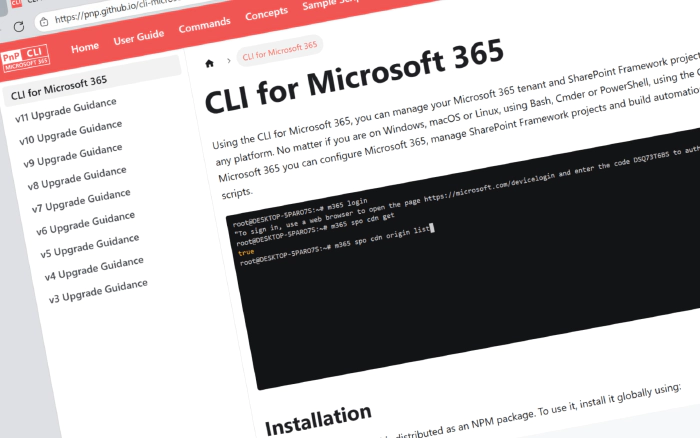
CLI for Microsoft 365 v11.4
 Jasey Waegebaert
- 6 minutes to read
- 31 Jan, 2026
We’re kicking off a new year with CLI for Microsoft 365 v11.4, bringing a focused set of improvements that make day-to-day administration just a bit easier. CLI for Microsoft 365 remains the cross-platform tool you can use to manage your Microsoft 365 tenant and SharePoint Framework projects, and this release adds new commands across SharePoint, SharePoint Embedded, and SharePoint Premium platform updates and fixes that have landed.
Because we didn’t publish dedicated blog posts for v11.3 and v11.3.1, this article also highlights the most important changes from those releases so you start 2026 fully up to date.
Explore the full release notes to see everything that landed in v11.4 and earlier 11.3 releases.
What’s new in v11.4
SharePoint list default value
The new spo list defaultvalue get command lets you retrieve a specific default column value from a document library. This is especially useful when you’re auditing metadata behavior across libraries or troubleshooting why new documents are being tagged in a certain way.
To get the default value from the root folder of the list, run:
m365 spo list defaultvalue get --webUrl https://contoso.sharepoint.com/sites/Marketing --listTitle Logos --fieldName Company
You can also target a specific folder in the list:
m365 spo list defaultvalue get --webUrl https://contoso.sharepoint.com/sites/Marketing --listTitle Logos --fieldName Company --folderUrl "/sites/Marketing/Logos/Contoso"
For additional options and response details, visit the command documentation
SharePoint Embedded recycle bin item removal
Working with SharePoint Embedded containers often involves strict lifecycle management. The new spe container recyclebinitem remove command lets you permanently remove a container from the recycle bin when you’re sure it’s no longer needed.
To remove a specific container from the recycle bin, run:
m365 spe container recyclebinitem remove --id "b!ISJs1WRro0y0EWgkUYcktDa0mE8zSlFEqFzqRn70Zwp1CEtDEBZgQICPkRbil_5Z"
For additional options and response details, visit the command documentation
SharePoint Premium autofill column setting
SharePoint Premium brings intelligent content services to your document libraries. The new spp autofillcolumn set command helps you apply the autofill option to the selected column so metadata can be automatically populated based on previous values.
To apply an autofill column on a selected column to a document library based on the list id, you might run:
m365 spp autofillcolumn set --siteUrl "https://contoso.sharepoint.com/sites/mainSite" --listId "7645e69d-21fb-4a24-a17a-9bdfa7cb63dc" --columnId "1045e69d-21fb-4214-a25a-9bdfa7cb63a2" --prompt "Write a 2-line summary of the document"
To apply an autofill column on a selected column to a document library based on the list id and column internal name, you might run:
m365 spp autofillcolumn set --siteUrl "https://contoso.sharepoint.com/sites/mainSite" --listId "7645e69d-21fb-4a24-a17a-9bdfa7cb63dc" --columnInternalName "ColumnTitle" --prompt "Write a 2-line summary of the document"
For additional options and response details, visit the command documentation
What’s changed in v11.4
Zod v4 migration
The CLI has migrated its validation layer to Zod v4, giving commands more consistent and predictable option validation. This makes it easier for contributors to add new commands and for automation to rely on clear error messages when options are missing or misconfigured.
There are still some commands that are not migrated to Zod, but we are working on it. If you want to help us, you can check the Zod migration issues and help us migrate all the commands to Zod.
Teams chat enhancements
The Teams commands have been enhanced with new features and improvements. Let’s go over a few examples of what has changed:
teams chat message sendnow supports HTML messages, giving you more control over formatting when sending notifications and status updates.teams chat message listgained a new--endDateTimeoption, so you can define the exclusive end of the time range when messages were created and focus your troubleshooting or reporting on a precise window.
Page and file authoring enhancements
Authoring SharePoint sites also benefits from a few targeted improvements:
- The
spo page setcommand now includes an--isRetiredoption so you can mark pages as retired and clearly indicate that content may be out of date. - The
spo page header setcommand adds a--showTimeToReadswitch to surface estimated reading time directly in the page header. - The
spo file addcommand now supports--overwriteto control replacement behavior and--fileNameso you can decouple the server-side file name from the local file name you upload.
Runtime support and reliability fixes
We’ve also invested in keeping the CLI aligned with the latest platform and tightening up some rough edges:
- Added support for Node.js v24, so you can upgrade your runtime without losing CLI support.
- Resolved duplicate names for the connection set command.
Catching up on v11.3 and v11.3.1
We didn’t publish standalone blog posts for v11.3.0 and v11.3.1, but they included several notable improvements that are worth calling out. Here are the highlights so you don’t miss them.
v11.3.0 highlights
SPFx support updates
Added support for SPFx v1.22.0 and v1.22.1, and extended spfx doctor with support for Heft, making it easier to validate modern SPFx project setups.
Additional changes
Enforced delegated access tokens for OneNote commands, aligning behavior with modern authentication expectations.
v11.3.1 highlights
The v11.3.1 patch release focused on targeted fixes:
- Fixed the external item add command when using custom properties.
- Corrected short option aliases for spe container commands.
- Extended spfx project upgrade to correctly handle range (
~) versions, improving upgrade guidance for projects that rely on version ranges. spfx project upgrade documentation
Keep the momentum going
Across these releases, the focus has been on reliability, validation, and governance: from Zod v4 to SPFx and SharePoint Embedded enhancements. Many of these changes came from community feedback and pull requests, and they continue to shape how the CLI evolves.
If you’re looking for a good place to contribute, check out the open “help wanted” issues, or share scenarios where new commands or samples would help your team.
Contributors
We want to extend our heartfelt appreciation to the incredible individuals who have made this release possible. Without their valuable contributions and dedication, CLI for Microsoft 365 wouldn’t be where it is today. Let’s give a round of applause to the following contributors (in alphabetical order):
- Adam Wójcik
- Albert-Jan Schot
- Antanina Druzhkina
- Martin Machacek
- Michał Kornet
- Milan Holemans
- Saurabh Tripathi
- Tobias Maestrini
Get started today!
Experience the power of CLI for Microsoft 365 by getting the latest release from npm:
npm i -g @pnp/cli-microsoft365
Alternatively, you can access the latest release from Docker:
docker run --rm -it m365pnp/cli-microsoft365:latest
Need more information?
For additional guidance on getting started or to explore detailed information about commands, architecture, or the project itself, visit aka.ms/cli-m365.
Stay connected!
We value your feedback and are eager to hear from you. If you have any suggestions for improvement or want to engage with our community, you can reach out to us on GitHub, Discord or Bluesky. Your input plays a vital role in shaping the future of CLI for Microsoft 365.