

CLI for Microsoft 365 v12.0
 Jasey Waegebaert
- 10 minutes to read
- 02 Nov, 2026
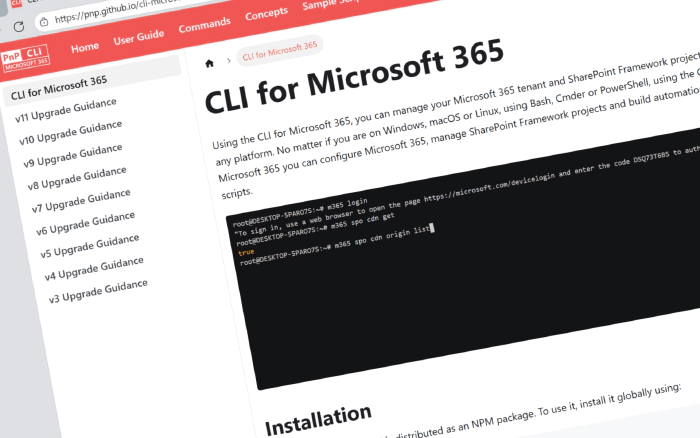
We’re excited to announce CLI for Microsoft 365 v12.0, a new major release that brings support for SharePoint Framework v1.24, safer defaults, more secure token storage, and a set of new commands. CLI for Microsoft 365 is a cross-platform command-line tool that allows you to manage your Microsoft 365 tenant and SharePoint Framework projects. As with every major version, this release also includes breaking changes, so take a moment to review them before you upgrade.
Explore the release notes to discover all the new features and improvements in this release.
CLI for Microsoft 365 v12.0 – Major release overview
A major release is our chance to make the changes we can’t make in a minor version. For v12.0, we focused on three themes: protecting your data from accidental loss, keeping your credentials secure, and making commands behave more consistently and predictably in your scripts.
Key improvements in v12.0
Secure token storage: The token cache is no longer stored as a plain JSON file in your home directory. CLI for Microsoft 365 now keeps it in the credential store of your operating system: DPAPI on Windows, Keychain on macOS, and libsecret on Linux. Existing tokens aren’t migrated, so if you signed in using device code or browser authentication, you’ll need to sign in again after upgrading.
Recycle bin by default: To prevent unintentional data loss, remove commands now move items to the recycle bin by default. This applies to spo file remove, spo folder remove, spo list remove, spo listitem remove, spo listitem batch remove, spo page remove, and spe container remove, which previously deleted items permanently. To delete an item permanently, use the new --permanent flag, which also replaces --skipRecycleBin in spo site remove and entra m365group remove.
No more accidental overwrites: spo file add no longer overwrites existing files unless you specify --overwrite, and spo page header set no longer resets the options you don’t specify to their default values.
Updated APIs: The spo navigation node commands now use a newer API that returns richer information about navigation nodes, such as whether a link opens in a new tab. spo contenttype sync now relies on SharePoint APIs only, and Teams commands that accept a team name now resolve it using the Microsoft Teams endpoint.
Consistent output and options: list commands that returned nothing when no items were found now return an empty array, the properties option of spo listitem get has been renamed to fields, and the spo web alert aliases have been removed following the retirement of SharePoint alerts.
Here’s what the new remove behavior looks like in practice:
# Moves the file to the recycle bin
m365 spo file remove --webUrl https://contoso.sharepoint.com/sites/project-x --url "/Shared Documents/Test.docx"

# Deletes the file permanently
m365 spo file remove --webUrl https://contoso.sharepoint.com/sites/project-x --url "/Shared Documents/Test.docx" --permanent
For detailed migration guidance, see our v12 Upgrade Guidance. Every breaking change has its own ID, a description of what changed, and the exact steps to update your scripts. We’ve also reviewed our sample scripts so they work with v12.
SharePoint Framework v1.24 support
SharePoint Framework v1.24 is generally available, and CLI for Microsoft 365 v12.0 is ready for it. SPFx v1.24 is a significant release: it makes Copilot UX components (introduced in preview as SharePoint Copilot Apps) generally available, updates the React runtime to React 18.3.1, and adds support for Node.js 24 and 26. To help you move your projects forward, we’ve added support for SPFx v1.24.1 to our SPFx commands. You can generate upgrade guidance for your project, validate its dependencies, and check that your local environment is ready for the latest version.
To get step-by-step guidance on upgrading your project to SPFx v1.24.1, run the following command in the root of your project:
m365 spfx project upgrade --toVersion 1.24.1 --output md > "upgrade-report.md"
Since SPFx v1.24 moves React-based solutions to React 18, look beyond the package updates when you upgrade, and test your solution in every host it supports.
To verify that your development environment meets the requirements of SPFx v1.24.1, run:
m365 spfx doctor --spfxVersion 1.24.1 --output text
For more information, see: spfx project upgrade and spfx doctor
Heft-based CI/CD workflows
Starting with SPFx v1.22, the SharePoint Framework toolchain moved from gulp to Heft. The spfx project github workflow add and spfx project azuredevops pipeline add commands now check the SPFx version of your project and generate a workflow or pipeline that uses Heft for projects on SPFx v1.22 and later. Projects on older versions keep using gulp, so you get a working pipeline either way.
To add a GitHub workflow to your SPFx project, run:
m365 spfx project github workflow add
For more information, see: spfx project github workflow add and spfx project azuredevops pipeline add
Node.js 26 support
Node.js 26 LTS is the recommended baseline for SPFx v1.24 development. CLI for Microsoft 365 v12.0 adds support for Node.js 26 as well, so you can use the same runtime for your SPFx projects and the CLI.
New commands in v12.0
Unarchive SharePoint folders
In v11.9, we introduced the spo folder archive command. This release adds its counterpart, so you can bring archived folders back to an active state straight from the command line.
To unarchive a folder by its URL, run:
m365 spo folder unarchive --webUrl https://contoso.sharepoint.com/sites/Marketing --url '/sites/Marketing/documents/general'
Keep in mind that reactivation can take up to 24 hours, and reactivated folders can’t be archived again for 120 days.
For more information, see: spo folder unarchive
Unpublish modern pages
We’ve had the spo page publish command for a while, and now you can also do the reverse. The new spo page unpublish command is handy when a page needs to go back to draft, for example to make further edits before it goes live again.
To unpublish a modern page, run:
m365 spo page unpublish --webUrl https://contoso.sharepoint.com/sites/Marketing --name "Style guide.aspx"
For more information, see: spo page unpublish
Retrieve a SharePoint rule
In v11.10, we renamed the spo web alert commands to spo web rule. This release extends that set with a command to retrieve the details of a specific rule, such as the list it applies to and the user it belongs to.
To retrieve a rule by its ID, run:
m365 spo web rule get --webUrl https://contoso.sharepoint.com/sites/Marketing --id 7cbb4c8d-8e4d-4d2e-9c6f-3f1d8b2e6a0e
For more information, see: spo web rule get
Remove SharePoint Embedded container permissions
Managing access to SharePoint Embedded containers just got easier. Alongside the existing spe container permission list command, you can now remove permissions from a container as well.
To remove a permission from a container without prompting for confirmation, run:
m365 spe container permission remove --containerId "b!ISJs1WRro0y0EWgkUYcktDa0mE8zSlFEqFzqRn70Zwp1CEtDEBZgQICPkRbil_5Z" --id "cmVhZGVyX2k6MCMuZnxtZW1iZXJzaGlwfHJvcnlicjExMUBvdXRsb29rLmNvbQ" --force
For more information, see: spe container permission remove
Additional improvements
Beyond the new commands, we’ve made several improvements to existing functionality:
Federated identity in GitLab CI/CD
Signing in with federated identity was already supported in GitHub Actions and Azure DevOps. Starting with this release, you can also use it in GitLab CI/CD, so your pipelines can sign in to Microsoft 365 without storing any secrets. Request an ID token in your GitLab job and pass the ID of your app registration and tenant to the login command:
job:
  id_tokens:
    GITLAB_OIDC_TOKEN:
      aud: "api://AzureADTokenExchange"
  script:
    - m365 login --authType federatedIdentity --appId eb96cfd0-abfa-4477-8d1d-c6dfde3efb19 --tenant 9a1a1bbd-e158-4cf5-967d-a53b8e85c628
For more information, see: login
Find archived sites with spo site list
The spo site list command has a new --state option that lets you filter sites by their archive state. Allowed values are active, recentlyArchived (archived within the last 7 days), fullyArchived (archived longer than 7 days), and archived (both).
To list all archived sites in your tenant, run:
m365 spo site list --state archived
For more information, see: spo site list
Tenant app catalog by default for spo storageentity commands
The appCatalogUrl option of the spo storageentity commands is now optional. When you don’t specify it, the commands automatically resolve and use your tenant app catalog, which saves you a lookup in your scripts.
m365 spo storageentity set --key AnalyticsId --value 123 --description 'Web analytics ID' --comment 'Use on all sites'
Notable fixes
We’ve also fixed a number of issues reported by the community:
spo file get --asStringnow returns the contents of JSON files as a string, instead of[object Object].- App-only login no longer fails when the access token doesn’t contain an
oidclaim, for example when the service principal is missing. cli consentnow correctly resolves the client ID, instead of generating a consent URL withclient_id=undefined.spo externaluser listnow returns the external users that SharePoint reports, instead of returning no output.spo listitem set --systemUpdatenow works on sites that use a different managed path, such as/teams/.- Shell detection on Windows now uses
tasklistinstead of the deprecatedwmictool.
Telemetry now uses Google Analytics
We’ve replaced Application Insights with Google Analytics for the anonymous usage telemetry of CLI for Microsoft 365. As before, we never track personal information or the values you pass to options. We collect the name of the command, which options you used, the CLI and Node.js versions, your operating system and shell, and whether you’re running in Docker or a CI/CD environment. To group events from the same installation, the CLI stores a randomly generated ID in its local configuration. This ID isn’t derived from any personal or device information.
Telemetry helps us understand how the CLI is used and where to focus our efforts, but you can always turn it off by running:
m365 cli config set --key disableTelemetry --value true
For more information, see: Telemetry
Under the hood
- TypeScript 7: We migrated the CLI codebase to TypeScript 7.
- Trusted publishing: Our release workflow now publishes to npm using trusted publishing, which removes the need for long-lived npm tokens in our pipeline.
- Minimal permissions: We documented the least privileged permissions for many more commands, including the
spo file,spo folder,spo list,spo listitem attachment,teams app,teams tab,tenant, andviva engage messagecommands. - Zod migration: Large parts of the SharePoint Online and Teams commands, along with the
entra m365group,spp,tenant, andutilcommands, now use Zod for consistent option validation and clearer error messages.
Upcoming changes
We continue to work on exciting new features and improvements for future releases.
In development:
- Over 50 pull requests in progress with new features and improvements
- 66 issues available for community contribution
Community input welcome:
- Submit suggestions via GitHub Issues
- Join discussions on our Discord server
- Share your ideas for new commands and improvements
We value community feedback and many of our best features have come from user suggestions. Your input helps shape the future of CLI for Microsoft 365.
Contributors
We want to extend our heartfelt appreciation to the incredible individuals who have made this release possible. Without their valuable contributions and dedication, CLI for Microsoft 365 wouldn’t be where it is today. Let’s give a round of applause to the following contributors (in alphabetical order):
- Adam Wójcik
- Anikesh Thakur
- Elliot Margot
- Fabian Hutzli
- Kevin Kaminski
- Martin Machacek
- Mathijs Verbeeck
- Matt Van Horn
- Milan Holemans
- Nanddeep Nachan
- Sarthak Shreshtha
- Saurabh Tripathi
- Smita Nachan
- Waldek Mastykarz
A special welcome to Anikesh, Elliot, Fabian, Kevin, and Sarthak, who made their first contributions to CLI for Microsoft 365 in this release. We’re thrilled to have you on board!
High fives
We would like to give a big shout-out and high-fives to the amazing individuals who have shared their invaluable feedback and ideas for improving CLI for Microsoft 365. We greatly appreciate your engagement and contribution to the growth of our platform. Let’s celebrate the following users (in alphabetical order) for taking the time to share their insights:
Thank you for making CLI for Microsoft 365 better for everyone!
Get started today!
Experience the power of CLI for Microsoft 365 by getting the latest release from npm:
npm i -g @pnp/cli-microsoft365
Alternatively, you can access the latest release from Docker:
docker run --rm -it m365pnp/cli-microsoft365:latest
Need more information?
For additional guidance on getting started or to explore detailed information about commands, architecture, or the project itself, visit aka.ms/cli-m365.
Stay connected!
We value your feedback and are eager to hear from you. If you have any suggestions for improvement or want to engage with our community, you can reach out to us on GitHub, Discord or Bluesky. Don’t hesitate to connect with us. Your input plays a vital role in shaping the future of CLI for Microsoft 365.