

Introducing the PnP PowerShell MCP Server
 Nishkalank Bezawada
- 7 minutes to read
- 24 Aug, 2026
🤖 Say hello to your new PnP PowerShell MCP Server (Preview 🚀)
⚠️ This is early beta and evolving. It’s not production-ready yet, but we’d love for you to try it out, push it to its limits, and help us shape what it becomes. Your feedback and ideas are what make this better.
Ever wished you could just tell PnP PowerShell what you want, instead of hunting through 800+ cmdlets and their parameter sets? Now you can—experimentally. 🎉
The PnP PowerShell MCP Server turns your favourite AI assistant like GitHub Copilot, Claude, Cursor, and more into a PnP PowerShell copilot. Type a plain English request, and it figures out the right chain of cmdlets, runs them against your connected tenant, and hands you back the result. No more digging through docs to remember whether it’s -Identity or -List, no more copy-pasting snippets from old scripts. Just describe the outcome you want.
It doesn’t stop at running commands, either. It can search the community’s PnP Script Samples library for you, pull up the exact cmdlet documentation you need, and it always asks before doing anything destructive so you get the speed of natural language without giving up control.
🧩 So what actually is this thing?
The Model Context Protocol (MCP) is an open standard that lets AI assistants talk to external tools in a consistent way. The PnP PowerShell MCP Server is an experimental implementation, a small local (stdio) MCP server that runs on your machine and shells out to the PnP PowerShell module you already have installed.
That means it reuses your sign-in and your connection, it never authenticates on your behalf, and it never sends your tenant data anywhere else. Think of it as a thin, trustworthy layer that lets your AI client drive PnP PowerShell for you, safely. Just keep in mind: we’re still figuring out the best way to do this, and your feedback helps us get there.
✨ Why you’ll want this in your toolbox
Once it’s wired up, you can manage huge chunks of Microsoft 365 without leaving your chat window:
- SharePoint Online - sites, lists, libraries, columns, items, pages
- Microsoft Teams - teams, channels, posts
- Entra ID, OneDrive, Planner, Power Platform, Microsoft 365 Groups
- Taxonomy, search, and tenant administration
And honestly, one of the best parts is how it jump-starts your own scripts. Stuck on how to automate something? Just ask and it’ll find the closest community sample and adapt it to your scenario, so you start from working code instead of a blank file.
🚀 Get it running in minutes
Setting this up is genuinely quick. You’ll be chatting your way through PnP PowerShell before you know it. Pick whichever install path suits you.
Option 1: Install as a .NET global tool
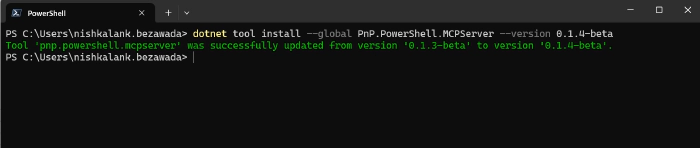
dotnet tool install --global PnP.PowerShell.MCPServer --version 0.1.5-beta
This installs a self-contained, native AOT executable named pnp-powershell-mcp-server on your PATH. It supports Windows (x64, arm64), macOS (arm64, x64), and Linux (x64, arm64, musl x64).
Option 2: Run on-demand with dnx
If you’re on the .NET 10 SDK, you don’t need to install anything up front, you can point your MCP client at the NuGet package directly and let the dnx tool runner fetch and run it. Add this to your .vscode/mcp.json:
{
  "servers": {
    "PnP.PowerShell.MCPServer": {
      "type": "stdio",
      "command": "dnx",
      "args": ["PnP.PowerShell.MCPServer@0.1.5-beta", "--yes"]
    }
  }
}
This is the configuration surfaced on the NuGet package page. Pin the version (@0.1.5-beta) to a specific release, or drop it to always pull the latest prerelease.
Add to VS Code
If you installed the global tool (Option 1), register it with VS Code:
Open the Command Palette (
Ctrl+Shift+P/Cmd+Shift+P) and typeMCP: Add Server.Select Command (stdio) as the server type.
Enter the command to run the MCP server:
pnp-powershell-mcp-serverName the server (e.g.,
PnP PowerShell MCP Server).
You should end up with the following in your .vscode/mcp.json file:
{
    "servers": {
        "PnP PowerShell MCP Server": {
            "type": "stdio",
            "command": "pnp-powershell-mcp-server"
        }
    }
}
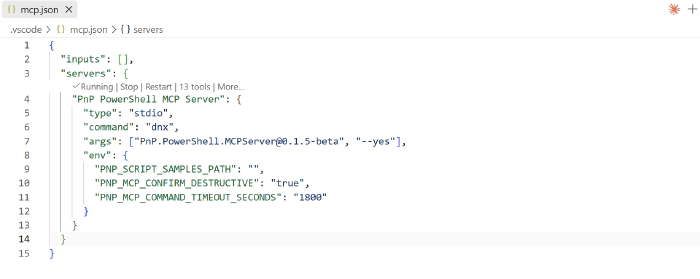
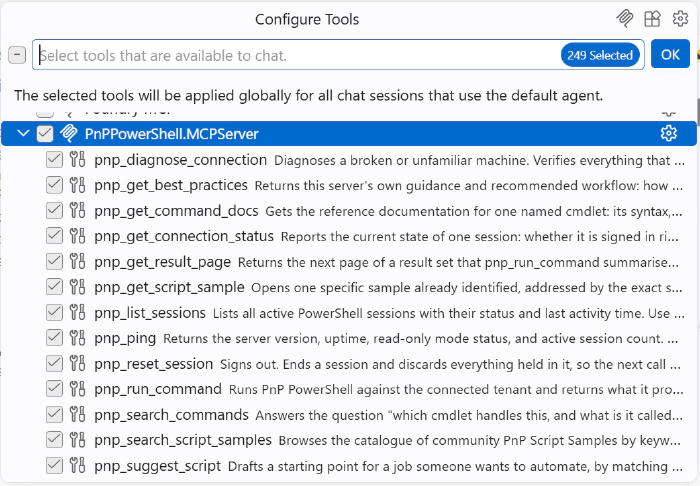
Now open GitHub Copilot chat in Agent mode, and you’ll see the PnP PowerShell MCP Server tools show up. Start your prompt with something like “Using PnP PowerShell, I want you to…” and watch Copilot take it from there.
You’re not limited to VS Code, either the server works just as well with GitHub Copilot CLI, Claude Code, Claude Desktop, and Cursor. See the project README for the exact steps for each client.
📷 What you can do with it
These are just a taste of what’s possible once you get going, you’ll find yourself reaching for it constantly.
Manage SharePoint Online
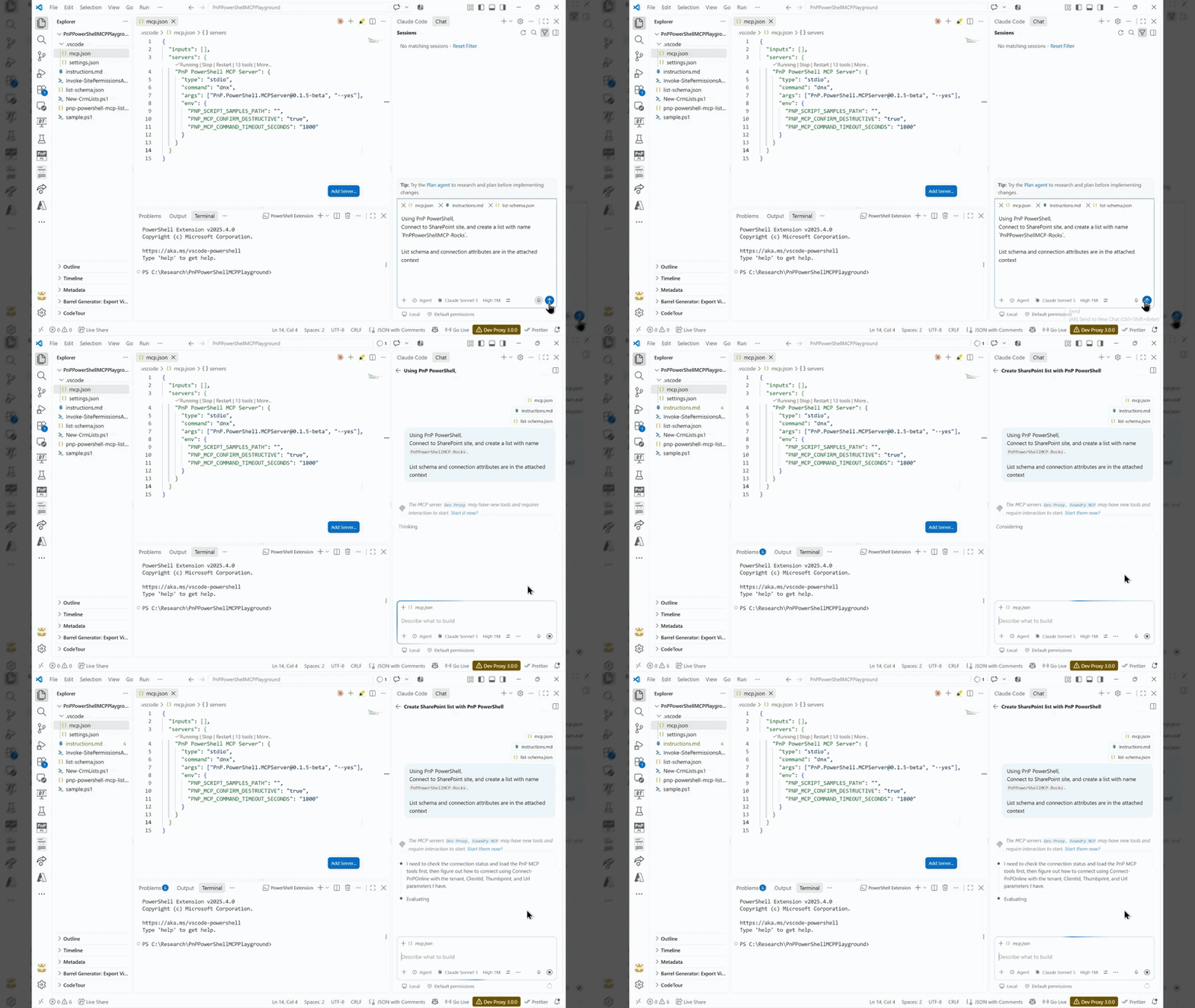
Connect to SharePoint site and create a list with name PnPPowerShellMCP-Rocks. List schema and connection attributes are in the attached context. This creates a list with the given structure.
Manage Microsoft Teams
Create a new Team on Teams with name ‘Awesome Ducks’ and in the General channel add a welcome post.
Bootstrap a script from a community sample
I need a PnP PowerShell script that exports all SharePoint list items to a CSV file, find a community sample and adapt it for the ‘Documents’ list on my site.
Report on tenant state
Can you check if I have a Power Automate flow called ‘HoursReportingReminder’ and if so disable it?
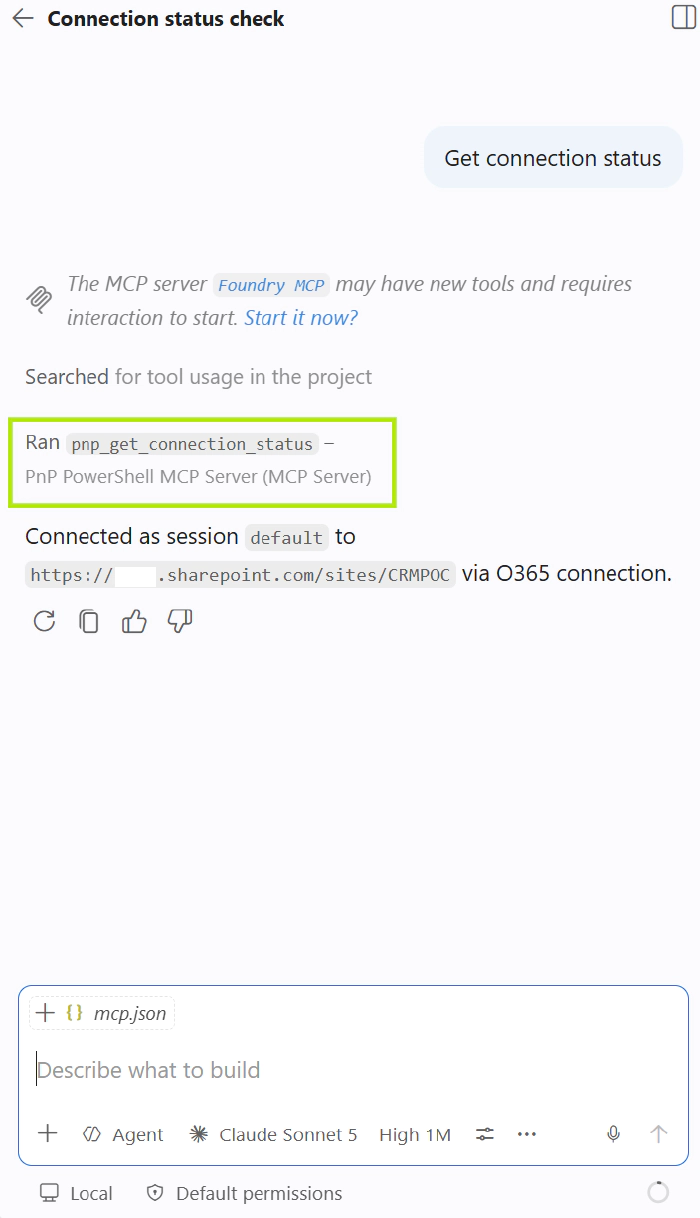
Get Connection status
You can check the connection status, and even get the different sessions.
Imagine being able to say things like this and just having them done. That’s the everyday reality with this MCP server in your corner.
🔐 Safe by design, so you can move fast
Naturally, handing an AI assistant the keys to your tenant raises an eyebrow, so safety was baked in from day one:
- You stay in control of authentication. The server never signs in for you, it reuses the connection you made with
Connect-PnPOnline. - Destructive commands require confirmation. Anything that can change or delete state must be confirmed before it runs.
- Everything is annotated. Read-only, idempotent, and destructive hints let your client auto-approve safe operations while pausing on risky ones.
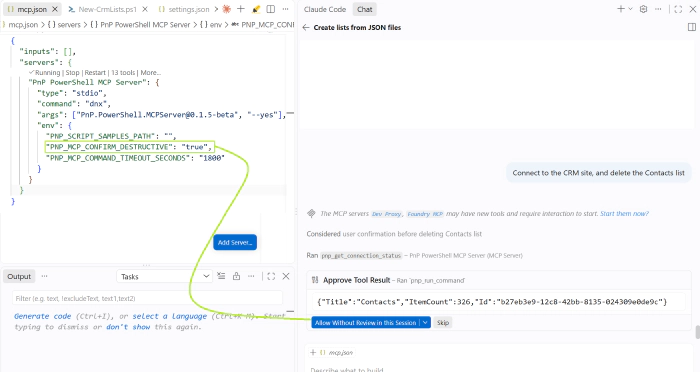
That means you get to move fast and explore freely, without worrying about an accidental Remove-PnPTenantSite.
🔁 Juggling multiple tenants? No problem
Commands run in a persistent pwsh session, so a connection made with Connect-PnPOnline stays alive across calls, you connect once rather than on every command.
For most work you never think about sessions. If you need to work against two tenants (or two accounts) at the same time, just say so, and the agent will keep each connection in its own named session:
Connect to contoso in a session called “contoso” and to fabrikam in a session called “fabrikam”, then list the site count in each and tell me which is larger.
A few tips to make the experience smoother
- Sign out or switch account with
pnp_reset_session. It ends that session and discards its connection and variables; the next call starts fresh. - Idle sessions end after 30 minutes. A session busy running a command is never reclaimed, however long it takes, just reconnect if one does expire.
- One command at a time per session. A second call against a busy session waits, then reports the session is busy. To genuinely run two things at once, use two different session names.
- Reuse the connection. Don’t re-run
Connect-PnPOnlinebefore every command; the agent checkspnp_get_connection_statusfirst and reuses the existing connection.
💬 Help us shape this tool. We need your input! 🙌
This is where your voice matters. The PnP PowerShell MCP Server is in active development and genuinely evolves with every piece of feedback from the community. We’re learning what works, what doesn’t, and what should come next—and that can only happen with people like you trying it out.
- 👉 Try it out and manage Microsoft 365 using natural language—tell us what breaks, what surprises you, and what should work differently
- 👉 Report bugs and edge cases you hit (that’s gold for us right now)
- 👉 Share ideas for features and improvements—even half-baked ones are valuable
- 👉 Show us what you build with it—proof of concept or wild experiment, we’d love to see it
Everything you need, full installation instructions for every client, and the source code is right here on GitHub: pnp/pnp-powershell-mcp-server. Star it, try it, break it, and tell us how to make it better!
Need more information?
For more on PnP PowerShell, visit aka.ms/pnppowershell.
Happy scripting with natural language! 💙