


App Secrets Are Dead—At Least for Admin Scripts
 Hagen Deike
- 8 minutes to read
- 08 May, 2026
Why I protect admin scripts more deliberately than everyday workflows—and why hardware-bound certificates feel like the logical next step.
Strengthening Script Security
Possession as the Missing Factor
For years, most of my Microsoft 365 admin scripts authenticated in a knowledge-based way. A secret sat in a vault. The script proved it “knew” the value. That was convenient, and it avoided using a human admin account for automation.
Interactive admin sign-ins have gone the other way. They increasingly require proof beyond a password: a compliant device, a stronger authenticator, and a session that is harder to reuse elsewhere. The message is simple: privileged work should not rely on knowledge alone.
My change in mind did not come from one event. It came from noticing a gap. Many admin scripts can change tenant settings, permissions, and compliance-relevant data at scale. In effect, they act like a privileged identity. And honestly: who has not stored a login password as a SecureString at least once? If I would not protect an admin account with “password only”, why would I accept the script equivalent?
Here is an example you’ll find all over the Internet, that will give you the bare minumum of password protection for user credentials. One of the main problems is that decryption must always take place within the context of the account that performed the encryption.
# Encrypt string
$SecureString = "MySecret" | ConvertTo-SecureString -AsPlainText

#Decrypt
$NotSoSecure = $SecureString | ConvertFrom-SecureString -AsPlainText
As an alternative to this approach, the PnP PowerShell documentation includes an article that describes how to manage your passwords using Credential Management. This is definitely better than the script shown above, but it still has its drawbacks.
Positioning App Secrets—Useful, but Context-Free
An app registration separates humans from automation. Shared Secret rotation becomes a defined process. In many tenants, that alone removes a lot of hidden risk. But even Microsoft recommends using certificates instead of client secrets before moving an application to production.
Still, a shared secret of an app registration is copyable. If it leaks through a pipeline variable, a backup, a log file, or a quick export, nothing in the platform can tell a legitimate run from a replay somewhere else. The main controls then are discovery, rotation, and cleanup. That is response, not prevention.
For low-impact automations, that may be acceptable. If the job reads data or writes to a narrow scope, permissions can keep the blast radius small.
For privileged admin scripts, it feels different. The more tenant-wide the impact, the less satisfying it is to rely on a single copyable value. The issue is that they carry almost no context.
A Change of Perspective: Scripts as Identities
My “admin scripts” do more than save time. They create SharePoint structures, apply settings across sites, change permissions, and generate audit evidence. Some are run during maintenance. Others are used in response to issues. Either way, they touch core configuration.
That is close to what a privileged admin account can do. The difference is scale and repeatability. A script can apply the same change across a tenant in seconds. That is why we trust it operationally. It is also why we should treat it as an identity, not just a tool.
Once you accept “script = identity”, the security bar follows. Privileged identities deserve stronger authentication and clearer boundaries because compromise has outsized consequences. Protecting a high-privilege script with a secret starts to resemble protecting a privileged user with a password.
This is not about distrust. It is about consistency. If we demand stronger proof for privileged portals, it is reasonable to demand stronger proof for privileged scripts as well.
Possession as the Logical Completion of the Model
Knowledge-based authentication asks: “Do you know the secret?” Possession-based authentication asks: “Do you have the key?” For privileged access, possession matters because it makes simple copying and replay harder.
Most admin scripts only use knowledge. A vault secret is still knowledge. Even a certificate becomes transferable if the private key is exported and moved. The missing piece is an element that stays inside its boundary.
That is why hardware-bound certificates are so appealing. If the private key is non-exportable, stealing a file is no longer enough. Whether the boundary is a device TPM or a hardware token such as a YubiKey is an implementation choice. The architectural point is the same: the key must be physically present.
TPM or YubiKey
For admin scripting, it is mainly a question of design: where should this identity live, and what should it be tied to?
A TPM ties the key to one device. That fits when the privileged boundary is a dedicated admin workstation: managed, monitored, and treated as the place where high-impact changes happen.
A hardware token ties the key to the admin who holds it. That fits when I may need to run the same script from different machines, but still want a physical control that travels with the operator. The device remains relevant, but it is not the anchor.
Using PnP.PowerShell
PnP.PowerShell is helpful here because it supports certificate-based sign-in for Microsoft 365 administration. For this you need a certificate pair. To create a self-signed certificate I don’t use the PnP cmdlet New-PnPAzureCertificate as this creates an exportable private certificate. The concept is the key: I want a private key that cannot be copied out of its boundary.
The following parameter blocks show what that looks like when the certificate is created inside a TPM or inside a YubiKey-backed provider.
TPM-backed certificate (non-exportable key):
$params = @{
    Subject           = "CN=TPM App Certificate"
    KeyAlgorithm      = 'RSA'
    KeyLength         = 2048
    Provider          = 'Microsoft Platform Crypto Provider'
    KeyExportPolicy   = 'NonExportable'
    CertStoreLocation = 'Cert:\CurrentUser\My'
    Type              = 'SSLServerAuthentication'
    KeyUsage          = 'DigitalSignature'
    FriendlyName      = 'TPMAppCert'
    NotAfter          = (Get-Date).AddYears(5)
    HashAlgorithm     = 'SHA256'
    TextExtension     = @(
        '2.5.29.37={text}1.3.6.1.5.5.7.3.2'
    )
}

# Create cert
$cert = New-SelfSignedCertificate @params

# Export public cert
Export-Certificate -Cert $cert -FilePath .\entra_AppRegTPMCert.cer
Params
- Subject: The certificate subject name. In app registrations, this is mainly a label for admins; the thumbprint is what you end up trusting.
- KeyAlgorithm / KeyLength: Defines the key type and size. RSA 2048 is widely compatible for app auth.
- Provider: Selects where the private key is generated and stored. Microsoft Platform Crypto Provider points to TPM-backed key storage on the device.
- KeyExportPolicy: NonExportable prevents exporting the private key. This is the core control: the certificate can be used, but the key cannot be copied.
- CertStoreLocation: Where Windows stores the certificate (here: current user’s personal store). This affects who can access and use it.
- Type: The template intent for the self-signed certificate. It influences defaults and compatibility; the goal is a certificate that works for client-auth style flows.
- KeyUsage: Allowed cryptographic use. DigitalSignature is what you need for signing the token request.
- FriendlyName: A local display name to make the cert easier to identify in the store.
- NotAfter: Expiry date. Long validity reduces admin overhead, but increases the time window if the boundary is ever weakened. Choose deliberately.
- HashAlgorithm: Hash used in the certificate signature (e.g., SHA256).
- TextExtension: Adds extensions. The shown OID (2.5.29.37) sets an EKU; the value 1.3.6.1.5.5.7.3.2 indicates Client Authentication, which matches the intended use.
- Export-Certificate: Exports the public certificate (.cer). This is what you upload to the app registration. The private key stays in the TPM.
YubiKey-backed certificate (non-exportable key):
If you’re using or creating the certificate for a YubiKey, change the params as following:
$params = @{
    Subject           = "CN=YubiKey App Certificate"
    KeyAlgorithm      = "RSA"
    KeyLength         = 2048
    Provider          = "Microsoft Smart Card Key Storage Provider"
    KeyExportPolicy   = "NonExportable"
    CertStoreLocation = "Cert:\CurrentUser\My"
    Type              = "SSLServerAuthentication"
    KeyUsage          = "DigitalSignature"
    FriendlyName      = "YubiKeyAppCert"
    NotAfter          = (Get-Date).AddYears(5)
    HashAlgorithm     = "SHA256"
    TextExtension     = @(
        "2.5.29.37={text}1.3.6.1.5.5.7.3.2"
   )
}
The parameter set is almost identical. The main architectural change is Provider: the smart card provider routes key generation and signing operations to the external token. The private key stays on the YubiKey, and the certificate in the Windows store is effectively a handle to that key. In other words, the “possession” boundary moves from a specific device (TPM) to a removable object.
Use the certificate in the Certificate Manager just like any other to sign in. Upload the public certificate to your app registration, and then use PnP.Powershell to connect to your tenant
Connect-PnPOnline -Url $SiteUrl -ClientId $ClientId -Tenant $TenantId -Thumbprint $ThumbprintId
The security outcome depends on where you anchor the key, who can trigger the script, and how you design permissions and audit.
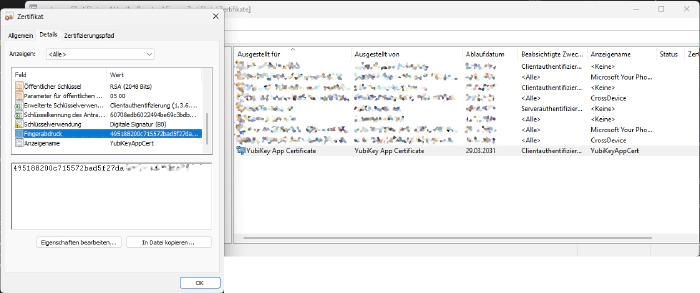
When you move the YubiKey to another PC, you must install the public certificate in the Windows Certificate Manager once.
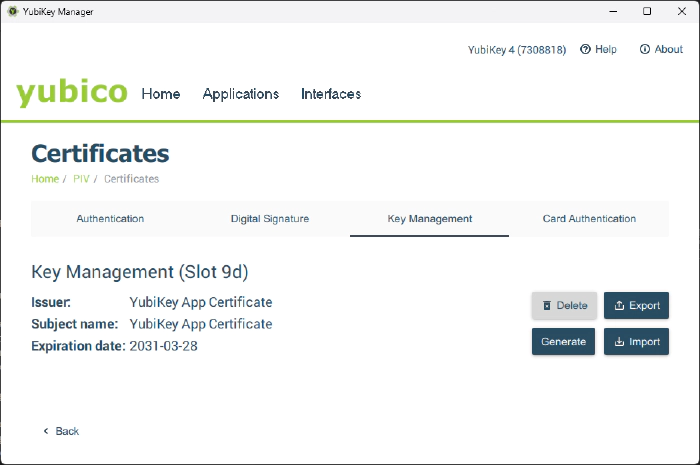
You might need to install the smart card drivers on your PC. In any case, I recommend installing the YubiKey Manager. This makes it easier to export the public certificate from the YubbiKey. Yubico Tools and Apps Downloads
Limits of This Approach
Hardware-bound certificates fit best for interactive admin scripts. They are not a universal answer for fully unattended runs. If nobody is present, possession has to be represented by the runtime environment. That is where Managed Identity or OIDC-based workload identity can be the better fit, because they tie identity to where the code runs, not to a person holding a key.
There is no single best method. The right method is the one that matches your actual boundary and your expected failure modes.
Conclusion—Consistency Instead of Absolutes
App secrets were, a sensible step. They separate automation from human accounts and keep permissions explicit. For low-impact tasks, they were the simplest acceptable option.
For privileged admin scripts, I do not find them anymore sufficient. A script that can change core tenant settings deserves more than a copyable value. Hardware-bound certificates are a logical next step because they add possession and reduce simple replay. That is not a rule for everyone. It is a way to make the authentication method match the level of privilege and the boundary I want to enforce.