
 Garry Trinder
 Waldek Mastykarz

Summary
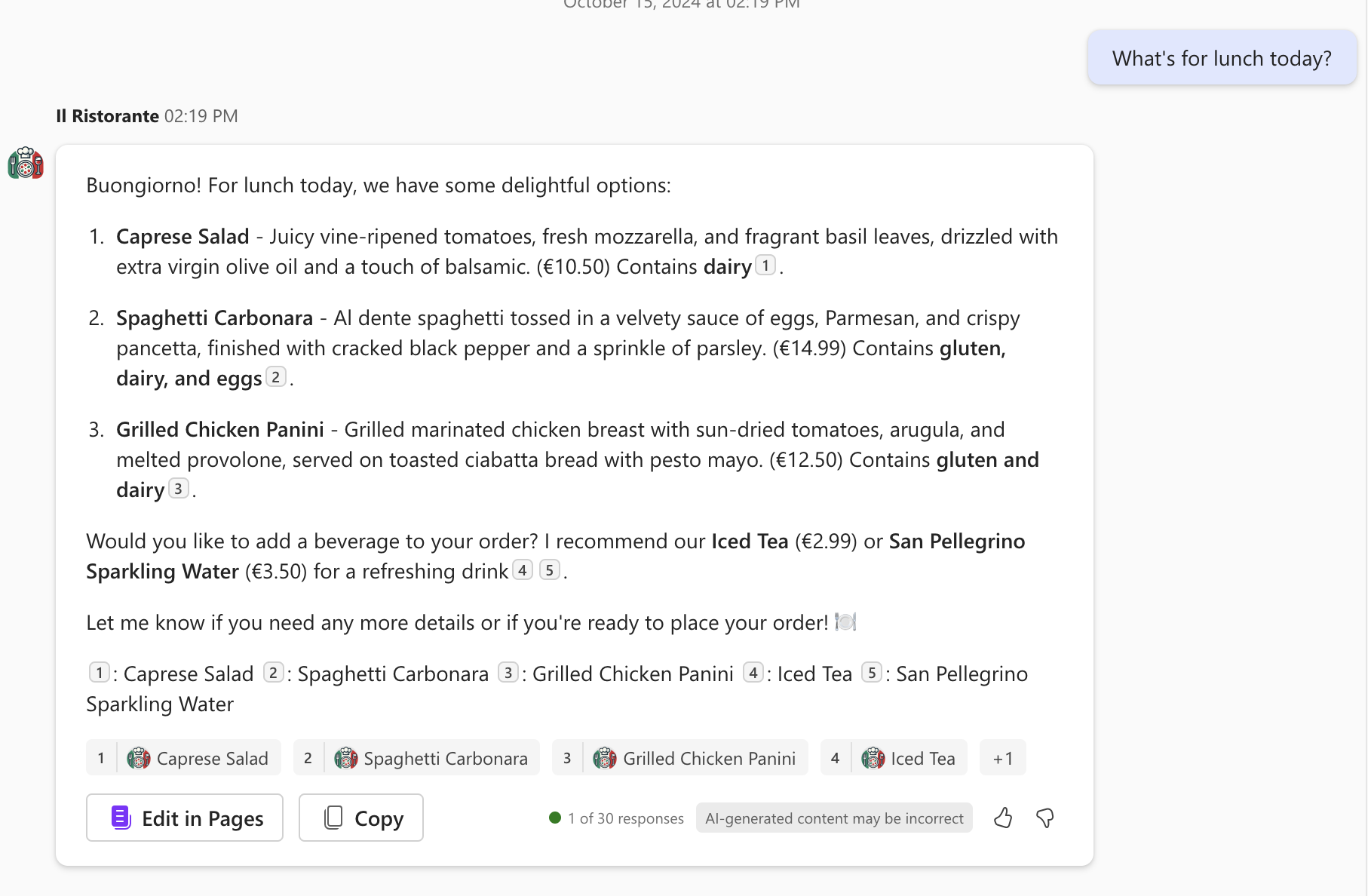
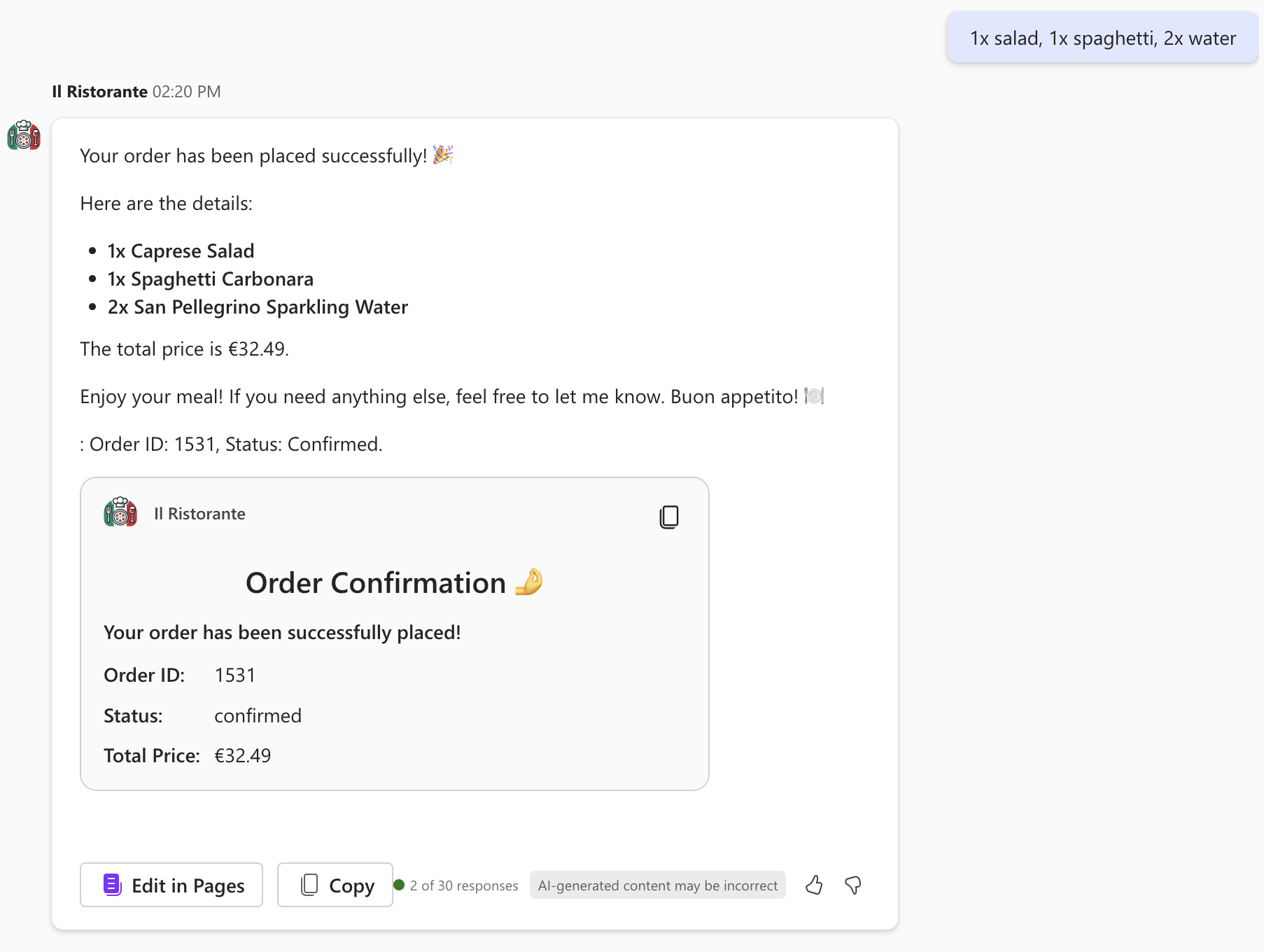
This sample demonstrates how to build a declarative agent for Microsoft 365 Copilot that allows you to browse a menu of a local Italian restaurant and place an order. The agent uses an API plugin to connect to an API secured with Microsoft Entra ID SSO (single sign-on) authentication. Dev Proxy is used to simulate the API, so you don't need to build or maintain a real backend.
How it works
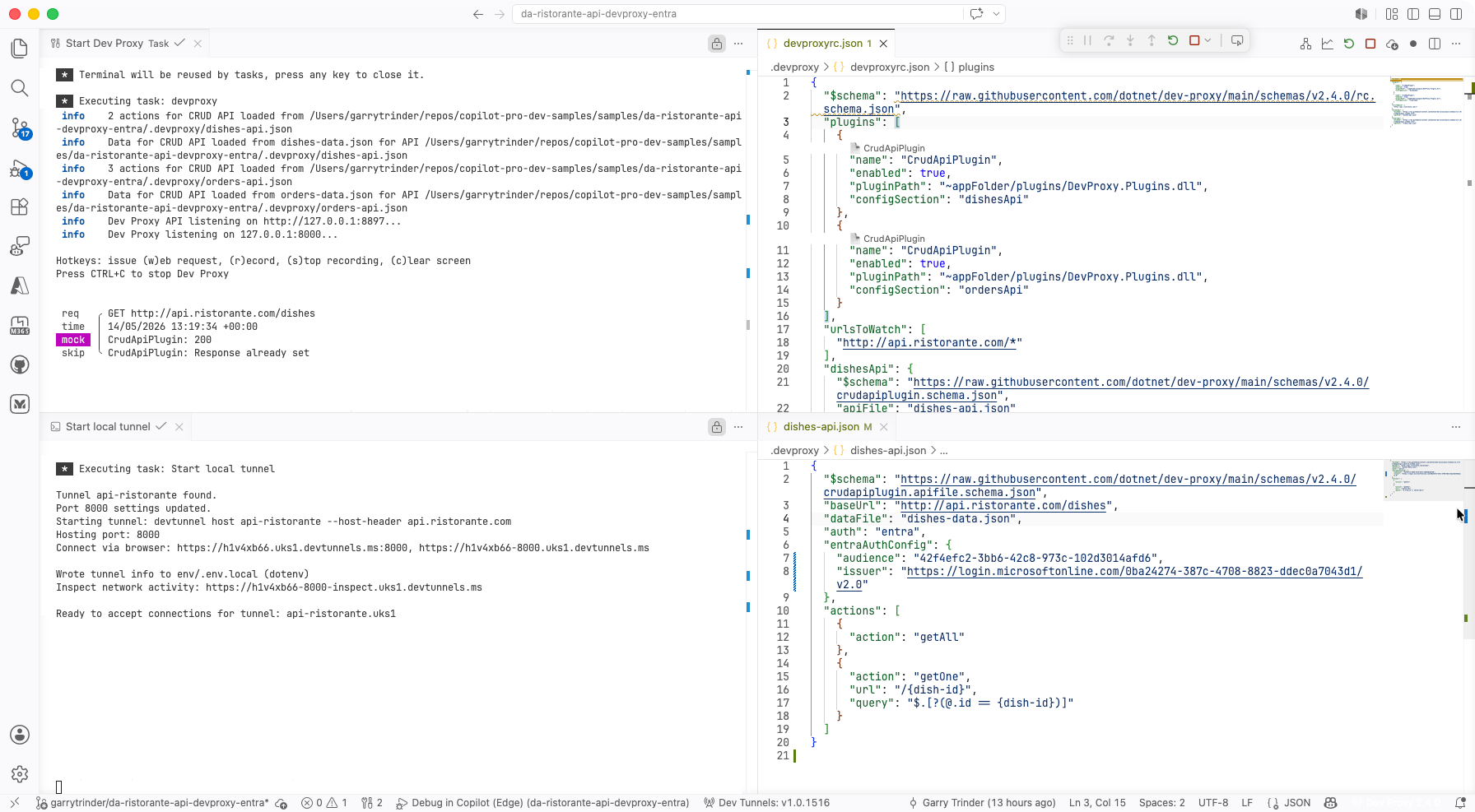
Microsoft 365 Copilot runs in the cloud and needs a publicly accessible API endpoint. Dev Proxy simulates the API on your machine, and a dev tunnel exposes it over the internet so Copilot can reach it. No API infrastructure is deployed — the simulated API runs entirely on your local machine.
SSO authentication
This sample uses Microsoft Entra ID SSO authentication. Unlike the OAuth authorization code flow (which prompts users to sign in), SSO authentication allows Microsoft 365 Copilot to seamlessly obtain a token on behalf of the user without any additional sign-in prompts. The token is acquired transparently using the user's existing Microsoft 365 session.
The SSO registration is done in the Teams Developer Portal, which generates an Application ID URI that the Entra app registration must trust. The enterprise token store client (ab3be6b7-f5df-413d-ac2d-abf1e3fd9c0b) is pre-authorized in the Entra app manifest to allow token exchange.
Dev Proxy validates the real Entra token on the API side by checking the audience and issuer configured in the CRUD API files.
sequenceDiagram
    participant Copilot as Microsoft 365 Copilot
    participant Entra as Microsoft Entra (SSO)
    participant Tunnel as Dev Tunnel
    participant Proxy as Dev Proxy
    Copilot->>Entra: Get SSO token (seamless)
    Entra->>Copilot: Access token (no user prompt)
    Copilot->>Tunnel: API request with token (internet)
    Note over Tunnel: Rewrites host header<br/>to api.ristorante.com
    Tunnel->>Proxy: Forward to localhost:8000
    Note over Proxy: Validates Entra token
    Proxy->>Tunnel: Simulated response
    Tunnel->>Copilot: Response (internet)
Features
This sample illustrates the following concepts:
- Building a declarative agent for Microsoft 365 Copilot with an API plugin
- Connecting an API plugin to an API secured with Microsoft Entra ID SSO
- Registering a Microsoft Entra SSO client in the Teams Developer Portal
- Pre-authorizing the Microsoft enterprise token store in the Entra app registration
- Using Dev Proxy to simulate a CRUD API secured with Entra token validation locally
- Using dev tunnels to expose the local API over the internet for use with Microsoft 365 Copilot
Contributors
Version history
| Version | Date | Comments |
|---|---|---|
| 1.0 | June 16, 2026 | Initial release |
Prerequisites
- Microsoft 365 tenant with Microsoft 365 Copilot
- Node.js
- Visual Studio Code with the following extensions:
Minimal path to awesome
- Clone this repository (or download this solution as a .ZIP file then unzip it)
- Open the Microsoft 365 Agents Toolkit extension and sign in to your Microsoft 365 tenant with Microsoft 365 Copilot
- Select Debug in Copilot (Edge) from the launch configuration dropdown
The provisioning step automatically registers the Entra SSO client in the Teams Developer Portal — no manual portal steps are required.
Testing the API
You can test the API directly using the api.http file included in the project root. This requires the REST Client extension. With the debug session running, open the file and use the Send Request links above each request to test the API endpoints through the dev tunnel.
To generate a test token for use with the api.http file, run the following command:
devproxy jwt create -n "Dev Proxy" -a {ENTRA_APP_CLIENT_ID} -i https://login.microsoftonline.com/{ENTRA_APP_TENANT_ID}/v2.0 -s "api://{ENTRA_APP_CLIENT_ID}/Dishes.Read" -s "api://{ENTRA_APP_CLIENT_ID}/Orders.Write"
Replace {ENTRA_APP_CLIENT_ID} and {ENTRA_APP_TENANT_ID} with the values from your env/.env.local file. Copy the generated token and paste it as the @token value in api.http.
Note: The
api.httpfile uses a.envsymlink in the project root that points toenv/.env.local. This symlink is created automatically when you start a debug session.
Comparing SSO vs OAuth authentication
This sample uses Entra ID SSO, which differs from the OAuth sample:
| Aspect | SSO (this sample) | OAuth |
|---|---|---|
| User experience | Seamless — no sign-in prompt | User prompted to sign in |
| Token acquisition | Transparent via existing M365 session | Authorization code flow |
| Client secret | Not required | Required |
| Portal registration | Automated via oauth/register with identityProvider: MicrosoftEntra |
Automated via oauth/register |
Help
We do not support samples, but this community is always willing to help, and we want to improve these samples. We use GitHub to track issues, which makes it easy for community members to volunteer their time and help resolve issues.
You can try looking at issues related to this sample to see if anybody else is having the same issues.
If you encounter any issues using this sample, create a new issue.
Finally, if you have an idea for improvement, make a suggestion.
Disclaimer
THIS CODE IS PROVIDED AS IS WITHOUT WARRANTY OF ANY KIND, EITHER EXPRESS OR IMPLIED, INCLUDING ANY IMPLIED WARRANTIES OF FITNESS FOR A PARTICULAR PURPOSE, MERCHANTABILITY, OR NON-INFRINGEMENT.