Restore deleted Microsoft 365 Groups and Entra ID Security Groups in bulk using Microsoft Graph PowerShell.
Summary
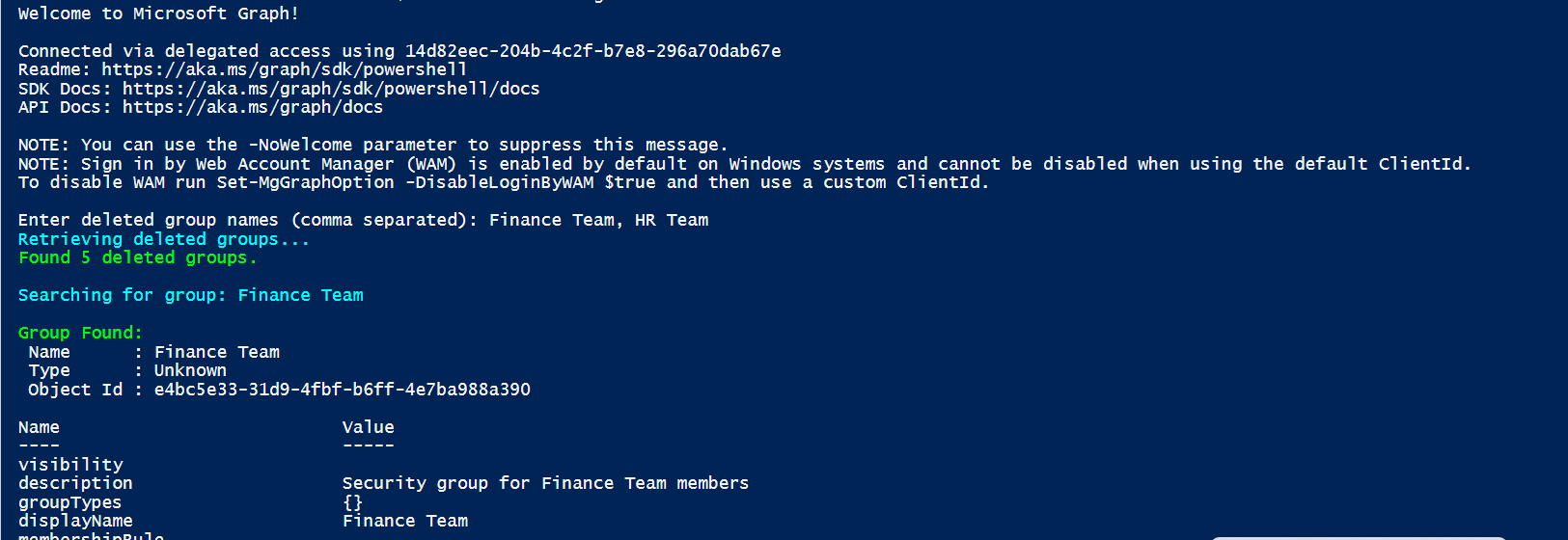
Restore deleted Microsoft 365 Groups and Entra ID Security Groups in bulk using Microsoft Graph PowerShell. This script helps administrators quickly recover accidentally deleted groups from the Entra ID recycle bin by supporting bulk restoration, group type identification, validation, error handling, and detailed restoration reporting. The code runs with "Group.ReadWrite.All" permission.
By default, the script has only registered Microsoft Graph and SharePoint Online Microsoft AAD apps (with their respective appId property). Feel free to add any other API listed here in the AadApis class!
# User Input
$api = "Microsoft Graph" # Or "SharePoint"
$permission = "Sites.Read.All" # Can be "Read" if seeking more permissions

# Connect to Microsoft 365
if ($(m365 status) -match "Logged Out") {
  m365 login
}

# Configure the CLI to output as JSON on each execution
$m365output = m365 cli config get --key output
if ($m365output -notmatch "json") {
    m365 cli config set --key output --value json
}

# Get CLI commands JSON output converted as objects
function Get-CLIValue {
    [cmdletbinding()]
    param(
        [parameter(Mandatory = $true, ValueFromPipeline = $true)]
        $input
    )

    $output = $input | ConvertFrom-Json
    if ($null -ne $output.error) {
        throw $output.error
    }
    return $output
}

# Dedicated class to store Azure AD (AAD) Enterprise Microsoft Apps as valid param inputs
class AadApis : System.Management.Automation.IValidateSetValuesGenerator {
    [String[]] GetValidValues() {
        $Global:aadApis = @{
            "SharePoint" = "00000003-0000-0ff1-ce00-000000000000"
            "Microsoft Graph" = "00000003-0000-0000-c000-000000000000"
        }

        return ($Global:aadApis).Keys
    }
}

# Method to get delegated or application permissions from a registered AAD MS App, based on name

function Get-AADPermission {
    [cmdletbinding()]
    param(
        [parameter(Mandatory)]
        [ValidateSet([AadApis], IgnoreCase = $false)]
        $ApiName,
        [parameter(Mandatory)]
        $PermissionName,
        [parameter(Mandatory = $false)]
        [Switch]$Delegated,
        [parameter(Mandatory = $false)]
        [Switch]$Application
    )

    try {
        $sp = m365 aad sp get --appId ($Global:aadApis)[$ApiName] | Get-CLIValue

        if ($Delegated) {
            $permissionsInfo = $sp.oauth2PermissionScopes | Where-Object { $_.value -match $PermissionName }
        }
        elseif ($Application) {
            $permissionsInfo = $sp.appRoles | Where-Object { $_.value -match $PermissionName }
        }
        else {
            throw "Please define if seeked permission is a delegated (-Scope) or an application (-Role) one"
        }

        if ($permissionsInfo) {
            Write-Host "AAD app info:"
            Write-Host ($sp | Select-Object id, appId, displayName | Format-List | Out-String)
            Write-Host "-----------"
            Write-Host "Permissions info:"

            foreach ($perm in $permissionsInfo) {
                Write-Host ($perm | Format-List | Out-String)
            }
        }
        else {
            $permissionType = (&{If($Delegated -eq $true) {"Delegated"} Else {"Application"}})

            Write-Warning "No $($permissionType) permission named [$($PermissionName)] found for $($ApiName) App"
        }
    }
    catch {
        Write-Error $_.Exception
    }
}

# Run the command
Get-AADPermission -ApiName $api -PermissionName $permission -Application
Check out the CLI for Microsoft 365 to learn more at: https://aka.ms/cli-m365
Important changes coming to the way you login into CLI for Microsoft 365 (effective 9th September 2024) see Changes in PnP Management Shell registration in Microsoft 365
Contributors
| Author(s) | |
|---|---|
| Sujin Nelladath | (https://www.linkedin.com/in/sujin-nelladath-8911968a/) |
Disclaimer
THESE SAMPLES ARE PROVIDED AS IS WITHOUT WARRANTY OF ANY KIND, EITHER EXPRESS OR IMPLIED, INCLUDING ANY IMPLIED WARRANTIES OF FITNESS FOR A PARTICULAR PURPOSE, MERCHANTABILITY, OR NON-INFRINGEMENT.