
Add a document library web part to a page
Add a document library web part to a page (and only show a specific folder)
 Todd Klindt
 Adam Wójcik
 Marijn Somers
Summary
A customer had the requirement to create a page for each of their 86 folders in a document library so they could add more information on those topics. That meant creating 86 pages, each with a document library web part on it that showed a specific folder.
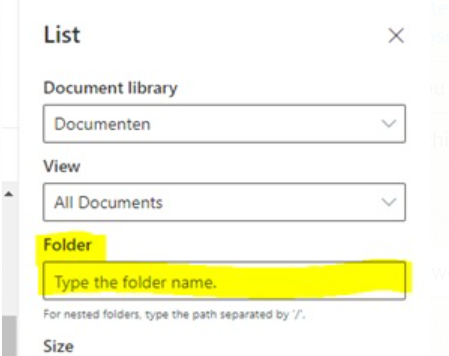
The sample creating the page, adding the web parts and includes repeating this for all 86 folders. There is probably a really nice way to, in code, get all folders from the document library and loop through them. So I exported the document library to Excel and copied the folder names. I added some quotes and a comma (in an Excel formula using =CHAR(34) & A2 & CHAR(34) &”,”) and added an array to store these.
Connect-PnPOnline -Url https://yourtenant.sharepoint.com/sites/Yoursite/ -Interactive
$ray = "folder1",
       "folder2",
       "folder3"

foreach ($name in $ray) {

    #create page
    Add-PnPPage -Name $name -LayoutType Article -HeaderLayoutType NoImage -CommentsEnabled:$false

    #add sections
    Add-PnPPageSection -Page $name -SectionTemplate TwoColumn -Order 1

    #add text webpart
    Add-PnPPageTextPart -Page $name -Section 1 -Column 1 -Text "This is $name"

    #add doclib
    $DocLib = Get-PnPList -Identity Documents
    $DocLibID = $DocLib.id.tostring()
    Add-PnPPageWebPart -Page $name -DefaultWebPartType List -Section 1 -Column 1 -WebPartProperties @{isDocumentLibrary="true";selectedListId="$($DocLibID)";selectedFolderPath="/$name";hideCommandBar="false"}
    $page = Get-PnPPage -Identity $name
    $page.Publish()
}
$site = "https://yourtenant.sharepoint.com/sites/Yoursite/"

$m365Status = m365 status
if ($m365Status -match "Logged Out") {
    m365 login
}

$ray = "folder1",
       "folder2",
       "folder3"

foreach ($name in $ray) {

    #create page
    $fileName = "$name.aspx"
    m365 spo page add --name $fileName --title $name --webUrl $site

    #add sections
    m365 spo page section add --name $fileName --webUrl $site --sectionTemplate TwoColumn --order 1

    #add text webpart
    m365 spo page text add --webUrl $site --pageName $fileName --text $name --section 1 --column 1

    #add doclib
    $webpartProperties = '{\"selectedListId\":\"DC4B61E0-01BE-4A87-B8E1-B9AEF4E34153\",\"selectedFolderPath\":\"' + $name + '\",\"hideCommandBar\":\"false\"}'
    m365 spo page clientsidewebpart add --webUrl $site --pageName $fileName --standardWebPart List --section 1 --column 1 --webPartProperties $webpartProperties
    m365 spo page set --name $fileName --webUrl $site --publish
}
Source Credit
Sample first appeared on Use PnP Powershell to add a document library webpart to a page (and only show a specific folder) | Tech Community
Contributors
| Author(s) |
|---|
| Marijn Somers |
| Adam Wójcik |
| Todd Klindt |
Disclaimer
THESE SAMPLES ARE PROVIDED AS IS WITHOUT WARRANTY OF ANY KIND, EITHER EXPRESS OR IMPLIED, INCLUDING ANY IMPLIED WARRANTIES OF FITNESS FOR A PARTICULAR PURPOSE, MERCHANTABILITY, OR NON-INFRINGEMENT.
Tool documentation & references
- Want to learn more about PnP PowerShell and the cmdlets
Check out the PnP PowerShell site to get started and for the reference to the cmdlets.
- Want to learn more about CLI for Microsoft 365 and the commands
Check out the CLI for Microsoft 365 site to get started and for the reference to the commands.
