
Create SharePoint Groups in Bulk using CSV file
This script shows how to create multiple groups in SharePoint for different site collection providing input from CSV file.
 Ganesh Sanap
 Kunj Balkrishna Sangani
Summary
This script shows how to create multiple groups in SharePoint for different site collection providing input from CSV file.
Implementation
- Open Windows PowerShell ISE
- Create a new file
- Write a script as below,
- Create a CSV using the provided sample. Two columns are required SharePointUrl and SharePointGroupName
- Then we provide the path of the file as input to the PowerShell when prompted in the window when executed.
Download Sample CSV from this link
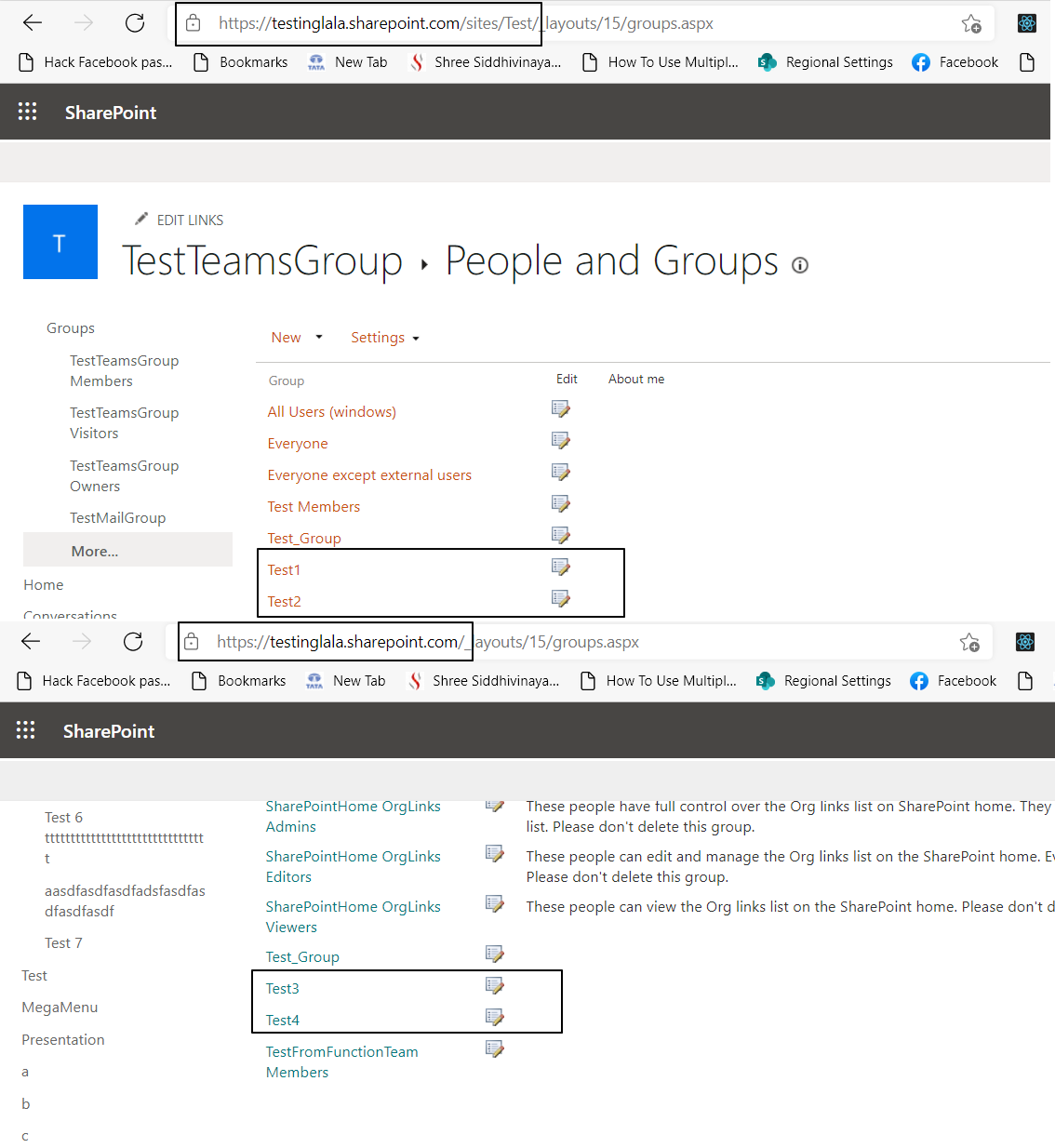
Execution Image and output Image

#Uncomment below line if facing remote server 400 error
#Import-Module SharePointPnPPowerShellOnline -UseWindowsPowerShell

$filePath = Read-Host "Please provide CSV file path"

# Import CSV file from given path
$importedFile = Import-Csv -Path $filePath

for ($index = 0; $index -lt $importedFile.Count; $index++) {
    # Connect to SharePoint online site
    Connect-PnPOnline -Url $importedFile[$index].SharePointUrl -Interactive

    # Create a new group in SharePoint site
    New-PnPGroup -Title $importedFile[$index].SharePointGroupName
}
# Get Credentials to connect
$m365Status = m365 status
if ($m365Status -match "Logged Out") {
   m365 login
}

$filePath = Read-Host "Please provide CSV file path"

# Import CSV file from given path
$importedFile = Import-Csv -Path $filePath

for ($index = 0; $index -lt $importedFile.Count; $index++) {
	# Create a new group in SharePoint site
	m365 spo group add --webUrl $importedFile[$index].SharePointUrl --name $importedFile[$index].SharePointGroupName
}

# Disconnect SharePoint online connection
m365 logout
# SharePoint online admin center site url
$adminSiteUrl = "https://contoso-admin.sharepoint.com"

# Connect to SharePoint online admin center
Connect-SPOService -Url $adminSiteUrl

$filePath = Read-Host "Please provide CSV file path"

# Import CSV file from given path
$importedFile = Import-Csv -Path $filePath

for ($index = 0; $index -lt $importedFile.Count; $index++) {
	# Create a new group in SharePoint site
	New-SPOSiteGroup -Site $importedFile[$index].SharePointUrl -Group $importedFile[$index].SharePointGroupName -PermissionLevels "Read"
}

# Disconnect SharePoint online connection
Disconnect-SPOService
Contributors
| Author(s) |
|---|
| Kunj Sangani |
| Ganesh Sanap |
Disclaimer
THESE SAMPLES ARE PROVIDED AS IS WITHOUT WARRANTY OF ANY KIND, EITHER EXPRESS OR IMPLIED, INCLUDING ANY IMPLIED WARRANTIES OF FITNESS FOR A PARTICULAR PURPOSE, MERCHANTABILITY, OR NON-INFRINGEMENT.
Tool documentation & references
- Want to learn more about PnP PowerShell and the cmdlets
Check out the PnP PowerShell site to get started and for the reference to the cmdlets.
- Want to learn more about CLI for Microsoft 365 and the commands
Check out the CLI for Microsoft 365 site to get started and for the reference to the commands.
- Introduction to the SharePoint Online Management Shell
Check out the SPO Management Shell documentation site to get started and for the reference to the cmdlets.
