
Retrieve Message Center announcements and post to MS Teams channel
This script allows you to retrieve Message Center announcements and post to MS Teams channel.
 Nanddeep Nachan
 Valeras Narbutas
Summary
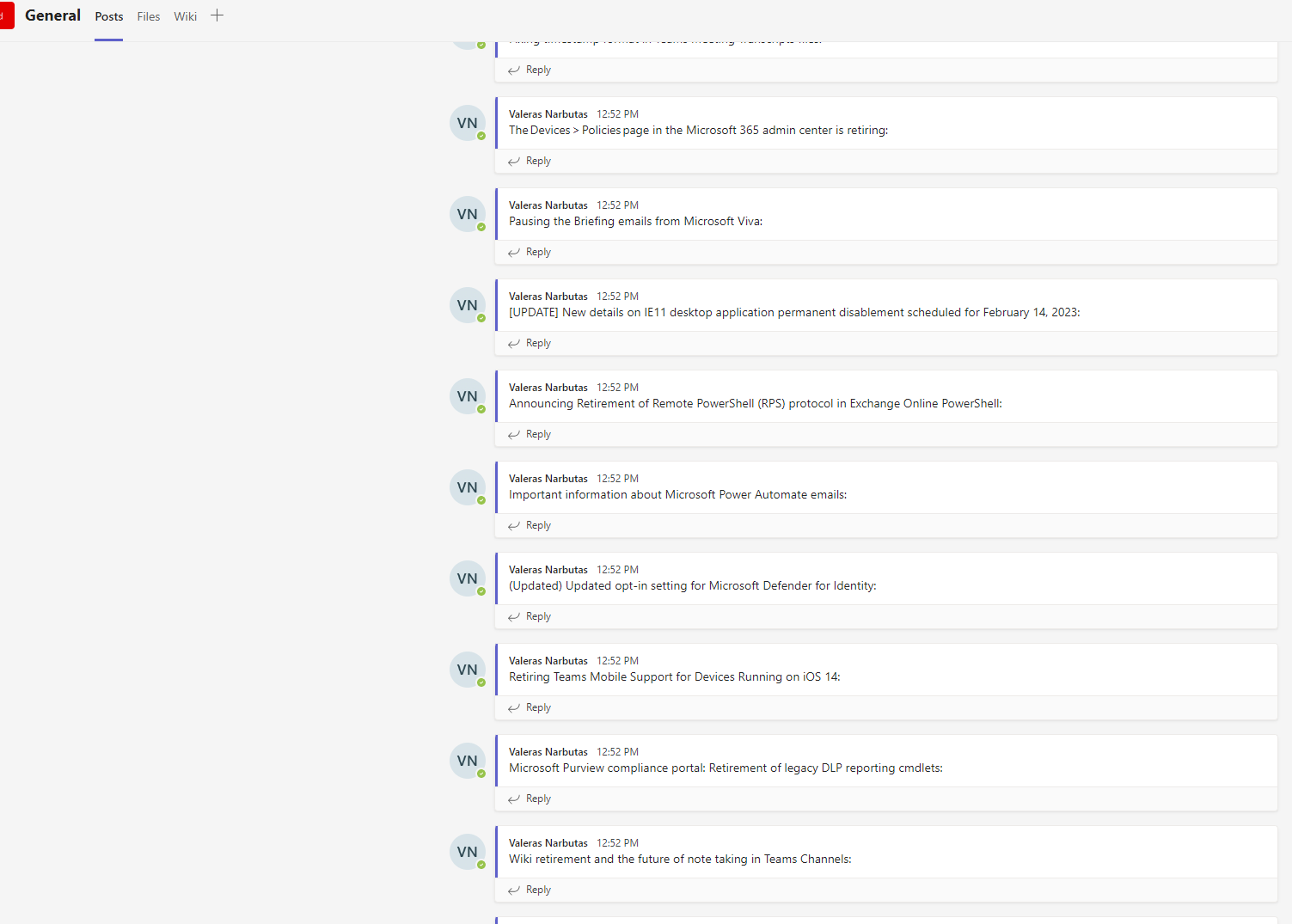
This script allows you to connect to your SharePoint Online tenant and retrieve Message Center announcements. It then connects to Microsoft Teams and loops through the announcements, posting them to a specific Teams channel.
Implementation
- Create csv file with the list of site collection URLs to enable app catalog
- Open Windows PowerShell ISE
- Create a new file
- Copy the code below
- Save the file and run it
# Connect to SharePoint Online
Connect-PnPOnline -Url https://yourTenantName.sharepoint.com/ -Interactive

# Get Message Center announcements
$announcements = Get-PnPMessageCenterAnnouncement | Where-Object { $_.Category -eq "PlanForChange" } | Select-Object Title, Description

# Connect to teams
Connect-MicrosoftTeams

# Loop through the announcements and post to Teams channel
foreach ($announcement in $announcements) {
    $message = "$($announcement.Title): $($announcement.Description)"
    Submit-PnPTeamsChannelMessage -Team "TeamID" -Channel "General" -Message $message
}
# Example: .\Send-MessageCenterAnnouncementsToMSTeams.ps1 -Category "planForChange" -TeamName "Team Name" -ChannelName "Channel Name"

[CmdletBinding()]
param (
    [Parameter(Mandatory = $false, HelpMessage = "Specify category of the message center announcement")]
    [string]$Category = "planForChange",
    [Parameter(Mandatory = $true, HelpMessage = "Specify the display name of the team to which the channel belongs to")]
    [string]$TeamName,
    [Parameter(Mandatory = $true, HelpMessage = "Specify the display name of the channel to post the message center announcements")]
    [string]$ChannelName
)

begin {
    #Log in to Microsoft 365
    Write-Host "Connecting to Tenant" -f Yellow

    $m365Status = m365 status
    if ($m365Status -match "Logged Out") {
        m365 login
    }

    Write-Host "Connection Successful!" -f Green
}
process {
    # Get Message Center announcements
    $announcements = m365 tenant serviceannouncement message list --query "[?category == '$($Category)']" | ConvertFrom-Json
    Write-Host "Found $($announcements.Count) announcements to post to MS Teams channel"

    # Get information about Microsoft Teams team with name
    $teamInfo = m365 teams team get --name $TeamName | ConvertFrom-Json

    # Get information about Microsoft Teams team channel with name
    $channelInfo = m365 teams channel get --teamId $teamInfo.id --name $ChannelName | ConvertFrom-Json

    # Loop through the announcements and post to Teams channel
    foreach ($announcement in $announcements) {
        Write-Host "Sending message $($announcement.Title)..."

        $message = "$($announcement.Title): $($announcement.Description)"
        m365 teams message send --teamId $teamInfo.id --channelId $channelInfo.id --message $message
    }
}
end {
    m365 logout
    Write-Host "Finished" -ForegroundColor Green
}Contributors
| Author(s) |
|---|
| Valeras Narbutas |
| Nanddeep Nachan |
Disclaimer
THESE SAMPLES ARE PROVIDED AS IS WITHOUT WARRANTY OF ANY KIND, EITHER EXPRESS OR IMPLIED, INCLUDING ANY IMPLIED WARRANTIES OF FITNESS FOR A PARTICULAR PURPOSE, MERCHANTABILITY, OR NON-INFRINGEMENT.
Tool documentation & references
- Want to learn more about the Microsoft Graph
Check out the documentation site to get started and for the reference to the endpoints.
- Want to learn more about CLI for Microsoft 365 and the commands
Check out the CLI for Microsoft 365 site to get started and for the reference to the commands.
- Want to learn more about PnP PowerShell and the cmdlets
Check out the PnP PowerShell site to get started and for the reference to the cmdlets.
