
Copilot UX component
Expert Finder
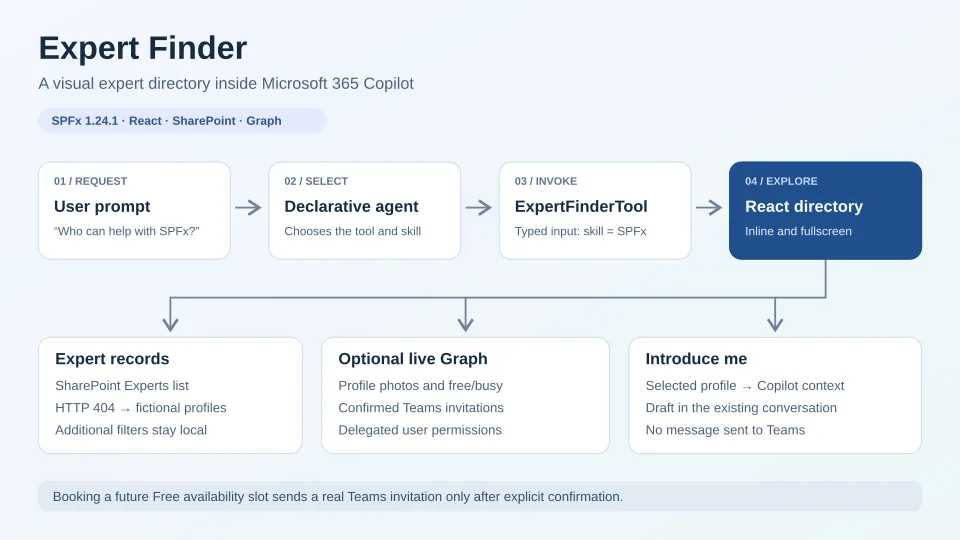
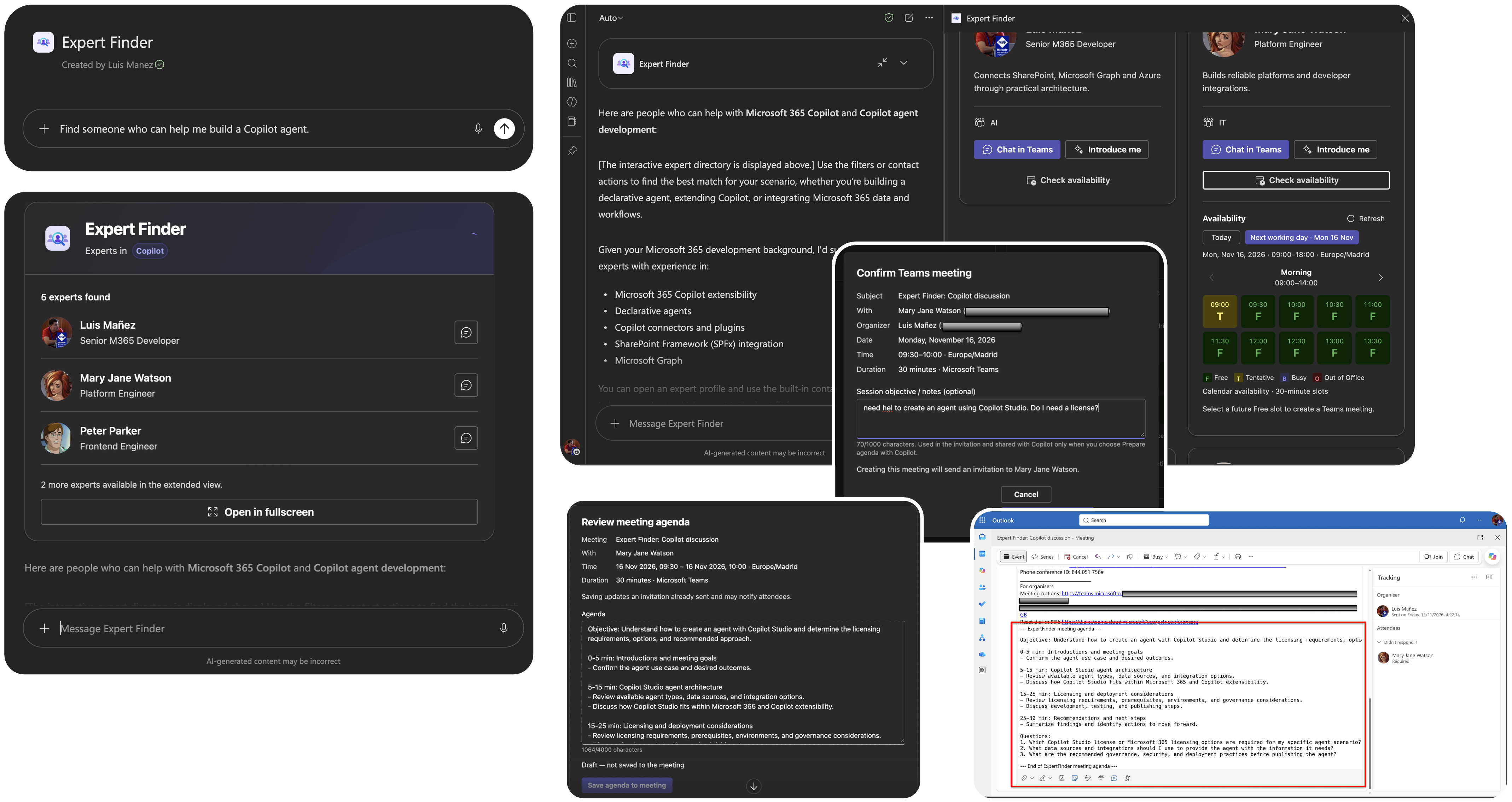
Find colleagues by skill, check availability, book Teams meetings and review Copilot-generated agendas before saving them to the existing invitation.

- Updated
- November 16, 2026
- Built with
- React
- SPFx version
- 1.24.1
- Products
- SharePoint, Microsoft Copilot
Overview
What this sample demonstrates
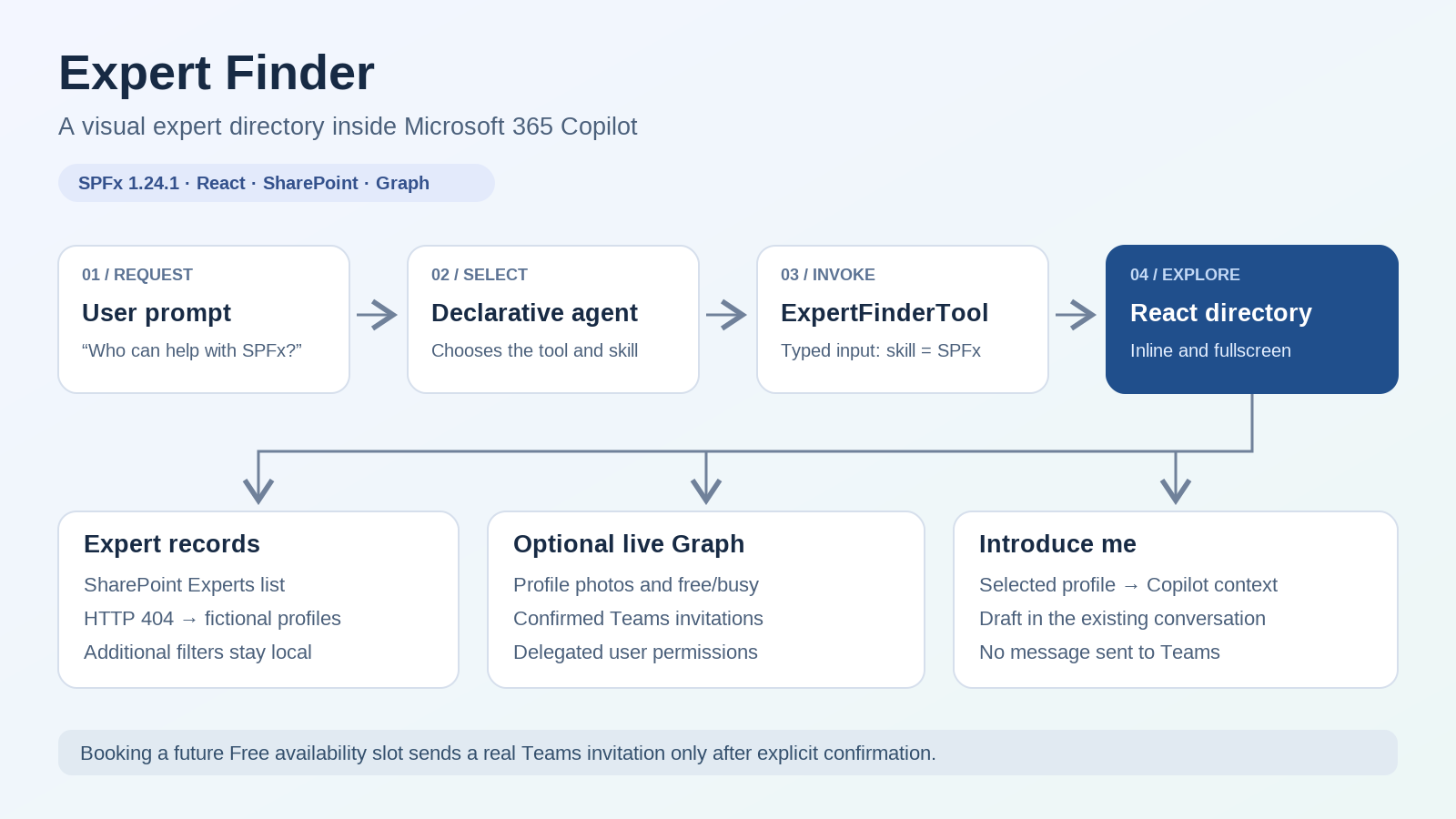
An SPFx 1.24.1 Copilot UX component that renders an expert directory inline and in fullscreen using React, Fluent UI v9 and a SharePoint Experts list.
Explore local filters, delegated Graph photos and free/busy availability for today or the next working day, confirmed Teams meetings, introduction drafts and editable Copilot-generated agendas saved to the existing invitation.
Learn component-to-Copilot context publishing: Introduce me awaits updateModelContextAsync with a minimal selected-profile snapshot, then uses sendFollowUpMessageAsync to request a draft in the existing conversation.
A missing Experts list selects bundled fictional profiles with local portraits. Mock profiles make no Graph calls. Meeting creation and agenda saving require explicit user actions; agenda generation alone does not update the calendar.
Documentation
Setup and implementation
Summary
Find colleagues by skill in Microsoft 365 Copilot, explore their profiles inline or in fullscreen, and connect through Microsoft Teams. This SharePoint Framework (SPFx) Copilot UX component reads an Experts list in SharePoint and uses delegated Microsoft Graph access for profile photos, calendar availability and confirmed Teams meetings.
When the list is absent, the same component runs with bundled fictional profiles and portraits. No custom backend or additional language model is required.
The Introduce me action demonstrates passing selected component state back to Copilot through the public Bridge APIs. After a confirmed booking, Prepare agenda with Copilot uses the same conversation to generate an agenda in an independent editable card. An explicit Save agenda to meeting action updates the existing invitation.
Compatibility



The project uses React 18.3.1, TypeScript 5.8, Fluent UI v9, Zod and Heft. Node.js 24.x was used for development. See the SPFx compatibility reference for supported toolchain versions; keep the sample's existing dependencies.
Applies to
- SharePoint Framework
- Copilot UX components
- SharePoint Online and Microsoft 365 Copilot
Contributors
Version history
| Version | Date | Comments |
|---|---|---|
| 1.5 | November 15, 2026 | Added Copilot-generated meeting agendas, independent review/edit/save and safe updates to the existing invitation; Teams app 1.0.9 and SharePoint solution 1.0.0.13. |
| 1.4 | November 15, 2026 | Added Today / Next working day availability and local-date selection; updated the Teams app to 1.0.8 and SharePoint solution to 1.0.0.12. |
| 1.3 | November 7, 2026 | Removed the unused Schedule preview; real meeting creation remains available from free availability slots. |
| 1.2 | November 7, 2026 | Highlighted component-to-Copilot context publishing and conversational follow-ups. |
| 1.1 | November 7, 2026 | Added PnP PowerShell provisioning for the Experts list. |
| 1.0 | November 7, 2026 | Initial sample contribution, adapted from the Microsoft 365 Live 2026 community session. |
This table tracks the sample contribution. The SPFx solution and agent have separate package versions.
Prerequisites
- Node.js 24.x and npm, with an SPFx development environment and a trusted local HTTPS development certificate.
- A Microsoft 365 development tenant with SharePoint Online, a tenant App Catalog and administrator access for deployment.
- A Microsoft 365 Copilot add-on license for the user testing the component, including in Copilot Workbench. Check the current licensing and client requirements before deployment.
- For live data: an
Expertslist in the tenant root site and permission for the signed-in user to read it. Use the PnP PowerShell provisioning script, following the SharePoint setup guide, or create the schema manually. - For live photos and calendars: the delegated Graph permissions. Calendar features also require accessible Exchange mailboxes; meeting creation requires Teams support in the organizer's calendar.
Mock profiles need no Graph consent. The component still checks SharePoint to select its data source, and Introduce me uses the Copilot host.
Minimal path to awesome
Clone this repository or download this sample.
From the repository root, open the SPFx project:
cd samples/expert-finder/src/copilot-expert-finder
npm install
npm start -- --nobrowser
If using the sample-only download, open its
src/copilot-expert-finderdirectory instead.Open
https://YOUR-TENANT.sharepoint.com/_layouts/15/copilotworkbench.aspxand load the local manifests fromhttps://localhost:4321/temp/build/manifests.jswhen prompted. Select ExpertFinderTool and supply{"skill":"SPFx"}.If the tenant root has no
Expertslist and SharePoint returns HTTP 404, the component uses fictional data. To use tenant users, provision the list with the PnP PowerShell script, add expert records and arrange any Graph permissions needed for photos or calendars, then reload the component.Stop the development server and build the production package:
npm run buildFollow deployment to upload
sharepoint/solution/copilot-expert-finder.sppkgto the App Catalog, enable it and synchronize the agent with Add to Teams. Open the agent in Copilot and ask Who can help me with SPFx?
The build script already includes production bundling and packaging. Workbench checks the component with supplied arguments; the deployed agent is needed to check natural-language tool selection and introduction drafts in conversation.
Features
- Typed tool input for the canonical skills
SPFx,Copilot,DBandSpanish. - Inline results with the total count, up to three experts and host-supported fullscreen expansion.
- Responsive fullscreen cards with local name-prefix, department and job-title filters, plus light and dark themes.
- SharePoint data access through
SPHttpClientusing the signed-in user's permissions. The list uses a single-choiceSkillcolumn; a person can have separate records for different skills. - Parallel profile-photo loading with shimmer, per-instance caching and initials on failure.
- On-demand calendar availability for Today or the Next working day, 09:00–18:00 in the viewer's local time, in 30-minute slots. The next working day skips weekends; holidays are not considered. Changing days loads the selected date; Morning/Afternoon navigation reuses that day's result.
- User-confirmed Teams meetings from future Free slots, with both-calendar checks and duplicate-request protection.
- Copilot-generated 30-minute agendas grounded in the confirmed booking, session objective and expert profile, with independent review/edit and explicit saving to the same invitation.
- Component-to-Copilot context publishing and user-triggered follow-ups through the public Bridge APIs, demonstrated by Introduce me: a first-person draft containing exactly three relevant questions about the selected expert's skill.
Component-to-Copilot context and follow-up
Introduce me demonstrates a reusable pattern for grounding a Copilot response in a user's selection inside an interactive component:
- Build a bounded text snapshot of the selected expert from React application state, using
createCopilotTextContentto prepare host content. - Await
updateModelContextAsyncto replace the component's previous model context with that selected profile. Publishing context alone does not start a response. - Call
sendFollowUpMessageAsyncafter the context update succeeds to request the draft in the existing Copilot conversation, on behalf of the user.
The snapshot contains only the expert's name, job title, department, skill and summary, plus purpose and fictional-profile metadata. It excludes email addresses, photos, calendars and other experts. Profile fields remain untrusted data; drafting instructions belong in the agent and follow-up. The component handles host rejection, timeout, cancellation and overlapping card actions, and sends no Teams message.
See the implementation and Bridge call excerpt, the expected conversation behavior, and Microsoft's component context guidance.
Meeting agenda
After booking a meeting, choose Prepare agenda with Copilot. The component publishes a bounded snapshot of the booking, professional profile and original Session objective / notes, then requests a follow-up in the existing conversation. Copilot generates an objective, timed blocks totaling 30 minutes and exactly three relevant questions, and invokes PrepareMeetingAgendaTool to show an editable review card. Generation and rendering do not save the agenda.
The independent card reads the real event and verifies its organizer and application booking marker. Save agenda to meeting rereads the current body, adds or replaces one escaped agenda section, and preserves existing notes and Teams connection information. Saving can send meeting-update notifications. Repeated identical saves skip another update; uncertain outcomes offer Check save status without automatically repeating the write. Legacy or arbitrary unmarked events cannot be updated through this flow. See invocation and the implementation walkthrough.
Preview actions and real operations
| Action | Fictional profiles | SharePoint profiles |
|---|---|---|
| Search and filters | Bundled profiles; filters run locally | SharePoint filters by skill; additional filters run locally |
| Chat in Teams | Contact preview | Opens a Teams chat; sends no message automatically |
| Check availability | Explains that fictional profiles have no calendar | Reads the selected expert's free/busy availability |
| Select a future Free slot | Unavailable | Opens a confirmation; Create Teams meeting creates an event and sends a real invitation |
| Introduce me | Illustrative draft for a fictional person | Draft grounded in the selected profile; sends nothing to Teams |
| Prepare agenda with Copilot | Unavailable without a real booking | Generates an editable draft for the confirmed booking; no calendar write |
| Save agenda to meeting | Unavailable | Updates the existing marked invitation after explicit confirmation; may notify attendees |
Data source and limits
The component checks Experts in the tenant root site once during initialization. HTTP 200 selects SharePoint; HTTP 404 selects mocks. Other errors are shown instead of being hidden by a fallback. An existing list without matching records shows an empty state. No tenant URL needs to be edited in the source.
Mock result counts are SPFx 6, Copilot 8, DB 1 and Spanish 0. The SharePoint provider supports up to 100 records per skill and reports an error if more pages are returned. The panel defaults to Next working day on weekends or from 17:30, when no future slot remains today; otherwise it starts on Today. Next working day starts at Morning, while Today starts at Afternoon from 14:00. Refresh preserves the selected day and period. Successful bookings remain marked Busy for the component session; this does not establish attendee acceptance or track later Outlook changes.
Documentation
- Build, local development and deployment
- Experts list provisioning, schema and manual sample data
- Graph permissions with CLI for Microsoft 365
- Copilot prompts, introductions and meeting agendas
- Code walkthrough
- Validation checklist, local checks and author-reported Copilot validation
- Image provenance and redistribution
Help
These are community samples. Search the repository issues for related reports, or create an issue with the sample name, steps to reproduce and relevant environment details.
License
This sample is provided under the repository's MIT license. See image provenance for the bundled visual assets.
Disclaimer
THIS CODE IS PROVIDED AS IS WITHOUT WARRANTY OF ANY KIND, EITHER EXPRESS OR IMPLIED, INCLUDING ANY IMPLIED WARRANTIES OF FITNESS FOR A PARTICULAR PURPOSE, MERCHANTABILITY, OR NON-INFRINGEMENT.