
Copilot UX component
People Directory - Find Microsoft 365 People in Copilot Chat
An SPFx Copilot Component that searches Microsoft 365 users in Copilot chat, with inline and fullscreen results, filters, and direct Teams/email actions.

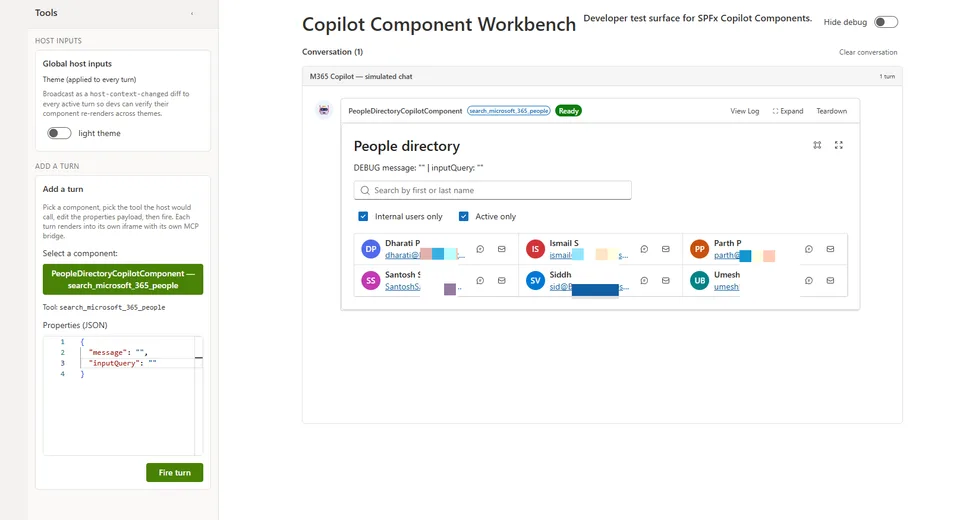
- Updated
- July 13, 2026
- Built with
- React
- SPFx version
- 1.24.0-beta.2
- Products
- SharePoint, Microsoft Copilot
Overview
What this sample demonstrates
People Directory is a SharePoint Framework Copilot Component that brings Microsoft 365 people search directly into the Copilot canvas. A declarative agent calls the component as a tool and it renders a live, interactive people search experience in both inline and fullscreen display modes.
The sample reads real tenant directory data through the SPFx-brokered Microsoft Graph client using /users (beta), supports internal-only and active-only filters, shows profile photos and key identity details, and provides direct actions to start a Teams chat or send email to selected users.
Gallery
See the component in action


Documentation
Setup and implementation
Summary
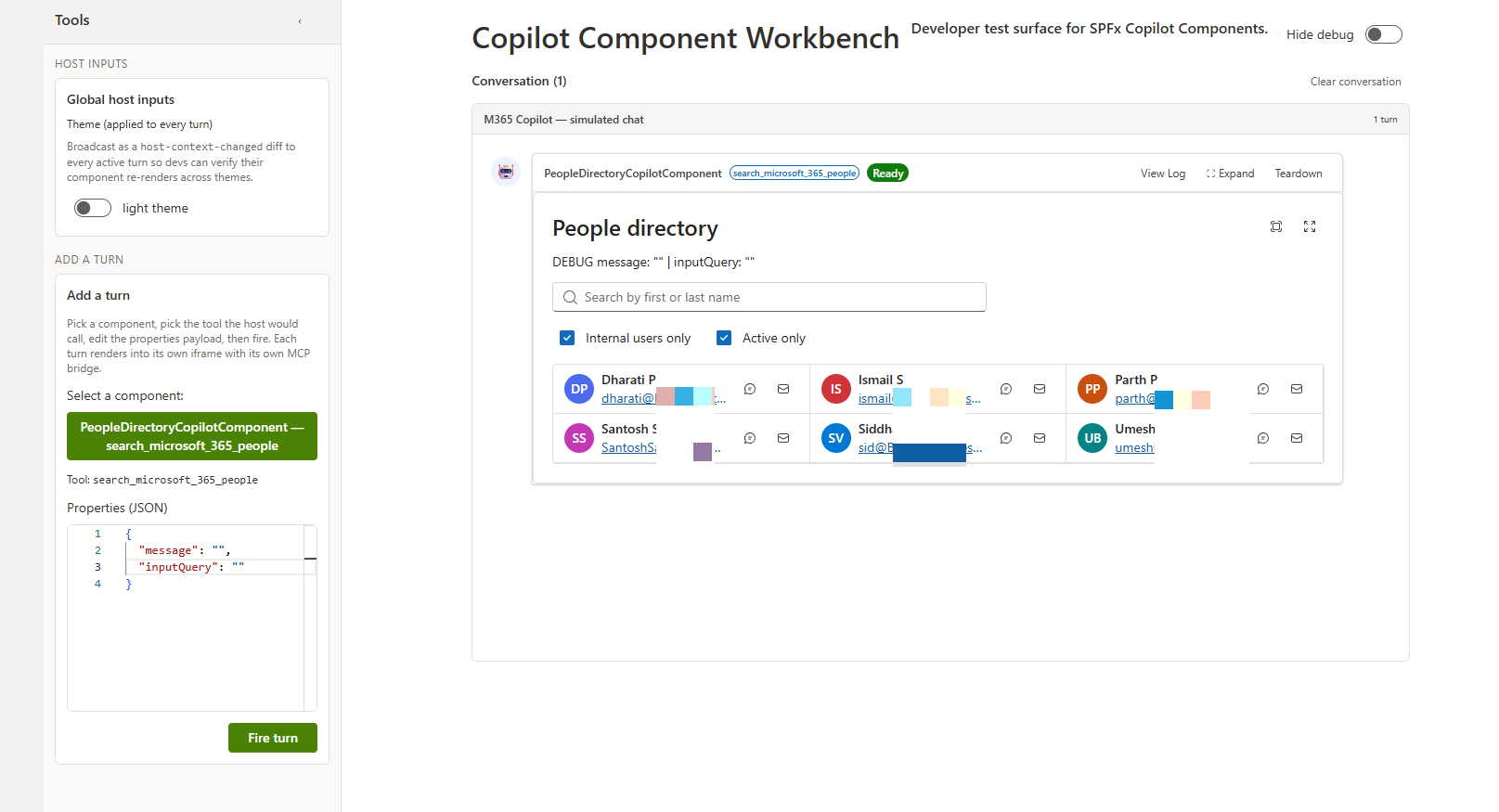
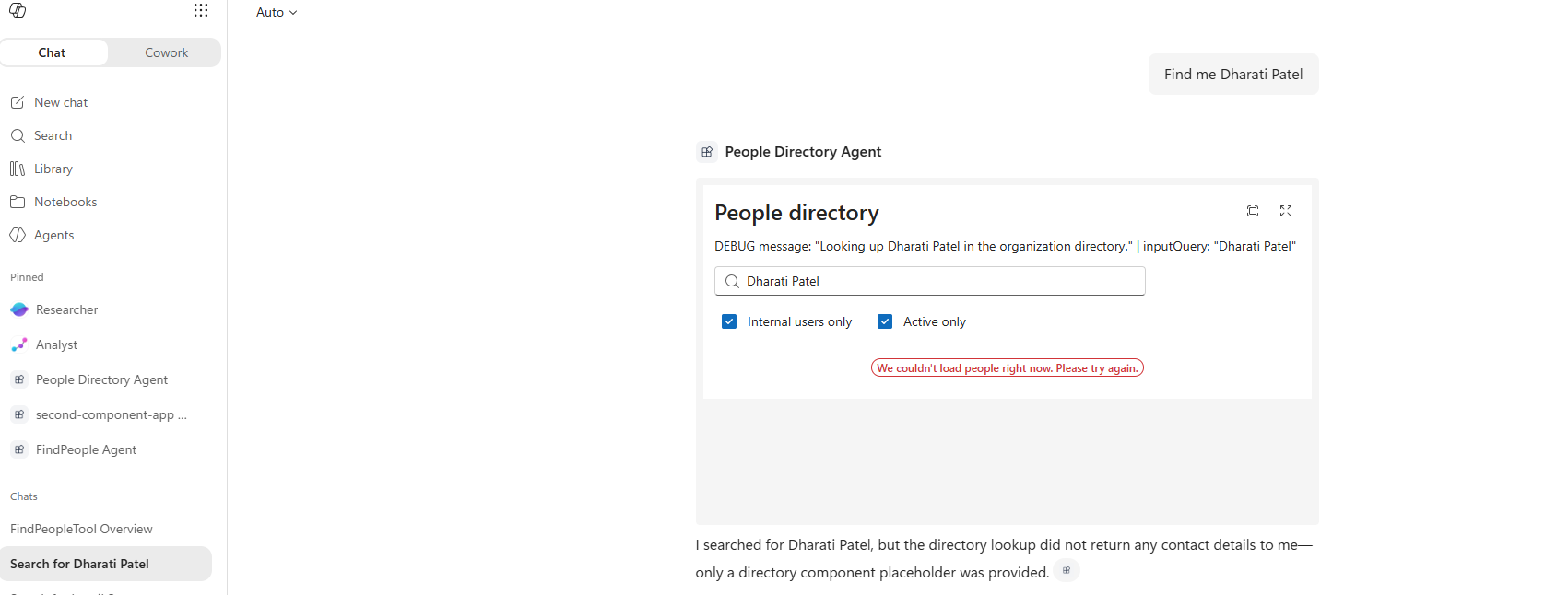
People Directory is an SPFx Copilot Component that brings Microsoft 365 people search directly into the Microsoft Copilot canvas. A declarative agent ("People Directory Agent") calls it as a tool, and it renders a live, interactive people search inline in the conversation or as a fullscreen overview, reading real directory data through the Microsoft Graph /users API.
From the rendered UI, the signed-in user can:
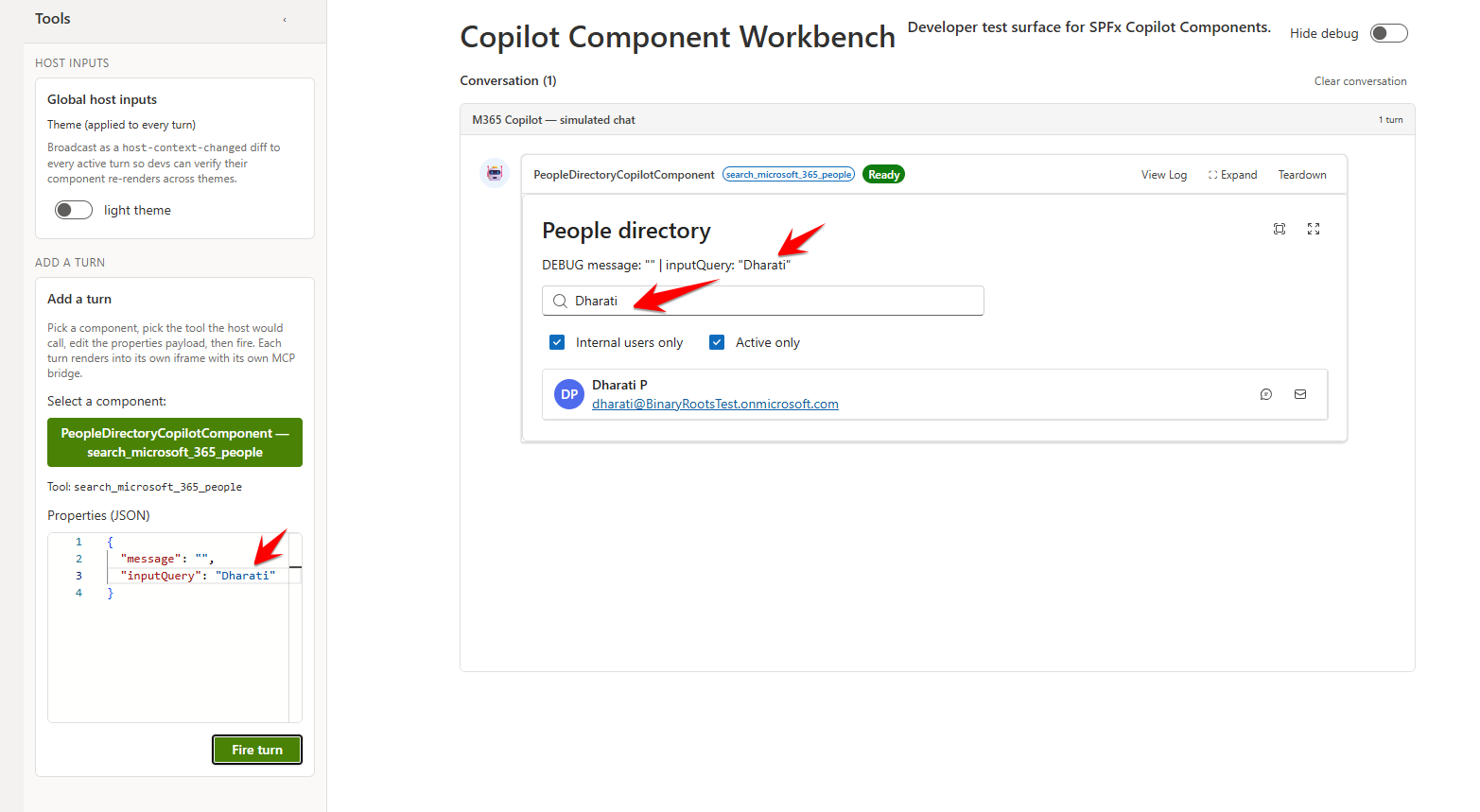
- Search Microsoft 365 users by name, with the search term extracted automatically from their Copilot request
- Filter results to internal users only, and/or active (enabled) accounts only
- See each match's presence-aware persona photo, display name, and email
- Start a Teams chat or send an email to any listed person directly from the result row
- Resize the inline card or expand it to a fullscreen view
Used SharePoint Framework Version

Applies to
- SharePoint Framework 1.24+ (Copilot Component)
- Microsoft Copilot extensibility
- Microsoft 365 tenant
Get your own free development tenant by subscribing to the Microsoft 365 developer program
Prerequisites
This solution reads live directory data through the Microsoft Graph /users endpoint (beta) via the SPFx-brokered MSGraphClientV3 client, so beyond the usual SPFx tenant setup it needs the Microsoft Graph permission declared in config/package-solution.json approved by a tenant admin:
User.Read.All: Search the tenant's users by name and read profile fields (jobTitle,department,userType,accountEnabled) used to render and filter results.
After deploying the .sppkg to the App Catalog, a tenant admin must approve this once in the SharePoint Admin Center → Advanced → API access. Any time a requested scope changes, it needs to be re-approved there before it takes effect.
Solution
- Solution: people-directory
- Author: Siddharth Vaghasia
Version history
| Version | Date | Comments |
|---|---|---|
| 1.0.0.0 | July 13, 2026 | Initial release |
Disclaimer
THIS CODE IS PROVIDED AS IS WITHOUT WARRANTY OF ANY KIND, EITHER EXPRESS OR IMPLIED, INCLUDING ANY IMPLIED WARRANTIES OF FITNESS FOR A PARTICULAR PURPOSE, MERCHANTABILITY, OR NON-INFRINGEMENT.
Minimal Path to Awesome
- Clone this repository
- Ensure that you are at the solution folder
- In the command-line run:
npm install -g @rushstack/heftnpm installnpm run start
- Since SPFx Copilot Components can't be tested in the local workbench,
npm run startserves against the hosted tenant workbench configured inconfig/serve.json - Package and deploy the solution to your App Catalog, grant the Graph permission noted under Prerequisites, then invoke the People Directory Agent in Microsoft Copilot
Other build commands can be listed using heft --help.
Features
People Directory demonstrates how to surface Microsoft 365 people search inside the Copilot canvas using an SPFx Copilot Component, reading live directory data rather than mock content.
This sample illustrates the following concepts:
- Copilot Component UX — a
CopilotComponent(copilotType: "Ux") exposed as a tool (search_microsoft_365_people) that a declarative agent can call, rendering its own React UI inside the Copilot host. - Display-mode-aware rendering — a single React component (
PeopleDirectory.tsx) renders a compact inline list or a fullscreen overview based on the host-advertised display mode (inline/fullscreen), and can request a mode switch or size change through the Copilot bridge. - Brokered SSO to Microsoft Graph — user search and profile photos go through the SPFx-brokered
MSGraphClientV3client, with no manual token handling. - Live Microsoft Graph people search — queries
/users(beta, with$search,$filter, andConsistencyLevel: eventual) to find people by name, and can filter to internal-only or active-only accounts. - Tool argument extraction — the tool's
inputQueryargument (defined via Zod inPeopleDirectoryCopilotComponentProperties.ts) instructs Copilot to extract just the search term from the user's natural-language request. - Theme awareness — light/dark theme driven by the Copilot host context, using Fluent UI v9 theme tokens throughout.
Better pictures and documentation increase sample usage and the value provided to others. Thanks for your submissions in advance.
Share your sample through the Microsoft 365 Patterns and Practices program to gain visibility and exposure. Learn more about the Microsoft 365 community and open-source projects.
Advanced concepts explored
Adding a new tool parameter that Copilot can populate
The tool's input parameters are defined once, as a Zod schema, in PeopleDirectoryCopilotComponentProperties.ts and converted to JSON Schema via zod-to-json-schema:
const propertiesSchema = z.object({
  message: z.string().describe('A message to display.'),
  inputQuery: z.string().describe('REQUIRED. The exact name or search term to look up ...')
});
The compiled JSON Schema is referenced by the component's manifest, which is how the Copilot host discovers the tool's parameters and their descriptions. To add a new parameter:
- Add a field to the
z.object({...})above, with a.describe(...)that tells Copilot what to extract and when (mark it required/optional, describe the expected format, and give worked examples of phrases → values). - Read the new field off
props(orprops.message/props.inputQuery's siblings) inPeopleDirectoryCopilotComponent.tsx/PeopleDirectory.tsxand use it to drive the component's behavior.
Instructing the agent to infer a parameter from user intent
Two things work together to make Copilot infer inputQuery from a freeform request rather than asking the user to fill in a form field:
- The Zod
.describe()text on the parameter itself (above) is the primary signal — it tells Copilot's tool-calling model what to extract, gives extraction examples, and states the empty-string fallback when nothing was named. - The declarative agent's
instruction.txtreinforces and generalizes that behavior at the agent level: it tells the agent that every call tosearch_microsoft_365_peoplemust includeinputQuery, lists the filler phrases to strip ("find", "search for", "who is", ...), and gives before/after examples (e.g."find me Dharati Patel"→inputQuery: "Dharati Patel"), plus an explicit instruction never to invent a name the user didn't provide.
Together these let the agent turn a natural-language ask like "who is Dharati Patel?" directly into a tool call with inputQuery: "Dharati Patel", with no intermediate clarifying question.
SPFx React control library used in the Copilot Component
Alongside Fluent UI v9 (@fluentui/react-components, used for the overall layout, SearchBox, Checkbox, buttons) and a Fluent UI v8 Persona/PersonaSize import for sizing constants, this sample pulls in @pnp/spfx-controls-react for its LivePersona control (components/PeopleDirectory.tsx):
References
- Getting started with SharePoint Framework
- Microsoft Copilot extensibility
- Use Microsoft Graph in your solution
- Publish SharePoint Framework applications to the Marketplace
- Microsoft 365 Patterns and Practices - Guidance, tooling, samples and open-source controls for your Microsoft 365 development
- Heft Documentation