
Copilot UX component
Personal Links
One UX across Copilot and SharePoint, with cross-device App Folder storage

- Updated
- October 28, 2026
- Built with
- React
- SPFx version
- 1.24.0
- Products
- SharePoint, Microsoft Copilot, Microsoft Teams
Overview
What this sample demonstrates
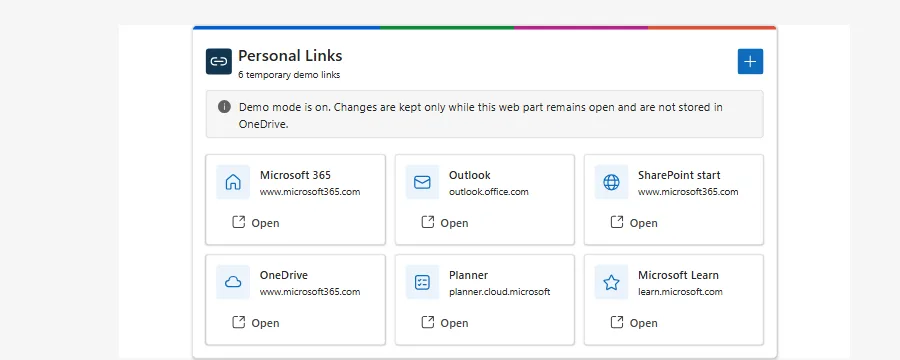
Personal Links demonstrates two reusable patterns together: render one shared Fluent UI experience in Copilot and SharePoint, and store each user's component state in the least-privilege OneDrive App Folder so the same personal link collection follows them across hosts and devices.
Gallery
See the component in action


Documentation
Setup and implementation
SPFx 1.24.0 GA upgrade (October 28, 2026): Build dependencies target GA. React/ReactDOM use 18.3.1. Earlier readiness reports, screenshots, test counts, and tenant evidence remain historical, not fresh GA host certification. Restore was validated using the configured Microsoft npm proxy; npmjs.org did not yet expose all required GA packages. Use an approved registry with 1.24.0 available; do not commit credentials.
Summary
Personal Links demonstrates two patterns together:
- One UX in SharePoint and Copilot. The same React and Fluent UI application runs as a compact Copilot inline component, a Copilot full-screen experience, a SharePoint web part, and a SharePoint full-page app. A separately packaged Teams personal app hosts the same web part in Full mode.
- One personal state across hosts and devices. The shared application stores the signed-in user's link collection in the least-privilege OneDrive App Folder, so the same content follows the user between Copilot, SharePoint, Teams, and devices.
The Copilot component and web part are intentionally thin host adapters around that shared application
and storage service. Personal links are stored in personal-links-v1.json, and the solution requests
only the delegated Microsoft Graph Files.ReadWrite.AppFolder permission.
For a presenter-ready setup, UX walkthrough, failure demonstration, and code tour, see
DEMO-SCRIPT.md.
Compatibility





Microsoft 365 Copilot compatibility depends on the SPFx 1.24.0 GA Copilot Component support being available in the target tenant.
Applies to
- SharePoint Framework
- Microsoft Copilot extensibility
- Microsoft 365 tenant
- SharePoint Online
- OneDrive for work or school
Get your own free development tenant by subscribing to the Microsoft 365 developer program.
Contributors
Version history
| Version | Date | Comments |
|---|---|---|
| Unreleased | October 28, 2026 | Upgrade to SPFx 1.24.0 GA; React/ReactDOM 18.3.1 and Heft 1.3.2. |
| 1.0.3 | October 9, 2026 | Added the resolved App Folder action and finalized the agent provider |
| 1.0.2 | October 9, 2026 | Added Compact pagination and configurable SharePoint links per page |
| 1.0.1 | October 9, 2026 | Polished branding, isolated Teams package, demo script, and finalized host behavior |
| 1.0 | October 8, 2026 | Initial release |
Prerequisites
- Node.js supported by this SPFx release. The primary development range is
>=22.14.0 <23.0.0; seepackage.jsonfor all supported ranges. - A Microsoft 365 tenant with a SharePoint App Catalog.
- The SPFx 1.24.0 GA Copilot Component support available for Copilot use.
- A tenant administrator who can approve the delegated Microsoft Graph
Files.ReadWrite.AppFolderpermission. - A provisioned OneDrive for every user of the sample.
After deploying the solution, approve the pending Files.ReadWrite.AppFolder request from the
API access page in the SharePoint admin center. If the permission is not approved or the signed-in
user has no provisioned OneDrive, Personal Links displays an explicit error instead of silently storing
data somewhere else.
For a SharePoint-only UX demonstration without API approval or OneDrive writes, web part authors can enable Use temporary demo data. Demo mode is not available to the Copilot component or Teams personal app; both always use Microsoft Graph and the signed-in user's OneDrive App Folder.
Minimal path to awesome
- Clone this repository, or download this solution as a .ZIP file and unzip it.
- From your command line, change the current directory to
samples/personal-links. - In the command line run:
npm installnpm run start
- To create the production package, run:
npm run build
- Upload
sharepoint/solution/personal-links.sppkgto the tenant App Catalog and deploy it. - In the SharePoint admin center, approve the pending Microsoft Graph
Files.ReadWrite.AppFolderAPI request. - Add Personal Links to a modern SharePoint page or install the generated Personal Links Copilot agent through the supported SPFx Copilot deployment flow.
- Optional: upload
teams-app/personalLinks/TeamsSPFxApp.zipas a custom Teams app after deploying the SPPKG. The Teams ZIP references the deployed web part; it does not contain the implementation.
A ready-to-deploy package is included at
sharepoint/solution/personal-links.sppkg.
Features
This sample illustrates the following concepts:
- One shared React 18 experience rendered by a Copilot component and a SharePoint web part.
- Compact and full experiences selected from Copilot display mode or SharePoint web part configuration.
- Component-width container queries that adapt the shared Full experience to each host canvas rather than assuming the browser viewport width is the available component width.
- Accessible Compact pagination with a configurable SharePoint page size and a six-link Copilot default.
- Fluent UI v9 components and icons with owner-document Griffel style rendering.
- Zava One-inspired product branding adapted to a smaller personal productivity experience.
- Per-user centralized storage through Microsoft Graph OneDrive App Folder.
- Least-privilege delegated
Files.ReadWrite.AppFolderaccess. - Versioned JSON parsing and validation.
- eTag and
If-Matchconflict protection. - Accessible create, edit, delete, search, open, and Move up/Move down interactions.
- Bounded Copilot model-context updates that exclude URLs, descriptions, hidden records, and drafts.
- One shared SPFx bundle for the common React, Fluent, service, and application graph.
- A deliberate packaging boundary between the Copilot agent ZIP and the separately generated Teams personal-app ZIP.
- An explicit web-part demo mode that exercises the complete UX without reading or writing OneDrive.
- Shared custom branding for the agent, web-part toolbox, and Teams app, using the UX accent colors.
Experiences
Compact
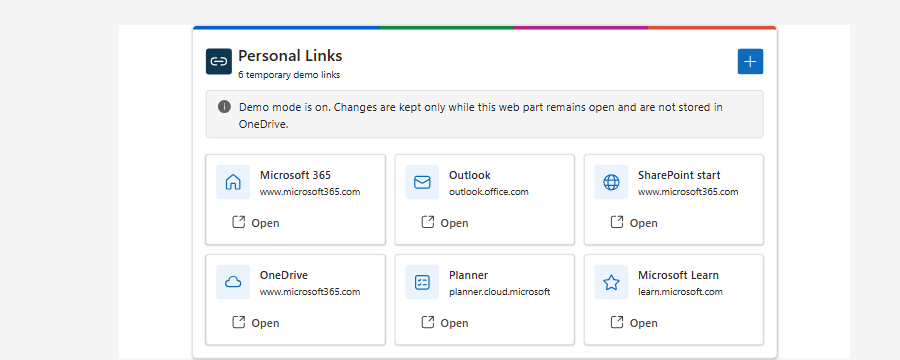
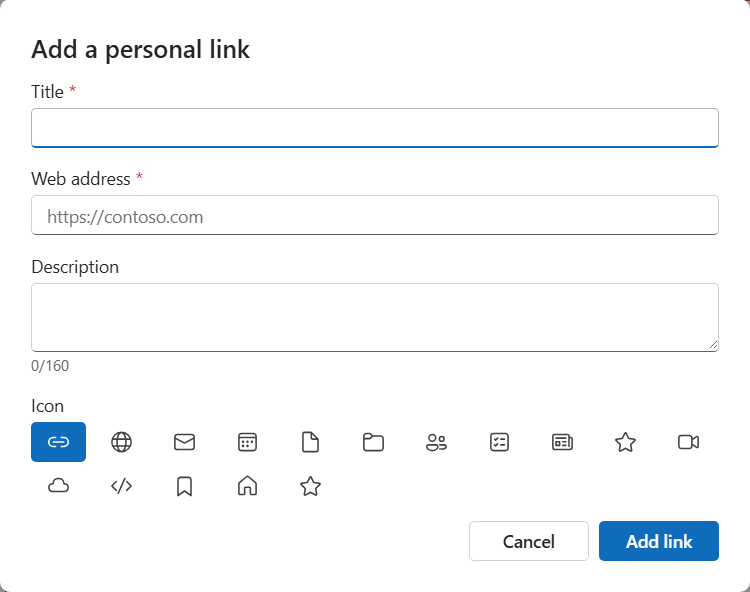
Compact mode is optimized for viewing and opening links. It shows one page of icon-forward links, accessible Previous/Next controls when more links exist, an Add personal link action, and View in full screen when the Copilot host supports it. Copilot uses six links per page because agent components have no author property pane. SharePoint authors can choose 3, 6, 9, or 12 links per Compact page. Link creation uses the same editor as Full mode in a Fluent dialog. Before the dialog opens, the Copilot adapter asks the host to expand the inline iframe from its compact height to the editor height. Closing or saving the dialog restores the compact requested size.
Compact mode is used for:
- Copilot inline rendering; and
- the default SharePoint web part experience.
Full
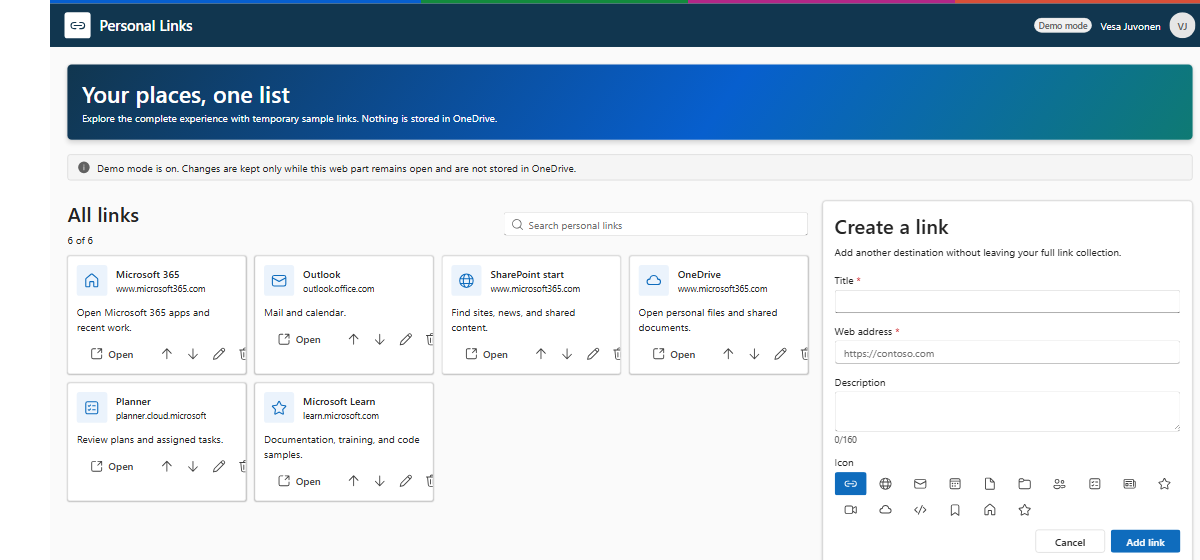
Full mode provides:
- all links in a responsive icon-forward grid;
- search by title, hostname, or description;
- an always-available create/edit inspector on wider screens;
- a curated Fluent icon picker;
- editing and confirmed deletion;
- accessible Move up and Move down ordering; and
- visible loading, saving, permission, stale-data, conflict, and error states.
Full mode is used for:
- Copilot full-screen rendering;
- an author-selected full SharePoint web part; and
- the SharePoint full-page host.
Branding and visual model
The experience adapts the top-bar model from samples/zava-one-hub:
- a segmented blue, green, magenta, and coral accent;
- a shared interlocking-link app mark for Copilot, the SharePoint toolbox, and Teams;
- a dark navy product bar in Full mode;
- a light Personal Links brand tile;
- truthful OneDrive storage status; and
- signed-in user identity.
Compact mode retains only the thin accent and smaller product identity so branding does not consume the limited inline height. The sample does not copy the Zava workspace tabs, dashboard density, fictional demo status, personas, or domain imagery.
Architecture
PersonalLinksCopilotComponent -----+
                                    +--> PersonalLinksApp
PersonalLinksWebPart --------------+      |- Compact experience
                                           |- Full experience
                                           |- Shared editor/icon picker
                                           `- Shared state controller
                                                    |
                                                    v
                                         IPersonalLinksService
                                                    |
                                                    v
                                        GraphPersonalLinksService
                                                    |
                                                    v
                                    OneDrive /special/approot
The host adapters are intentionally thin:
- The Copilot adapter owns host-authoritative display-mode requests, link opening through the Copilot bridge, and bounded model-context updates.
- The web part adapter owns SharePoint host mode, property-pane configuration, safe browser link opening, and SharePoint theme changes.
- Shared React owns all visible UX, drafts, validation, list interactions, and storage commands.
- The Graph service owns App Folder paths, schema parsing, eTags, and Graph error mapping.
This separation is the reusable pattern when one experience must appear in multiple SPFx hosts.
OneDrive App Folder storage
The solution uses these Microsoft Graph paths:
GET /me/drive/special/approot
GET /me/drive/special/approot:/personal-links-v1.json
GET /me/drive/special/approot:/personal-links-v1.json:/content
PUT /me/drive/special/approot:/personal-links-v1.json:/content
The App Folder root response also provides the current user's webUrl. The Graph service carries that
resolved URL into the shared application, which exposes Open App Folder in Compact and Full
production UX. This opens the actual folder in the user's OneDrive for demonstrations without
hard-coding a tenant domain, personal-site path, or application folder name. The URL is not published to
Copilot model context and is not shown in temporary demo mode.
There is no App Folder or user-data JSON file checked into the solution. Their lifecycle is:
- On the first production load,
GET /me/drive/special/approotasks Microsoft Graph for the signed-in user's application folder. With permission approved and OneDrive provisioned, Microsoft Graph creates the app-specific folder under the user's Apps folder if it does not already exist. Its visible folder name is determined by the Microsoft 365 application identity and is not guaranteed to be Personal Links. The application does not construct or assume its physical OneDrive path. - The service looks for
personal-links-v1.jsonin that folder. A missing file is a valid first-run state and is represented in memory as an empty version 1 document; simply viewing an empty experience does not create the JSON file. - When the user first creates or otherwise saves a link, the application builds the version 1 document,
serializes it with
JSON.stringify, and uses the GraphPUT ...:/contentrequest. That request createspersonal-links-v1.json. Later saves replace its content using the current eTag for conflict protection. - Every production host uses this same file. The Copilot component, SharePoint web part, SharePoint full-page app, and Teams personal app therefore show the same links for the same signed-in user.
The JSON contract is defined by IPersonalLinksDocument and IPersonalLink in
src/shared/models/personalLinks.ts. A stored document has this shape:
{
  "schemaVersion": 1,
  "links": [
    {
      "id": "link-1728388800000-k3f8x2",
      "title": "Microsoft 365",
      "url": "https://www.microsoft365.com/",
      "description": "Open Microsoft 365",
      "iconKey": "globe",
      "order": 0,
      "createdAt": "2026-10-08T12:00:00.000Z",
      "updatedAt": "2026-10-08T12:00:00.000Z"
    }
  ],
  "updatedAt": "2026-10-08T12:00:00.000Z"
}
The version 1 document stores:
- a stable link ID;
- title;
- absolute HTTP or HTTPS URL;
- optional description;
- stable Fluent icon key;
- display order; and
- created and updated timestamps.
Existing files are saved with the current eTag in an If-Match header. Microsoft Graph HTTP 412
responses become visible concurrency conflicts instead of silently replacing changes from another host.
Invalid documents and documents created by unsupported future schema versions are not overwritten.
Missing permission and OneDrive errors
When Microsoft Graph returns 401 or 403, the experience displays an actionable permission message that
instructs the user to ask a tenant administrator to approve Microsoft Graph
Files.ReadWrite.AppFolder under SharePoint admin center > Advanced > API access. The message
provides Setup guidance and Retry actions.
When the App Folder root returns 404, the experience explains that OneDrive is not provisioned and asks
the user to open OneDrive once or contact an administrator. A missing personal-links-v1.json file is
handled separately as a valid first-run empty state. Temporary SharePoint demo mode does not call Graph,
create an App Folder, or create personal-links-v1.json; its data exists only in memory.
Web part configuration
The initial web part supports only:
SharePointWebPart; andSharePointFullPage.
The Display mode property provides:
- Auto - Compact on a normal SharePoint page and Full through
ComponentHost.aspx; - Compact - always use the launcher; and
- Full - always use the manager.
The Links per Compact page property provides 3, 6, 9, or 12 links per page. It defaults to six and affects only Compact mode. Copilot also uses the shared six-link default but does not expose a property pane; Teams always uses Full mode.
The Use temporary demo data toggle controls storage:
- Off - the shared application uses
GraphPersonalLinksServiceand stores links in the user's OneDrive App Folder. - On - the shared application uses
MemoryPersonalLinksService, starts with six representative links, and makes no App Folder calls.
Demo mode shows a persistent disclosure in both Compact and Full experiences. Create, edit, delete, search, open, icon selection, and reordering remain functional, but mutations survive only while that web part instance remains mounted. Refreshing the page or creating a new web part service restores the seeded demo links.
The Copilot component and Teams personal app have no storage selector. Both always construct or select
GraphPersonalLinksService, so every supported host reads and writes the same signed-in user's
personal-links-v1.json App Folder file.
Teams personal app and packaging boundary
The primary web-part manifest does not enable TeamsPersonalApp or TeamsTab. That deliberate boundary
prevents SPFx from automatically adding a Teams web-part ZIP to the same SPPKG that contains the Copilot
agent package.
The generated teams/personal-links.zip file is the Copilot declarative-agent package. It is not a
Teams web-part companion package.
The handcrafted teams-app/personalLinks/TeamsSPFxApp.zip follows the isolated
samples/zava-one-hub/teams/ model. Its personal tab routes directly to the deployed web-part component
through TeamsLogon.aspx and teamshostedapp.aspx. In Teams, the host adapter selects Full mode and
hides the in-app product bar because Teams already provides app and user chrome.
Regenerate or validate the shared icons and Teams package with:
.\teams-app\package-app.ps1
.\teams-app\package-app.ps1 -Check
The ZIP contains only manifest.json, color.png, and outline.png at its root. Upload it separately
from the Copilot agent package. The sibling teams-app folder is intentionally outside SPFx's reserved
top-level teams folder, whose contents are copied into the SPPKG. See
teams-app/README.md for installation details.
Solution structure
config/
  package-solution.json                       # Permission and SPPKG metadata
copilot/                                      # Declarative agent and API plugin source
src/
  copilotComponents/personalLinks/            # Thin Copilot host adapter
  webparts/personalLinks/                     # Generated thin SharePoint host adapter
  shared/
    components/PersonalLinksApp.tsx           # Compact and Full shared UX
    components/PersonalLinksErrorBoundary.tsx # Shared accessible recovery
    components/PersonalLinksThemeProvider.tsx # ownerDocument Fluent/Griffel boundary
    models/personalLinks.ts                    # Versioned model, parsing, validation
    services/IPersonalLinksService.ts          # Swappable storage contract
    services/GraphPersonalLinksService.ts      # Graph App Folder implementation
    services/MemoryPersonalLinksService.ts     # Non-persistent web part demo implementation
assets/sample.json                            # PnP sample gallery metadata
assets/personal-links-webpart.png             # Shared generated web-part artwork
teams-app/package-app.ps1                     # Branding and isolated Teams package generator
teams-app/personalLinks/TeamsSPFxApp.zip       # Ready-to-upload Teams personal app
todo.md                                       # Design, phases, and validation gates
Validation
The production validation command is:
npm run build
The latest local run completed with:
- TypeScript compilation passed;
- ESLint passed with zero warnings;
- focused model and service Jest tests passed with 0 failures;
- production packaging passed;
- one shared application bundle;
- one current Copilot agent ZIP in the SPPKG; and
- zero
TeamsSPFxApp.zipentries.
The separate Teams package is validated with:
.\teams-app\package-app.ps1 -Check
The ready-to-deploy version 1.0.0.3 SPPKG is 158,579 bytes with SHA-256:
4776FDA62E733AC21A11C43949A90BA1DCA07B020587DEDFD23FF2928F38B833
The isolated TeamsSPFxApp.zip is 15,840 bytes with SHA-256
A3FE833AC5B7AF7DCC19DFF603A1A00A67A0C22F7B97186CB5D07C6A6FEDC292.
Authenticated tenant checks remain open for API consent, OneDrive provisioning, Copilot inline and full-screen behavior, model context, SharePoint full-page routing, accessibility, and screenshots.
Limitations
- Cross-host changes appear on the next load or explicit Retry. The sample does not implement push synchronization.
- The sample does not include folders, tags, link previews, favicons, sharing, import/export, browser bookmark synchronization, telemetry, or organizational link administration.
- Reordering uses keyboard-accessible Move up and Move down controls rather than drag and drop.
- Teams installation still requires custom-app upload to be allowed by tenant policy and must be validated against the deployed SPFx solution in an authenticated tenant.
- Gallery screenshots remain pending authenticated tenant validation.
References
- Using app folder in OneDrive and SharePoint
- Use Microsoft Graph in SPFx
- SharePoint Framework overview
- Build Microsoft 365 Copilot extensibility
- SPFx deployment guidance for Teams solutions
- Teams app package and icon requirements
Help
We do not support samples, but this community is always willing to help, and we want to improve these samples. We use GitHub to track issues, which makes it easy for community members to volunteer their time and help resolve issues.
You can try looking at issues related to this sample to see if anybody else has the same issue.
If you encounter an issue, create a new issue.
Disclaimer
THIS CODE IS PROVIDED AS IS WITHOUT WARRANTY OF ANY KIND, EITHER EXPRESS OR IMPLIED, INCLUDING ANY IMPLIED WARRANTIES OF FITNESS FOR A PARTICULAR PURPOSE, MERCHANTABILITY, OR NON-INFRINGEMENT.