
Copilot UX component
SharePoint Photos Copilot Agent
Find SharePoint and OneDrive photos from Microsoft Copilot and explore them in an interactive gallery.

- Updated
- August 24, 2026
- Built with
- React
- SPFx version
- 1.24.0-beta.2
- Products
- SharePoint, Microsoft Copilot
Overview
What this sample demonstrates
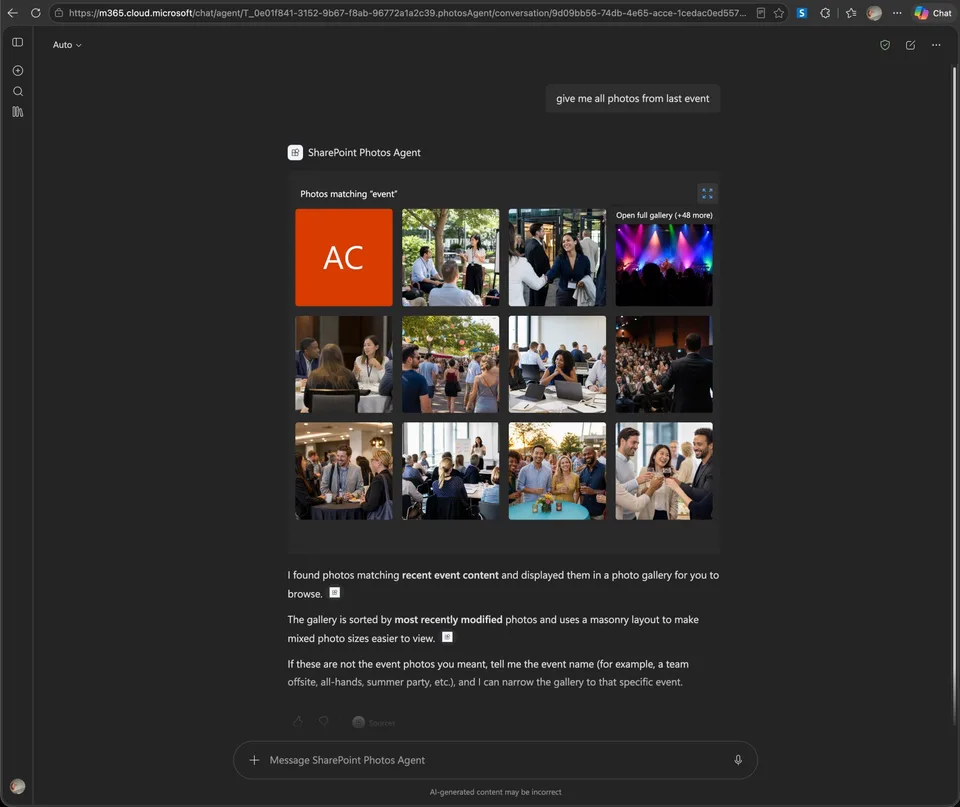
SharePoint Photos Copilot Agent brings natural-language photo discovery to Microsoft Copilot. It searches SharePoint document libraries and, when requested, personal OneDrive by using Microsoft Graph Search, then presents matching images in an interactive gallery.
The gallery supports responsive layouts, fullscreen browsing, pagination, zoom, thumbnails, slideshow controls, date filtering, and relevance, modified-date, or name sorting. Search scopes can target a SharePoint site, document library, folder, or explicitly requested OneDrive content.
Gallery
See the component in action


Documentation
Setup and implementation
A Microsoft Copilot declarative agent for finding and exploring photos stored in SharePoint document libraries and, when requested, personal OneDrive. The agent translates natural-language requests into a typed photo search, uses Microsoft Graph Search to find image files, and renders the results through the PhotoAlbum control from @spteck/react-controls-v2.
Examples of supported requests:
- “Show me all photos from the Events document library.”
- “Give me the photos from the Summer Fest event.”
- “Find the newest photos from the Marketing site.”
- “Show photos taken during last summer.”
- “Open the photos in this SharePoint folder.”
- “Show my OneDrive photos from last month.”
The result is an interactive gallery with responsive layouts, fullscreen mode, image navigation, zoom, thumbnails, and slideshow controls. The matching description appears above the gallery and the display-mode action is an icon in the top-right corner.
What this component does
The component is a Copilot UX tool backed by Microsoft Graph Search:
- Copilot interprets the user’s request and fills the tool properties.
PhotosCopilotComponentobtains the brokeredMSGraphClientV3from the SPFx runtime.graphPhotos.tssends adriveItemsearch toPOST /search/query.- The query restricts results to supported image file types, excludes personal OneDrive by default, and optionally scopes them to a site, library URL, or folder URL.
- Search results are mapped to the
PhotoAlbumPhotocontract using Graph thumbnails, download URLs, or validated direct image URLs. - The React view renders the result set through
PhotoAlbum2.9.4 with its built-in Fluent UI lightbox. - Copilot can keep the result inline or the user can open the full gallery in fullscreen mode, where more results load as the user scrolls.
Natural-language prompt
        |
        v
Declarative agent instructions
        |
        v
PhotosTool properties
        |
        v
Microsoft Graph Search: driveItem
        |
        v
Image filtering, date filtering, ordering
        |
        v
PhotoAlbum gallery + built-in lightbox
Main features
- Natural-language photo discovery by event, topic, campaign, person, filename, or season.
- Document-library search by display name or exact library URL.
- Personal OneDrive search when explicitly requested; personal hosts ending in
-my.sharepoint.comare excluded by default. - Optional exact site and folder scoping.
- Microsoft Graph Search rather than SharePoint REST list-by-list enumeration.
- Supported image filtering for JPEG, PNG, GIF, WebP, BMP, TIFF, SVG, and AVIF. HEIC and HEIF are excluded because browser support is inconsistent.
- Optional ISO 8601 date range filtering.
- Relevance, newest/modified, and alphabetical ordering.
- Up to 1,000 results per invocation, loaded incrementally; the first page contains up to 60 photos and subsequent pages contain up to 200 photos.
- Columns layout by default, with optional masonry and rows layouts.
- The
PhotoAlbumlightbox is always enabled for image navigation and inspection. - Inline preview with a fullscreen gallery for larger result sets.
- Infinite scrolling in fullscreen, using the
PhotoAlbumcontrol's built-in intersection observer and loading sentinel. - Ten-minute IndexedDB caching per Graph search page, so revisiting or retrying a page avoids unnecessary requests.
- Graph thumbnail usage for efficient image loading.
- Fallback to the Graph download URL or a validated direct image URL when a thumbnail is unavailable or fails in the browser. SharePoint
DispForm.aspxand other form pages are never used as image URLs. - Accessible gallery labeling and keyboard-friendly controls supplied by
PhotoAlbum. - Lightbox features supplied by the shared control: previous/next navigation, thumbnails, zoom, slideshow, and fullscreen.
- Clear empty and Graph error states.
- Photos render as buttons, not SharePoint anchors, so selecting a photo opens the lightbox and no separate source-file link is displayed.
- No hard-coded tenant, site, library, or user data in the search implementation.
Copilot tool properties
The schema is defined in src/copilotComponents/photos/PhotosCopilotComponentProperties.ts. Properties are intentionally optional: the agent can provide only the information present in the user’s request. Runtime defaults and safety limits are applied in utils/graphPhotos.ts.
| Property | Type | Purpose | Example |
|---|---|---|---|
searchQuery |
string | Subject, event, topic, filename, or keywords | summer fest |
siteUrl |
string | Absolute SharePoint site scope | https://contoso.sharepoint.com/sites/Marketing |
libraryName |
string | Document-library display name | Events |
libraryUrl |
string | Exact absolute document-library URL | https://contoso.sharepoint.com/sites/Events/Photos |
folderPath |
string | Exact absolute folder or album URL | https://contoso.sharepoint.com/sites/Events/Photos/Summer Fest |
includeOneDrivePhotos |
boolean | Include personal OneDrive results; omitted defaults to false unless the request says “my” or “OneDrive” | true |
startDateTime |
string | Inclusive ISO 8601 range start | 2025-06-01T00:00:00Z |
endDateTime |
string | Inclusive ISO 8601 range end | 2025-09-01T00:00:00Z |
layout |
rows | columns | masonry |
Gallery layout | columns |
maxPhotos |
integer | Result limit; 0 or omitted allows up to 1,000 photos to load incrementally, positive values are clamped to 1–1,000 |
200 |
sortBy |
relevance | modified | name |
Result ordering | modified |
Property interpretation rules
- Use
searchQueryfor the user’s subject, event, filename, or natural-language photo request. Common request words such asall,photos,in, andlibraryare removed before the Graph search. UselibraryName,libraryUrl, orfolderPathwhen an exact scope is available. - Use
libraryUrlorfolderPathwhen the user gives an exact link. They are more precise than a display name. - Use
siteUrlonly when the site is explicitly identified. The agent must never invent URLs. - Set
includeOneDrivePhotosto true for “my photos”, “my OneDrive”, “OneDrive photos”, or a personal OneDrive URL. Omit it for ordinary SharePoint requests; hosts ending in-my.sharepoint.comare excluded by default. Set it to false only when the user explicitly excludes OneDrive. - Do not apply a date range unless the user asks for a date or period.
- Use
columnsby default for a balanced gallery. Usemasonryfor mixed portrait and landscape images orrowsfor a compact inline strip when requested. - Use
modifiedfor “latest” or “newest”,namefor alphabetical results, andrelevancefor normal topic searches. - The component treats
maxPhotos: 0or an omitted value as a request for up to 1,000 results and clamps positive values to 1–1,000. - The inline view shows the first twelve loaded photos. The expand action switches to fullscreen; only fullscreen enables
PhotoAlbumviewport-sentinel infinite loading.
Microsoft Graph search behavior
The search request uses the Microsoft Graph Search API with entityTypes: ["driveItem"]. The query template adds:
- A supported image-extension filter using
filetype:.... - A default exclusion for personal OneDrive hosts ending in
-my.sharepoint.com; this is removed whenincludeOneDrivePhotosis true or the request explicitly targets OneDrive. - No
isDocument=truerestriction: SharePoint image files can be validdriveItemfiles without satisfying that document-only filter. - A
path:"..."restriction whenfolderPath,libraryUrl, orsiteUrlis available.
The search request asks Graph for fields needed by the gallery, including:
name,webUrl, andidfile.mimeTypeimage.widthandimage.heightphoto.takenDateTimethumbnailscreatedDateTimeandlastModifiedDateTimeparentReferenceandsharepointIds
Images are mapped as follows:
| Gallery field | Graph source |
|---|---|
src |
Best available Graph thumbnail, then @microsoft.graph.downloadUrl, then a validated direct image URL |
width / height |
image facet, thumbnail dimensions, then a safe 4:3 fallback |
alt / title / label |
File name |
| Date filtering | photo.takenDateTime, then createdDateTime, then lastModifiedDateTime |
The implementation hydrates a bounded number of results with Graph item metadata. This supplies a pre-authenticated @microsoft.graph.downloadUrl for browser fallback and expands thumbnails when Search does not return thumbnail data. If thumbnail expansion is empty, it also checks the dedicated /thumbnails endpoint. Original search fields are merged back into hydrated items so a tenant-specific Graph response cannot remove the file metadata needed by the gallery.
At render time, the gallery first uses the efficient thumbnail URL. If that request fails in the browser, the custom image renderer removes srcset and retries with the hydrated download URL or validated direct image URL. Search pages are cached for ten minutes, so an expired temporary Graph URL may require refreshing the search.
Infinite-scroll and pagination behavior
The gallery does not request thousands of files in one browser operation:
- The initial Graph Search request uses
from: 0and a page size of up to 60 for a fast first render. - When the fullscreen gallery sentinel approaches the viewport,
PhotoAlbuminvokesloadMore. - The hook requests the next Graph page using the server-side offset, appends only new photos, and keeps the existing gallery visible while the next page loads.
- Each page is cached independently in IndexedDB for ten minutes. The cache key includes the complete search properties and page offset, preventing different searches from sharing results.
- Loading stops when Graph reports no more results, when the requested
maxPhotosvalue is reached, or at the Microsoft Graph Search limit of 1,000 SharePoint/OneDrive results. - If a later page fails, already loaded photos remain visible and the
PhotoAlbumerror/retry state can request that page again.
The pagination cursor advances by raw Graph search hits rather than only rendered photos. This is important when date filtering or image metadata hydration removes an item from a page: a filtered item must not cause the next page to be skipped.
Supported image formats
The extension filter includes:
.jpg.jpeg.png.gif.webp.bmp.tif.tiff.svg.avif
The mapper accepts items whose Graph MIME type starts with image/*, except for HEIC/HEIF MIME types. HEIC and HEIF files are always discarded because browser support is inconsistent. Non-image files are discarded before rendering.
Project structure
photos/
├── config/
│   ├── copilot-agent.json
│   ├── package-solution.json
│   └── spfx-customize-webpack.js
├── copilot/
│   ├── ai-plugin.json
│   ├── declarativeAgent.json
│   ├── instruction.txt
│   └── manifest.json
├── src/
│   ├── copilotComponents/photos/
│   │   ├── components/
│   │   │   ├── IPhotosProps.ts
│   │   │   ├── PhotoRowsSkeleton.tsx
│   │   │   └── Photos.tsx
│   │   ├── hooks/
│   │   │   ├── useLockDocumentViewport.ts
│   │   │   ├── usePhotoAlbumScrollAreaHeight.ts
│   │   │   ├── useSharePointPhotos.ts
│   │   │   ├── useStyles.ts
│   │   │   └── useUtils.ts
│   │   ├── loc/
│   │   ├── utils/
│   │   │   └── graphPhotos.ts
│   │   ├── PhotosCopilotComponent.manifest.json
│   │   ├── PhotosCopilotComponent.tsx
│   │   └── PhotosCopilotComponentProperties.ts
│   └── react-controls-v2-photo-album.d.ts
├── package.json
└── README.md
Permissions and tenant setup
The SharePoint solution requests the Microsoft Graph delegated permission scope:
Sites.Read.All
This permission is declared in config/package-solution.json. A SharePoint administrator must approve the request from the SharePoint Admin Center:
- Upload the generated
.sppkgfile to the tenant App Catalog. - Deploy the solution.
- Open SharePoint Admin Center → Advanced → API access.
- Approve the pending Microsoft Graph
Sites.Read.Allrequest. - Add the app to a site or enable tenant-wide deployment as appropriate.
- Select Add to Teams in the App Catalog when you want to publish the declarative agent to the tenant agent catalog. Do not manually upload the generated
teams/sharepoint-photos-agent.zipto the Teams app upload screen; the SPFx Copilot build includes a tenant URL token that is resolved by the SharePoint deployment flow.
The signed-in user still needs permission to read the target SharePoint sites, libraries, or personal OneDrive content. Graph permission approval does not grant access to content the user cannot access.
For production, review whether the tenant can use a narrower permission or a more constrained deployment model. Sites.Read.All is used here because the agent is designed to search SharePoint content across sites selected by the user.
Prerequisites
- Node.js
>=22.14.0 <23.0.0. - npm.
- A Microsoft 365 developer or production tenant with SharePoint and Microsoft Copilot access.
- SharePoint Framework
1.24.0-beta.2tooling installed through the project dependencies. - Permission to install SPFx packages in the target tenant.
- Microsoft Graph API access approved for the deployed solution.
Install and run locally
From this directory:
npm install
npm start
npm start runs the Heft development server and starts the SPFx workbench flow. Because this component relies on brokered Microsoft Graph access and declarative-agent packaging, validate the complete app in a tenant rather than relying only on a local workbench render.
To build a production package:
npm run build
The build runs:
heft test --clean --productionheft package-solution --production
Typical outputs include:
sharepoint/solution/spfx-copilot-app-photos.sppkgteams/sharepoint-photos-agent.zip, an intermediate package generated from the files incopilot/
For an SPFx Copilot component, the supported publishing path is the .sppkg through the SharePoint App Catalog. SharePoint synchronizes the declarative agent to the tenant agent catalog and resolves the tenant-specific runtime URL when the component is deployed.
For a clean rebuild:
npm run clean
npm run build
Deployment checklist
- Run
npm install. - Run
npm run build. - Upload
sharepoint/solution/spfx-copilot-app-photos.sppkgto the App Catalog. - Deploy the solution.
- Approve the Graph
Sites.Read.Allpermission request. - Select Add to Teams from the App Catalog to publish the declarative agent.
- Open Microsoft Copilot and load
SharePoint Photos Agent. - Test a broad topic search, an exact library search, a date-range search, and a fullscreen gallery.
- In fullscreen, scroll near the bottom and confirm that a second Graph
/search/queryrequest is made with a largerfromoffset while the first photos remain visible. - Confirm that ordinary searches exclude
-my.sharepoint.comresults and that a “my OneDrive photos” request includes them. - Confirm that HEIC/HEIF files are not returned or rendered.
- Confirm that the signed-in test user can open the source SharePoint or OneDrive files.
- Review browser network logs and Graph responses if images do not load.
Troubleshooting
Declarative agent upload reports invalid default, minimum, or maximum values
The Copilot properties schema intentionally does not emit JSON Schema defaults, minimum, or maximum keywords for the tool arguments. Runtime defaults and clamping are implemented in TypeScript instead. This keeps the generated ai-plugin.json compatible with the declarative-agent validator, which expects tool defaults to be strings in this manifest flow.
After changing the schema, rebuild and inspect the generated ai-plugin.json. Boolean or numeric defaults should not be emitted into the function property definitions.
Teams upload reports url in RemoteMCPServerRuntimeSpec is not a valid absolute URL
This is expected when the generated teams/sharepoint-photos-agent.zip is uploaded directly through the Teams app upload UI. The SPFx Copilot build task adds a RemoteMCPServer runtime with the {{TENANT_MCP_URL}} token so SharePoint can resolve the tenant-specific runtime during App Catalog deployment. The token is not a public URL and direct ZIP upload is not the supported publishing path for an SPFx Copilot component.
Deploy sharepoint/solution/spfx-copilot-app-photos.sppkg to the SharePoint App Catalog and select Add to Teams. Do not replace the token with a guessed URL or edit the generated ZIP. The Microsoft guidance for SPFx Copilot components describes App Catalog deployment as the publishing flow.
The gallery is empty
Check:
- The prompt identified the correct site, library, folder, or topic.
- The user can open the target SharePoint library or OneDrive location.
Sites.Read.Allwas approved in SharePoint Admin Center.- The target files use a supported extension or an
image/*MIME type other than HEIC/HEIF. - The date range is valid ISO 8601 and actually includes the file’s taken/created/modified date.
- Search indexing has completed for recently uploaded files.
The Graph Search request filters by supported image extensions and intentionally does not add isDocument=true: SharePoint image files can be returned as driveItem files without satisfying that document restriction. If that filter is added back, valid PNG/JPEG results can disappear completely.
Images show a broken thumbnail
Check the Graph response for thumbnails, @microsoft.graph.downloadUrl, and webUrl. The component hydrates missing metadata and also queries the drive item's /thumbnails endpoint. Search pages are cached for ten minutes, so an expired temporary Graph URL may require refreshing the search. Only a validated direct image URL can be used as a final fallback; DispForm.aspx and other SharePoint form URLs are ignored and must not appear as image requests. HEIC/HEIF files are intentionally excluded.
Search fails with an access error
The component uses the SPFx brokered MSGraphClientV3; it does not handle OAuth tokens itself. Confirm that:
- The app package is deployed.
- The Graph permission request is approved.
- The signed-in user has SharePoint access.
- The search is scoped to content the user can read.
Extending the component
To add another Copilot input:
- Add an optional property to
PhotosCopilotComponentProperties.ts. - Add the corresponding runtime behavior in
utils/graphPhotos.ts. - Update
copilot/instruction.txtso the model knows when to populate it. - Add an example to
copilot/declarativeAgent.json. - Update this README.
- Run
npm run buildand inspect the generated agent package.
To customize the gallery, edit components/Photos.tsx while preserving the PhotoAlbumPhoto contract:
{
  key: 'unique-file-id',
  src: 'https://...',
  width: 1600,
  height: 1067,
  alt: 'Summer Fest stage',
  title: 'Summer Fest stage',
  label: 'Summer Fest stage'
}
The shared control is distributed through @spteck/react-controls-v2. Keep reusable gallery behavior in that package rather than duplicating it in the Copilot UX component.
Important implementation notes
- The current component uses React 17 because that is the SPFx runtime contract in this project.
ReactDOM.renderandunmountComponentAtNodeare used deliberately for SPFx 1.24 compatibility.FluentProviderreceives the Copilot iframe’sownerDocument, so Fluent styles are injected into the correct document.- In fullscreen, the iframe document is fixed to its viewport and
PhotoAlbumowns the single gallery scroll area. This avoids competing Copilot-host and iframe-document scroll positions. - Search results are held in the component instance and are not refetched when Copilot changes only the display mode.
- Search properties and fetched pages are cached locally in browser IndexedDB with a ten-minute maximum age. Cached data can include search text, tenant or site URLs, filenames, and temporary thumbnail or download URLs; the component does not explicitly cache OAuth tokens or user identity.
PhotoAlbumopens the built-in Fluent UI lightbox on gallery selection. The result description is shown above the gallery, with the display-mode action available as an icon in the top-right corner.- Infinite scroll is enabled only in fullscreen so the inline Copilot card remains compact.
PhotoAlbumrequests the next page when its controlled scroll area reaches the loading threshold. - The default gallery layout is
columns; the lightbox is enabled by default with thumbnails, zoom, slideshow, and fullscreen controls. - Photo results intentionally omit
href, soPhotoAlbumrenders button items instead of SharePoint anchors. The component opens its controlled lightbox from the gallery click callback. config/spfx-customize-webpack.jsaliases React and Fluent UI dependencies used by@spteck/react-controls-v2to the app’s copies. This keeps one React/Fluent UI context across the SPFx component and the lightbox portal, which is required for Fluent theme styles to apply correctly.- The component displays an empty state instead of pretending that a broad search found content.
- The component has no informational or debug logging of search state. It logs only cache warnings and technical Graph failures.
References
- Microsoft Graph Search API
- Microsoft Graph search query templates
- Search for files with Microsoft Graph
- Microsoft Graph
searchRequest - Microsoft Graph
driveItem - Microsoft Graph
imagefacet - Microsoft Graph
thumbnailresource - SharePoint Framework
- SPFx Microsoft Graph access
- Teams app manifest schema
- Validate a Teams app
- Overview of SPFx Copilot components
- Microsoft Copilot plugin manifest schema 2.4
- Heft documentation
License and disclaimer
This sample is provided as-is without warranties. Review Graph permissions, tenant governance, data retention, accessibility, and content security requirements before using it in production.