
From the contributor
How to use this sample
Summary
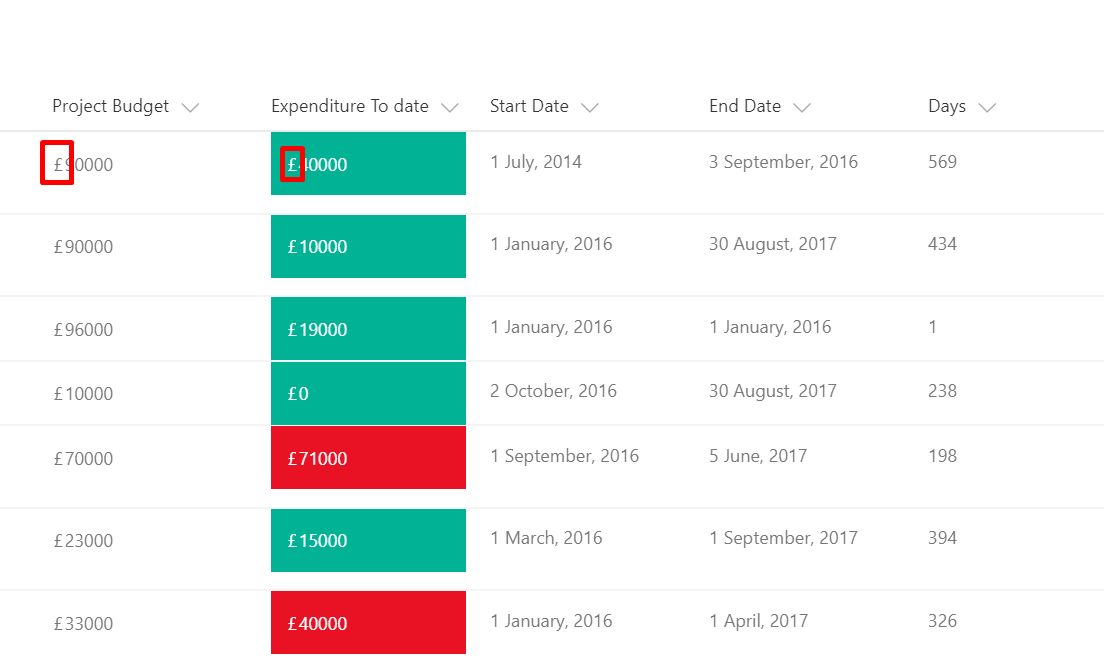
Currency column is currently not supported*, hence this sample will allow the users to concatenate a currency symbol(£, $ ... etc.) to the existing data. This sample will compare two numeric columns and add a currrency symbol. In this example, two columns (Budget Approved and Expenditure To Date) from a Project Register has been used.
*this is no longer true, but this sample still provides an example of string concatenation that some will find helpful
Project Budget Column with a Currency Symbol
Project Register where ‘Project Budget’ column is compared with the 'Expenditure To Date' column and formated based on the condition with Red or Green color. Please note that both columns must be a number type for this to work.
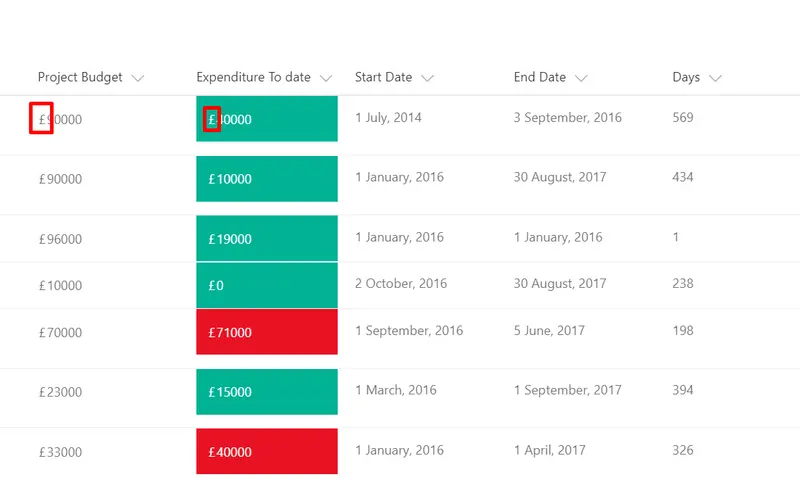
If you only need to add a symbol to a numeric column without any formatting, please use the addsymbolonly.json format.
A similar technique could be used for adding any text to existing data or empty column.
View requirements
- The format should be applied to a Number column
- An additional Number column with an internal name of
ProjectBudgetis expected
Sample
| Solution | Author(s) |
|---|---|
| currency-symbol-concatenation.json | S Merchant |
| addsymbolonly.json | S Merchant |
Version history
| Version | Date | Comments |
|---|---|---|
| 1.0 | January 15, 2018 | Initial release |
| 1.1 | August 20, 2018 | Updated to use Excel-style expressions |
Disclaimer
THIS CODE IS PROVIDED AS IS WITHOUT WARRANTY OF ANY KIND, EITHER EXPRESS OR IMPLIED, INCLUDING ANY IMPLIED WARRANTIES OF FITNESS FOR A PARTICULAR PURPOSE, MERCHANTABILITY, OR NON-INFRINGEMENT.
Additional notes
Additional versions using Abstract Tree Syntax (AST) are also provided for environments where the Excel-style expressions are not supported.