
From the contributor
How to use this sample
Summary
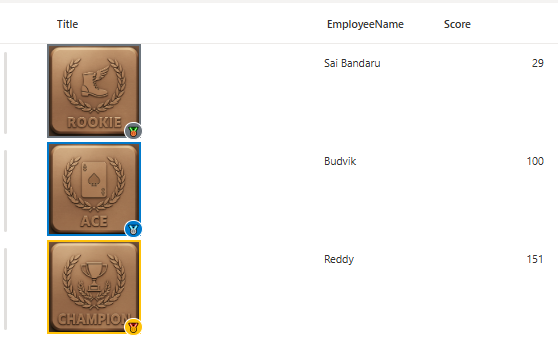
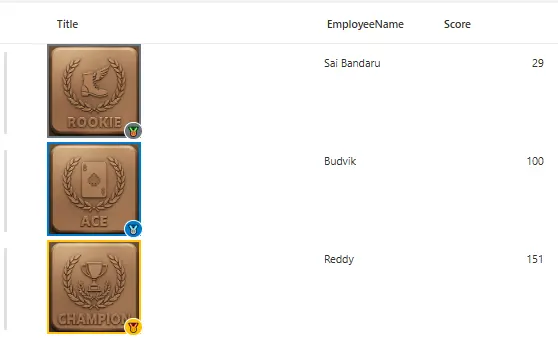
This project demonstrates how to create dynamic Gamification badges within a SharePoint list using column formatting JSON. The badges display different contributor levels based on score values, with visual indicators, tooltips, and color-coded borders.
Features
- Dynamic Badge Display: Shows different contributor images based on score ranges
- Color-Coded Borders: Visual indication of Gamification level with themed colors
- Interactive Tooltips: Hover to see detailed contributor level and score information
- Medal Badges: Small emoji indicators showing Gamification tier
- Responsive Design: Scales appropriately within SharePoint list columns
- Score-Based Logic: Automatically categorizes contributors into tiers
Gamification Tiers
The badge system categorizes contributors into the following tiers based on their scores:
| Score Range | Level | Border Color | Badge | Image |
|---|---|---|---|---|
| ≤ 30 | Rookie Contributor | Gray (#6c757d) | 🥉 Bronze | Rookie.png |
| 31-149 | Ace Contributor | Blue (#007acc) | 🥈 Silver | Ace.png |
| > 150 | Champion | Gold (#ffc107) | 🥇 Gold | Champion.png |
View requirements
This formatting requires the following columns in your SharePoint list:
| Column Name | Type | Description |
|---|---|---|
| Score | Number | Numerical score value for determining Gamification level |
| EmployeeName | Single Line of Text | Employee Name |
| Title | Single Line of Text | Column where the formatting will be applied |
Note: The formatting references the
Scorecolumn to determine which badge to display. Ensure your Score column contains numerical values.
JSON Column Formatting Features
The JSON formatting includes several advanced features:
- Conditional Image Loading: Different images based on score ranges
- Dynamic Styling: Border colors and background colors change based on Gamification level
- Hover Tooltips: Interactive
titleattribute shows "Level - Score: X" - Badge Overlay: Small circular badge in bottom-right corner with achievement emoji
- Flexible Sizing: 100x100px images with responsive borders
How to Apply
Prepare Your List:
- Ensure you have a Score column (Number type)
- Have the images uploaded to your SharePoint site assets
Apply Column Formatting:
- Open your SharePoint list
- Click the column Title header → Column settings → Format this column
- Switch to Advanced mode
- Paste the provided JSON into the formatting editor
- Click Save
Image Setup:
- Upload your achievement images to Site Assets:
Rookie.png- For rookie and default contributorsAce.png- For ace contributorsChampion.png- For champions
- Update the URLs in the JSON to match your site path
- Upload your achievement images to Site Assets:
Troubleshooting
Images Not Loading
- Verify image URLs are accessible to all users
- Check SharePoint permissions on Site Assets library
- Ensure image file names match exactly (case-sensitive)
Formatting Not Applied
- Confirm Score column is Number type
- Check column references match exact column names
- Validate JSON syntax using online JSON validators
Tooltips Not Showing
- Ensure browser allows tooltips
- Check if custom CSS is interfering
- Verify
titleattribute is not being overridden
Performance Considerations
- Image Optimization: Use optimized PNG/JPG files (recommended: <100KB each)
- Caching: SharePoint automatically caches images for better performance
- Column Limit: Works efficiently with hundreds of rows
Security Notes
- Images are served through SharePoint's security context
- No external dependencies or third-party resources required
- All logic is processed client-side through SharePoint's JSON engine
Sample
| Solution | Author(s) |
|---|---|
| generic-gamification.json | Sai Bandaru |
Version History
| Version | Date |
|---|---|
| 1.0 | September 26, 2025 |
Disclaimer
THIS CODE IS PROVIDED AS IS WITHOUT WARRANTY OF ANY KIND, EITHER EXPRESS OR IMPLIED, INCLUDING ANY IMPLIED WARRANTIES OF FITNESS FOR A PARTICULAR PURPOSE, MERCHANTABILITY, OR NON-INFRINGEMENT.