
From the contributor
How to use this sample
Summary
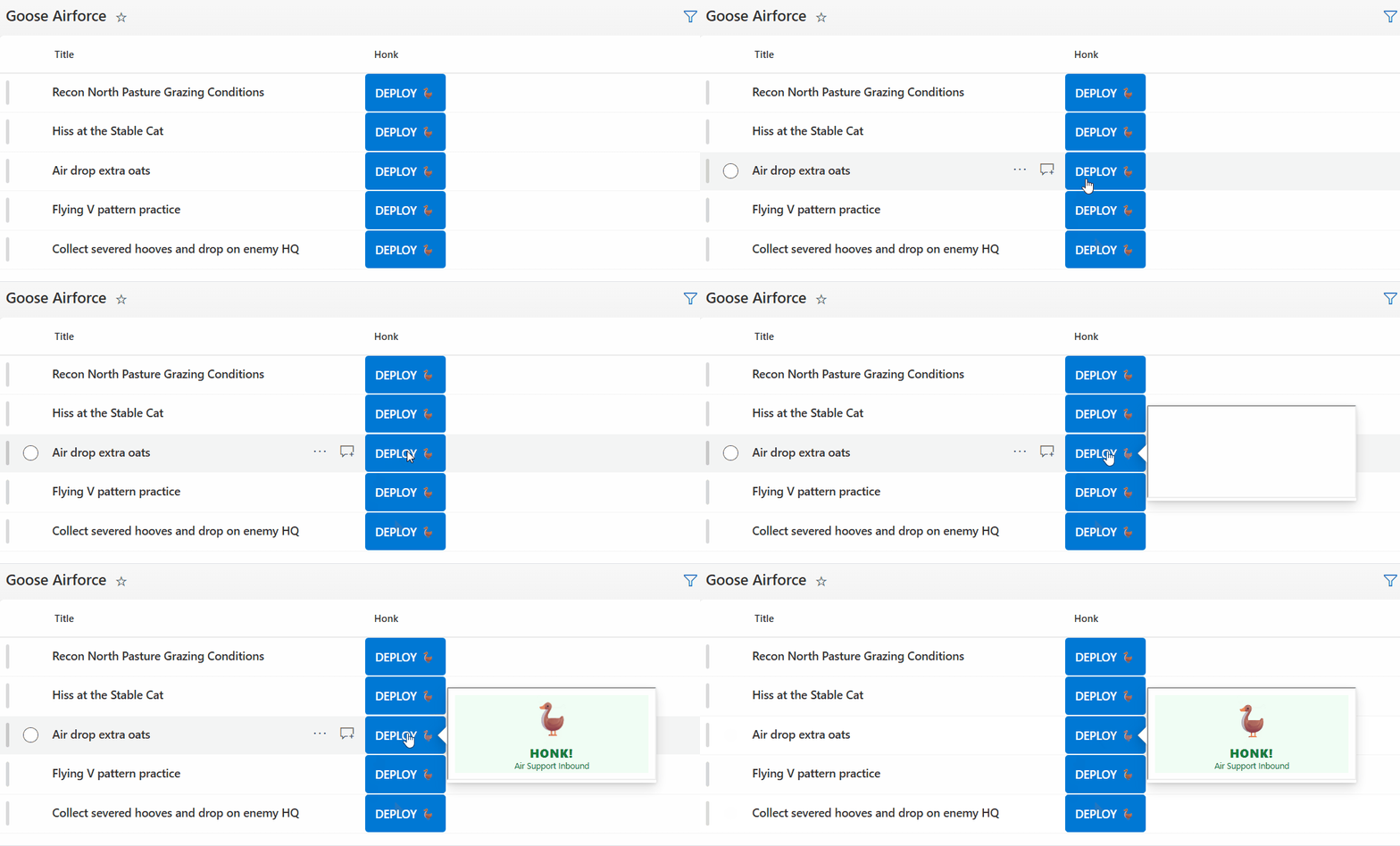
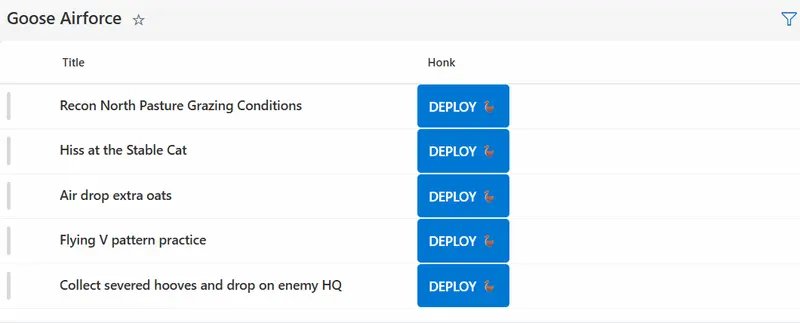
This sample demonstrates how to trigger a Power Automate flow instantly from a list button without the standard "Run Flow" side-pane friction.
It uses the customRowAction with action: "embed" to hit a Power Automate HTTP Request (GET) endpoint. The Flow returns an HTML payload that renders directly inside the (embedded) formatting callout bubble.
View requirements
- This formatting can be applied to any column type (Text, Calculated, etc.).
Sample
| Solution | Author(s) |
|---|---|
| generic-http-flow-response.json | Sam Yost |
Version history
| Version | Date | Comments |
|---|---|---|
| 1.0 | November 23, 2025 | Initial release |
Disclaimer
THIS CODE IS PROVIDED AS IS WITHOUT WARRANTY OF ANY KIND, EITHER EXPRESS OR IMPLIED, INCLUDING ANY IMPLIED WARRANTIES OF FITNESS FOR A PARTICULAR PURPOSE, MERCHANTABILITY, OR NON-INFRINGEMENT.
Additional notes
Flow Configuration
This pattern relies on a specific Power Automate configuration to function correctly within the SharePoint callout bubble.
1. The Trigger
- Create an Instant Cloud Flow using the "When an HTTP request is received" trigger.
- Method: Set to GET (found in "Advanced options").
- Who can trigger: Set to "Anyone" (for public SAS URL) or "Any user in my tenant".
- Note: "Anyone" provides the smoothest UX as it bypasses potential sign-in redirects inside the bubble.
2. The Response
- The Flow must end with a Response action.
- Status Code: 200
- Headers:
Content-Type:text/html; charset=utf-8 - Body: Include the HTML you want displayed in the bubble (e.g.,
<b>✅ Success</b>).
Troubleshooting
"Content not allowed" or "Refused to connect" If the callout bubble appears but displays an error message, your SharePoint environment may be blocking external iframes (including Azure Logic Apps domains).
To fix this:
- Go to Site Settings > HTML Field Security (under Site Collection Administration).
- Add the domain of your Flow URL to the list (e.g.,
logic.azure.comorprod-18.westus.logic.azure.com). - Click OK.