
From the contributor
How to use this sample
Summary
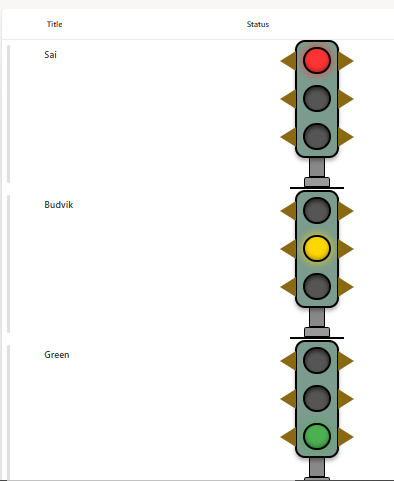
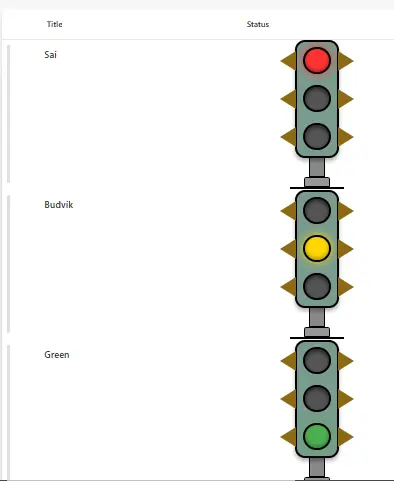
This column formatting demonstrates how to create a dynamic traffic light visual within a SharePoint list using column formatting JSON. The traffic light displays different signal states (Red, Yellow, Green) with realistic styling including glowing effects, metal pole structure, and decorative side triangles.
Features
- Dynamic Light States: Shows active light based on column value (Red, Yellow, or Green)
- Realistic Visual Design: 3D-styled traffic light with shadows and depth
- Glowing Effect: Active lights have a glowing shadow effect for realism
- Decorative Elements: Side triangular brackets for authentic traffic light appearance
- Metal Pole Structure: Complete with base mounting for visual completeness
- Conditional Styling: Only the active signal illuminates while others remain dark
- Compact Design: Fits within standard SharePoint list column widths
Traffic Light States
The traffic light system displays three possible states based on the column value:
| Column Value | Active Light | Color | Effect |
|---|---|---|---|
| Red | Top Light | Red (#FF3333) | Glowing with red shadow |
| Yellow | Middle Light | Gold (#FFD700) | Glowing with yellow shadow |
| Green | Bottom Light | Green (#4CAF50) | Glowing with green shadow |
Note: Only one light is active at a time. Inactive lights appear dark gray (#555) with inset shadows.
View requirements
This formatting requires the following column in your SharePoint list:
| Column Name | Type | Accepted Values | Description |
|---|---|---|---|
| Status | Choice | Red, Yellow, Green | Column where the formatting will be applied |
Important: The column must be named "Status" and set as a Choice column with exactly three choices: "Red", "Yellow", and "Green" (case-sensitive).
JSON Column Formatting Features
The JSON formatting includes several advanced visual features:
- Conditional Background Colors: Each light changes color based on the current field value
- Dynamic Box Shadows: Active lights glow with appropriate colored shadows
- Inset Shadows: Inactive lights have recessed appearance
- CSS Triangles: Side brackets created using pure CSS border tricks
- Layered Z-index: Proper stacking of visual elements
- Structured Layout: Metal housing, pole, and base components
Visual Component Breakdown
1. Housing Container
- Green-gray background (#7a9b8e)
- Black border with rounded corners
- Drop shadow for 3D effect
2. Signal Lights (3 units)
- 35px circular lights
- Black borders
- Conditional glow effects
- Side decorative triangles (gold #8B6914)
3. Mounting Pole
- Gray metal finish (#888)
- Connects housing to base
- Black border for definition
4. Base Components
- Upper base: Light gray (#999)
- Ground line: Black separator
How to Apply
Prepare Your List:
- Create a Choice column named "Status"
- Add exactly three choice values: Red, Yellow, Green
- Optionally set a default value
Apply Column Formatting:
- Open your SharePoint list
- Click the "Status" column header → Column settings → Format this column
- Switch to Advanced mode
- Paste the provided JSON into the formatting editor
- Click Save
Set Column Values:
- Add/Edit list items
- Select "Red", "Yellow", or "Green" from the Status dropdown
- The traffic light will automatically update to show the selected state
Customization Options
Changing Colors
Modify the color hex codes in the JSON:
- Red light:
#FF3333 - Yellow light:
#FFD700 - Green light:
#4CAF50 - Inactive lights:
#555
Adjusting Size
Modify these style properties:
- Light diameter:
widthandheight(default: 35px) - Housing width: (default: 60px)
- Pole dimensions: width 20px, height 30px
Different Field Values
Replace @currentField == 'Red' with your custom values:
"background-color": "=if(@currentField == 'Critical', '#FF3333', '#555')"
Troubleshooting
Lights Not Changing Color
- Verify the column is named exactly "Status" (case-sensitive)
- Ensure column values exactly match "Red", "Yellow", or "Green"
- Check that it's a Choice column, not Text
- Verify no extra spaces in choice values
Visual Elements Not Aligned
- Clear browser cache
- Check if custom CSS is interfering
- Verify JSON syntax is valid
Formatting Not Applied
- Confirm you're editing the correct column
- Validate JSON using online JSON validators
- Check SharePoint permissions
Sample
| Solution | Author(s) |
|---|---|
| generic-traffic-light-status.json | Sai Bandaru |
Version History
| Version | Date | Comments |
|---|---|---|
| 1.0 | October 7, 2025 | Initial release |
Disclaimer
THIS CODE IS PROVIDED AS IS WITHOUT WARRANTY OF ANY KIND, EITHER EXPRESS OR IMPLIED, INCLUDING ANY IMPLIED WARRANTIES OF FITNESS FOR A PARTICULAR PURPOSE, MERCHANTABILITY, OR NON-INFRINGEMENT.