
From the contributor
How to use this sample
Summary
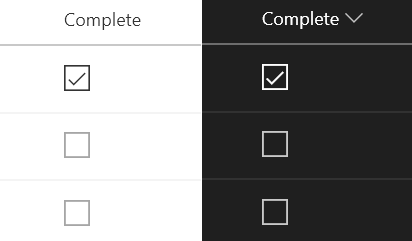
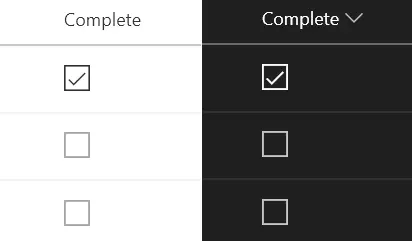
This sample uses Office UI Fabric icons and theme classes to provide a better visualization for Yes/No fields while respecting theme colors.
The icons and theme colors are conditionally applied based on the field's value. By using the ms-fontColor classes, the icon works well in both light and dark themes (as well as custom themes). In addition, regardless of value, the ms-fontSize-l class is applied to make the icon large enough to stand on its own.
| Value | Class | Icon |
|---|---|---|
| Yes | ms-fontColor-neutralPrimary | CheckboxComposite |
| No | ms-fontColor-neutralTertiary | Checkbox |
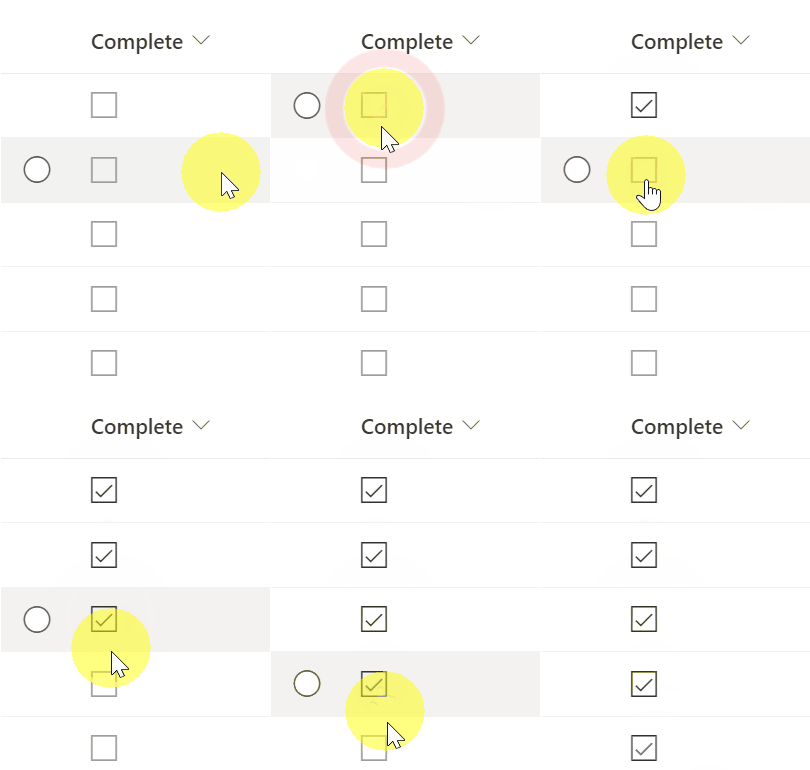
Also, this sample uses the setValue of customRowAction to update the field. You need to set the actionInput to the internal name of the column to be updated.
View requirements
- This format can be applied to a Yes/No column
Sample
| Solution | Author(s) |
|---|---|
| yesno-checkbox.json | Chris Kent, Tetsuya Kawahara |
Version history
| Version | Date | Comments |
|---|---|---|
| 1.0 | August 18, 2018 | Initial release |
| 1.1 | November 21, 2021 | Modified to update item using setValue |
| 1.2 | October 29, 2023 | Changed CSS class so that a checkbox also appears in SharePoint Server 2019 |
Disclaimer
THIS CODE IS PROVIDED AS IS WITHOUT WARRANTY OF ANY KIND, EITHER EXPRESS OR IMPLIED, INCLUDING ANY IMPLIED WARRANTIES OF FITNESS FOR A PARTICULAR PURPOSE, MERCHANTABILITY, OR NON-INFRINGEMENT.
Additional notes
An additional version using Abstract Tree Syntax (AST) is also provided for environments where the Excel-style expressions are not supported.