
From the contributor
How to use this sample
Summary
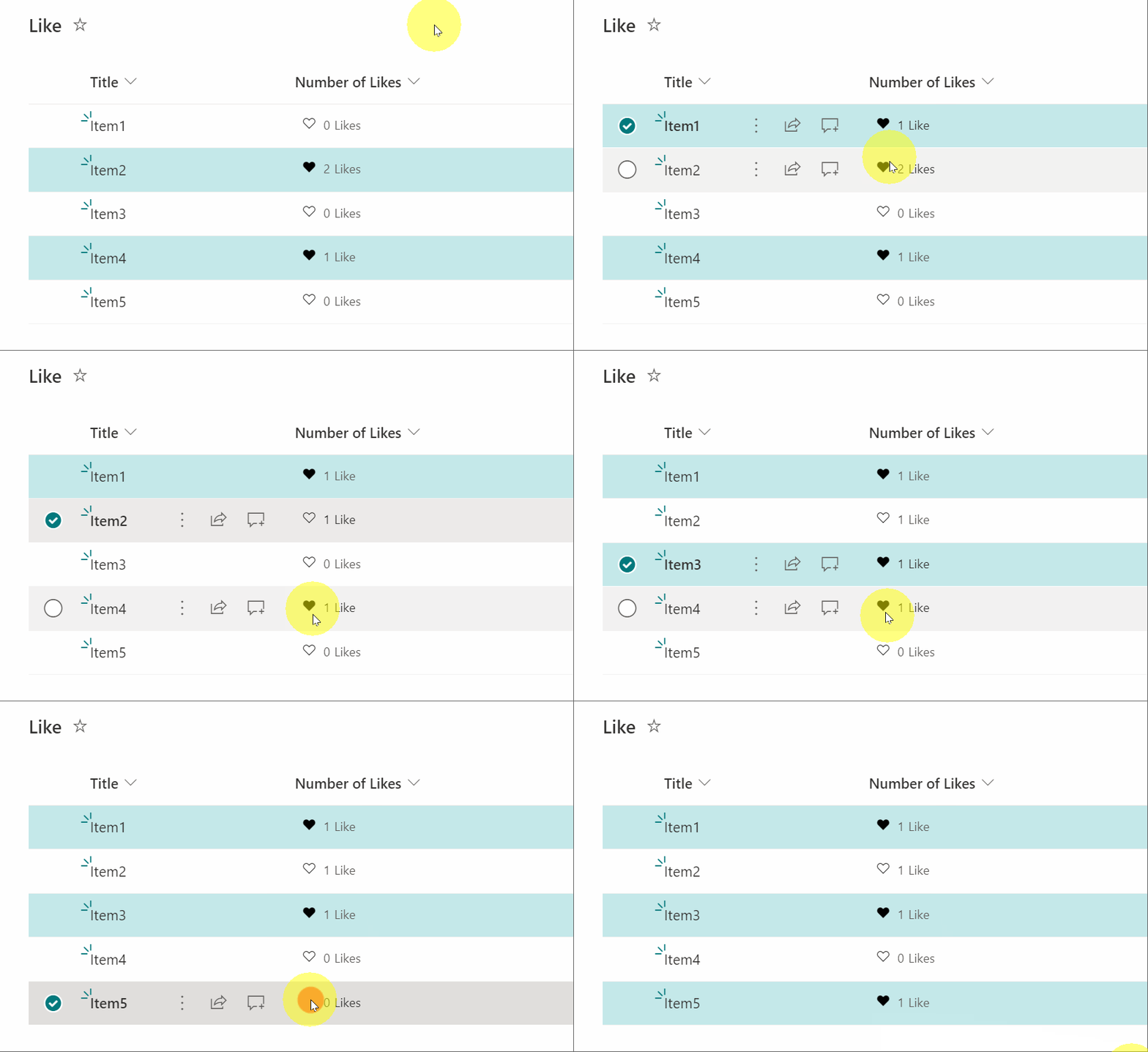
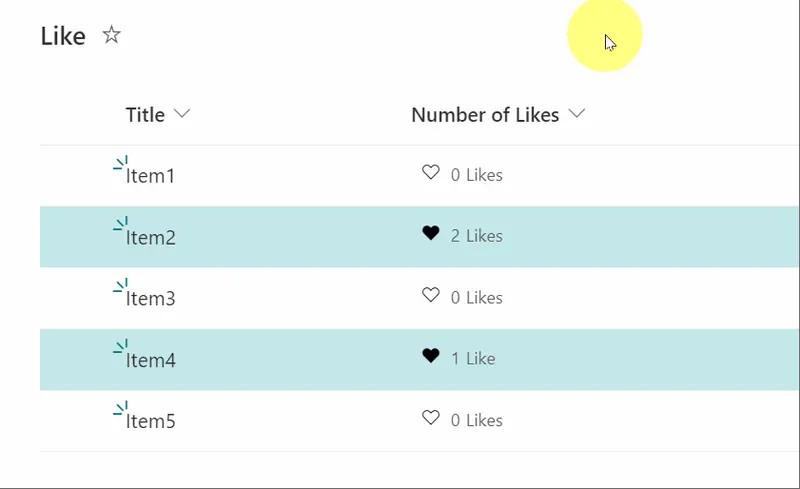
This sample demonstrates how to change the background color of a row that has been liked by the current user.
Prerequisites
Enabling the ratings feature
The ratings feature is available by default in the team site, but not in the communication site. If you want to use the ratings feature in the list of communication sites, you need to enable the feature GUID 915c240e-a6cc-49b8-8b2c-0bff8b553ed3. The following is an example of how to enable it using PnP PowerShell.
$targetURL = "https://<tenent name>.sharepoint.com/sites/<site name>"
Connect-PnPOnline -Url $targetURL -Interactive
Enable-PnPFeature –identity 915c240e-a6cc-49b8-8b2c-0bff8b553ed3 -Scope site
Disconnect-PnPOnline
Add a ratings feature to the list
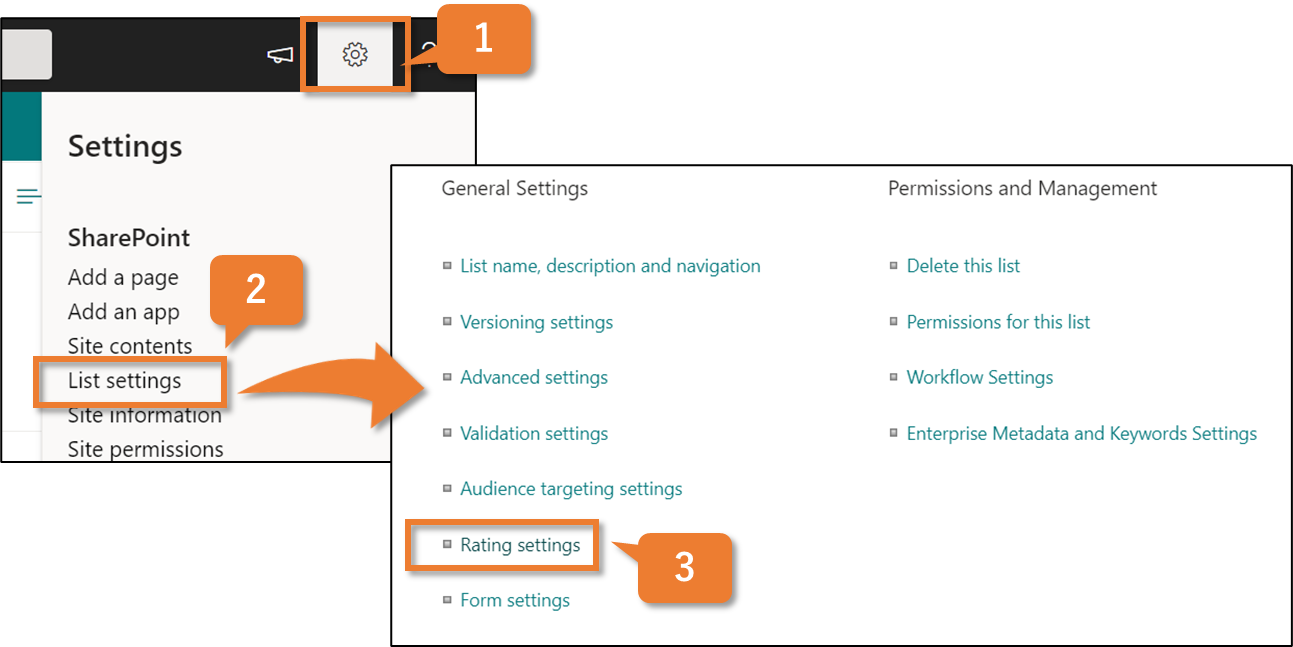
Click gear icon
Click List Settings
Under General Settings, click Rating settings.
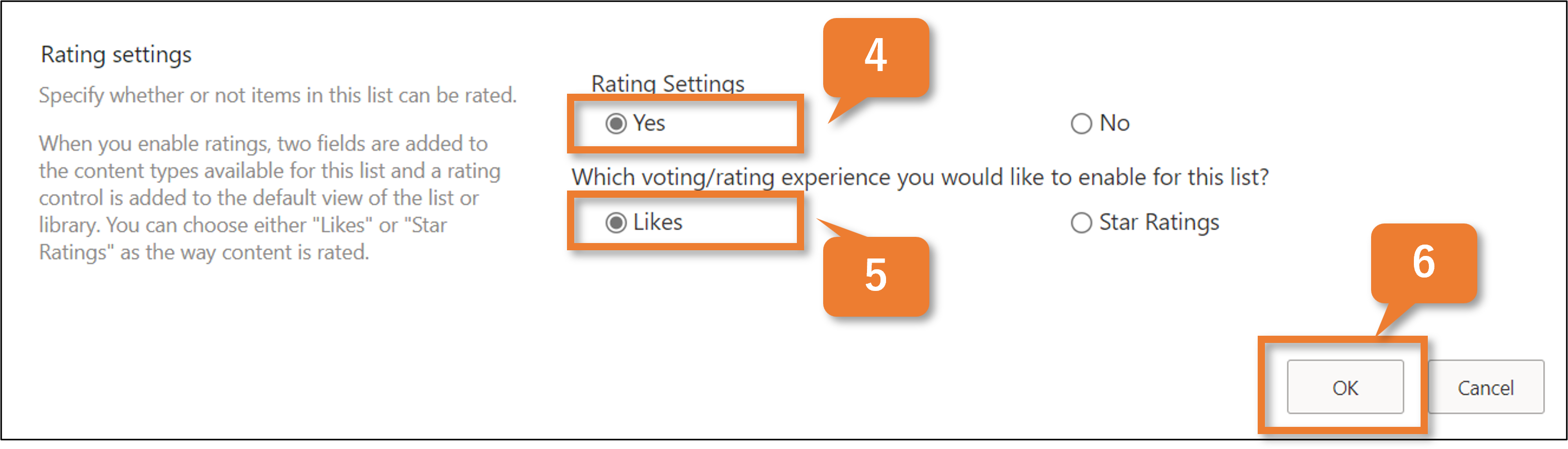
Under Allow items in this list to be rated?, click Yes.
Under Which voting/rating experience would you like to enable for this list?, click Likes.
Click OK.
View requirements
- Add a ratings feature to the list and display a like button.
Sample
| Solution | Author(s) |
|---|---|
| currentuser-liked-rowclass.json | Tetsuya Kawahara |
Version history
| Version | Date | Comments |
|---|---|---|
| 1.0 | October 20, 2021 | Initial release |
Disclaimer
THIS CODE IS PROVIDED AS IS WITHOUT WARRANTY OF ANY KIND, EITHER EXPRESS OR IMPLIED, INCLUDING ANY IMPLIED WARRANTIES OF FITNESS FOR A PARTICULAR PURPOSE, MERCHANTABILITY, OR NON-INFRINGEMENT.