
Back to view formats
View formattingSharePoint Online

Multi-line View

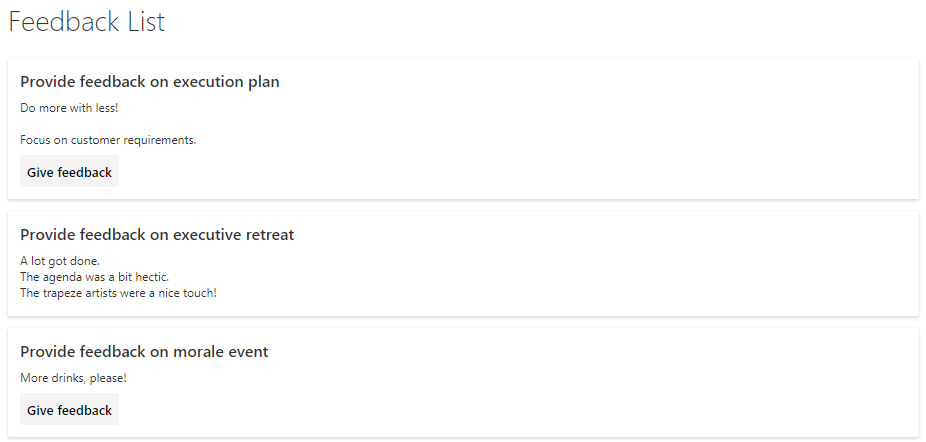
This sample demonstrates showing fields on separate rows, conditionally showing a button based on the current user, and how to use the defaultClick rowaction.

Multi-line View formatting preview
Sample preview · View original image

Copy. Apply. Make it yours.

Get this format

1 definition

Review the requirements below, then paste this JSON into the matching formatting panel. Show me where.

Use your list's internal column names and replace any tenant-specific URLs or flow IDs. Formatting is presentation, not a way to secure data.

View formatting
Download JSON
{
  "$schema": "https://developer.microsoft.com/json-schemas/sp/v2/row-formatting.schema.json",
  "hideSelection": true,
  "hideColumnHeader": true,
  "rowFormatter": {
    "elmType": "div",
    "attributes": {
      "class": "sp-row-card"
    },
    "children": [
      {
        "elmType": "div",
        "style": {
          "text-align": "left"
        },
        "children": [
          {
            "elmType": "div",
            "attributes": {
              "class": "sp-row-title"
            },
            "txtContent": "[$Title]"
          },
          {
            "elmType": "div",
            "attributes": {
              "class": "sp-row-listPadding"
            },
            "txtContent": "[$Feedback]"
          },
          {
            "elmType": "button",
            "customRowAction": {
              "action": "defaultClick"
            },
            "txtContent": "Give feedback",
            "attributes": {
              "class": "sp-row-button"
            },
            "style": {
              "display": {
                "operator": "?",
                "operands": [
                  {
                    "operator": "==",
                    "operands": [
                      "@me",
                      "[$Assigned_x0020_To.email]"
                    ]
                  },
                  "",
                  "none"
                ]
              }
            }
          }
        ]
      }
    ]
  }
}

From the contributor

How to use this sample

Summary

This example uses the rowFormatter element, which totally overrides the rendering of a list view row. The rowFormatter in this example creates a bounding <div /> box for every list view row. Inside this bounding box, the $Title and $Feedback fields are displayed on separate lines. Under those fields, a button element is displayed that, when clicked, does the same thing as clicking the list row in an uncustomized view, which is opening the property form for the item. This button is displayed conditionally, when the value of the $Assigned_x0020_To field (assumed to be a person/group field) matches the current signed-in user.
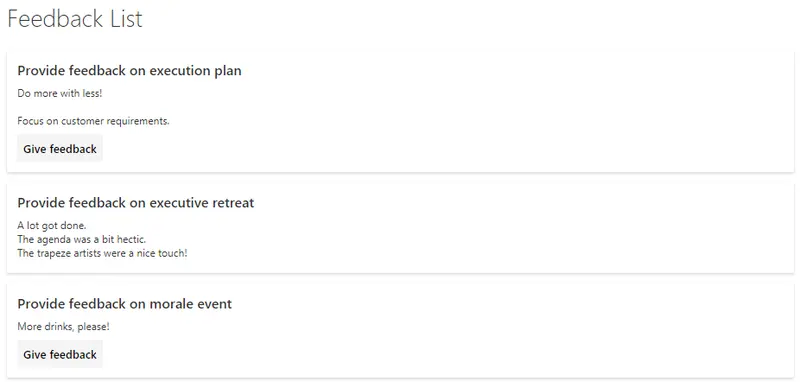
screenshot of the sample

View requirements

  • The format expects the Title field
  • The format expects a text column with an internal name of Feedback
  • The format expects a person column with an internal name of Assigned_x0020_To

Sample

Solution Author(s)
multi-line-view.json Lincoln DeMaris

Version history

Version Date Comments
1.0 August 10, 2018 Initial release

Disclaimer

THIS CODE IS PROVIDED AS IS WITHOUT WARRANTY OF ANY KIND, EITHER EXPRESS OR IMPLIED, INCLUDING ANY IMPLIED WARRANTIES OF FITNESS FOR A PARTICULAR PURPOSE, MERCHANTABILITY, OR NON-INFRINGEMENT.


Additional notes

None