
From the contributor
How to use this sample
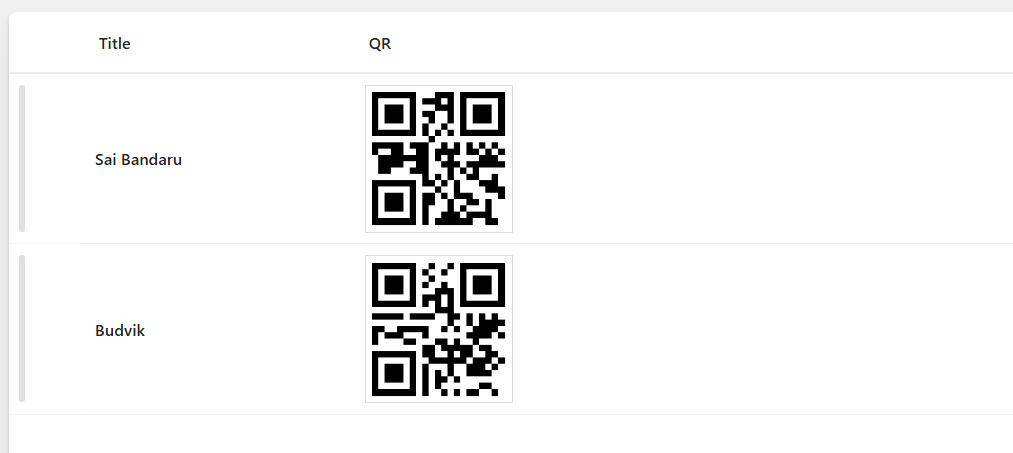
This sample uses SharePoint List Formatting to automatically generate QR codes for each list item based on the Title field.
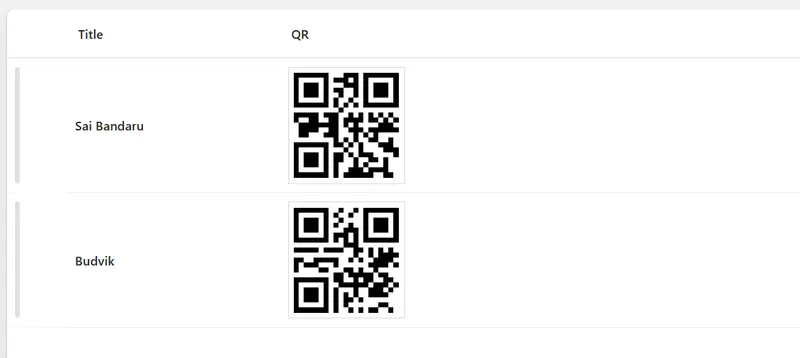
Each row displays the item title alongside a dynamically generated QR code, making it easy to create scannable links or references for physical handouts, inventory tracking, or event management.
View Requirements
Create a list with the following columns:
| Internal Name | Type |
|---|---|
| Title | Single line of text |
| QR | Single line of text |
Note: Additional columns can be added as needed for your specific use case.
Sample Data
| Title |
|---|
| Sai Bandaru |
| Budvik |
Summary
- The formatter displays each list item's Title with a corresponding QR code
- QR codes are generated dynamically using the QRServer.com API
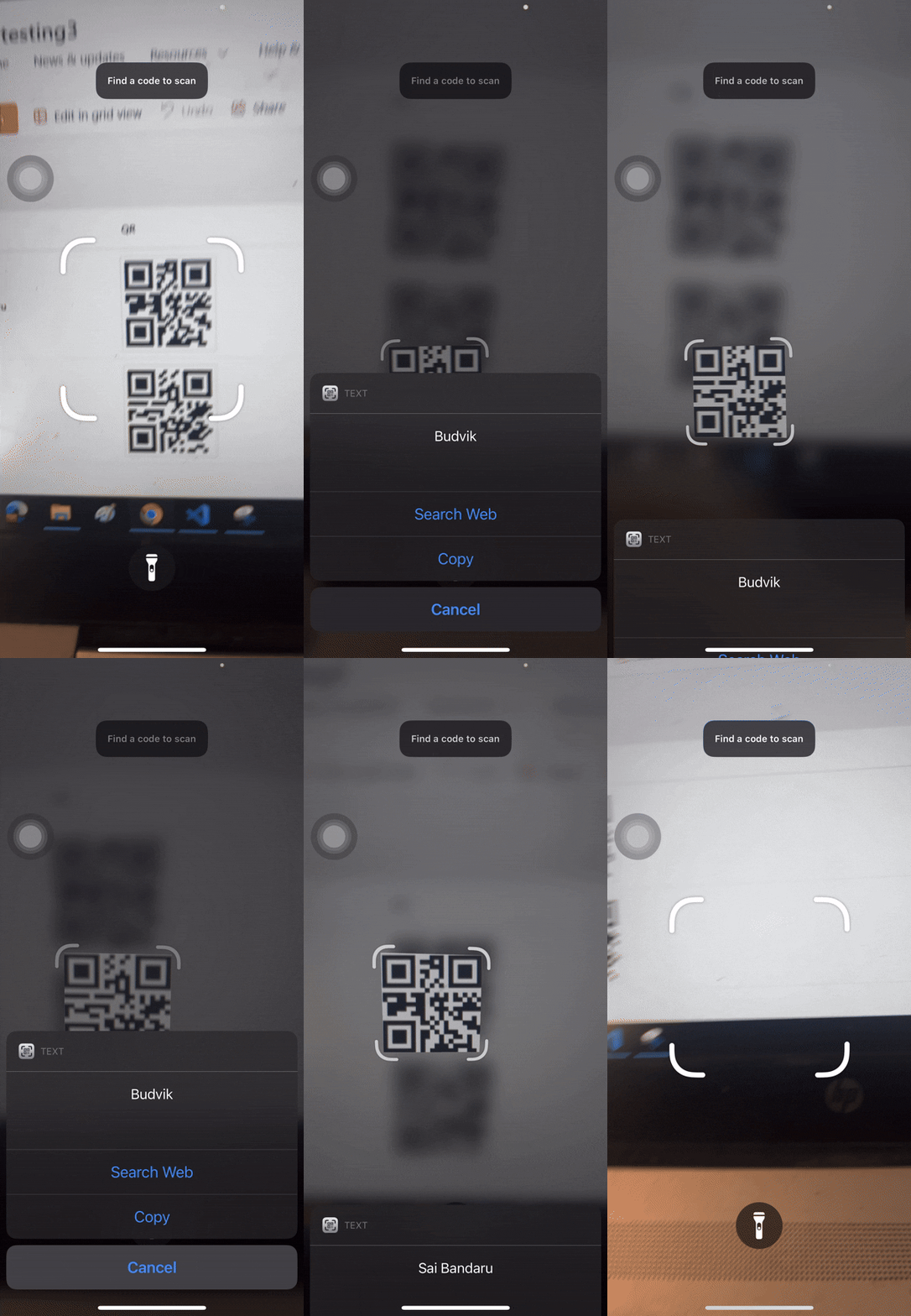
- Each QR code contains the exact text from the Title field
- The layout uses a clean horizontal design with proper spacing and alignment
- QR codes are displayed at 100x100 pixels with a white background and border
Security Configuration
CRITICAL: Before the QR codes will display, you must configure SharePoint security settings:
- Navigate to SharePoint Admin Center
- Go to Settings > Advanced Settings
- Find "HTML Field Security" section
- Add
api.qrserver.comto the allowed domains list - Save the configuration
Without this security configuration, QR codes will not display due to SharePoint's content security policies.
Sample
| Solution | Author(s) |
|---|---|
| qr-code.json | Sai Bandaru |
Version history
| Version | Date | Comments |
|---|---|---|
| 1.0 | August 29, 2025 | Initial release |
Disclaimer
THIS CODE IS PROVIDED AS IS WITHOUT WARRANTY OF ANY KIND, EITHER EXPRESS OR IMPLIED, INCLUDING ANY IMPLIED WARRANTIES OF FITNESS FOR A PARTICULAR PURPOSE, MERCHANTABILITY, OR NON-INFRINGEMENT.
Additional Notes
Customization Options
Change QR Code Size: Modify the API URL and CSS dimensions in the JSON:
"src": "='https://api.qrserver.com/v1/create-qr-code/?size=200x200&data=' + [$Title]",
"width": "120px",
"height": "120px"
Use Different Data Source:
Replace [$Title] with any other text field:
"src": "='https://api.qrserver.com/v1/create-qr-code/?size=150x150&data=' + [$Description]"
Styling Modifications:
- Adjust spacing: Change
"gap": "50px"value - Modify title width: Update
"min-width": "150px" - Customize borders and padding as needed
Use Cases
- Asset Management: Generate QR codes for equipment or inventory items
- Event Planning: Create scannable codes for session titles or locations
- Document Tracking: Link physical documents to digital versions
- Contact Information: Generate codes for email addresses or phone numbers
- URL Shortening: Create QR codes for long URLs or SharePoint page links
Limitations
- Requires internet connectivity for QR code generation
- External dependency on QRServer.com API
- Consider data privacy when using external QR code services
- Performance may vary with large lists due to multiple API calls
License
This formatting solution is provided as-is for educational and professional use. The QRServer.com API has its own terms of service.