
Prompt
7-Day Outlook Inbox Review & Action Framework
Generate a prioritized action list from your Outlook Inbox for the past 7 days using strict rules for inclusion, exclusions, and threading.

- Sample type
- Prompt
- Products
- Microsoft 365 Copilot
- Created
- Updated
Sample documentation
How to use this sample

Summary
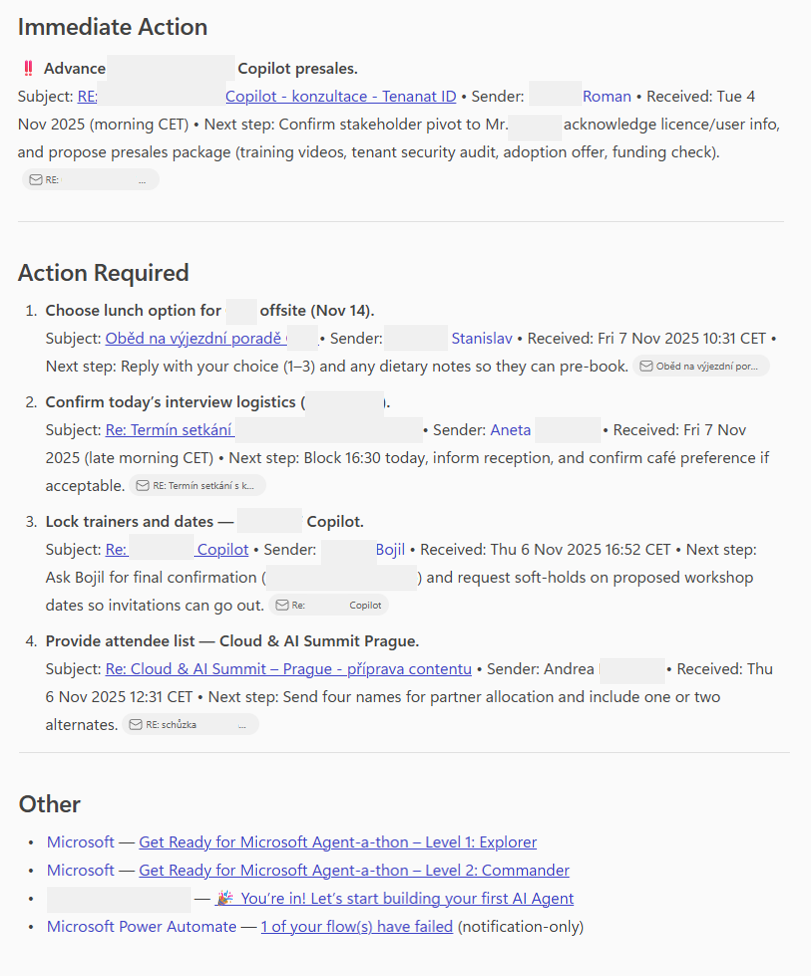
This prompt is designed for executives and team leads to efficiently review their Outlook Inbox for the past 7 days and generate a prioritized action list. It applies strict inclusion/exclusion rules, deduplicates conversation threads, and categorizes emails into actionable sections:
- Immediate Action (highest priority: @mentions)
- Action Required (Unread or Read-but-not-replied)
- Other (informational items for reference)
The output includes subject, sender, timestamp (local time), and recommended next steps for each item, ensuring clarity and focus. It is ideal for weekly inbox triage and can be extended for automation or reporting.
Important: This prompt requires GPT‑5 capabilities (available in Microsoft 365 Copilot) to handle complex filtering, threading logic, and structured output formatting.
Prompt 💡
Task: Review my Outlook Inbox for the past 7 days and prepare a prioritized action list in English.

Scope rules (apply exactly):
- Folder: Inbox only (exclude subfolders, Archive, Junk/Spam, Deleted Items).
- Time window: past 7 days from now; show all times in my local timezone.
- People scope: include only messages where I am on To; exclude items where I am only on Cc or Bcc.
- Threading: deduplicate conversation threads; list each thread once using the latest inbound message that meets the criteria; include a thread only if its latest inbound in my Inbox is within the last 7 days.

Inclusion logic:
1) Highest priority: emails where I am explicitly @mentioned.
2) Then: emails that are Unread (this includes messages I previewed on mobile that remained Unread).
3) Then: emails that are Read but where I have NOT replied to the latest inbound message in the thread (determine “not replied” by checking whether my last Sent reply is newer than the latest inbound; include only if I have not sent a reply after that inbound).

Exclusions (must drop these even if Unread or not replied):
- Notification-only and automated content (noreply/no-reply/do-not-reply/no_reply senders; Teams notification emails like noreply@*.teams.microsoft.com; system alerts; digests; newsletters; bulk marketing).
- Training or informational broadcasts with no action, e.g., subjects containing: “E‑Learning”, “Training reminder”, “Newsletter”, “Digest”, “Notification”, “Alert”, “System message”, “FYI only”, “Do not reply”.
- Calendar invite auto-notifications unless the body explicitly asks me to take a non-calendar action.

Prioritization and sort:
- Priority bands in this order: @mentions → Unread (no @mention) → Read but not replied.
- Within each band, sort newest to oldest.

Output format:
- Start with the exact heading: "## Immediate Action".
- Provide a single numbered list across that section.
- For any item where I am @mentioned, prefix the line with “‼️ ”.
- Make each action title bold.
- For every item, include: Subject (as text), Sender (display name), received date/time (my local time), and a one‑line “Next step” you recommend.
- Continue with the heading "Action Required".
- Provide a single numbered list for the remaining emails that meet the criteria.
- Do not include the full recipient lists; show only the sender and me.
- If nothing matches in any category, state that explicitly under the heading.
- last will be the section "##Other" with all emails (sender - subject - reference to the source email) which are not in previous categories, to see if you did not miss anything

Edge-case handling:
- Treat “seen on mobile but still Unread” as Unread and include it.
- Treat “really read and informational only” (e.g., E‑Learning/training/newsletters/digests/notifications) as excluded even if Unread.
- If a thread contains mixed content, decide based on the latest inbound message: include it only if that latest inbound requires action per the inclusion logic.
Description ℹ️
This prompt provides a structured method to review an Outlook Inbox for the past 7 days and generate a prioritized action list. It applies strict inclusion and exclusion rules, deduplicates conversation threads, and categorizes emails into actionable sections based on urgency: @mentions, unread messages, and read-but-not-replied threads. The output includes recommended next steps for each item and a summary of informational emails, ensuring efficient inbox triage for executives.
Contributors 👨💻
Version history
| Version | Date | Comments |
|---|---|---|
| 1.0 | Nov 7, 2025 | Initial release |
Instructions 📝
- Make sure you have Copilot for Microsoft 365 in your tenant (you can see the Work tab)
- Go to Microsoft 365 Copilot in Office.com or use Copilot chat in Teams
- Switch to GPT-5 which is required for this prompt
- Copy & paste the above prompt
- Adjust language as required
- Copilot will generate a structured, prioritized action list based on your Inbox for the past 7 days.
- Schedule this review weekly (e.g., every Friday or Monday) to keep your inbox organized and actionable.
Improvise Usage 🚀
- Generate a weekly executive summary of pending actions from your Inbox.
- Create a follow-up plan for unread or unanswered emails grouped by priority.
- Draft ready-to-send responses for top 3 urgent items directly from the action list.
- Build a team dashboard showing outstanding actions across multiple stakeholders.
- Automate weekly inbox triage by combining this prompt with Power Automate scheduling.
- Use the output to prepare meeting agendas based on unresolved email threads.
- Identify patterns in recurring requests to optimize workflows or delegate tasks.
- Export the prioritized list into Planner or To Do for structured task tracking.
Prerequisites
- Copilot for Microsoft 365
- GPT-5 enabled
Help
We do not support samples, but this community is always willing to help, and we want to improve these samples. We use GitHub to track issues, which makes it easy for community members to volunteer their time and help resolve issues.
You can try looking at issues related to this sample to see if anybody else is having the same issues.
If you encounter any issues using this sample, create a new issue.
Finally, if you have an idea for improvement, make a suggestion.
Disclaimer
THIS CODE IS PROVIDED AS IS WITHOUT WARRANTY OF ANY KIND, EITHER EXPRESS OR IMPLIED, INCLUDING ANY IMPLIED WARRANTIES OF FITNESS FOR A PARTICULAR PURPOSE, MERCHANTABILITY, OR NON-INFRINGEMENT.
Learn more
References
Background and supporting resources provided by the contributor.