
A community-built Power Platform sample
AI-Driven Expense Report Processing
This sample showcases an AI-driven expense report processing solution that combines an AI Builder prompt, Dataverse, and Power Automate.
 Dataverse
 AI Builder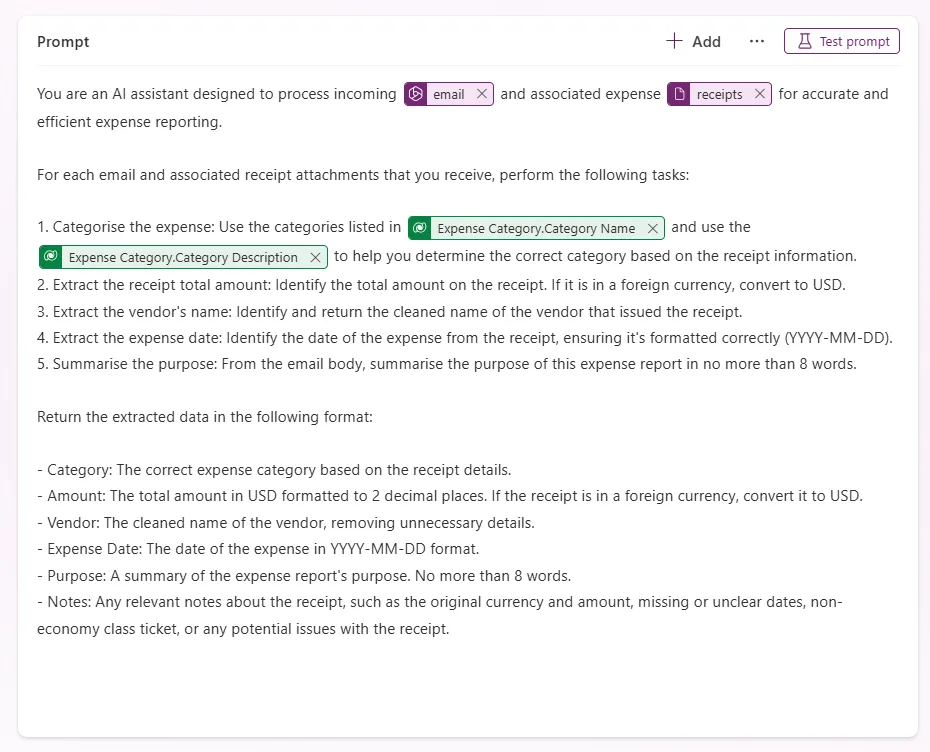
- Last updated
- Apr 1, 2025
- Category
- Cloud flows
- Premium license
- Required
- Experimental features
- No
From idea to implementation
Make it your own.
Check this sample's prerequisites, permissions, and licensing before importing it. The documentation below comes directly from the sample README.
Summary
This sample showcases an AI-driven expense report processing solution that combines an AI Builder prompt, Dataverse, and Power Automate.
Applies to









Compatibility


Contributors
Version history
| Version | Date | Comments |
|---|---|---|
| 1.0 | April 1, 2025 | Initial release |
Minimal path to awesome
Using the solution zip
Step 1: Import the solution into your Power Apps environment
- Download the
.zipfrom thesolutionfolder. - Within Power Apps Studio, import the solution
.zipfile using Solutions > Import Solution and select the.zipfile you've just downloaded. - Once the solution has been imported, you will see the Automated Expense Reporting solution under the Unmanaged section of the Solutions page.
- Select the solution to open it.
Step 2: Configure the Expense Category table
In the solution explorer, look for the Expense Category table > Select the Commands icon > Open > Open in new tab to open the table.
Select Edit on the top toolbar to open the table in edit mode.
Configure the table to show the Category Name and Category Description columns.
Insert the following records into the table:
Category Name Category Description Airfare Covers the cost of domestic and international flights for business travel. Ground Transportation Covers local transportation costs for business-related travel, including taxis, rideshare services, shuttles, and car rentals. Hotel Covers lodging expenses for business travel, including nightly stays at hotels, motels, or corporate housing. Meals Covers meal expenses incurred during business travel or client meetings. Parking Covers parking fees incurred during business-related activities, including airport parking, hotel parking, and client site visits. 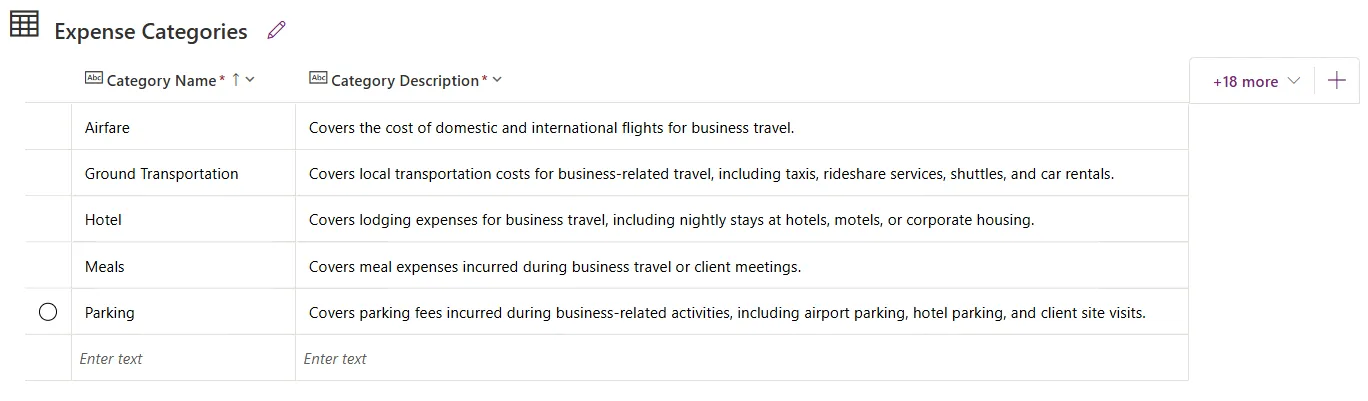
Step 3: Test the Analyze Incoming Expense Reports flow
In the solution explorer, look for the Analyze Incoming Expense Reports flow > Select the Commands icon > Edit > Edit in new tab to open the flow.
Switch to the New designer
Publish and Test the flow
- After selecting Test > Manually > Test.
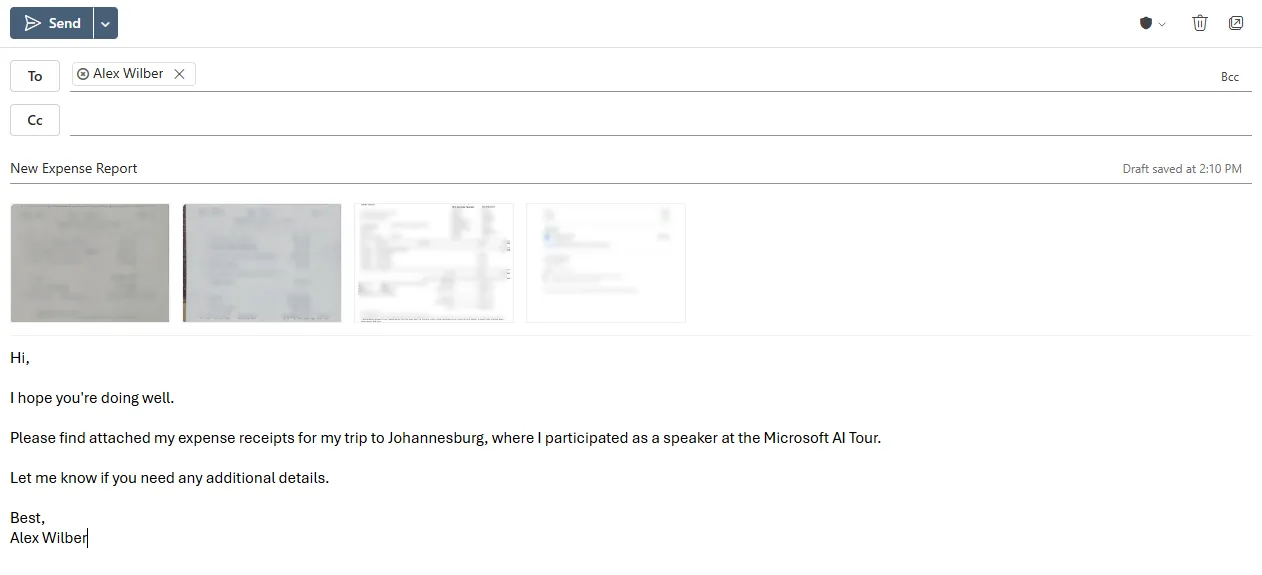
Open Outlook in a new tab and send an email to yourself with the following details:
- Subject: New Expense Report
- Body: Write a lengthy description of where you went, what you did, etc
- Attachment: Attach multiple receipt images (e.g., a picture of a restaurant bill or a hotel invoice) to the email.
Check the Expense Report and Expense tables in Dataverse to see if the flow has created the records successfully.
Using the source code
You can also use the Power Apps CLI to pack the source code by following these steps:
Clone the repository to a local drive
Pack the source files back into a solution
.zipfile:pac solution pack --zipfile pathtodestinationfile --folder pathtosourcefolder --processCanvasAppsMaking sure to replace
pathtosourcefolderto point to the path to this sample'ssourcecodefolder, andpathtodestinationfileto point to the path of this solution's.zipfile (located under thesolutionfolder)Within Power Apps Studio, import the solution
.zipfile using Solutions > Import Solution and select the.zipfile you just packed.Once completed, follow along from Step 2 above.
Features
This sample showcases an AI-driven expense report processing solution that combines an AI Builder prompt, Dataverse, and Power Automate.
The AI Prompt uses both text and image (multi-modal) input as well as Dataverse grounding:
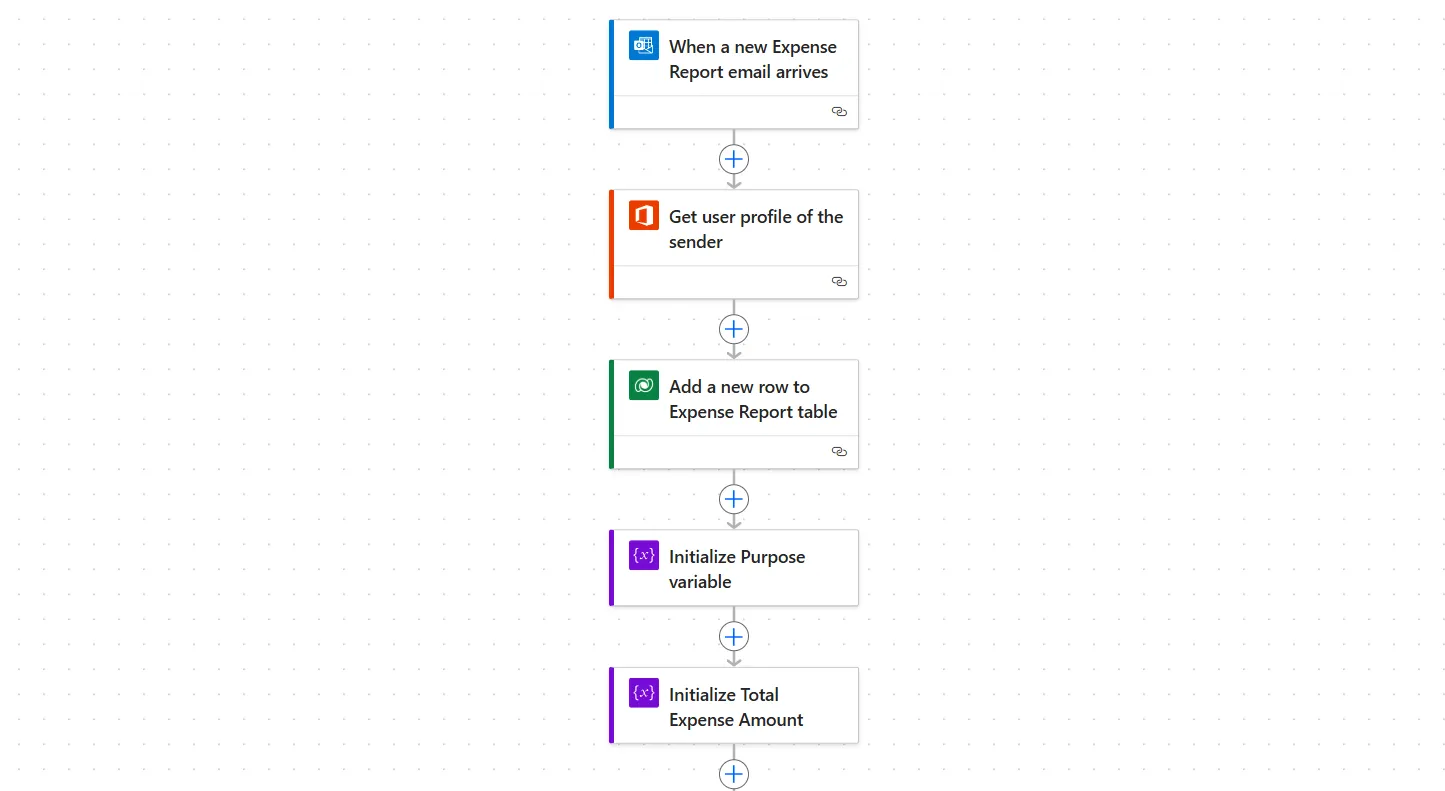
The prompt is then used in a Power Automate flow to automate the Expense Report processing. The flow is triggered by an incoming email, from which it extracts the sender’s details and initializes an Expense Report Dataverse record:
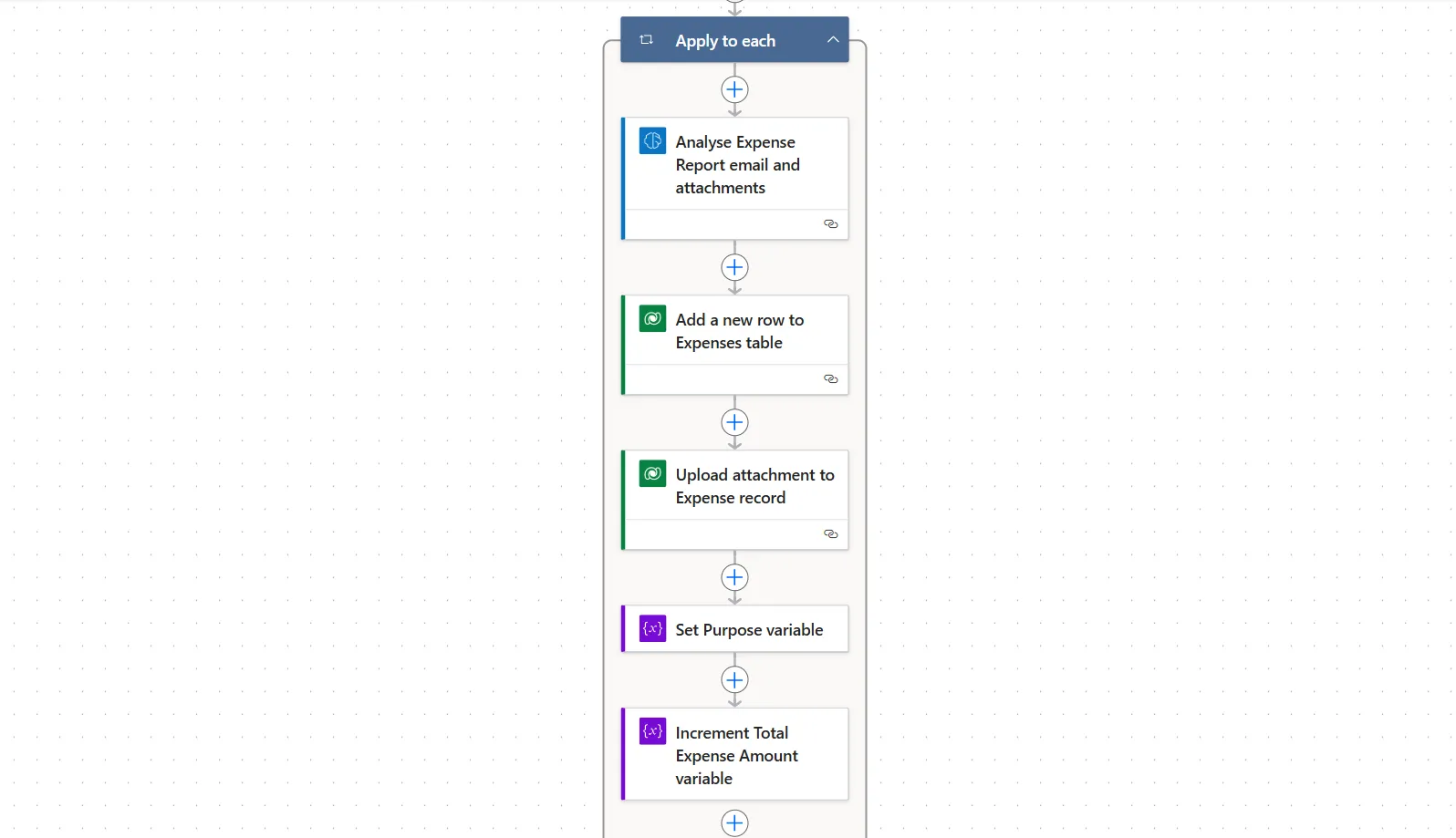
The flow continues to analyze the email body and any attached receipt images to determine the purpose of the expense and extract individual expense details. For each receipt, it creates a corresponding record in the Expense Dataverse table, uploads the receipt image, and updates running totals:
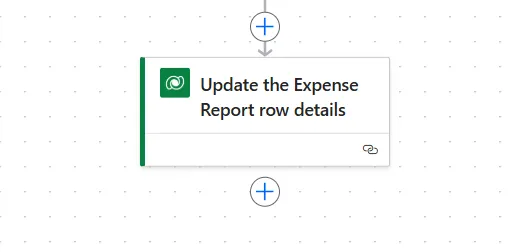
Once the flow processes all receipts, it updates the Expense Report record with the purpose, total amount and status:
Help
We do not support samples, but this community is always willing to help, and we want to improve these samples. We use GitHub to track issues, which makes it easy for community members to volunteer their time and help resolve issues.
If you encounter any issues while using this sample, you can create a new issue.
For questions regarding this sample, create a new question.
Finally, if you have an idea for improvement, make a suggestion.
Disclaimer
THIS CODE IS PROVIDED AS IS WITHOUT WARRANTY OF ANY KIND, EITHER EXPRESS OR IMPLIED, INCLUDING ANY IMPLIED WARRANTIES OF FITNESS FOR A PARTICULAR PURPOSE, MERCHANTABILITY, OR NON-INFRINGEMENT.