
A community-built Power Platform sample
Alt Text Generator
This sample allows the user to enter a link to a .png image into a copilot and then it generates alt text for the image using OpenAI's gpt-4o model.
 Power Automate
 Copilot Studio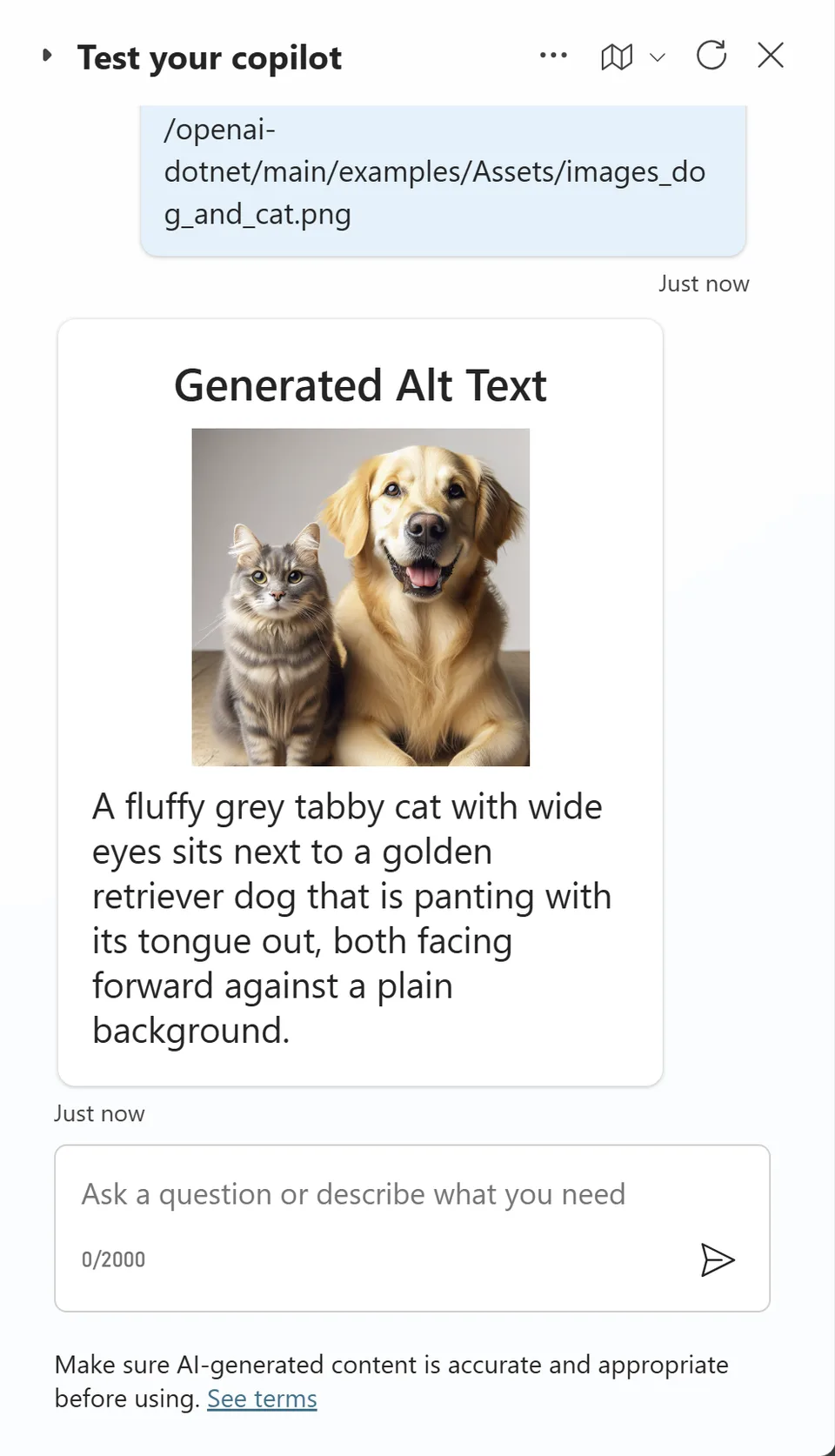
- Last updated
- Sep 11, 2024
- Category
- Cloud flows, Agents & chatbots
- Premium license
- Required
- Experimental features
- Yes
From idea to implementation
Make it your own.
Check this sample's prerequisites, permissions, and licensing before importing it. The documentation below comes directly from the sample README.
Summary
This sample allows the user to enter a link to a .png image into a copilot and then it generates alt text for the image using OpenAI's gpt-4o model. This alt text can be used to describe the image for accessibility purposes.
Sample consists of a Power Automate flow and a Copilot Studio copilot.
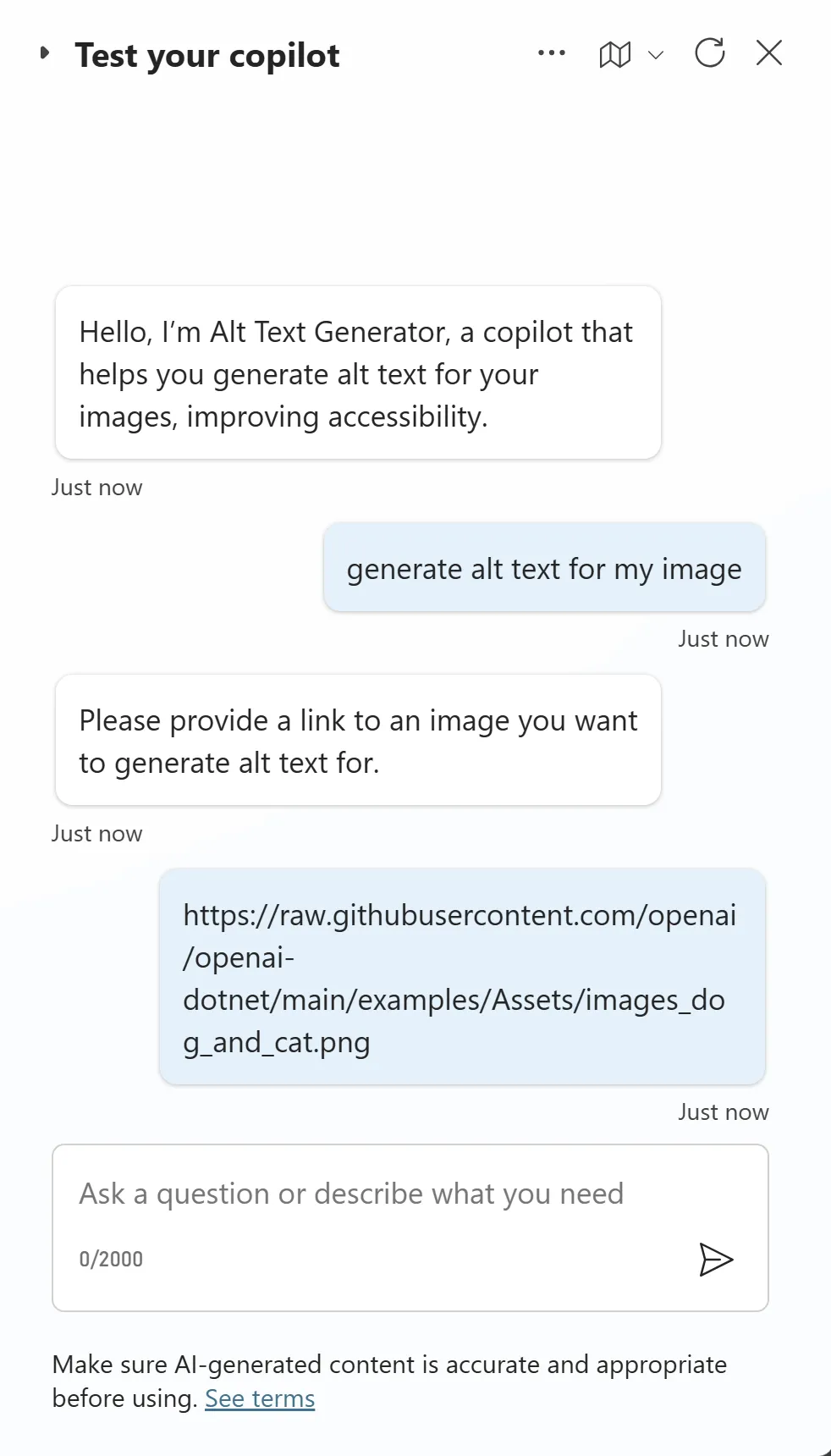
🗣️ Start a simple conversation with the copilot by asking it to generate alt text for you.
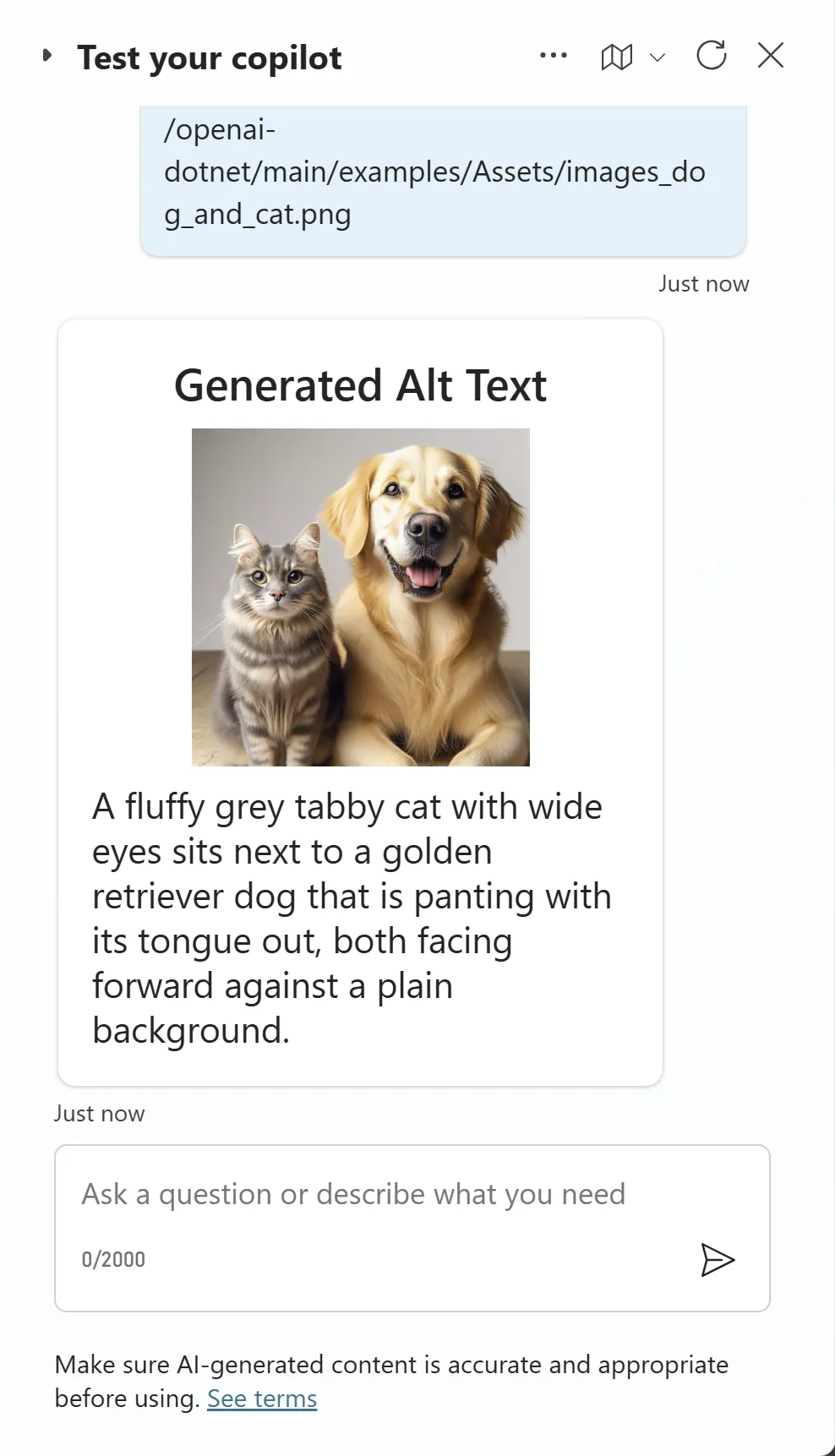
🤖 Once you enter the image URL, the copilot will generate appropriate alt text for that image displaying both the image and the alt text in an adaptive card.
Applies to









Compatibility


Contributors
Version history
| Version | Date | Comments |
|---|---|---|
| 1.0 | September 11, 2024 | Initial release |
Prerequisites
Make sure you have access to Power Apps, Power Automate, and Copilot Studio.
Create an OpenAI account by selecting Sign Up in the top right corner. Or Log In if you already have an account.
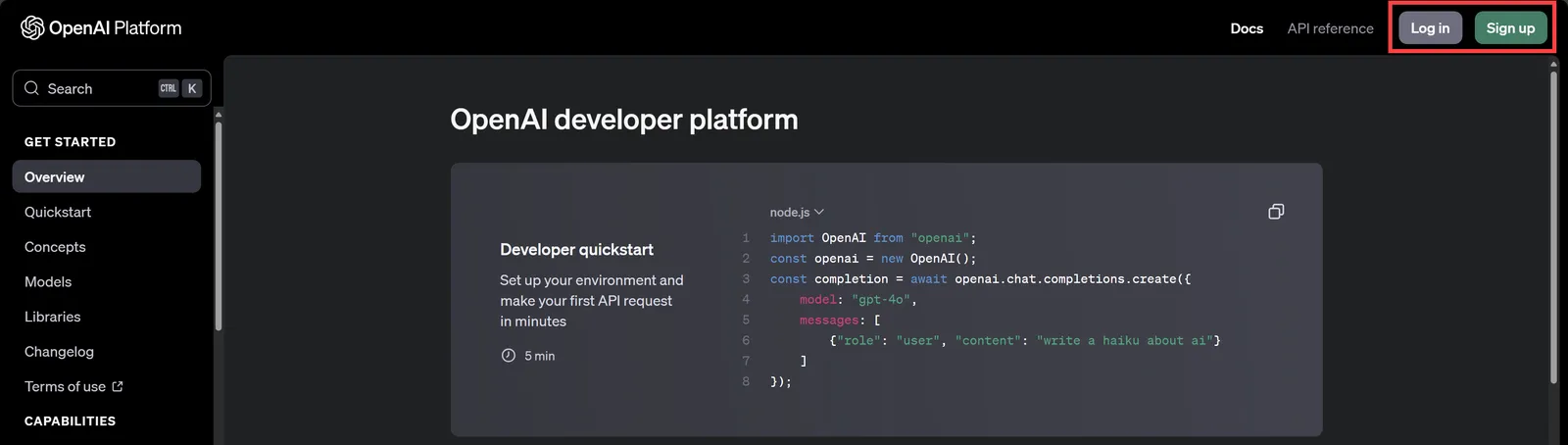
Once logged in, navigate to Settings by selecting the gear icon in the top right corner.
On the left-hand side, select Billing and then Add to credit balance.
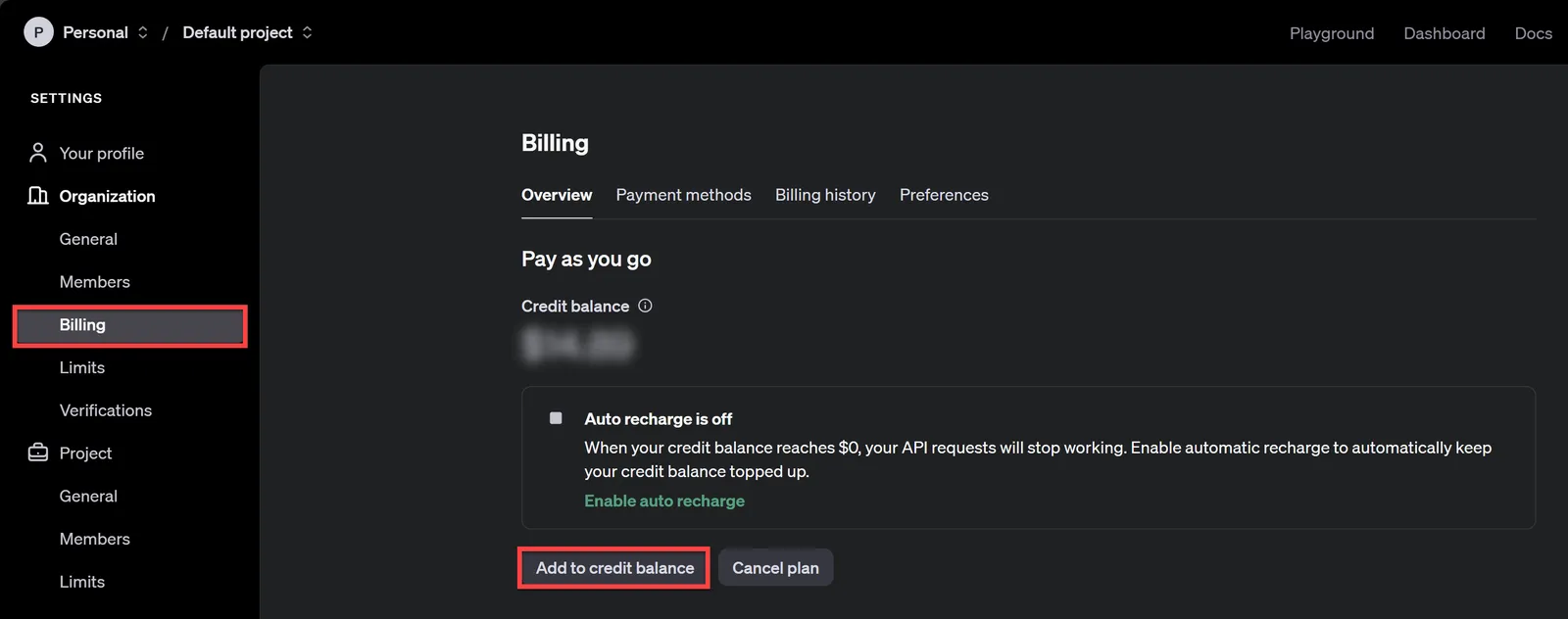
Follow the prompts to add funds to your account. The minimum amount of $5 is more than enough to get started.
Once done, navigate to Your profile on the top left corner and select User API keys.
Select + Create new secret key and optionally give it a name. Make sure it has All permissions and then select Create secret key.
Once the key has been generated, copy it and store it in a safe place. You will need it in the next step.
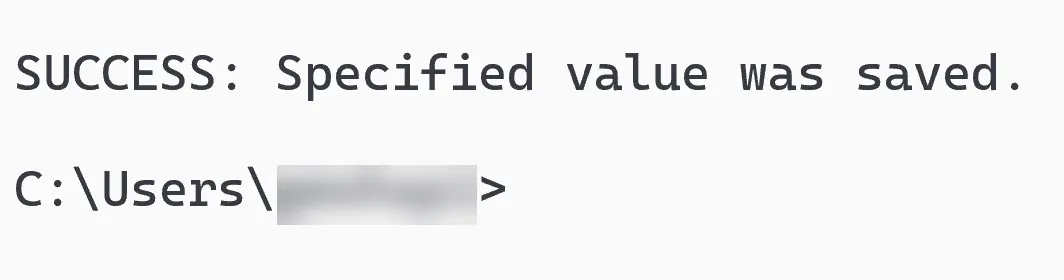
Set up a local environment variables to store the OpenAI API key. Open up a command prompt on your computer and run this command:
setx OPENAI_API_KEY "REPLACE_WITH_YOUR_KEY_VALUE_HERE"Replace
REPLACE_WITH_YOUR_KEY_VALUEwith the key you copied earlier.You should then see a message that says SUCCESS: Specified value was saved.
To use this sample, you will create your own Custom Connector using the Visual Studio Connected Service for the Power Platform. For this; download and install Visual Studio (Community Edition)
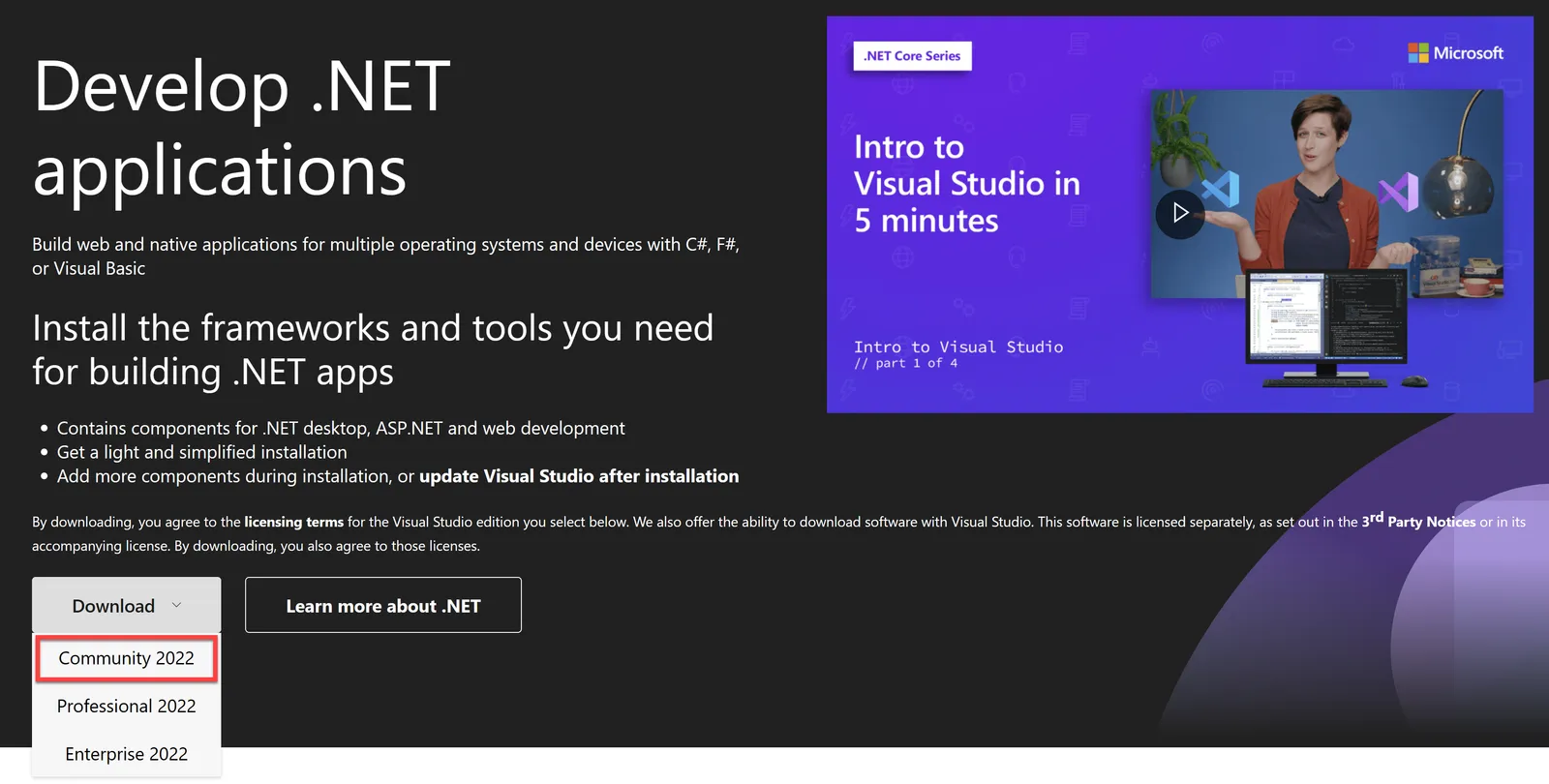
This installer comes pre-packaged with all the components you need for .NET development.
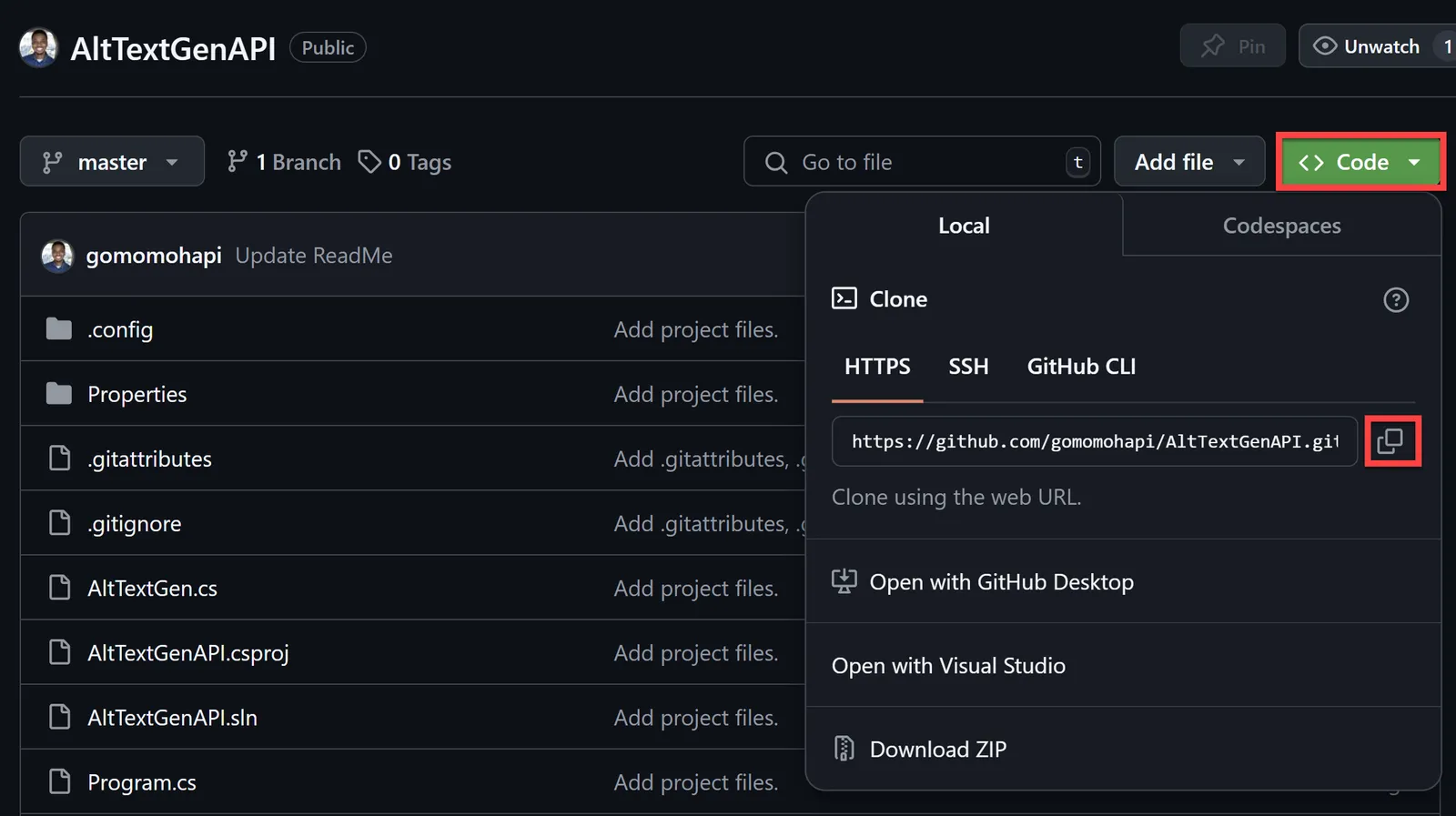
Finally, clone the AltTextGenAPI Sample Project to your local machine and open Visual Studio.
- Once you follow the link to the project, select Code and then copy the git URL.
- Open Visual Studio and select Clone a repository.
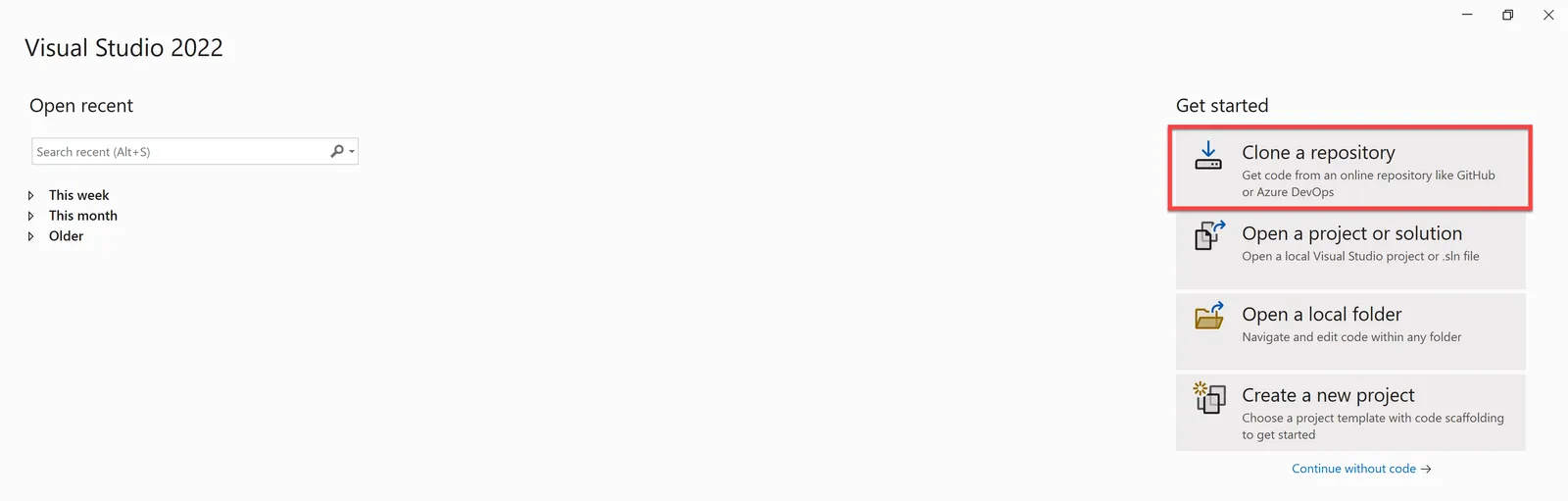
Then paste in the link you copied from GitHub and select Clone.
The project will be cloned and then opened in Visual Studio.
Minimal Path to Awesome
Using the solution zip
Step 1: Import the solution into your Power Apps environment
- Download the
.zipfrom the solution folder. - Within the Power Apps Studio, import the solution
.zipfile using Solutions > Import Solution and select the.zipfile you just downloaded. - Once the solution has been imported, leave the Solutions tab open and then open Visual Studio with the cloned AltTextGenAPI project.
Step 2: Create a Custom Connector using Visual Studio Connected Service for the Power Platform
In Visual Studio, open the solution explorer and right-click on Connected Services and select Add > Microsoft Power Platform.
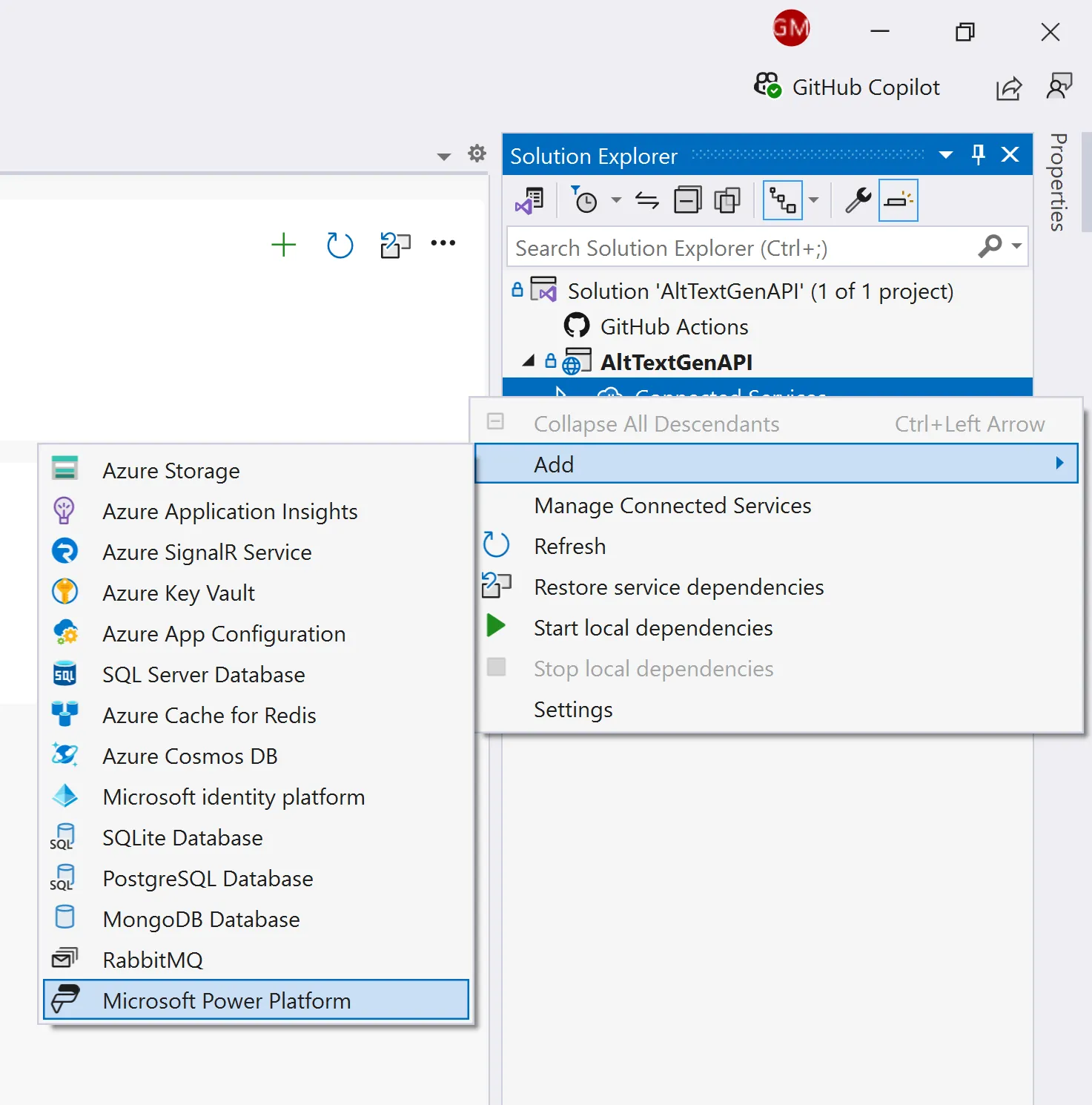
Ensure you're signed in with the same Power Apps account you used to import the solution, and configure the following:
- Power Platform environments: Select the environment where you imported the solution
- Solution: Select the Accessibility Applications solution
- Custom Connector: Create a new custom connector and call it
AltTextGen_Connector - OpenAPI specification: Select the
Auto-generate the OpenAPI V2 Specificationoption - Dev Tunnel: Create a new dev tunnel and call it
AltTextGen_Tunnel
Select Finish and the custom connector will be created.
Once complete, run the project in Visual Studio.
In the newly opened browser window, select Continue to connect to your Developer Tunnel.
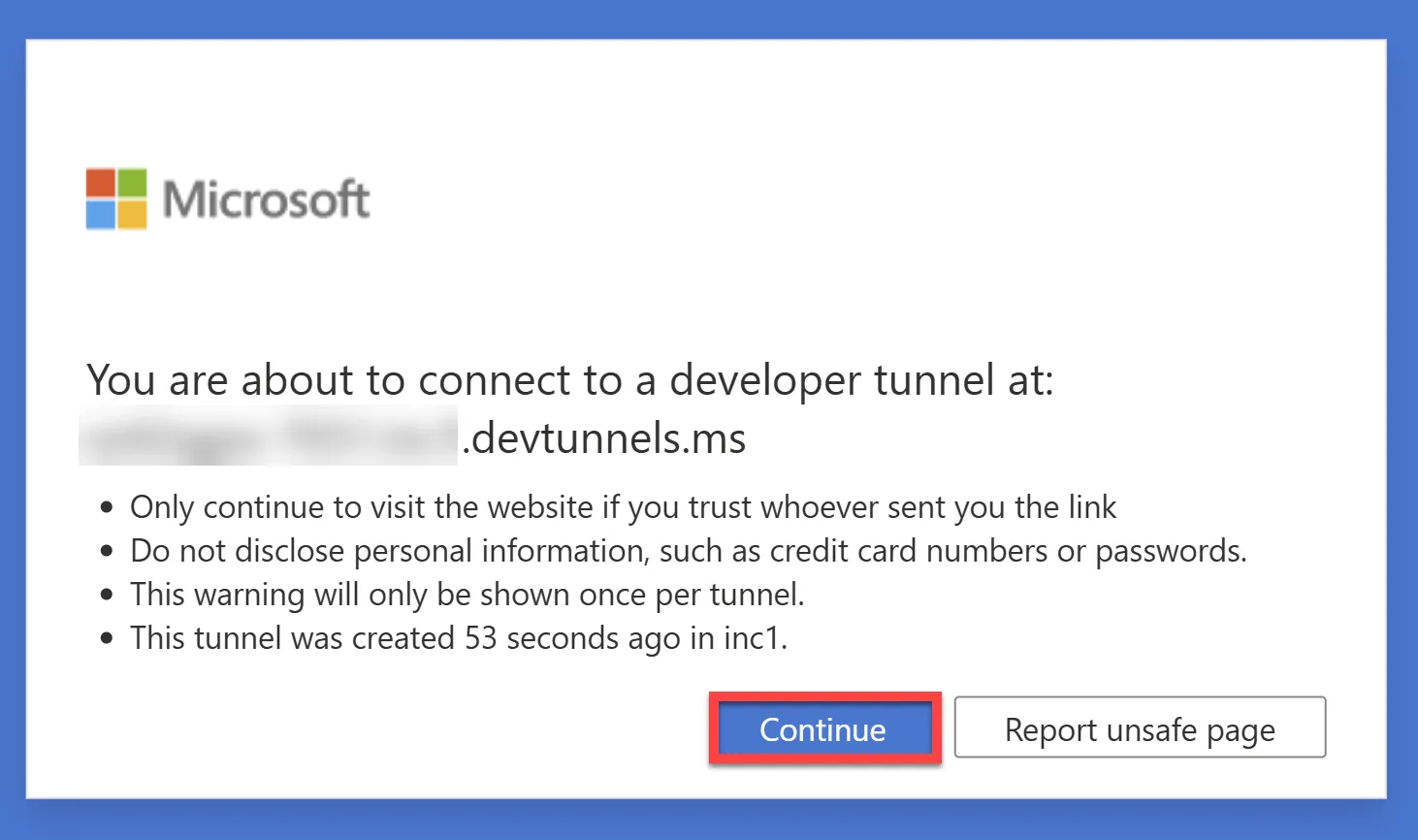
Once connected, the custom connector will be active and available to use in your Power Apps environment. Don't close the browser window and navigate back to the Solutions tab in Power Apps Studio.
Step 3: Add the Custom Connector to the Power Automate flow
Open the Accessibility Applications solution and navigate to Cloud Flows > Generate Image with AI.
Open the flow in Edit mode.
Between the two nodes, add a new action and search for
alttextgenand select Generates Alt Text.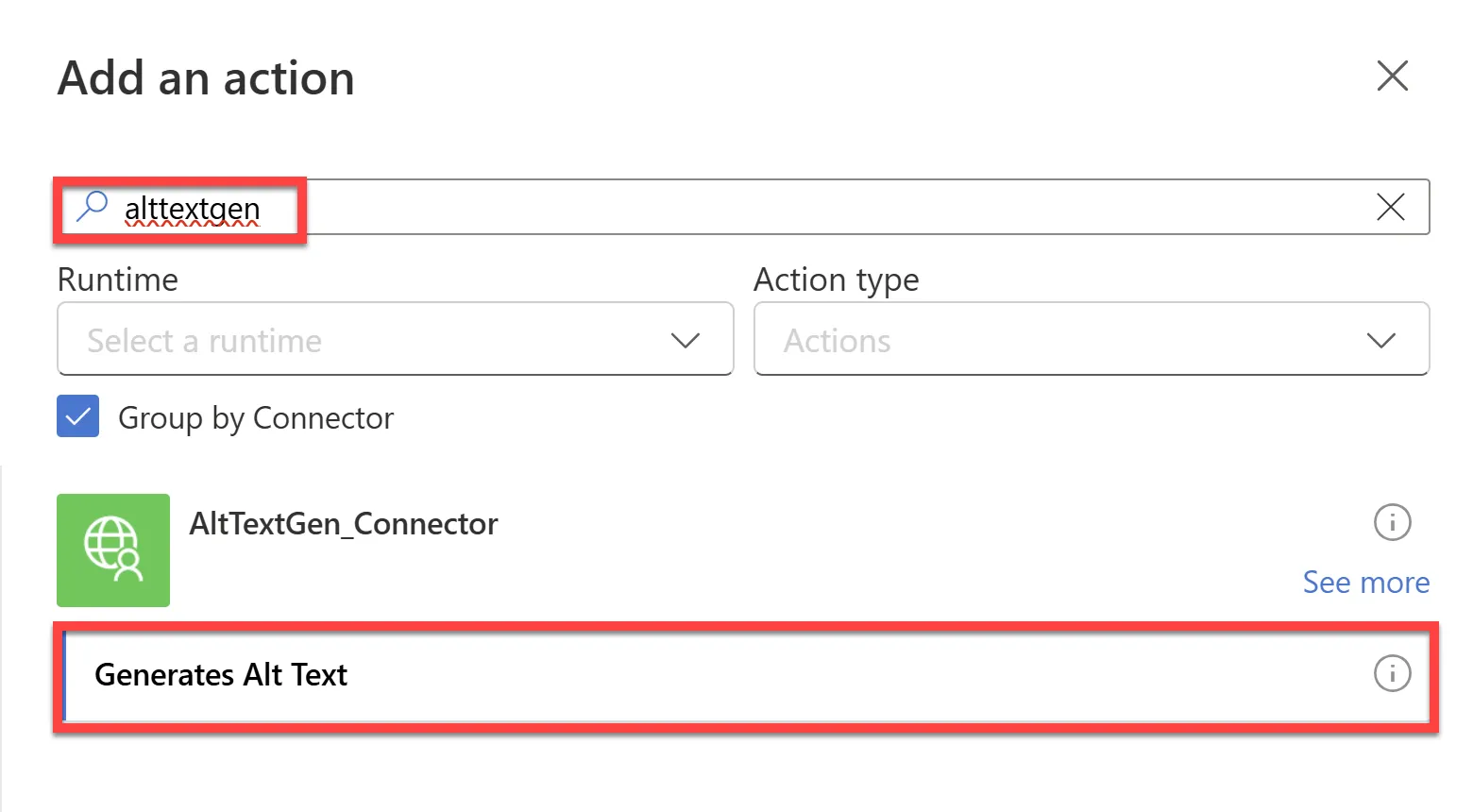
Create a connection to the
AltTextGen_Connector.Once the connection has been created, select the ImageUrl field and then select the Dynamic Content icon and select ImageUrl from the list of dynamic content.
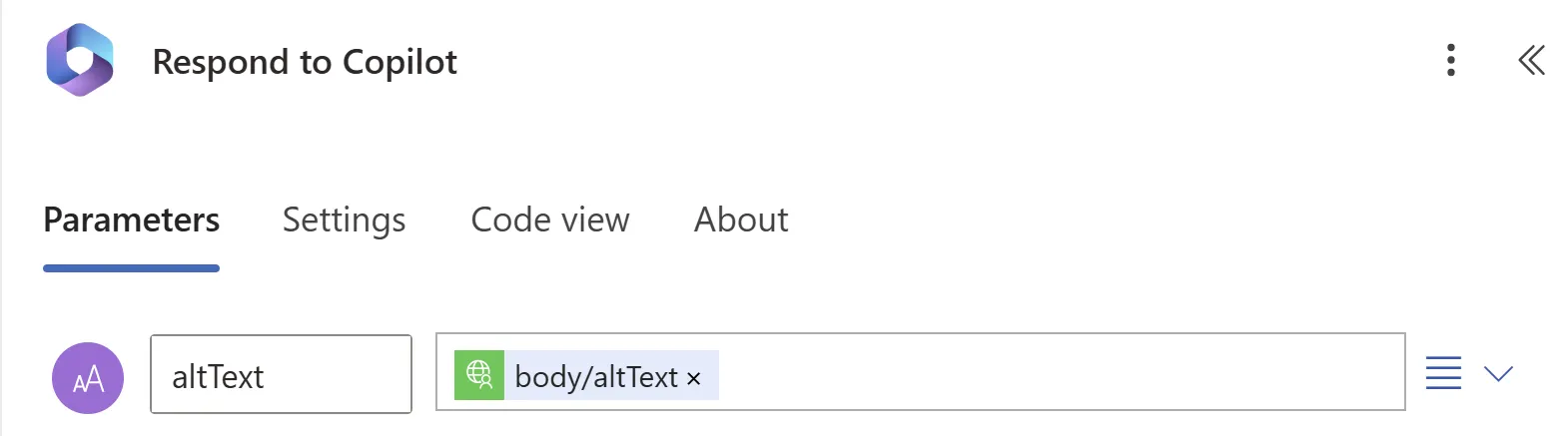
Then select the Respond to Copilot node and select body/altText from the Dynamic Content list for altText
Publish the flow.
Using the source code
You can also use the Power Apps CLI to pack the source code by following these steps:
Clone the repository to a local drive
Pack the source files back into a solution
.zipfile:pac solution pack --zipfile pathtodestinationfile --folder pathtosourcefolder --processCanvasAppsMaking sure to replace
pathtosourcefolderto point to the path to this sample'ssourcecodefolder, andpathtodestinationfileto point to the path of this solution's.zipfile (located under thesolutionfolder)Within Power Apps Studio, import the solution
.zipfile using Solutions > Import Solution and select the.zipfile you just packed.Once completed, follow along from Step 2 above.
Features
This solution illustrates the following concepts on top of the Power Platform. With the OpenAI, .NET, and the Power Platform, this solution demonstrates an easy way to generate alt text for images with AI through a copilot - improving accessibility for the web.
In the copilot, you can start a conversation by asking it how to generate alt text:
- The copilot will then trigger a topic that prompts you to enter a link to the image that you want to generate alt text for.
- Once you enter the image URL, the copilot will call a Power Automate flow that connects to a Custom Connector.
- This Custom Connector is connected to a .NET API that uses OpenAI's gpt-4o model to generate alt text for the image.
- The image along with the generated alt text is then returned to the copilot and displayed in the chat as an adaptive card.
Help
We do not support samples, but this community is always willing to help, and we want to improve these samples. We use GitHub to track issues, which makes it easy for community members to volunteer their time and help resolve issues.
If you encounter any issues while using this sample, you can create a new issue.
For questions regarding this sample, create a new question.
Finally, if you have an idea for improvement, make a suggestion.
Disclaimer
THIS CODE IS PROVIDED AS IS WITHOUT WARRANTY OF ANY KIND, EITHER EXPRESS OR IMPLIED, INCLUDING ANY IMPLIED WARRANTIES OF FITNESS FOR A PARTICULAR PURPOSE, MERCHANTABILITY, OR NON-INFRINGEMENT.