
A community-built Power Platform sample
Pattern: Always respond to a Request
A pattern for making sure that the Flow always provides a responds to a request.
 Power Automate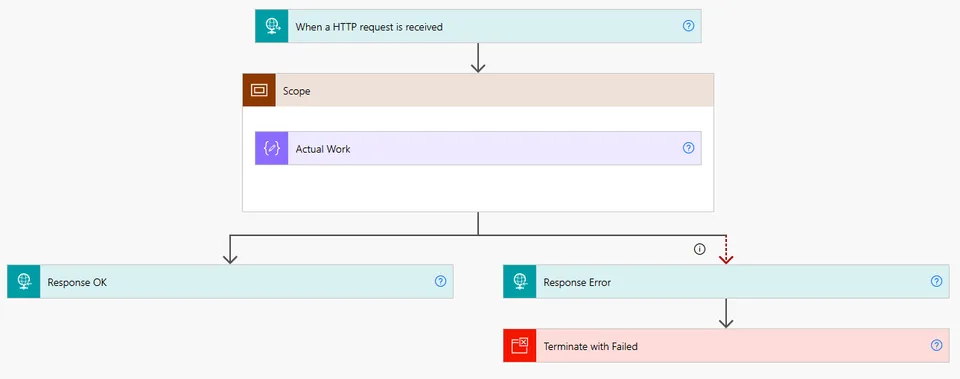
- Last updated
- May 2, 2021
- Category
- Power Automate
From idea to implementation
Make it your own.
Check this sample's prerequisites, permissions, and licensing before importing it. The documentation below comes directly from the sample README.
Summary
A pattern for making sure that the Flow always provides a responds to a request.
Applies to
Compatibility



Authors
| Solution | Author(s) |
|---|---|
| always-reply-to-request | Remy Blok, Prodware |
Version history
| Version | Date | Comments |
|---|---|---|
| 1.0 | May 02, 2021 | Initial release |
Features
Power Automate has the ability to be called by 3th parties using HTTP requests or via the API. In these cases the caller will wait for the Flow to respond. If the Flow does not respond you get an HTTP 500 error from the Flow runtime with the message The server did not receive a response from an upstream server.
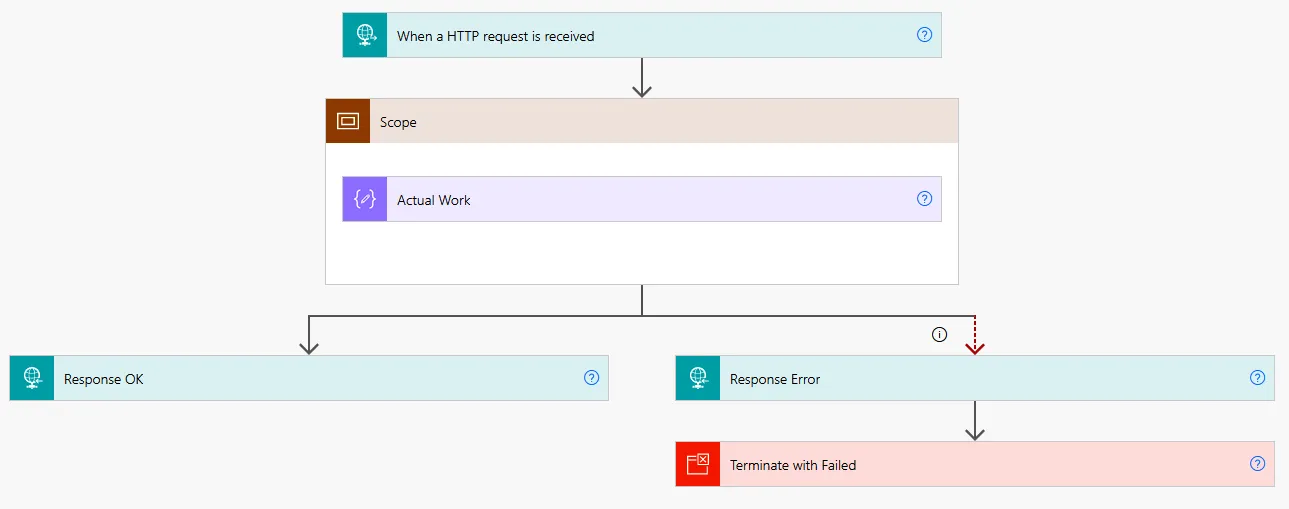
This pattern makes sure that you always respond to the caller. Also in case you Flow fails you can then send back relevant information on why the flow has failed. In this sample it returns the error that occurred in the Scope. But responses to the end user with a descriptive message is always preferred.
Requests and responses are used in multiple areas:
- Per this sample, using
HTTP Request-trigger andHTTP Response-action to create a Flow that is callable via HTTP by any party that can handle HTTP - When using the Flow as a child Flow. The trigger will be
Manual trigger, the response will be aRespond to PowerAppor aHTTP Responseaction - When starting a Flow from a Canvas Power App. In this case the trigger is
PowerApps, the response will be aRespond to PowerAppor aHTTP Responseaction
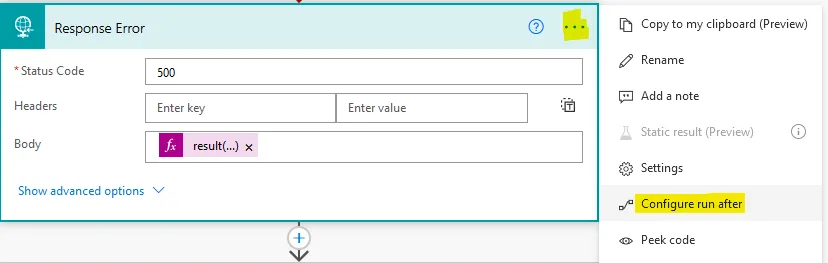
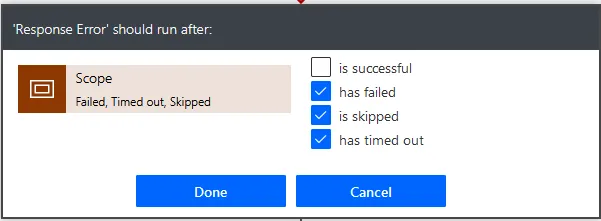
In this sample we use a Scope to contain all the logic of the Flow. By setting the 'Configure run after' on the error Response-action to run only on error we can differentiate the error between sending a OK or an Error message. By default any action's 'Configure run after' is set to 'is successful'.
Note: you can setup the responses to use the Asynchronous pattern. This is useful for long running flows. In this case the error will also be correctly returned as result for your long running flow. This can also be used when the Flow is used as a child flow using the Respond to PowerApps-action. It does not work when the Flow is called from a Power App.
Note 2: The reason that the OK response is outside the Scope in stead of having one of more responses inside the Scope, is to make sure the schema of the result is the same. Since there is only one place where the result (and it's schema) is defined, changes to the result (schema) are easily realized. Since you are basically setting up an API having a single consistent schema for all responses is recommended.
Minimal Path to Awesome
- Download the
.zipfrom thesolutionfolder - Import the
.zipfile using My Flows > Import > Upload within Microsoft Flow.
Disclaimer
THIS CODE IS PROVIDED AS IS WITHOUT WARRANTY OF ANY KIND, EITHER EXPRESS OR IMPLIED, INCLUDING ANY IMPLIED WARRANTIES OF FITNESS FOR A PARTICULAR PURPOSE, MERCHANTABILITY, OR NON-INFRINGEMENT.
Help
We do not support samples, but we this community is always willing to help, and we want to improve these samples. We use GitHub to track issues, which makes it easy for community members to volunteer their time and help resolve issues.
If you encounter any issues while using this sample, create a new issue.
For questions regarding this sample, create a new question.
Finally, if you have an idea for improvement, make a suggestion.