
A community-built Power Platform sample
Cascading Dropdown Component
Power Apps Canvas Component for two-level cascading dropdowns
 Power Apps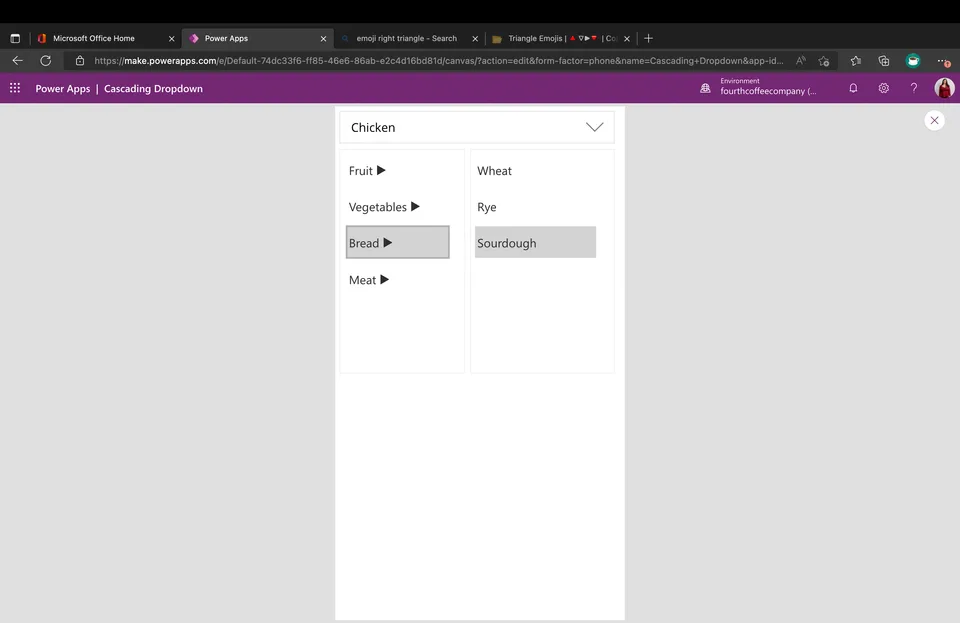
- Last updated
- Jul 15, 2025
- Category
- Canvas apps
- Premium license
- Not required
- Experimental features
- No
From idea to implementation
Make it your own.
Check this sample's prerequisites, permissions, and licensing before importing it. The documentation below comes directly from the sample README.
Summary
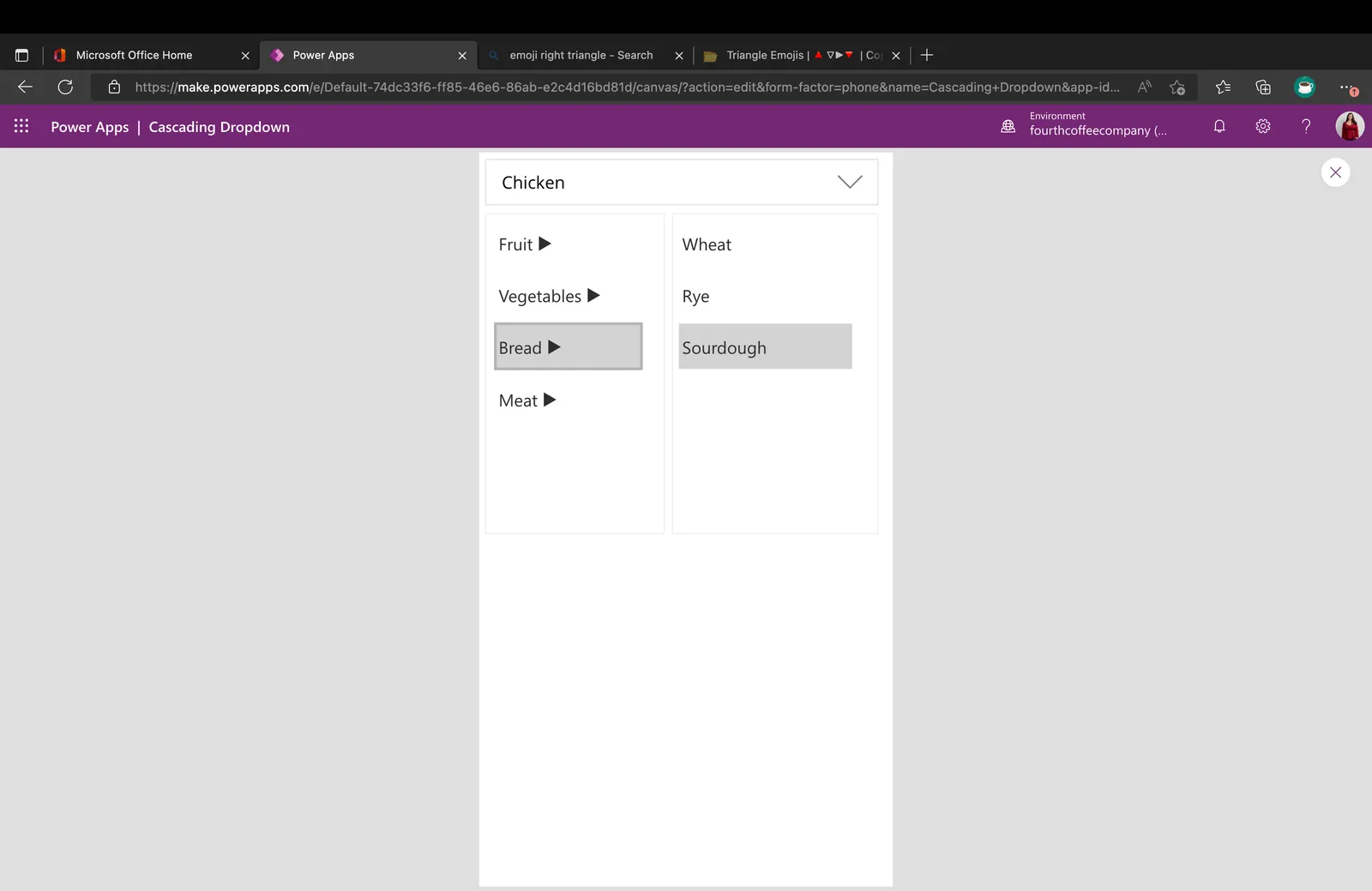
This is a Power Apps Canvas component that demonstrates how to implement a custom cascading dropdown control. This control handles a two-level cascading dropdown and can even be customized to handle a single selection or multiple selection of items.
Features
This sample app is a great way to learn some fundamental Power Apps concepts like:
- How to build a component and use component input and output properties
- How to show/hide elements
- How to leverage collections and split out collection items into a string
Applies to









Compatibility


Contributors
Version history
| Version | Date | Comments |
|---|---|---|
| 1.0 | Oct 29, 2022 | Initial release |
| 2.0 | July 15, 2025 | Migration from powerapps-samples repository with solution repacking by Jan Chlebek |
Minimal path to awesome
Using the solution zip
- Download the
.zipfrom thesolutionfolder - Within Power Apps Studio, import the solution
.zipfile using Solutions > Import Solution and select the.zipfile you just packed. - Open the app in edit mode and make sure the data source Data source name is connected correctly.
Using the source code
You can also use the Power Apps CLI to pack the source code by following these steps:
Clone the repository to a local drive
Pack the source files back into a solution
.zipfile:pac solution pack --zipfile pathtodestinationfile --folder pathtosourcefolder --processCanvasAppsMaking sure to replace
pathtosourcefolderto point to the path to this sample'ssourcecodefolder, andpathtodestinationfileto point to the path of this solution's.zipfile (located under thesolutionfolder)Within Power Apps Studio, import the solution
.zipfile using Solutions > Import Solution and select the.zipfile you just packed.
Prerequisites
Using the component
To use the component in this sample, you'll need to either hard code in the items you want to display in the 1st level and 2nd level menus or pull them in from your data source. The cascading effect is dependent on having a property in your 1st level items called "Name" and a property inyour 2nd level items called "ParentItem" which can be matched back to the name field of the 1st level items. Look at the default 1stLevelItems and 2ndLevelItems properties to see the format that the component is expecting.
Data Sources
None
Help
We do not support samples, but this community is always willing to help, and we want to improve these samples. We use GitHub to track issues, which makes it easy for community members to volunteer their time and help resolve issues.
If you encounter any issues while using this sample, you can create a new issue.
For questions regarding this sample, create a new question.
Finally, if you have an idea for improvement, make a suggestion.
Disclaimer
THIS CODE IS PROVIDED AS IS WITHOUT WARRANTY OF ANY KIND, EITHER EXPRESS OR IMPLIED, INCLUDING ANY IMPLIED WARRANTIES OF FITNESS FOR A PARTICULAR PURPOSE, MERCHANTABILITY, OR NON-INFRINGEMENT.