
A community-built Power Platform sample
Circular Timer Component
A control that performs a countdown and triggers a specific action after a certain amount of time passes.
 Power Apps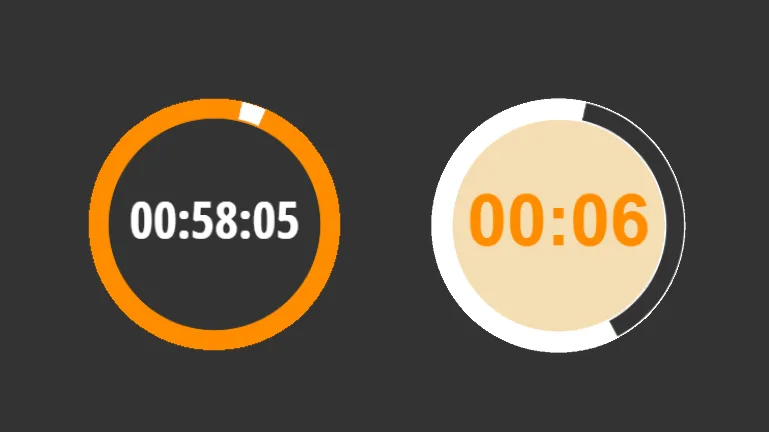
- Last updated
- Jan 6, 2024
- Category
- Power Apps, Canvas apps
- Premium license
- Not required
- Experimental features
- No
From idea to implementation
Make it your own.
Check this sample's prerequisites, permissions, and licensing before importing it. The documentation below comes directly from the sample README.
Summary
A control that performs a countdown and triggers a specific action after a certain amount of time passes.
Applies to









Compatibility


Contributors
Version history
| Version | Date | Comments |
|---|---|---|
| 1.0 | January 06, 2024 | Initial release |
Minimal path to awesome
Using the solution zip
- Download the
.zipfrom thesolutionfolder - Within Power Apps Studio, import the solution
.zipfile using Solutions > Import Solution and select the.zipfile you just downloaded.
Using the source code
You can also use the Power Apps CLI to pack the source code by following these steps:
Clone the repository to a local drive
Pack the source files back into a solution
.zipfile:pac solution pack --zipfile pathtodestinationfile --folder pathtosourcefolder --processCanvasAppsMaking sure to replace
pathtosourcefolderto point to the path to this sample'ssourcecodefolder, andpathtodestinationfileto point to the path of this solution's.zipfile (located under thesolutionfolder)Within Power Apps Studio, import the solution
.zipfile using Solutions > Import Solution and select the.zipfile you just packed.
Features
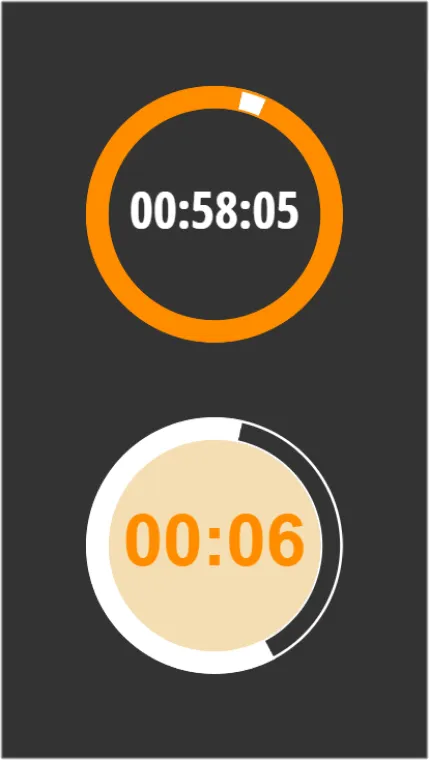
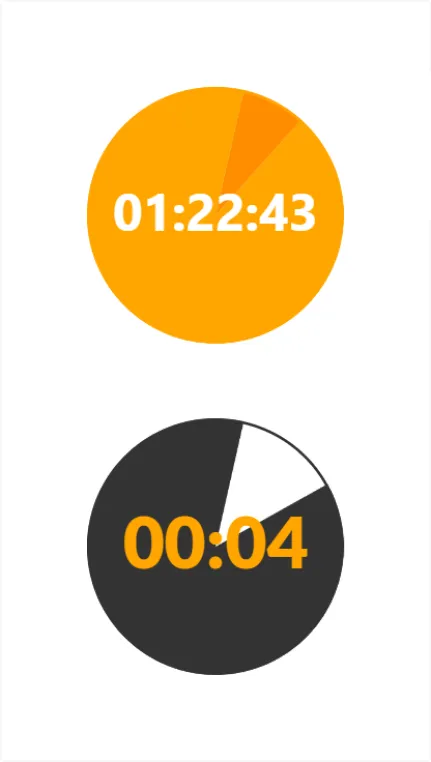
This sample features a component library with a customizable clock-like timer component. The timer control counts down a specified duration and displays the elapsed and remaining time in the form of a linear or sector gauge.
The component properties cover the standard properties of the Power Apps Timer control allowing for determining the logic of the time counter:
- AutoPause – Whether the timer control automatically pauses if the user navigates to a different screen
- AutoStart – Whether the timer control automatically starts to play when the user navigates to the screen that contains that control
- DisplayMode – Whether the control allows user input (Edit), only displays data (View), or is disabled (Disabled)
- Duration – How long a timer runs in milliseconds. The maximum is 24 hours expressed in milliseconds. Default is 60 seconds
- OnSelect – Actions to perform when the user taps or clicks a control
- OnTimerStart – Actions to perform when a timer starts to run
- OnTimerEnd – Actions to perform when a timer finishes running
- Repeat – Whether a timer automatically restarts when it finishes running
- Reset – Whether a control reverts to its default value
- Start – Whether the timer starts
The other properties allow for steering the visual aspect of the control:
- Font - The name of the family of fonts in which text appears
- Color - The color of text in a control
- Hover Color - The color of the text in a control when the user keeps the mouse pointer on it
- Circle Fill - A colour of the remaining time gauge
- Null Circle Fill - A colour of the past time gauge
- Inner Fill - A colour of the inner circle
- Inner Circle Visibility - Steers the visibility of the inner circle to switch between the linear or sector gauge mode
Help
We do not support samples, but this community is always willing to help, and we want to improve these samples. We use GitHub to track issues, which makes it easy for community members to volunteer their time and help resolve issues.
If you encounter any issues while using this sample, you can create a new issue.
For questions regarding this sample, create a new question.
Finally, if you have an idea for improvement, make a suggestion.
Disclaimer
THIS CODE IS PROVIDED AS IS WITHOUT WARRANTY OF ANY KIND, EITHER EXPRESS OR IMPLIED, INCLUDING ANY IMPLIED WARRANTIES OF FITNESS FOR A PARTICULAR PURPOSE, MERCHANTABILITY, OR NON-INFRINGEMENT.