
A community-built Power Platform sample
Create folder with link back to list
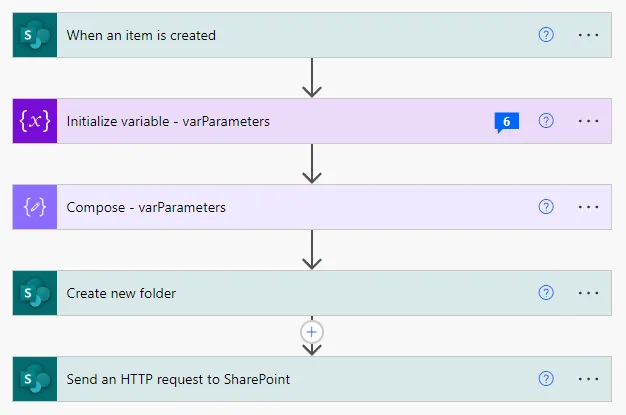
This sample creates a folder in a SharePoint document library and then stores the link to the newly created folder inside of Microsoft Lists using Power Automate.
 Power Automate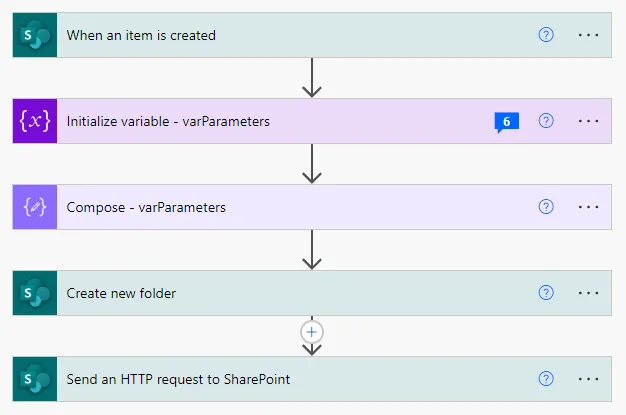
- Last updated
- Dec 16, 2025
- Category
- Cloud flows
- Premium license
- Not required
- Experimental features
- No
From idea to implementation
Make it your own.
Check this sample's prerequisites, permissions, and licensing before importing it. The documentation below comes directly from the sample README.
Summary
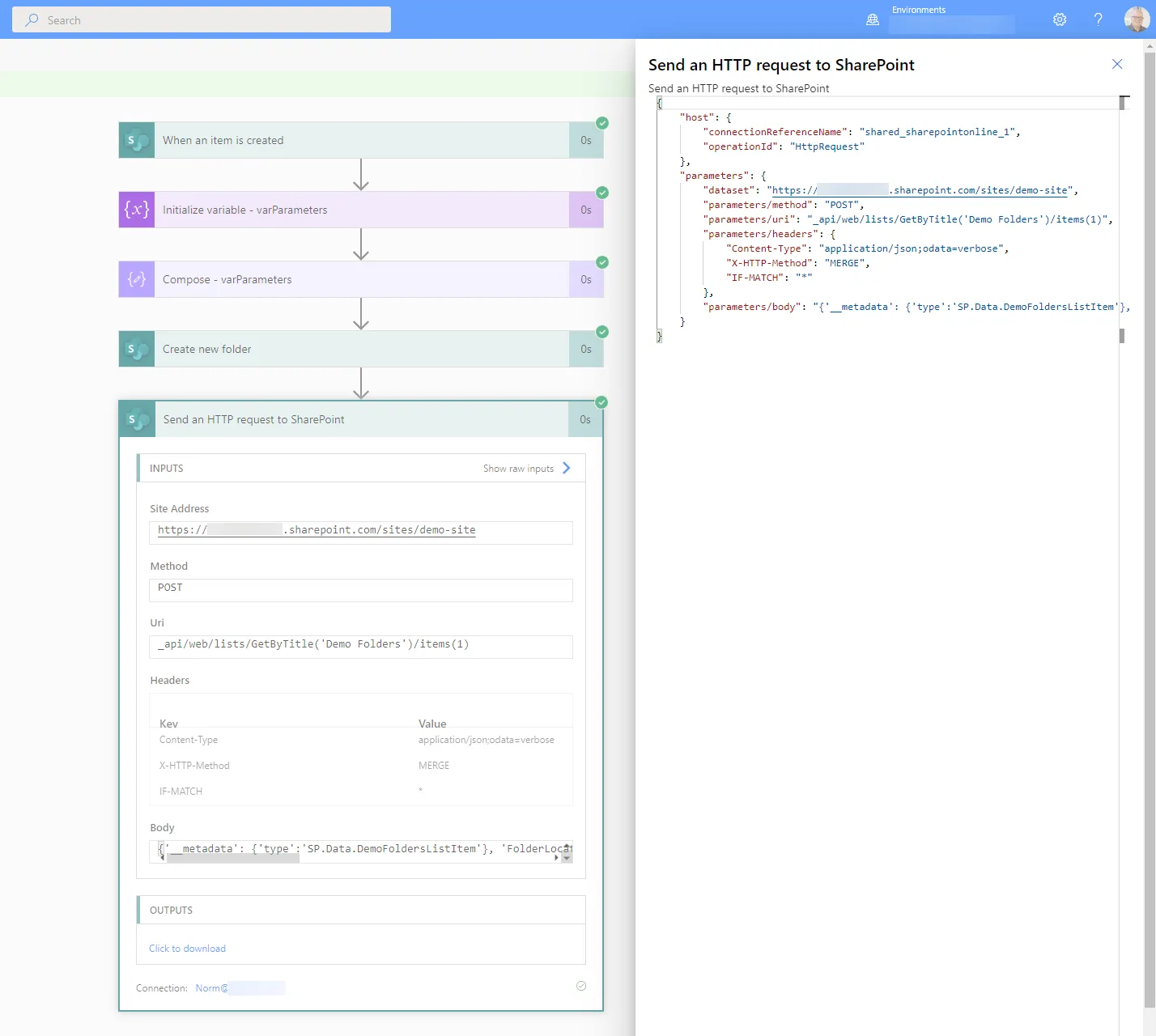
This sample creates a folder in a SharePoint document library and then stores the link to the newly created folder inside of Microsoft Lists using Power Automate. The folder name is based on a combination of list columns and provides a better link experience compared to the default URL.
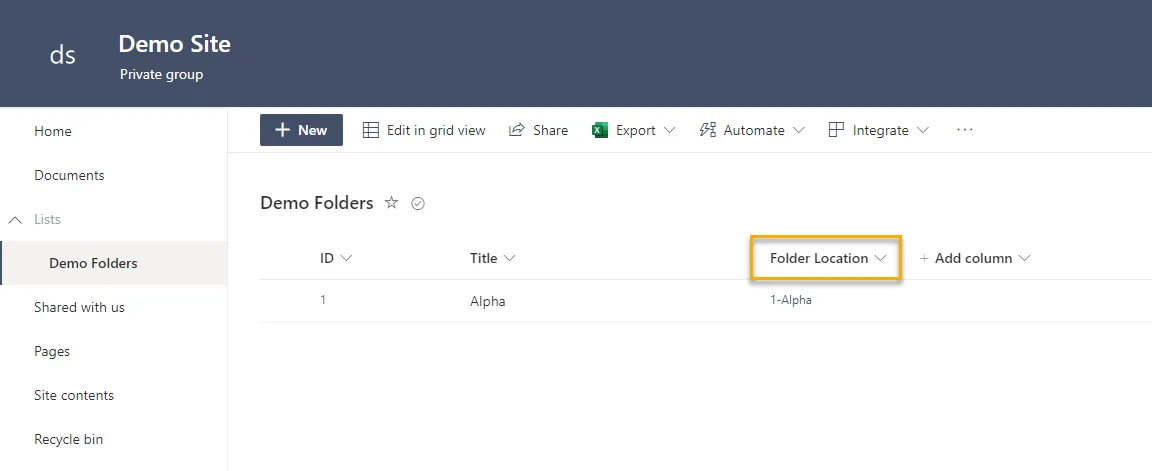
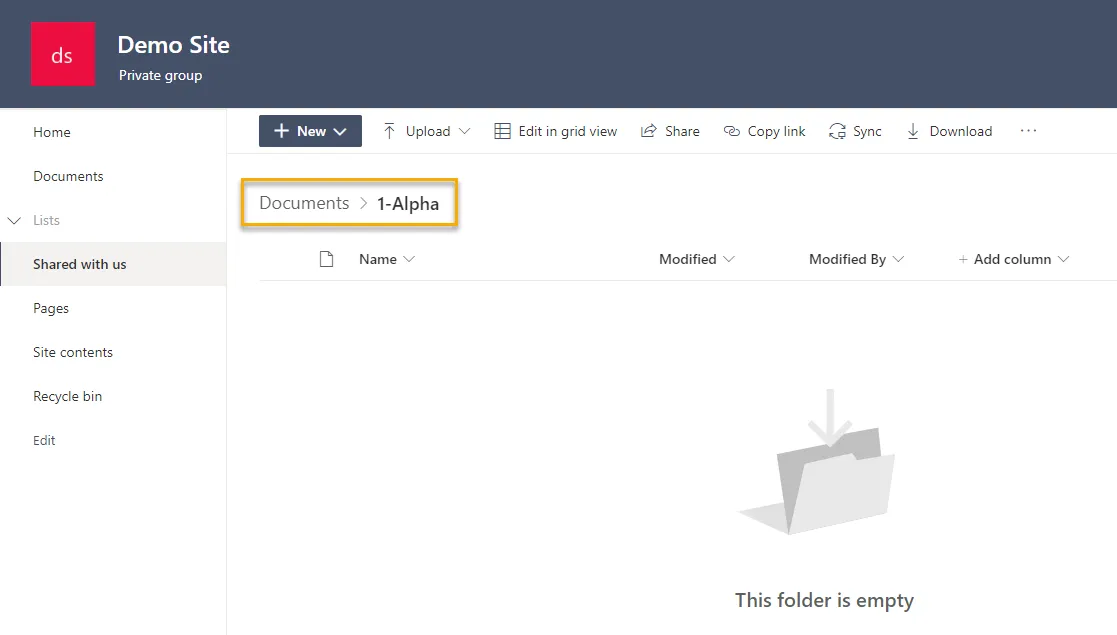
Our list item looks like the image below. Clicking on the FolderLocation link will take you to the folder location.
Applies to









Compatibility


Contributors
Version history
| Version | Date | Comments |
|---|---|---|
| 1.0 | October 10, 2022 | Initial release |
| 2.0 | October 07, 2025 | Migration from powerapps-samples repository with solution repacking by Jan Chlebek |
| 3.0 | December 16, 2025 | Add environment variables into solution by Katerina Chernevskaya |
Prerequisites
This Flow requires the following list columns and settings:
- Title
- Settings: "Require that this column contains information" set to Yes
- FolderLocation
- Type: Hyperlink
Minimal Path to Awesome
Download the
.zipfrom thesolutionfolderWithin Power Automate, import the solution
.zipfile using Solutions > Import Solution and select the.zipfile you just packed.Test your Flow by adding a new item to your list. If successful the Flow will:
- Create a folder in our target SharePoint Document Library with a name that concatenates the ID and Title columns
- Update list item FolderLocation column to match the folder name
Features
This sample illustrates the following concepts:
- Expressions
- SharePoint REST API
- Variables
Help
We do not support samples, but this community is always willing to help, and we want to improve these samples. We use GitHub to track issues, which makes it easy for community members to volunteer their time and help resolve issues.
If you encounter any issues while using this sample, you can create a new issue.
For questions regarding this sample, create a new question.
Finally, if you have an idea for improvement, make a suggestion.
For more information
Disclaimer
THIS CODE IS PROVIDED AS IS WITHOUT WARRANTY OF ANY KIND, EITHER EXPRESS OR IMPLIED, INCLUDING ANY IMPLIED WARRANTIES OF FITNESS FOR A PARTICULAR PURPOSE, MERCHANTABILITY, OR NON-INFRINGEMENT.