
A community-built Power Platform sample
JSON and ParseJSON PowerFx functions
JSON and ParseJSON PowerFx functions
 Power AppsPower Fx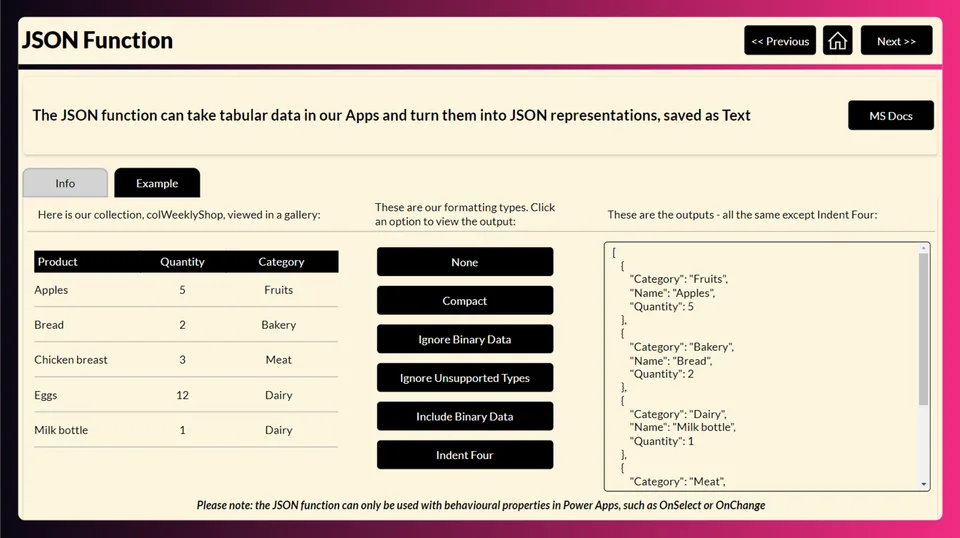
- Last updated
- Jun 30, 2023
- Category
- Power Apps, Canvas apps
- Premium license
- Required
- Experimental features
- No
A closer look
See the sample in action.
From idea to implementation
Make it your own.
Check this sample's prerequisites, permissions, and licensing before importing it. The documentation below comes directly from the sample README.
Summary
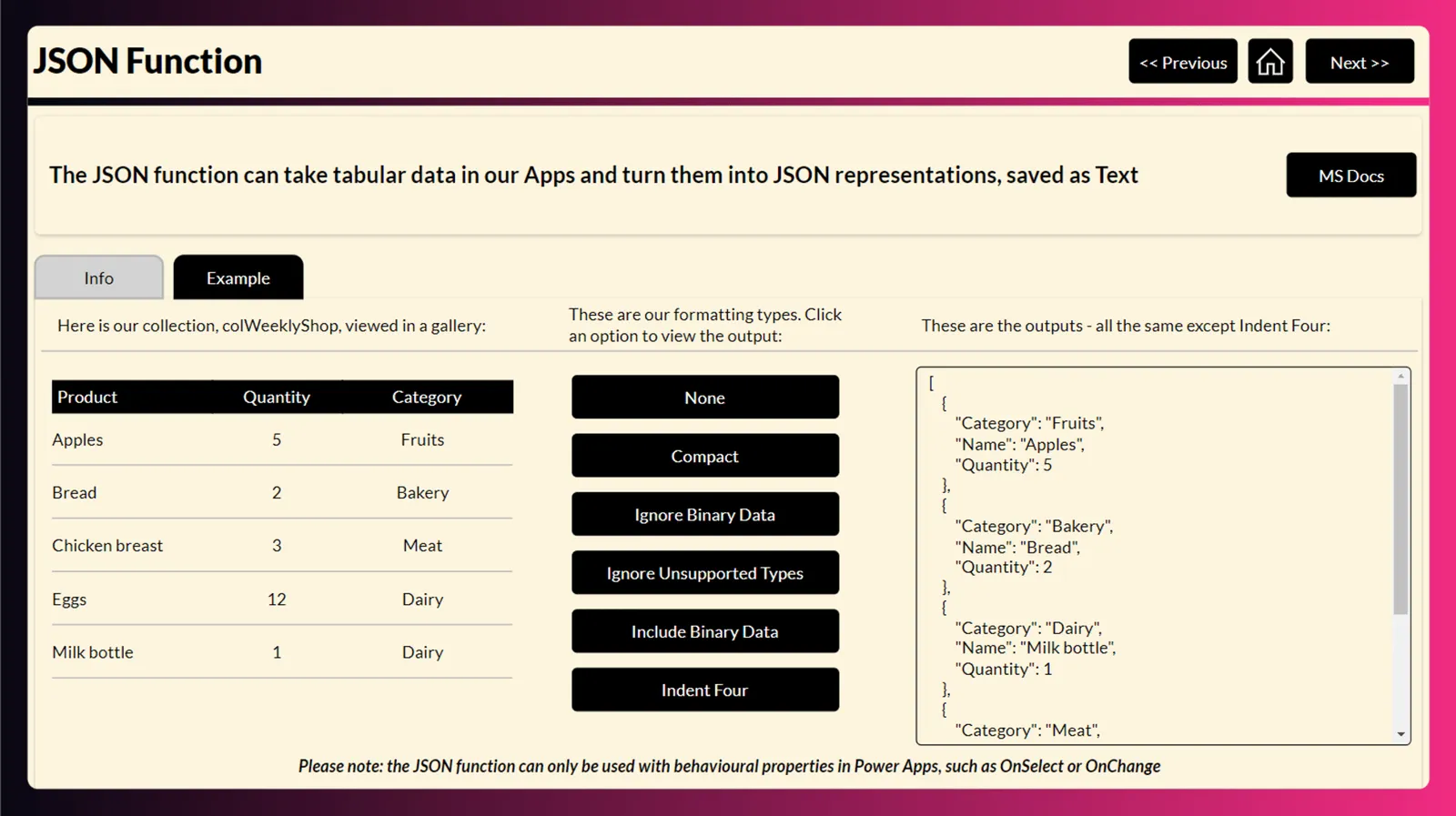
This sample illustrates how to use the JSON and ParseJSON functions in Power Fx.
Applies to









Compatibility


Contributors
Version history
| Version | Date | Comments |
|---|---|---|
| 1.0 | June 25, 2023 | Initial release |
Prerequisites
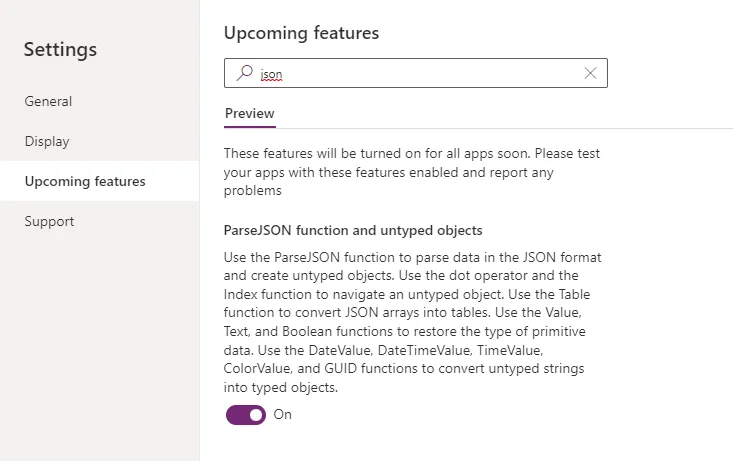
To use the 'Parse JSON function and untyped objects' feature, please go to Settings > Upcoming features and switch the toggle to 'On'
Minimal path to awesome
Using the solution zip
- Download the
.zipfrom thesolutionfolder - Within Power Apps Studio, import the solution
.zipfile using Solutions > Import Solution and select the.zipfile you just packed. - Open the app in edit mode and make sure the data source Dataverse is connected correctly.
Using the source code
You can also use the Power Apps CLI to pack the source code by following these steps::
Clone the repository to a local drive
Pack the source files back into a solution
.zipfile:pac solution pack --zipfile pathtodestinationfile --folder pathtosourcefolder --processCanvasAppsMaking sure to replace
pathtosourcefolderto point to the path to this sample'ssourcecodefolder, andpathtodestinationfileto point to the path of this solution's.zipfile (located under thesolutionfolder)Within Power Apps Studio, import the solution
.zipfile using Solutions > Import Solution and select the.zipfile you just packed.
Features
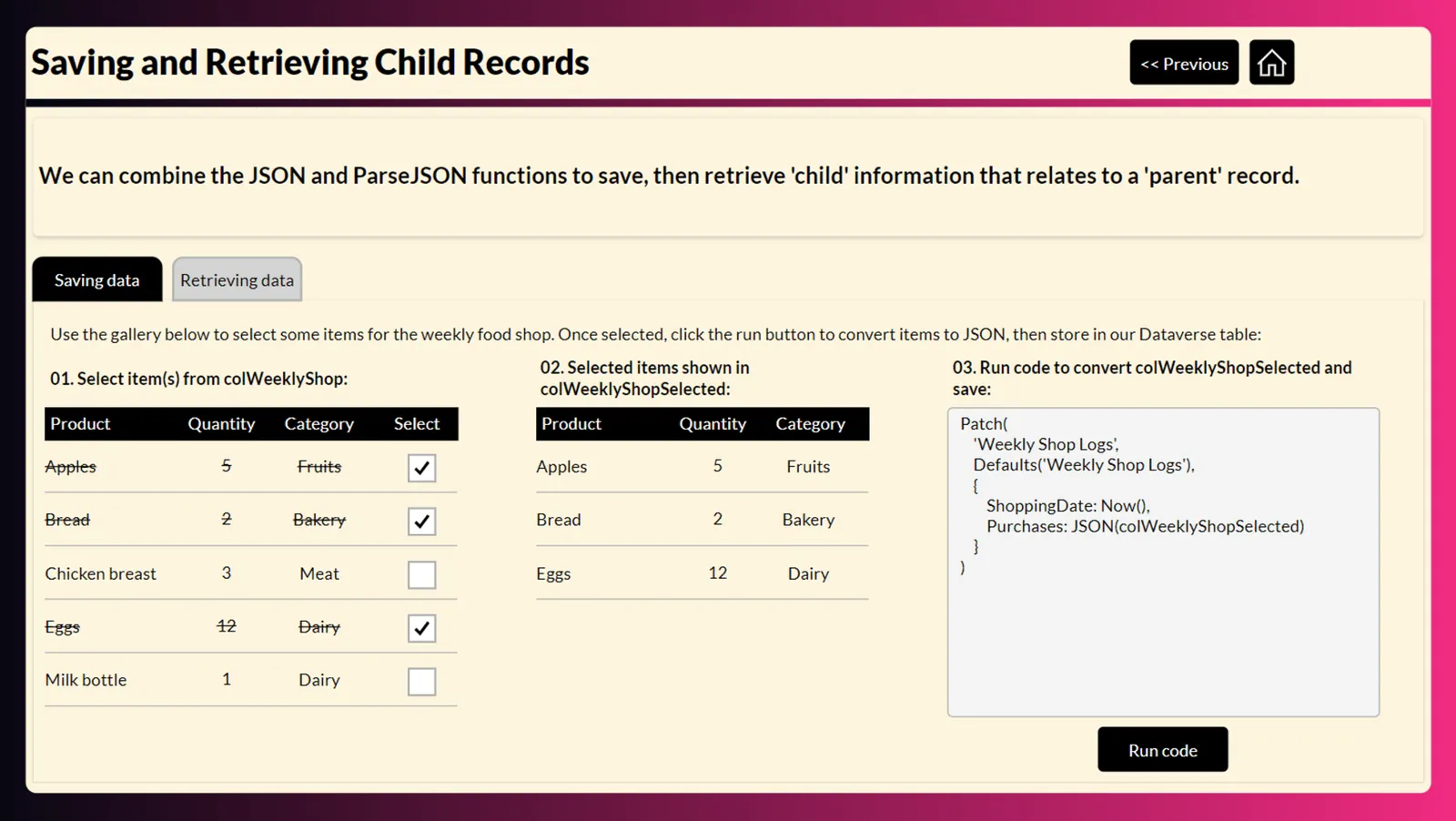
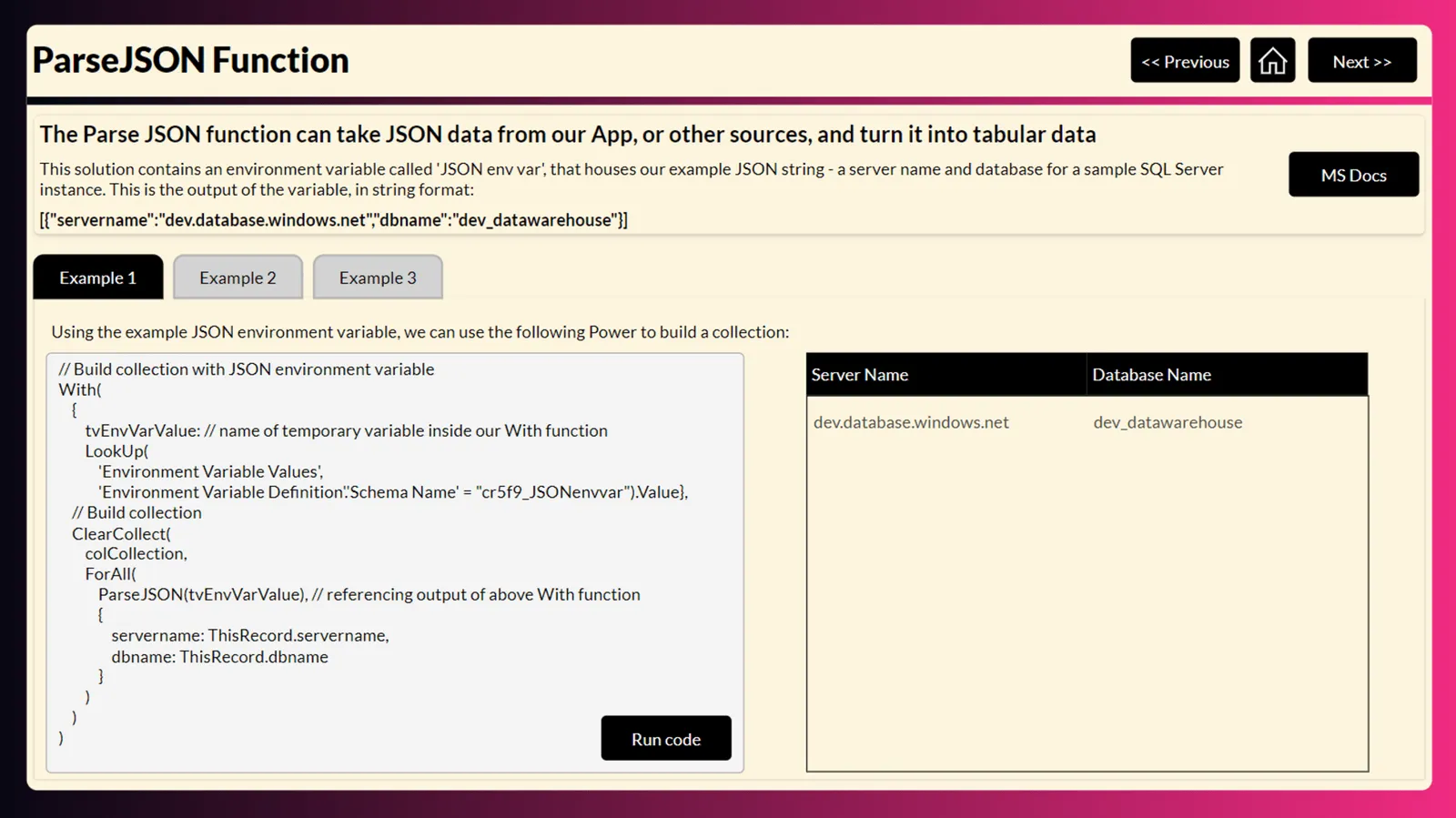
This sample shows and explains how to use the JSON and ParseJSON functions, individually and together.
Help
We do not support samples, but this community is always willing to help, and we want to improve these samples. We use GitHub to track issues, which makes it easy for community members to volunteer their time and help resolve issues.
If you encounter any issues while using this sample, you can create a new issue.
For questions regarding this sample, create a new question.
Finally, if you have an idea for improvement, make a suggestion.
Disclaimer
THIS CODE IS PROVIDED AS IS WITHOUT WARRANTY OF ANY KIND, EITHER EXPRESS OR IMPLIED, INCLUDING ANY IMPLIED WARRANTIES OF FITNESS FOR A PARTICULAR PURPOSE, MERCHANTABILITY, OR NON-INFRINGEMENT.