
A community-built Power Platform sample
Send Inline Image In Teams Channel
This sample gets the image from SharePoint document library and post it on Microsoft Teams channel using Power Automate.
 Power Automate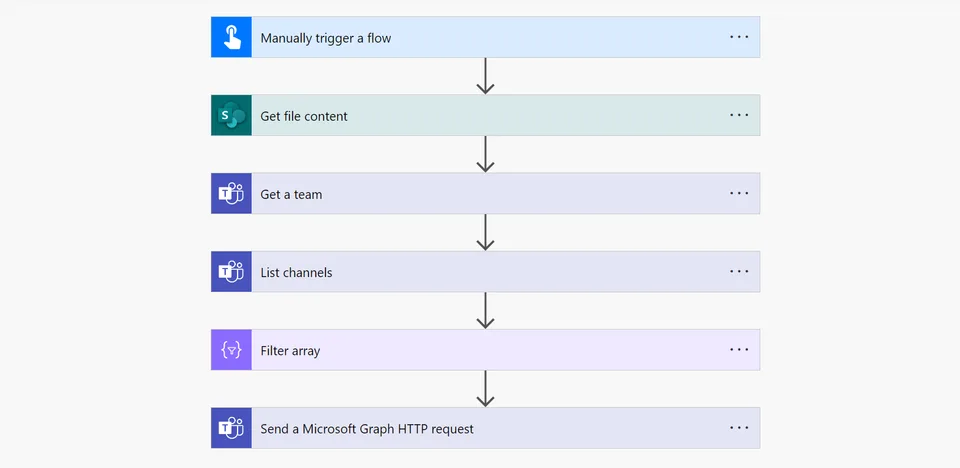
- Last updated
- May 21, 2024
- Category
- Cloud flows
- Premium license
- Not required
- Experimental features
- No
From idea to implementation
Make it your own.
Check this sample's prerequisites, permissions, and licensing before importing it. The documentation below comes directly from the sample README.
Summary
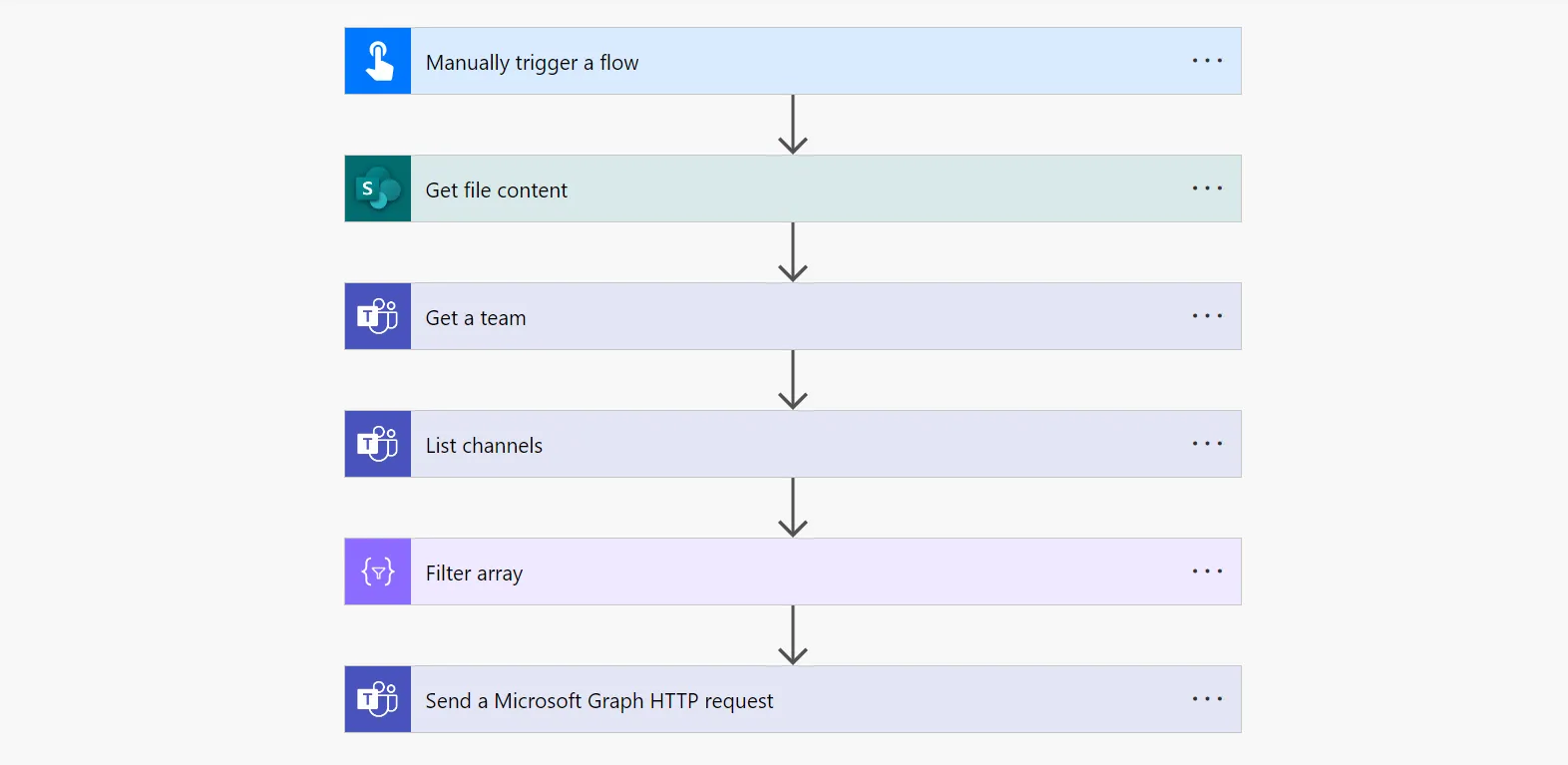
This sample gets the image from SharePoint document library and post it on Microsoft Teams channel using Power Automate. The flow utilizes standard Send Microsoft graph request action to overcome the payload size limit of 28 KB.
Applies to
Compatibility



Contributors
Version history
| Version | Date | Comments |
|---|---|---|
| 1.0 | May 21, 2024 | Initial release |
Features
This sample illustrates the following concepts:
- Post embed image in Teams Channel message
- Overcome the payload size limit (28 KB)
- Send a Microsoft Graph HTTP request using standard action
- Expression
Prerequisites
- This Flow requires an image to be present in SharePoint document library (inside site asset).
- A Microsoft Teams with a channel where image needs to be shared via message.
Connection References
The solution includes two connection references.
- SharePoint Connection
- Microsoft Teams Connection
Minimal Path to Awesome
Import Solution
Configure Flow
- Once the solution is imported, edit it
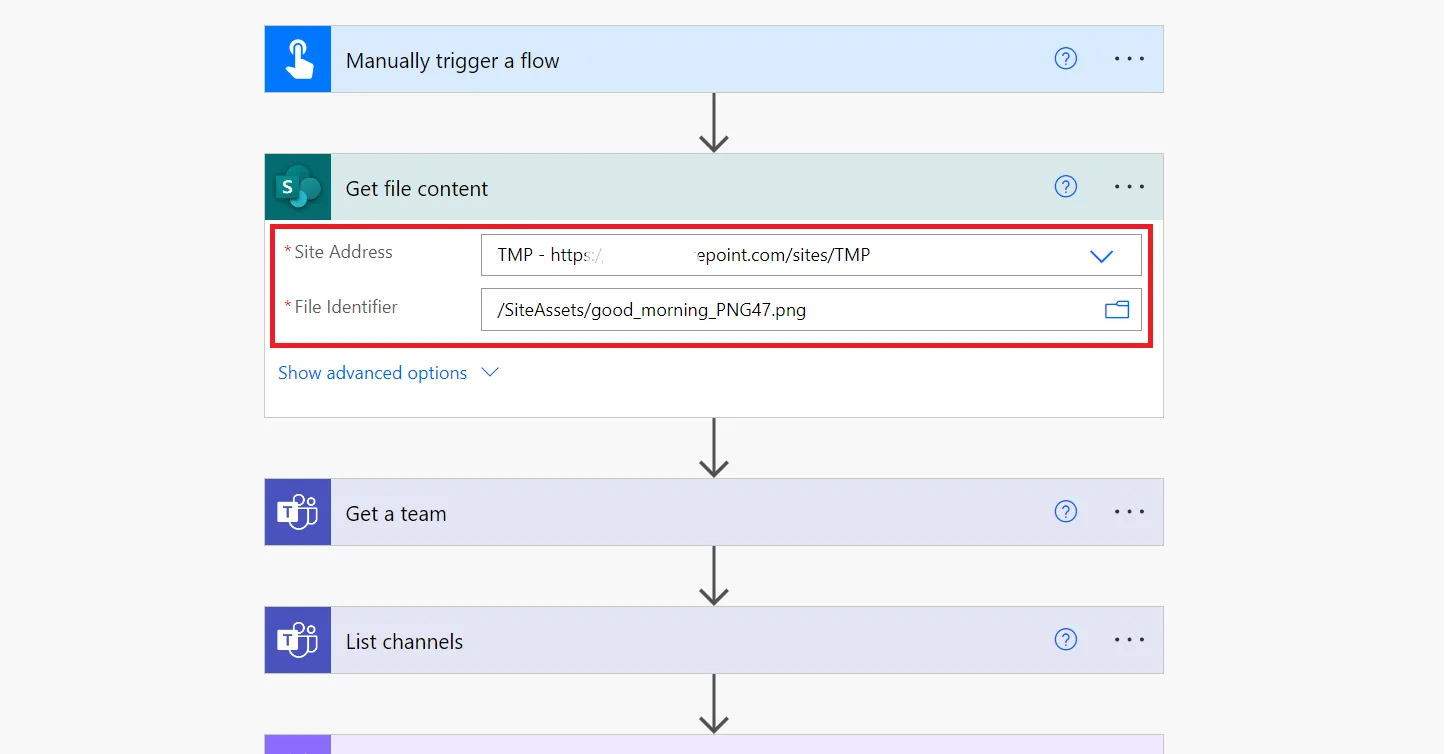
- Select Get file content action and replace the Site Address and the File Identifier to point to your SharePoint site and image file.
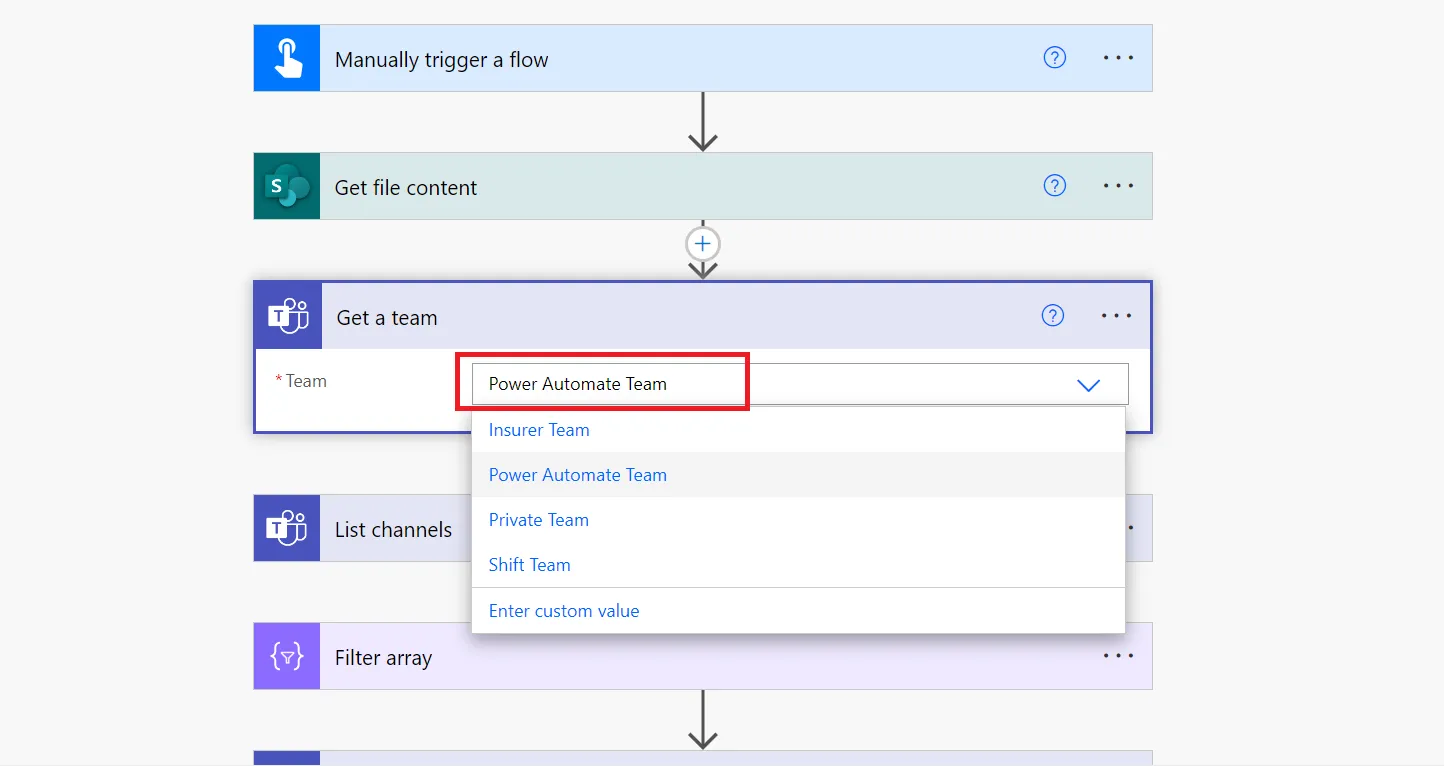
- Select Get team action and choose a MS team from the drop down.
- Save and test the flow.
Using the source code
You can also use the Power Apps CLI to pack the source code by following these steps:
Clone the repository to a local drive
Pack the source files back into a solution
.zipfile:pac solution pack --zipfile pathtodestinationfile --folder pathtosourcefolder --processCanvasAppsMaking sure to replace
pathtosourcefolderto point to the path to this sample'ssourcecodefolder, andpathtodestinationfileto point to the path of this solution's.zipfile (located under thesolutionfolder)Within Power Apps Studio, import the solution
.zipfile using Solutions > Import Solution and select the.zipfile you just packed.
Help
We do not support samples, but this community is always willing to help, and we want to improve these samples. We use GitHub to track issues, which makes it easy for community members to volunteer their time and help resolve issues.
If you encounter any issues while using this sample, you can create a new issue.
For questions regarding this sample, create a new question.
Finally, if you have an idea for improvement, make a suggestion.
Disclaimer
THIS CODE IS PROVIDED AS IS WITHOUT WARRANTY OF ANY KIND, EITHER EXPRESS OR IMPLIED, INCLUDING ANY IMPLIED WARRANTIES OF FITNESS FOR A PARTICULAR PURPOSE, MERCHANTABILITY, OR NON-INFRINGEMENT.