
A community-built Power Platform sample
Update Created by in a Microsoft List
This Power Automate flow updates the “Created By” field of a Microsoft List item, replacing the account with a specified user based on their email address, using an HTTP request to SharePoint.
 Power Automate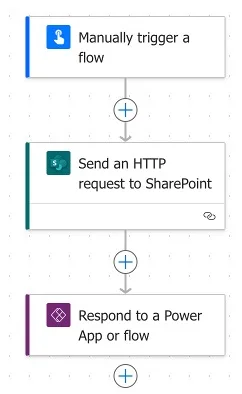
- Last updated
- Sep 18, 2024
- Category
- Cloud flows
- Premium license
- Not required
- Experimental features
- No
From idea to implementation
Make it your own.
Check this sample's prerequisites, permissions, and licensing before importing it. The documentation below comes directly from the sample README.
Summary
This Power Automate flow updates the “Created By” field of a Microsoft List item, replacing the account with a specified user based on their email address, using an HTTP request to SharePoint.
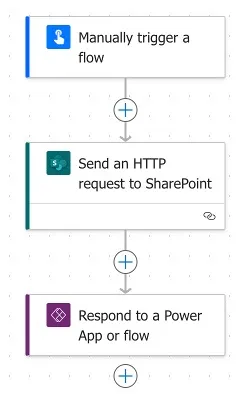
Applies to

Compatibility


Contributors
Version history
| Version | Date | Comments |
|---|---|---|
| 1.0.0.0 | September 18, 2024 | Initial release |
Prerequisites
- Microsoft Lists
- A configured Microsoft List
Minimal path to awesome
Using the solution zip
- Download the
.zipfrom thesolutionfolder - Within Power Apps Studio, import the solution
.zipfile using Solutions > Import Solution and select the.zipfile you just packed. - Open the app in edit mode and make sure the data source Data source name is connected correctly.
Using the source code
You can also use the Power Apps CLI to pack the source code by following these steps:
Clone the repository to a local drive
Pack the source files back into a solution
.zipfile:pac solution pack --zipfile pathtodestinationfile --folder pathtosourcefolder --processCanvasAppsMaking sure to replace
pathtosourcefolderto point to the path to this sample'ssourcecodefolder, andpathtodestinationfileto point to the path of this solution's.zipfile (located under thesolutionfolder)Within Power Apps Studio, import the solution
.zipfile using Solutions > Import Solution and select the.zipfile you just packed.
Create from scratch
[!NOTE] My solution uses a flow created within a Solution in Power Automate. You can still achieve the end goal by following the steps below in a dedicated flow. However, if you're not using solutions, I would recommend starting to do so, as there are several benefits, such as running a child flow.
[!TIP] For more information on Solutions, you can click here.
Steps
- Sign in to Power Automate.
- In the left-hand menu, select Solutions.
- Choose the solution where you want to create the automation, or create a new solution.
- Create a new automation:
In the top menu, select New > Automation > Cloud Flow > Instant.
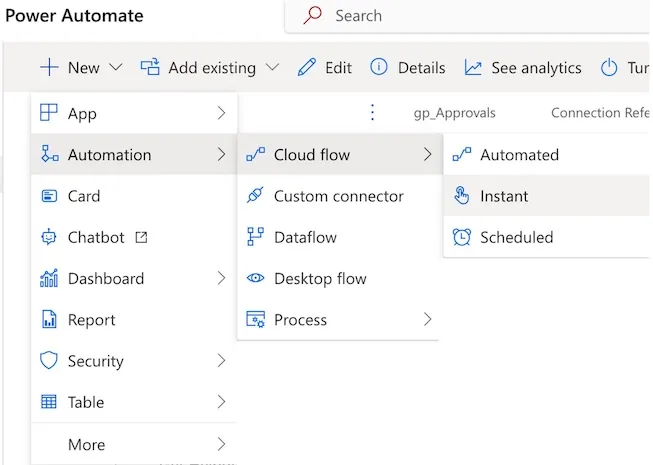
Enter a Flow name. (I called mine "Update Created By". Original, right? 🤓)
Select Manually trigger a flow as the trigger.
Select Create.
- Select Manually trigger a flow and add the following inputs:
| Type | Name | Description |
|---|---|---|
| Text | List Name | Name of the list to update |
| Number | List ID | List item ID to update |
| Text | Created By Email | Email address of the person to set as Author |
| Text | Site Address | Site address of the list |
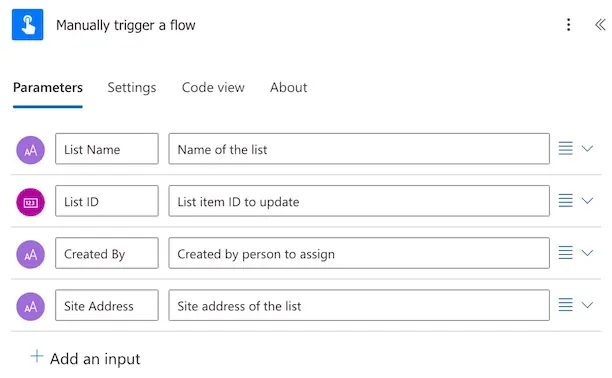
- Add a Send an HTTP request to SharePoint action.
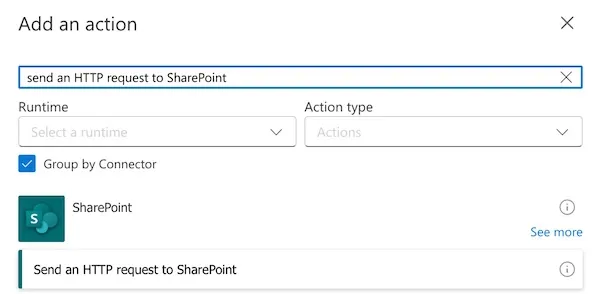
[!TIP] You can search for "HTTP" in the search box to find this action quickly.
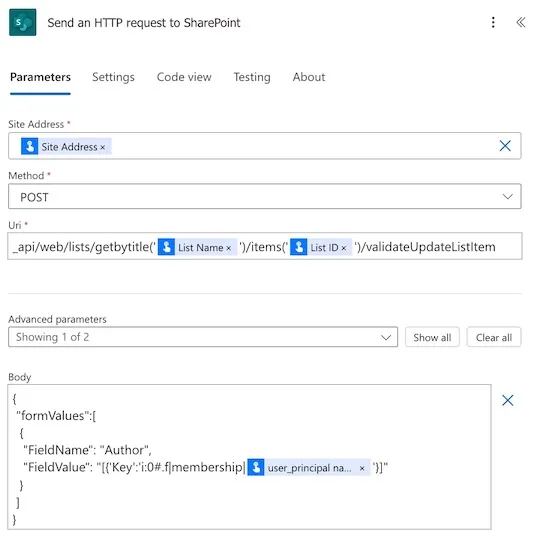
- Configure the Send an HTTP request to SharePoint action as follows:
- Site Address
- Select the Site Address dynamic content created in step 5, or enter the relevant SharePoint site address.
[!TIP] If you want this automation to work dynamically across multiple SharePoint sites, add the Site Address at step 5. Alternatively, you can set this as a fixed value if your use case means the SharePoint site will not change.
Method
- Post
Uri
_api/web/lists/getbytitle('List Name')/items('ID')/validateUpdateListItem
[!NOTE]
- If you've followed the exact sequence in step 5, you can use Uri-Sample.html without modification.
- If you configured your own inputs in Step 5, adjust Uri.html as needed.
- Body
{
  "formValues":[
  {
    "FieldName": "Author",
    "FieldValue": "[{'Key':'i:0#.f|membership|user@example.com'}]"
  }
  ]
}
[!NOTE]
- If you've followed the exact sequence in step 5, you can use Body-Sample.json without modification.
- If you configured your own inputs in Step 5, adjust Body.json as needed.
- Add a Respond to a Power App or flow action.
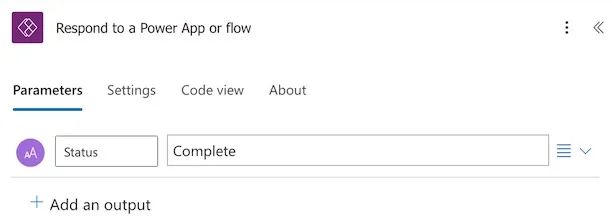
[!TIP] Add an Output, with the Type of Text and Value of "Complete" to parse this status back to your previous flow.
- Save and publish your automation.
- Select Back at the top left corner of your screen to return to the automation's overview screen.
- Edit the Run only users
[!IMPORTANT] This is to ensure that the automation can be run when using the "Run a child flow" action.
- Select the dropdown arrow below the SharePoint connection.
- Select a connection to use.
- Select Save And that’s it! Now, whenever you need to update the “Created By” field in a Microsoft List item, use the Run a Child Flow action, select this automation, and input your dynamic content into the fields you set up in step 5.
Features
I have several Power Automate flows that create items in various Microsoft Lists within the same SharePoint site using a service account. As a result, these list items have a "Created By" value that reflects the service account's name.
While this is acceptable in some instances, there are cases where I need a specific individual to appear as the author of the item. For example, when a Microsoft Form triggers my flow, I may want the list item to reflect the form responder as the list item author.
This Power Automate flow updates the “Created By” field in Microsoft Lists, replacing the default account with a specified user based on their email address, using an HTTP request to SharePoint.
Help
We do not support samples, but this community is always willing to help, and we want to improve these samples. We use GitHub to track issues, which makes it easy for community members to volunteer their time and help resolve issues.
If you encounter any issues while using this sample, you can create a new issue.
For questions regarding this sample, create a new question.
Finally, if you have an idea for improvement, make a suggestion.
Disclaimer
THIS CODE IS PROVIDED AS IS WITHOUT WARRANTY OF ANY KIND, EITHER EXPRESS OR IMPLIED, INCLUDING ANY IMPLIED WARRANTIES OF FITNESS FOR A PARTICULAR PURPOSE, MERCHANTABILITY, OR NON-INFRINGEMENT.
Post Script
I stumbled onto a Microsoft Community post titled "Update 'Created By' and 'Modified By' fields.", with an answer by Rob Elliott which gave me the idea and framework for my solution.