
A community-built Power Platform sample
SharePoint Site Assistant
This sample serves to simplify and standardize the site creation process within an organization, offering a tailored experience to users.
 Power Apps
 Power Automate
- Last updated
- Jul 19, 2023
- Category
- Power Apps, Canvas apps
- Premium license
- Not required
- Experimental features
- No
From idea to implementation
Make it your own.
Check this sample's prerequisites, permissions, and licensing before importing it. The documentation below comes directly from the sample README.
Summary
This sample serves to simplify and standardize the site creation process within an organization, offering a tailored experience to users. With a user-friendly interface, the application requires users to respond to seven questions on a Canvas App form, which initiates the creation of a new SharePoint site.
Users have the autonomy to specify the desired site language (English and Lithuanian for now), choose a design from predefined templates, and list external users who they wish to invite as members to the new site. Once these parameters are set and the form is submitted, an automated Power Automate flow is launched, which constructs the site according to the given specifications.
A unique feature of this application is its real-time site name validation system. While filling the form, the entered site name is compared against an existing database to avoid duplication. If a match is found, the system promptly notifies the user, preventing submission until a unique name is provided.
Leveraging cutting-edge technologies such as Graph API, Responsive Design, and Azure Application Insights, this solution offers a harmonious blend of simplicity and advanced functionality.

Applies to
Compatibility





Authors
| Solution | Author(s) |
|---|---|
| sharepoint-site-assistant | Katerina Chernevskaya (LinkedIn), Awara IT Academy |
Version history
| Version | Date | Comments |
|---|---|---|
| 1.0 | July 06, 2023 | Initial release |
Features
This sample illustrates the following concepts:
- Responsive design of the Power Apps Canvas app allows convinient work on different devices
- Using the Graph API to instantly validate the inputted site name to prevent duplications.
- Verification of correct form filling before submission, directly within Power Apps.
- Options to select the language for the site.
- Options to select the design for the site.
- Recording user actions for the purpose of analyzing user behavior, with the goal of enhancing the application.
- Display of a list of created sites in the tenant using the Graph API.
- Automation of all site creation actions, including the invitation of external users and sending an invitation email with a link to the created site.
Prerequisites
- Environment with Dataverse
- Microsoft 365 / Office 365 and Power Apps Standalone license
- App registration (will be used for invitation for external users)
Solution Components
The following solution components are used in this sample:
- SharePoint Assistant (Canvas App)
- SharePoint Assistant - Site creation (Cloud flow)
- SharePoint site requests (Dataverse table)
- siteAddress (Environment variable)
- siteOwner (Environment variable)
- SharePointAssistantTenant (Environment variable)
- SharePointAssistantClient (Environment variable)
- SharePointAssistantKey (Environment variable)
- textHEX (Environment variable)
- blueHEX (Environment variable)
- lightBlueAccentHEX (Environment variable)
- SharePointSiteAssistant-Dataverse (Connection reference)
- SharePointSiteAssistant-Outlook (Connection reference)
- SharePointSiteAssistant-SharePoint (Connection reference)
Minimal Path to Awesome
Create the App Registration
- Open Azure portal.
- Go to Azure Active Directory, open
App registrationtab and click on theNew registrationbutton.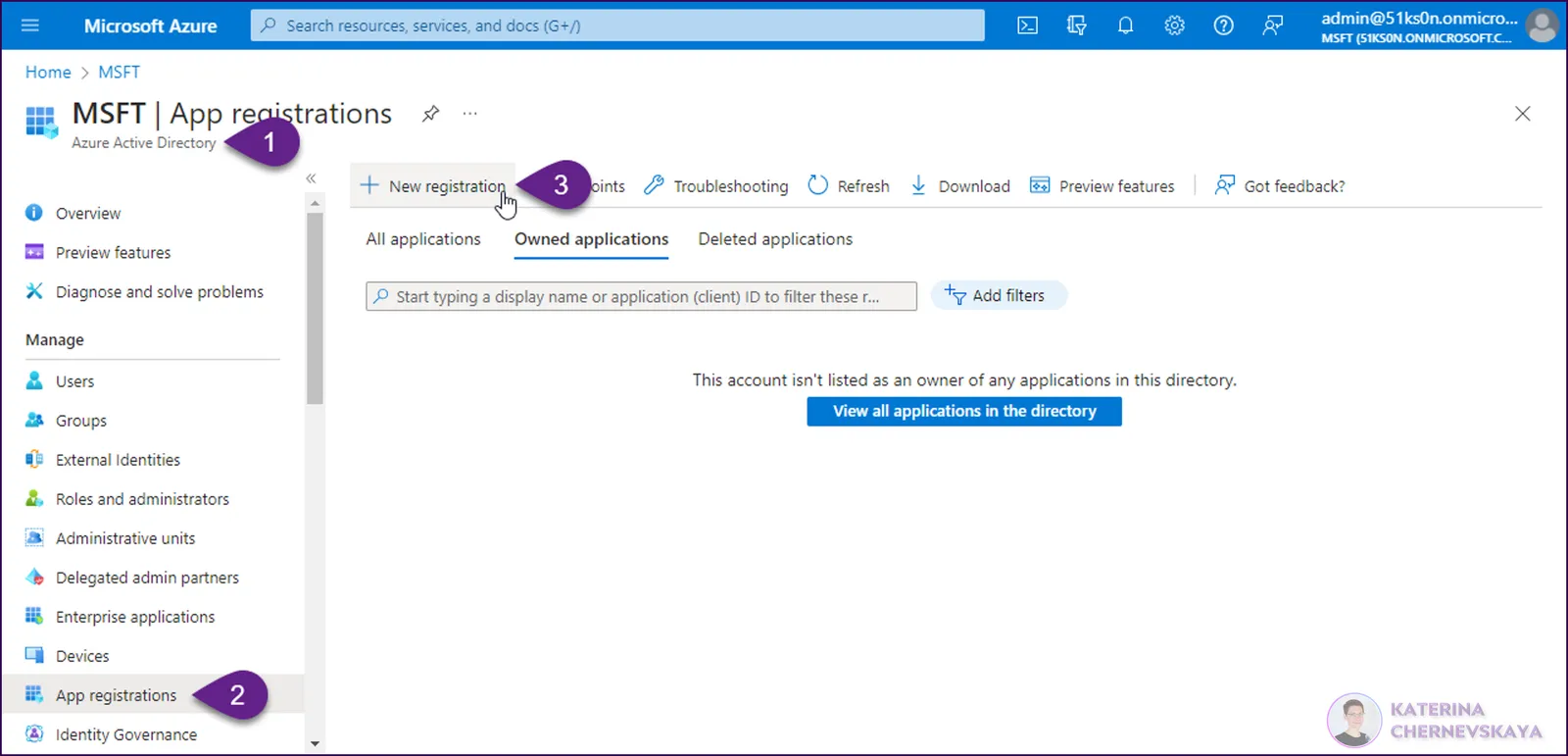
- In the registration form enter the
Nameof you new App registration and click theRegisterbutton.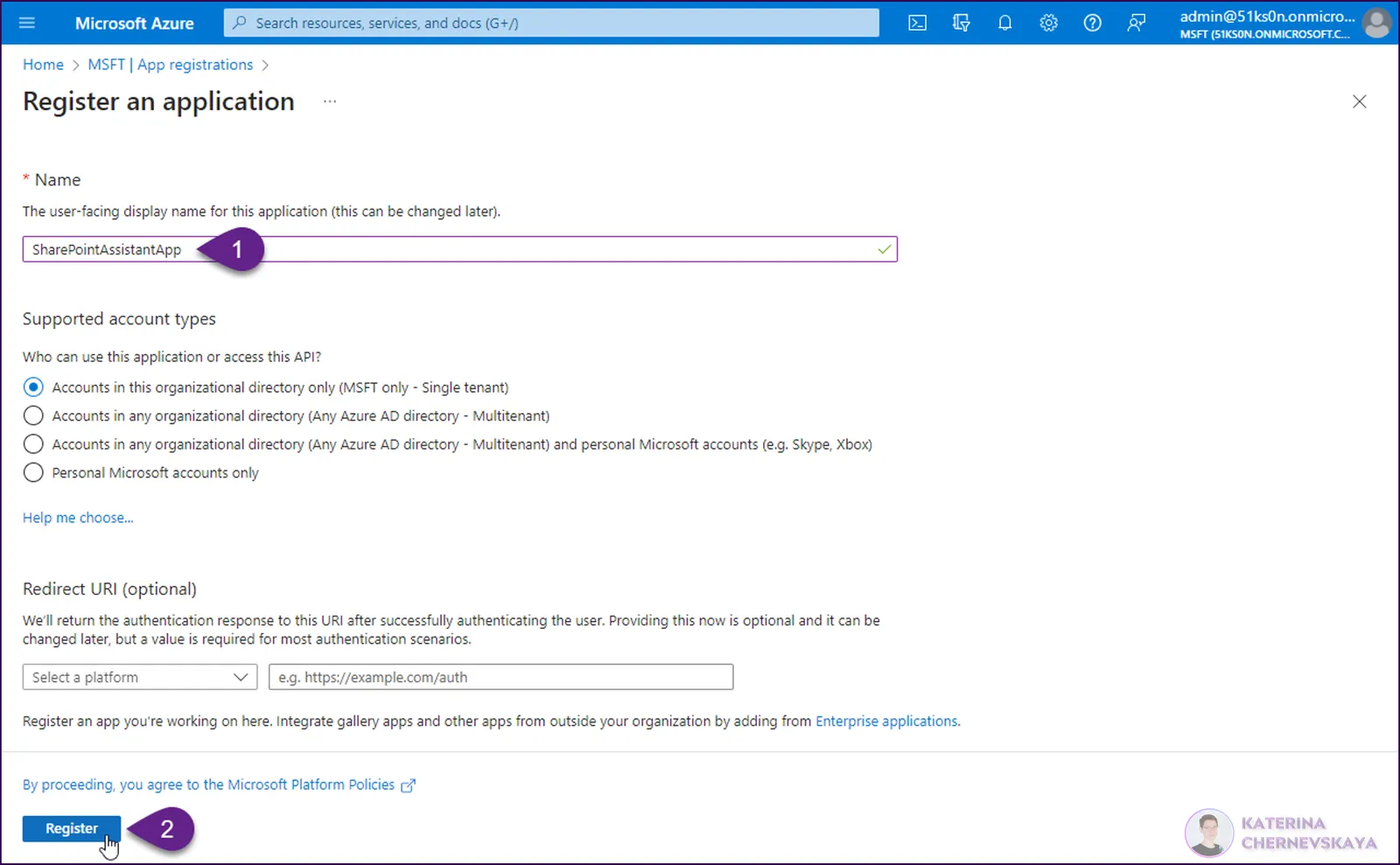
- When the App registration will be created, go to the
API permissionstab, click theAdd a permissionand selectMicrosoft Graphin the pop-up window.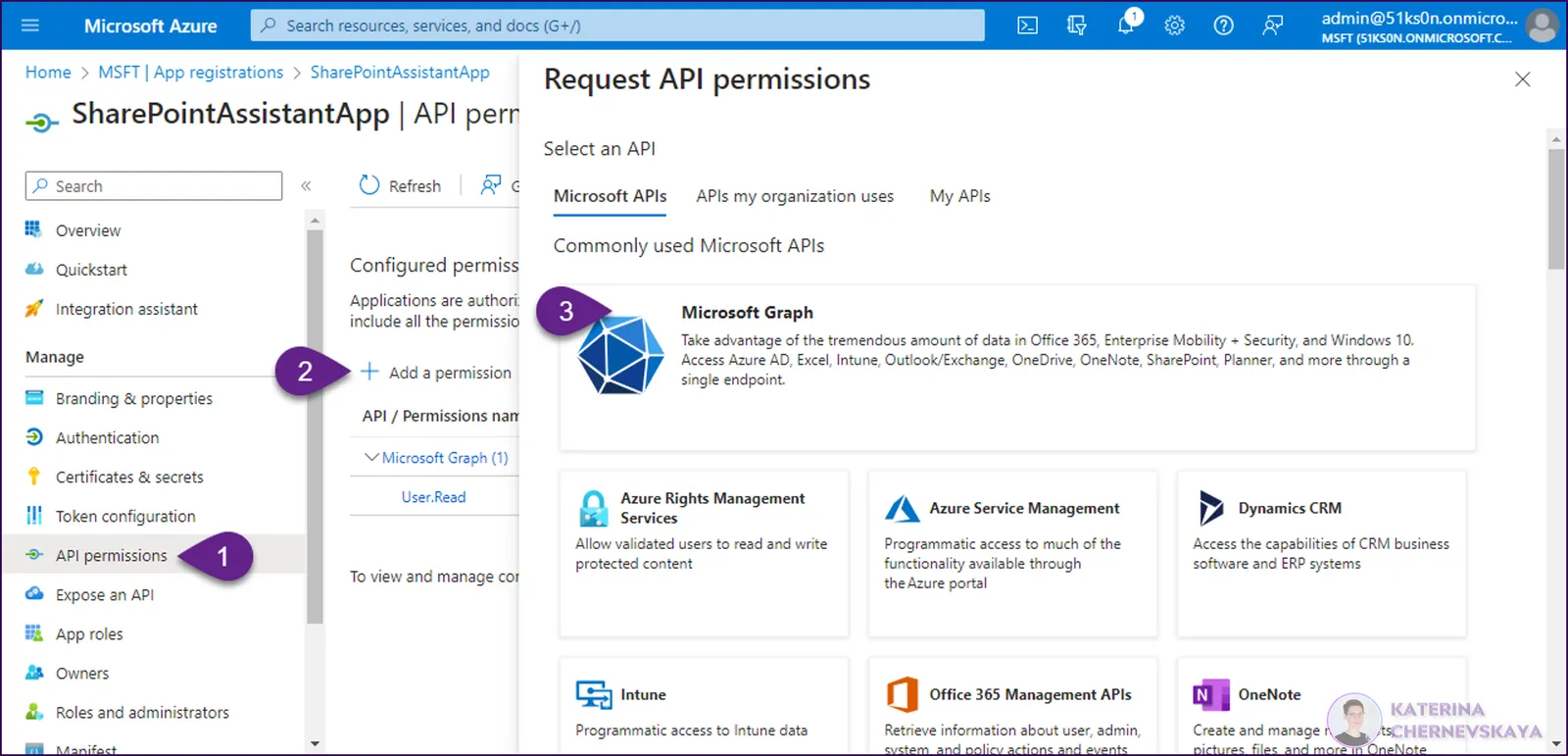
- On the next screen select
Application permissions, findUser.Invite.All, select it and click on theAdd permissionsbutton.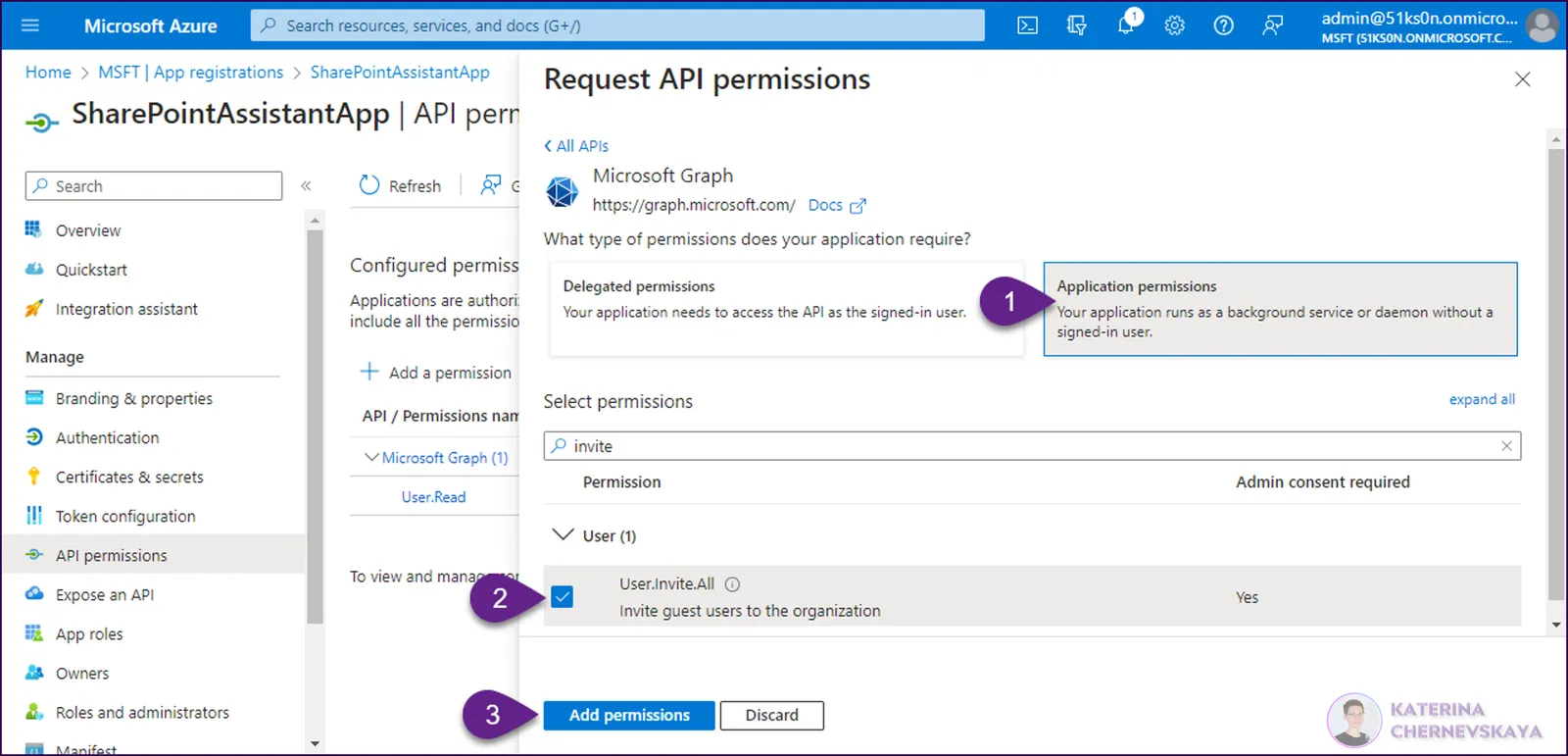
- Once you add the permission, click on the
Grant admin consent for <YOUR TENANT NAME>button.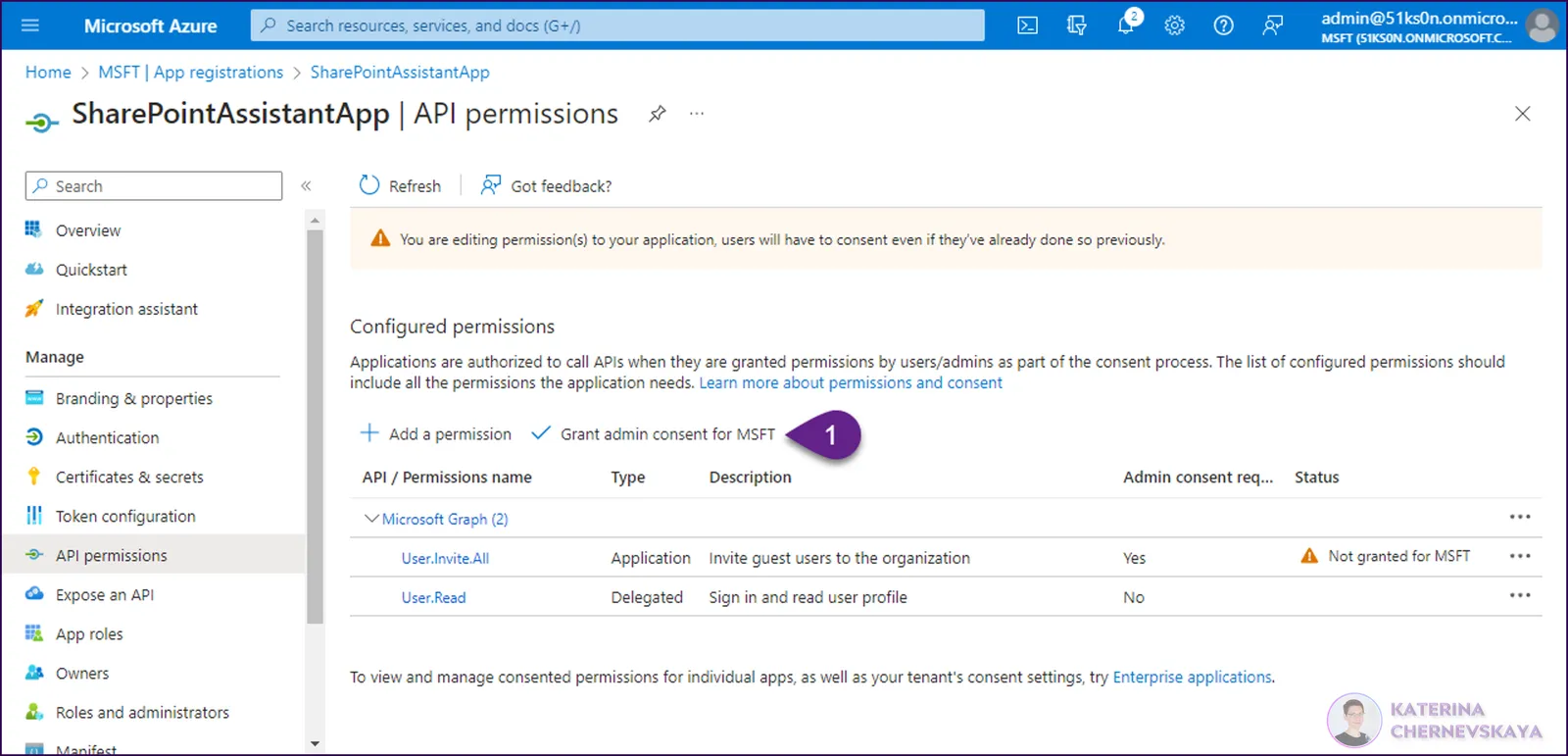
- Go to
Certificates & secretstab, click on theNew client secretbutton, addDescriptionandExpiresvalues, and click theAddbutton.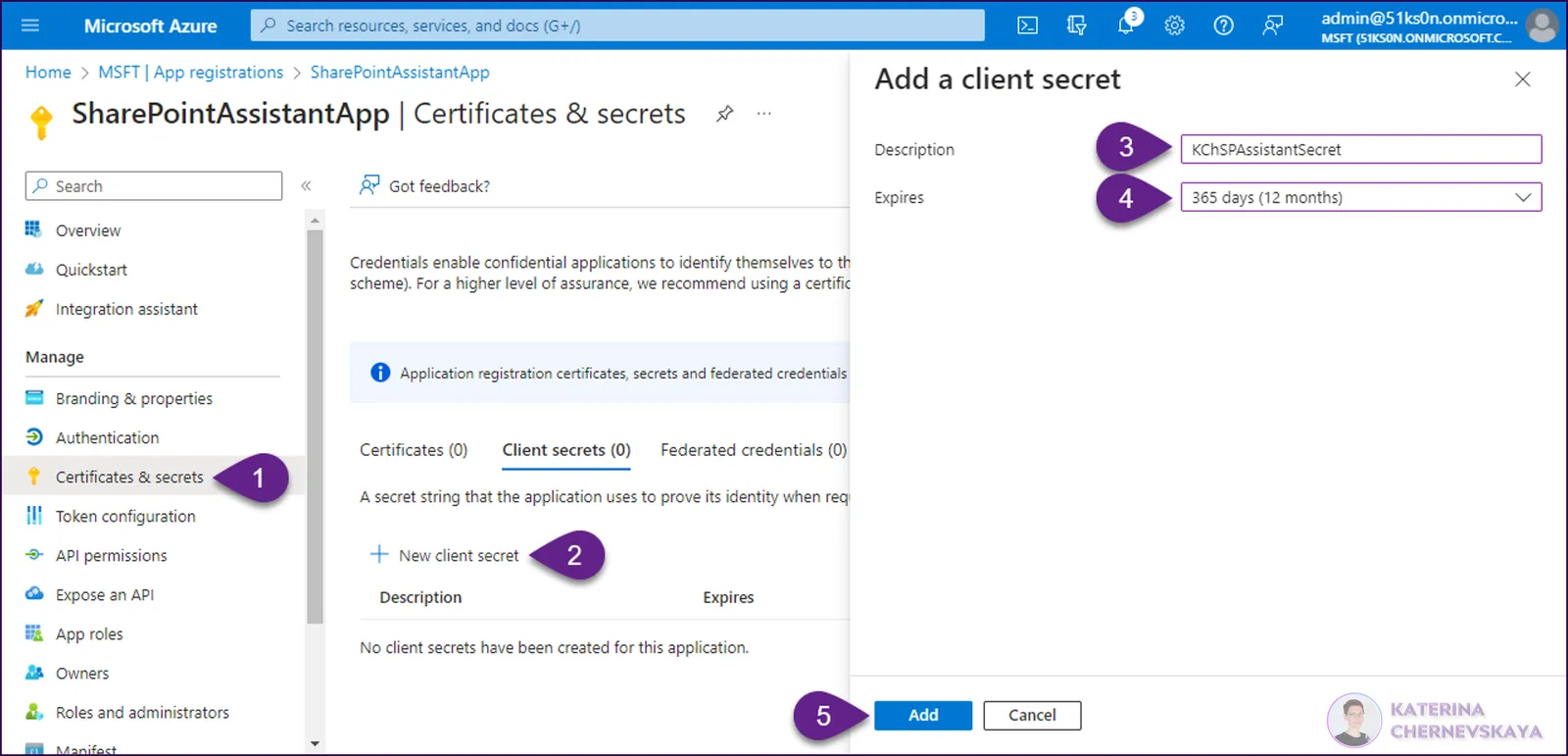
- Copy to the Notepad the created secret
Valuebefore close the browser or navigate to another tab, because this value won't be visible once you leave this page. In addition, go to theOverviewtab and copy to the NotepadApplication (client) IDandDirectory (tenant) IDvalues. Save these 3 values for later.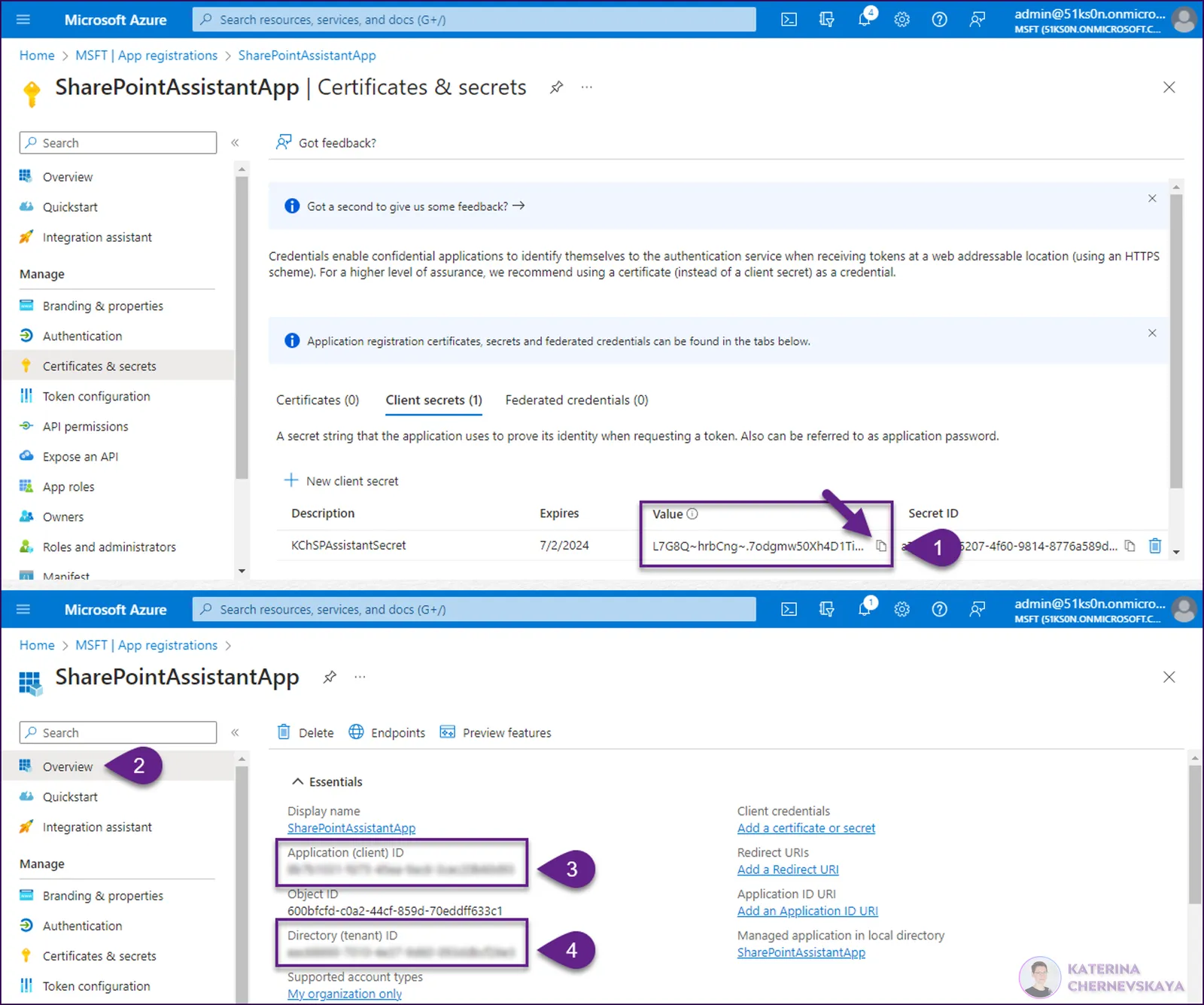
Import the solution
Download the solution
.zipfrom thesolutionfolderWithin https://make.powerapps.com, open your target environment, go to the
Solutionstab, clickImport solution. In the pop-up window clickBrowsand select the.zipfile you just downloaded. Click next. Also clickNexton the next screen.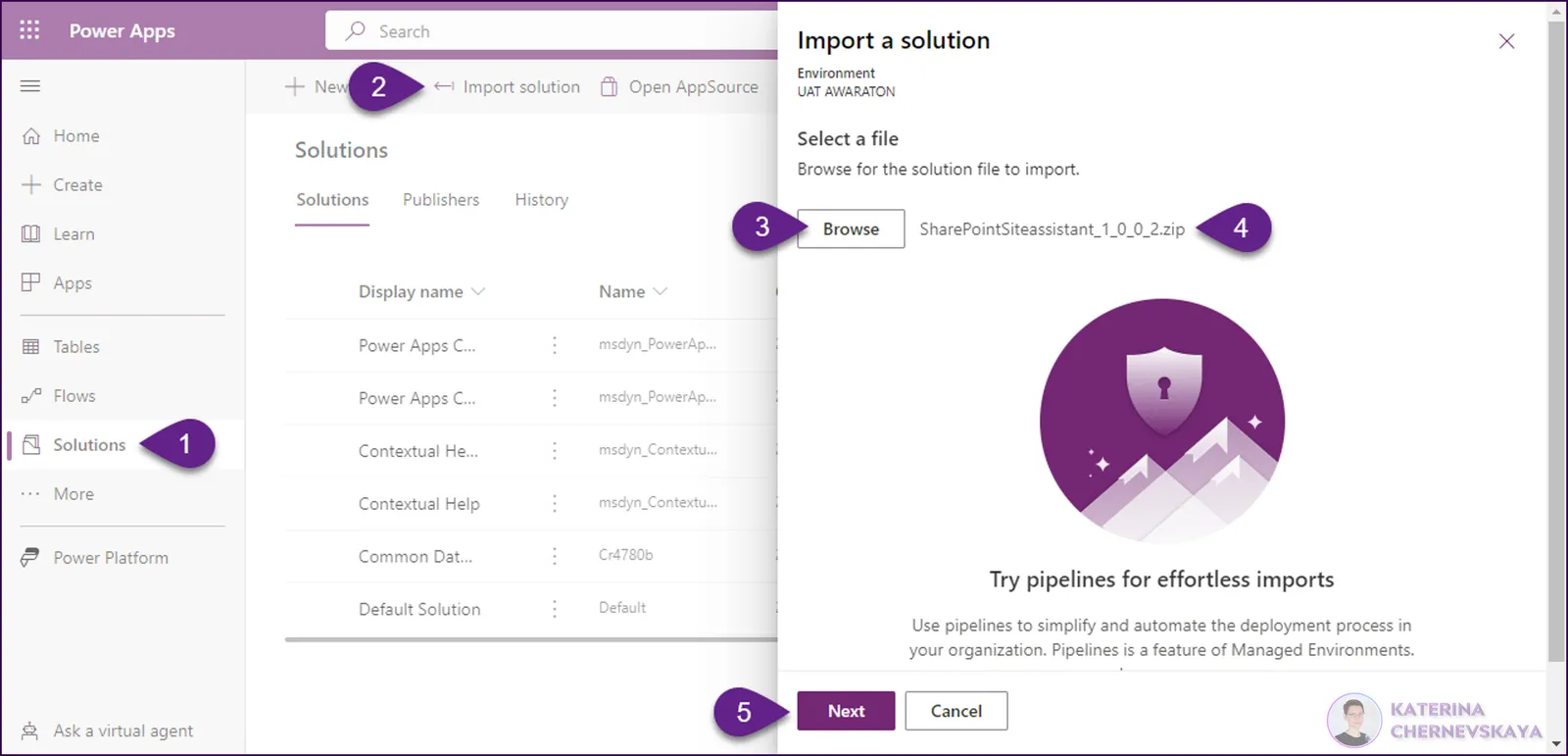
On the next screen set up connections for
SharePointSiteAssistant-Dataverse,SharePointSiteAssistant-OutlookandSharePointSiteAssistant-SharePoint. If the necessary connections aren't available in your environment, locate the drop-down list adjacent to the required connection and selectNew connection. You will then need to establish a new connection in the tab that opens. After you've created the new connection, return to the solution import dialog tab, click onRefresh, and your newly established connection should now be visible in the drop-down list. Once you are ready, click on theNextbutton.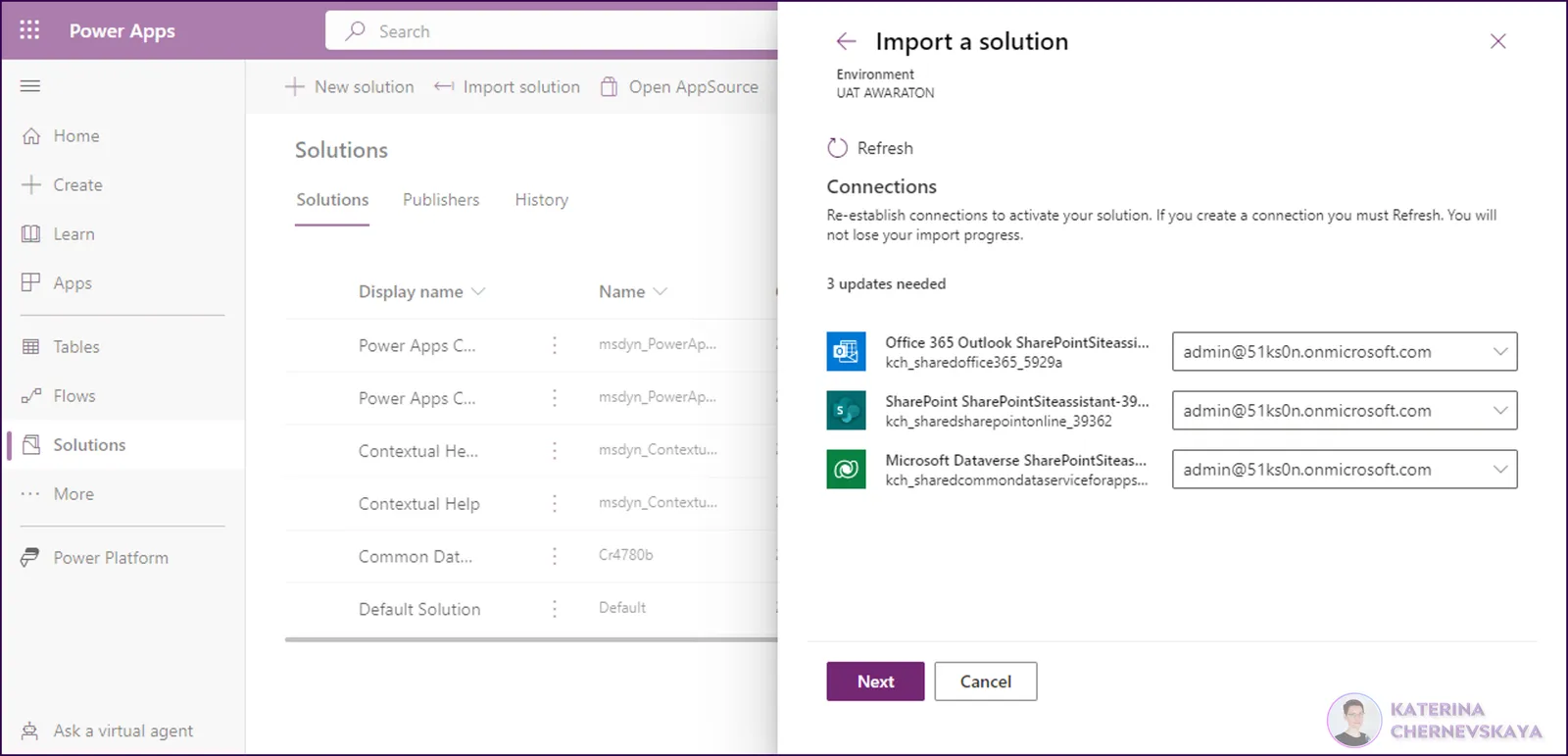
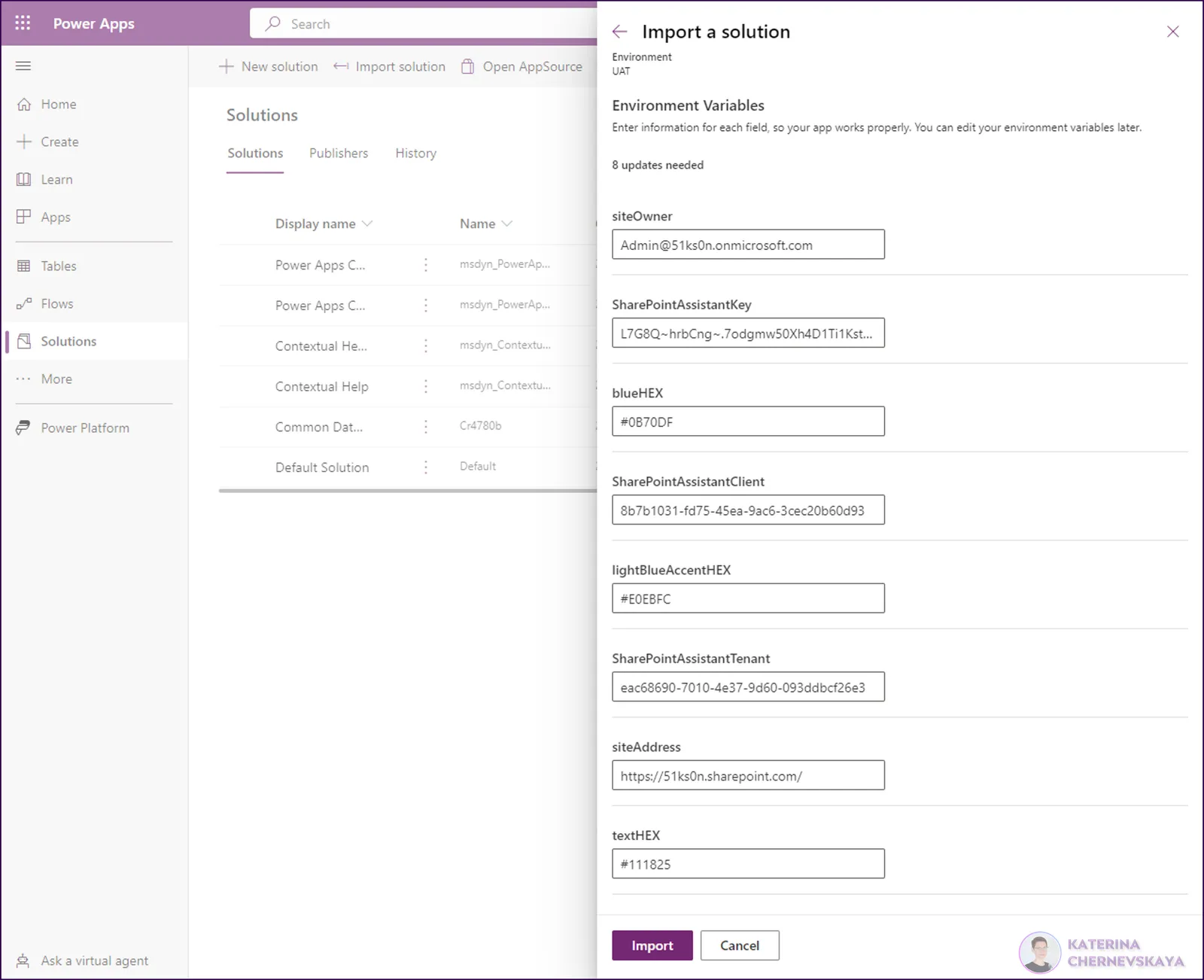
On the next screen provide values for Environment Variables and click on the
Importbutton.siteOwner - the app's admin email that will be used to send email notifications after the process will be completed (in both success or failed cases)
SharePointAssistantTenant - value of the
Directory (tenant) IDfrom the App Registration created in the previous stepSharePointAssistantClient - value of the
Application (client) IDfrom the App Registration created in the previous stepSharePointAssistantKey - value of the
Secret valuefrom the App Registration created in the previous steptextHEX - the color for text (in HEX format)
blueHEX - the color for controls like button or selected icons (in HEX format)
lightBlueAccentHEX - the color for accent (in HEX format)
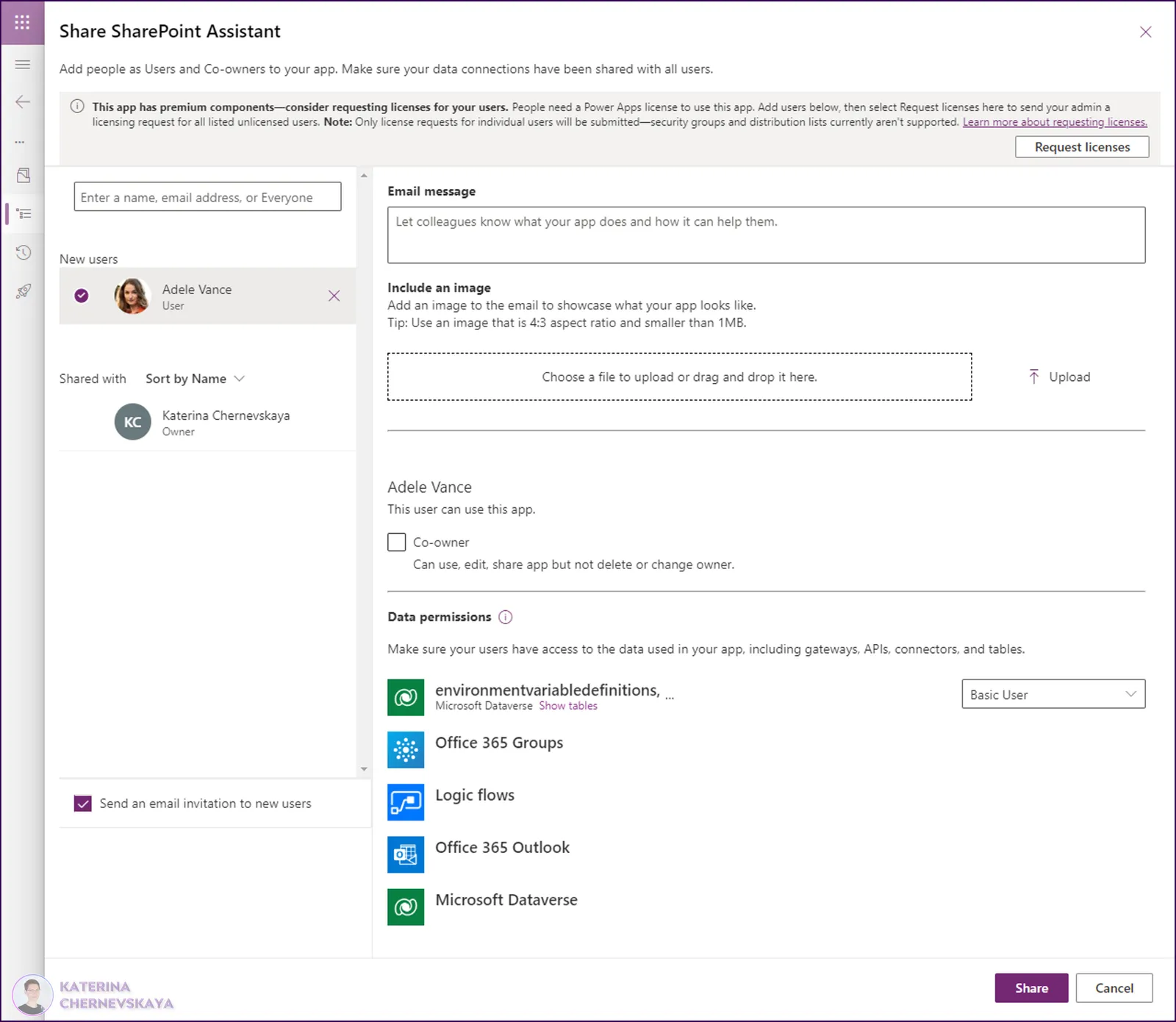
After the solution is imported, open it and share the Canvas App with all users who require access. Remember to allocate the suitable security role to these users, as well as to assign the necessary licenses.
Once all the steps have been completed, the users with whom the app was shared will gain the capability to use this app for submitting requests to create SharePoint Sites.
Disclaimer
THIS CODE IS PROVIDED AS IS WITHOUT WARRANTY OF ANY KIND, EITHER EXPRESS OR IMPLIED, INCLUDING ANY IMPLIED WARRANTIES OF FITNESS FOR A PARTICULAR PURPOSE, MERCHANTABILITY, OR NON-INFRINGEMENT.
Help
We do not support samples, but we this community is always willing to help, and we want to improve these samples. We use GitHub to track issues, which makes it easy for community members to volunteer their time and help resolve issues.
If you encounter any issues while using this sample, you can create a new issue.
For questions regarding this sample, create a new question.
Finally, if you have an idea for improvement, make a suggestion.