
A reusable Power Platform snippet
Citations (Topic)
This is a snippet that demonstrates how you can generate better looking citations in Copilot Studio.
 Copilot Studio

- Last updated
- Sep 1, 2024
- Category
- Community snippet
From idea to implementation
Make it your own.
Check this snippet's prerequisites, permissions, and licensing before using it. The documentation below comes directly from the snippet README.
This snippet demonstrates how you can generate better looking citations in Copilot Studio for uploaded documents.
This allows to both display a title for the document, but also to point to a URL when the citation link is clicked, for example to download or open the document.
[!IMPORTANT] This assumes that you're responsibe for storing the files in a location where they are accessible to your users, when clicked.
The sample works both for uploaded files and other knowledge sources (e.g. public website, SharePoint / OneDrive).
With this sample, you have two options, that can be used independently from each other:
- Set a URL pointing to a folder where files are expected to be available to your users, when no URLs are available. For this, set the URL for your base folder in
Topic.UploadedFilesRootUrl. - Set a mapping between each document and a URL location for the file. For this, udpdated the
Topic.FilesSourcestable. Make sure that each file name is encoded in the same way as returned as citation when an answer is generated (e.g. use %20 instead of spaces, etc.)
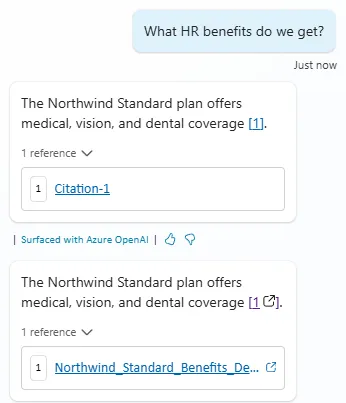
The bottom message in the image above is an example of how the citations would look after using this snippet.
Authors
| Snippet | Author(s) |
|---|---|
| Citations (Topic) | Henry Jammes (@HenryJammes) |
Minimal path to awesome
- Open a copilot in Copilot Studio
- Select Topics
- Select System
- Select Conversational boosting
- Select the ... More in the upper right corner and select Open code editor
- Click inside the code editor and CTL + A for Windows or Command-A for Mac to select all rows.
- Paste the contents of the YAML-file inside the code editor.
- Select Close code editor
- If you're using a folder to store all of your documents, set the URL for your base folder in the
Topic.UploadedFilesRootUrlstring variable. - If you're using a different locations for each file, update the
Topic.FilesSourcestable variable accordingly. - Save
Disclaimer
THIS CODE IS PROVIDED AS IS WITHOUT WARRANTY OF ANY KIND, EITHER EXPRESS OR IMPLIED, INCLUDING ANY IMPLIED WARRANTIES OF FITNESS FOR A PARTICULAR PURPOSE, MERCHANTABILITY, OR NON-INFRINGEMENT.