
A reusable Power Platform snippet
Out of Office Creator
AI-powered agent for Microsoft Teams and/or Microsoft 365 Copilot that helps users easily create and set Out of Office automatic reply messages for Outlook.
 Copilot Studio
 Microsoft 365 Copilot
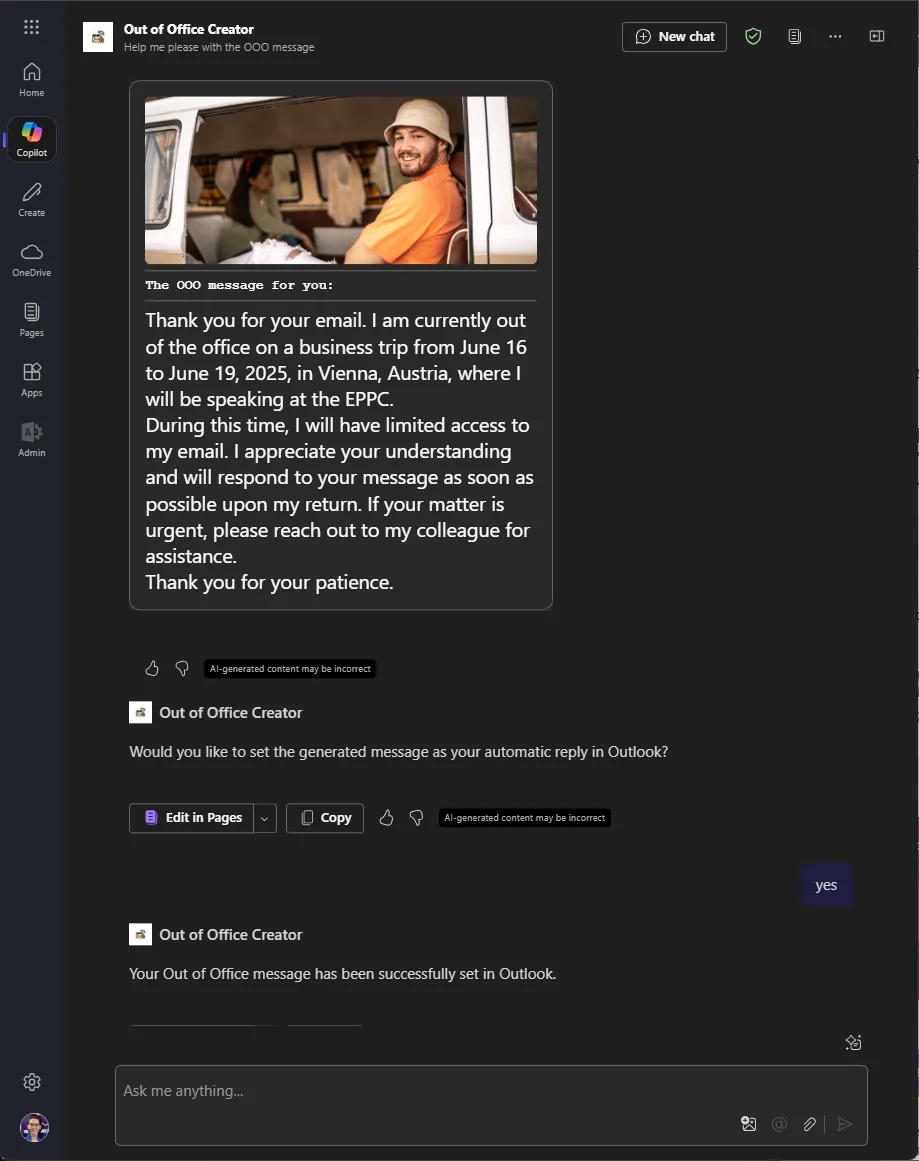
- Last updated
- Apr 28, 2025
- Category
- Community snippet
From idea to implementation
Make it your own.
Check this snippet's prerequisites, permissions, and licensing before using it. The documentation below comes directly from the snippet README.
Out of Office Creator is an AI-powered agent for Microsoft Teams and/or Microsoft 365 Copilot that helps users easily create and set Out of Office automatic reply messages for Outlook.
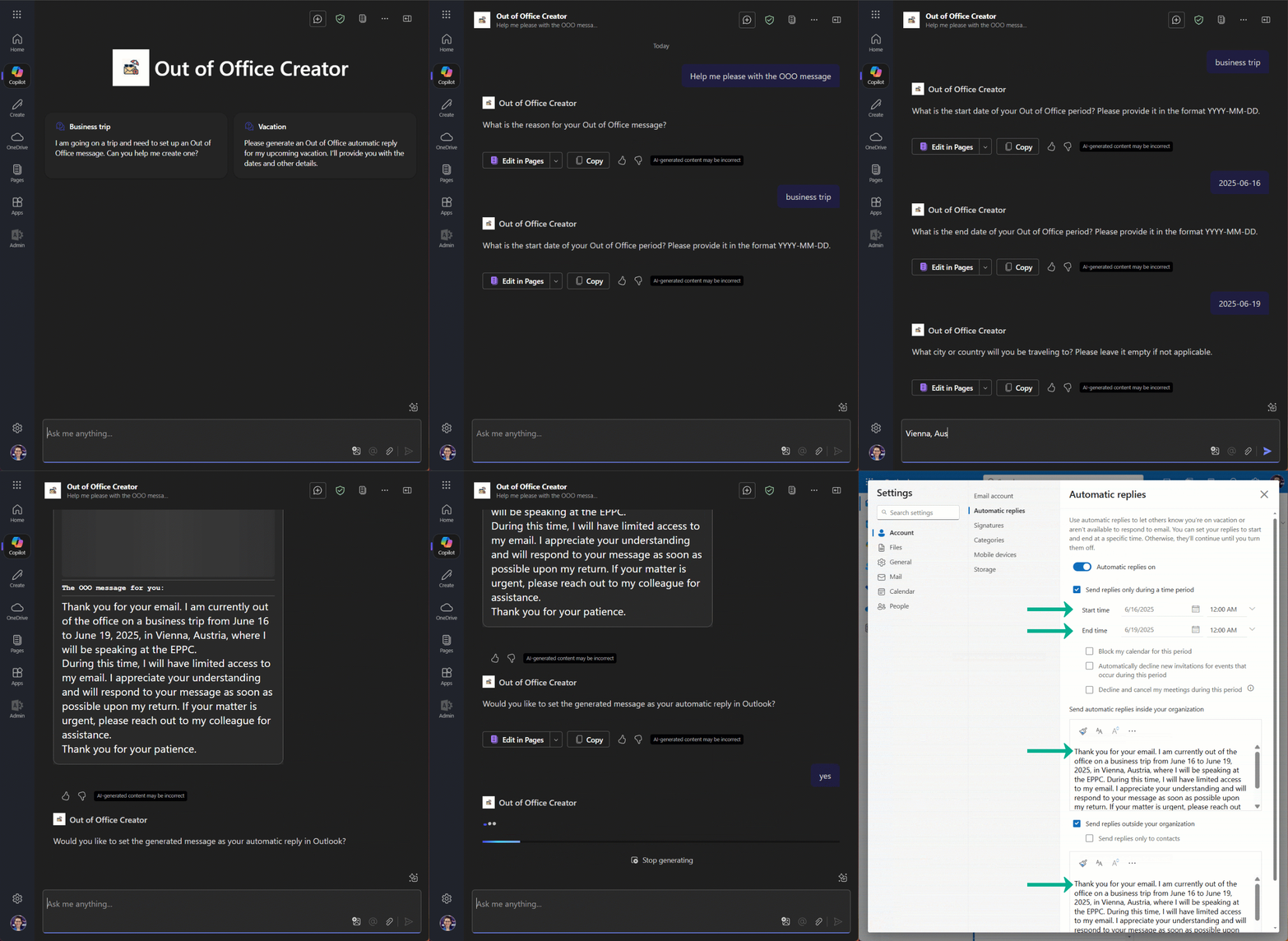
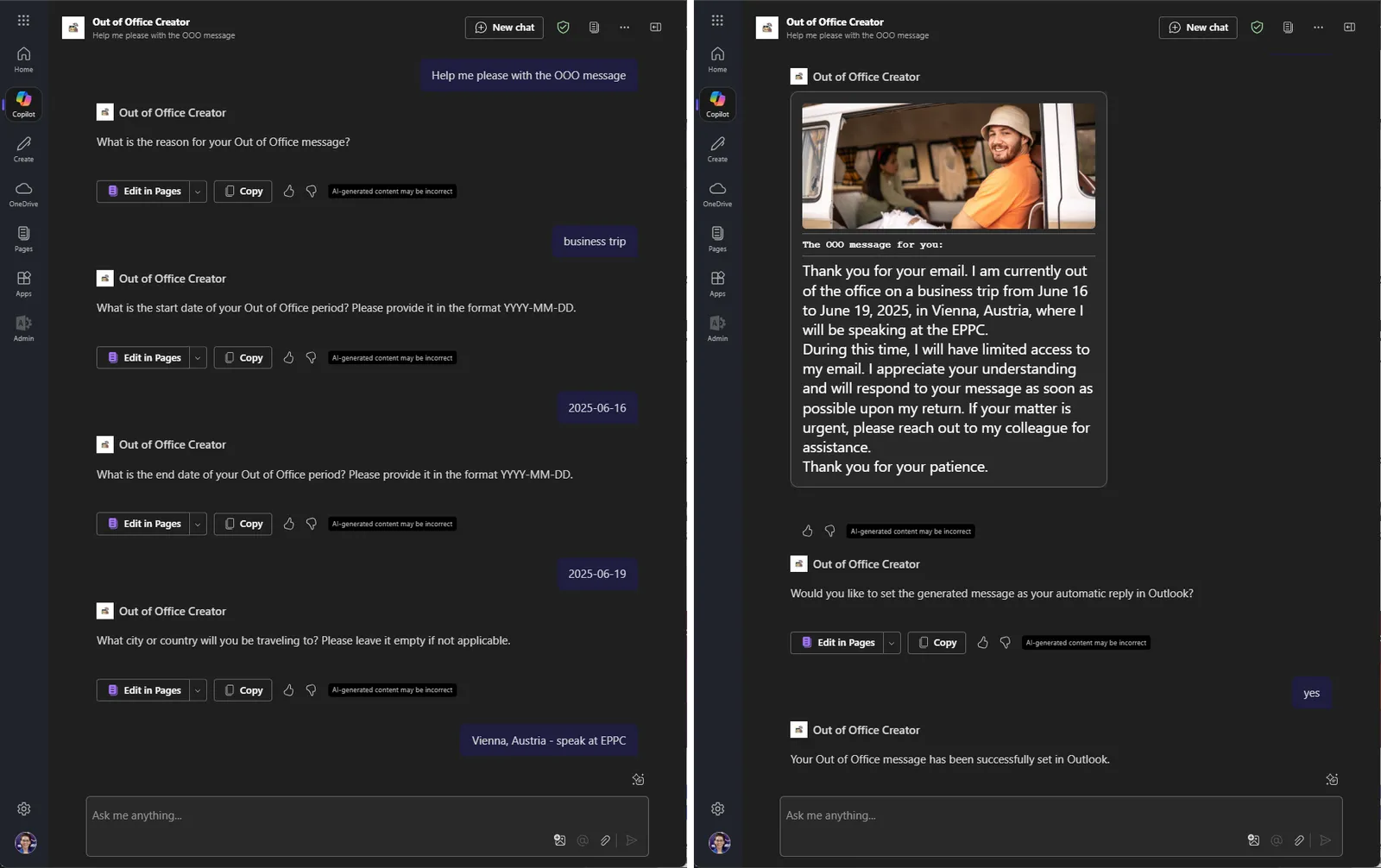
The agent guides the user through a simple flow:
- It collects key information such as the reason for absence, travel destination, start and end dates, and preferred tone of the message.
- It uses AI to generate a complete, fluent Out of Office message based on the provided details.
- After generating the message, the agent asks the user if they would like to set it as their automatic reply in Outlook.
- Upon user confirmation, the agent automatically configure the Out of Office message.
- Finally, the agent notifies the user that the message has been successfully set.
Authors
| Author | Socials |
|---|---|
| Katerina Chernevskaya | GitHub - LinkedIn |
| Artem Chernevskiy | GitHub - LinkedIn |
Prerequisites
- Agent in Copilot Studio (follow this article to create your agent)
- Enable
Orchestrationin your agent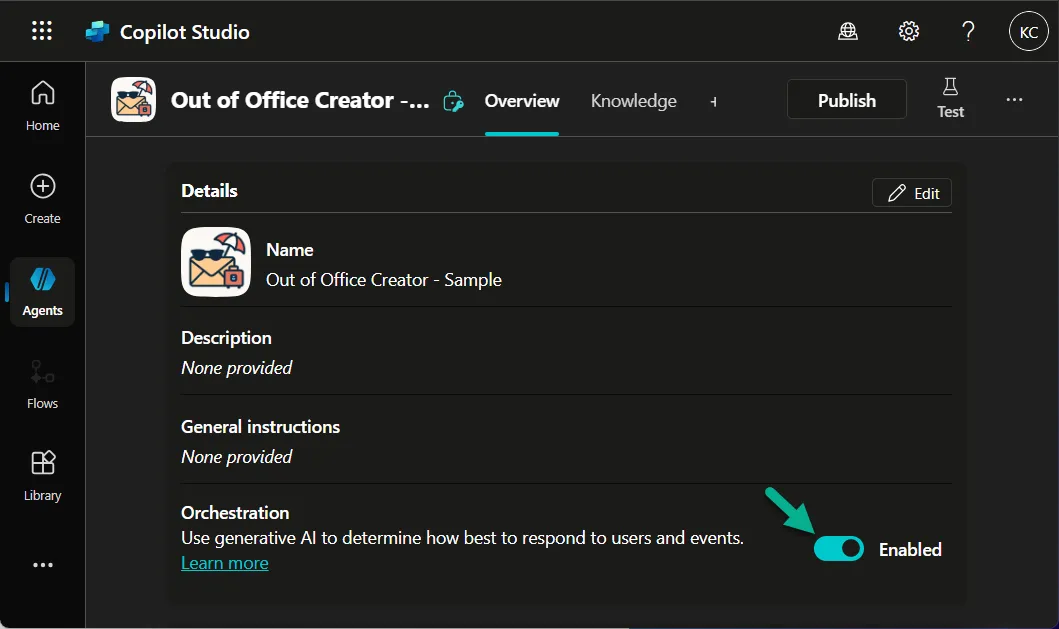
Minimal path to awesome
Create the first - Prompt action
- Open your agent in Copilot Studio.
- Select Actions.
- Select + Add an action.
- Select + New action and select New prompt.
- Add the below prompt in the Instruction field:
Write an Out of Office (OOF) email based on the following information:
Reason for absence: [varReason]
Start date: [varStartDate]
End date: [varEndDate]
Destination: [varDestination]
Message style: [varStyle]  (for example, a "Fun" style should be lighthearted and friendly, while a "Business" style should be formal and professional).

Additional instructions:
Clearly mention the dates when the person will be out.
Indicate whether they are on vacation or on a business trip.
Optionally mention the destination in the message to personalize it, if available.
End the message politely, suggesting when the sender can expect a response or who they can contact in the sender's absence (use a placeholder if no contact info is provided).
Do not insert any placeholders (such as [insert contact person] or similar).
Do not create an email subject line.
Do not add a signature or name.
Generate the text in a natural, fluent, and polished English style.
The message should be ready to be used as an automatic reply.
Make sure to provide sample values for the variables. Once you are ready - Test the prompt and Save it.
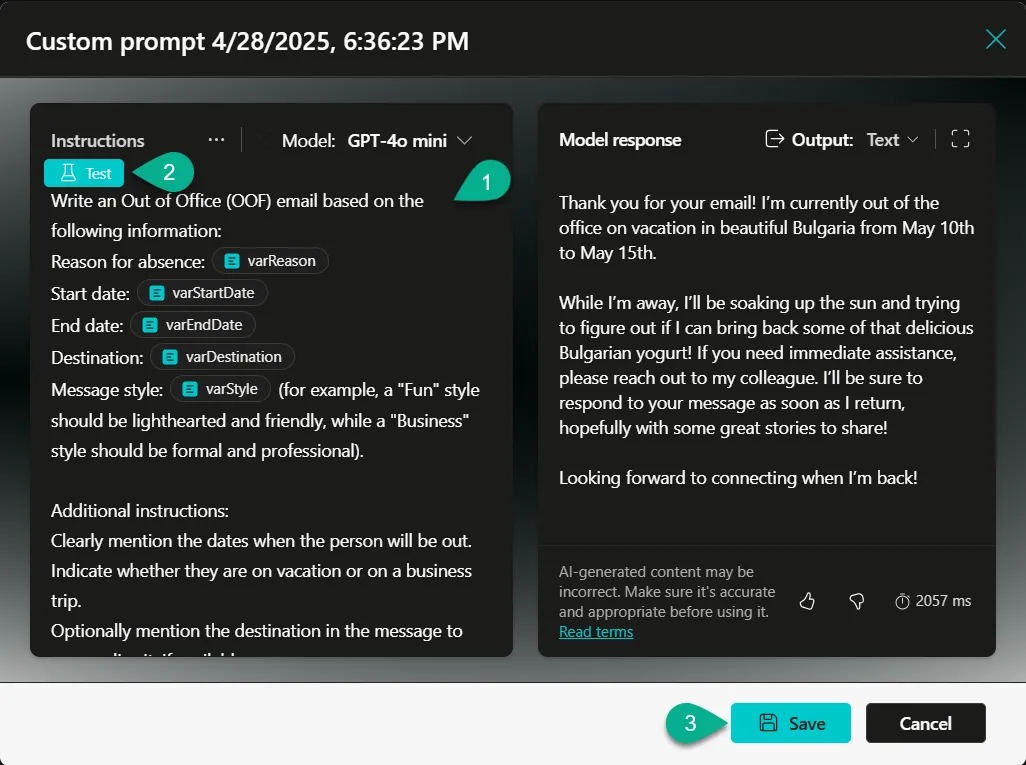
Select ... More in the upper right corner and select Open code editor.
Make sure to copy the value of the entityKey and keep it somewhere safe (you need it later).
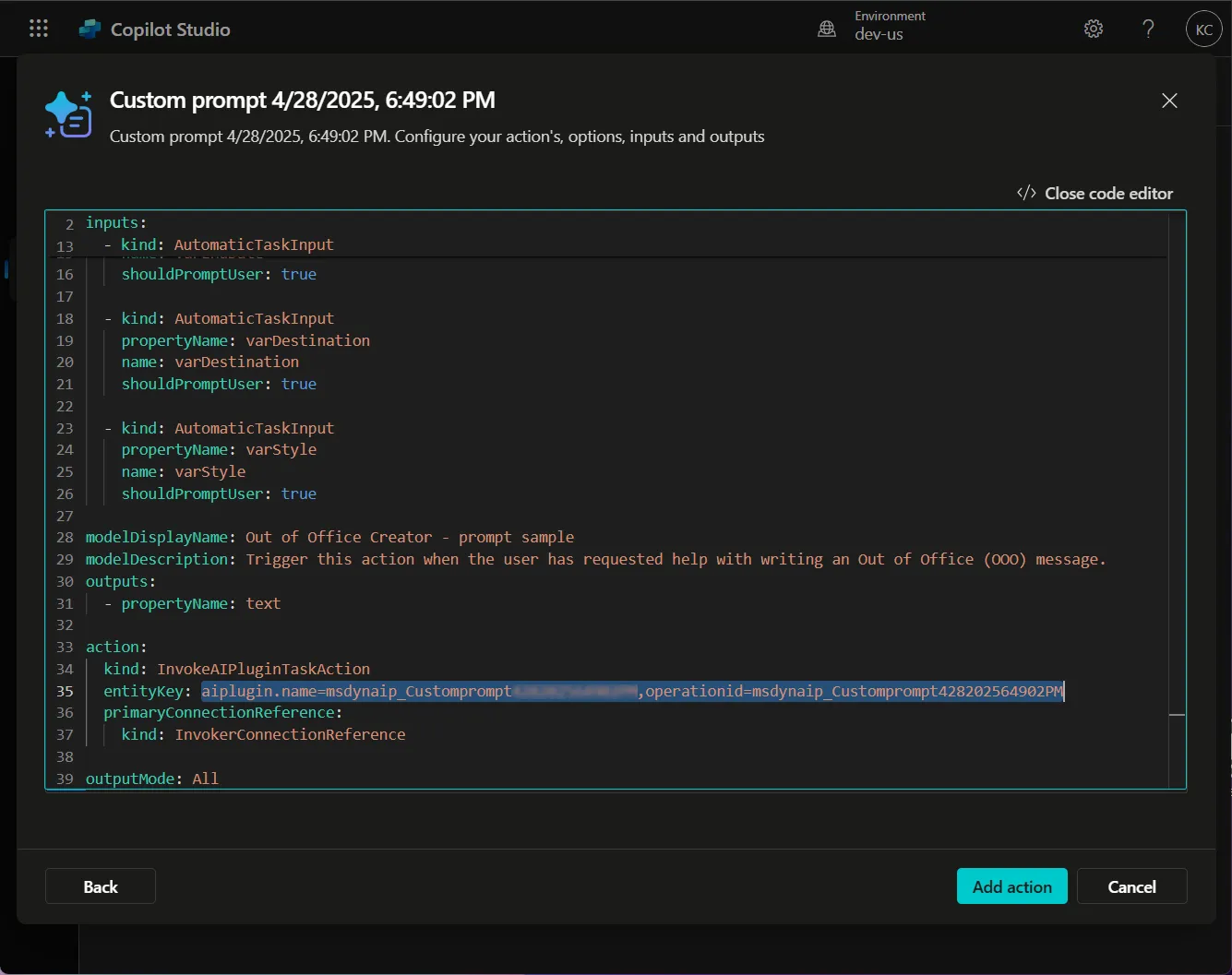
Replace the code in the code editor with the contents of the YAML-file.
Replace { REPLACE-WITH-ENTITY-KEY-VALUE } with the entityKey value you copied earlier.
Select Add action.
Create the second - Office 365 Outlook action
Open your agent in Copilot Studio.
Select Actions.
Select + Add an action.
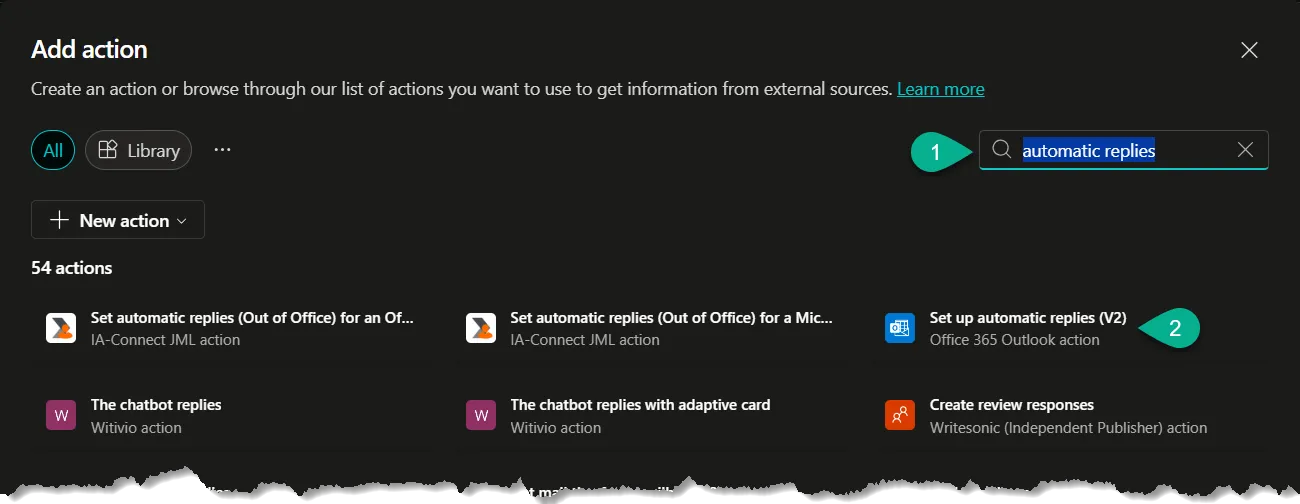
Search for automatic replies.
Select the Set up automatic replies (V2) action.
Select ... More in the upper right corner and select Open code editor.
Make sure to copy the name of the connection reference and keep it somewhere safe (you need it later).
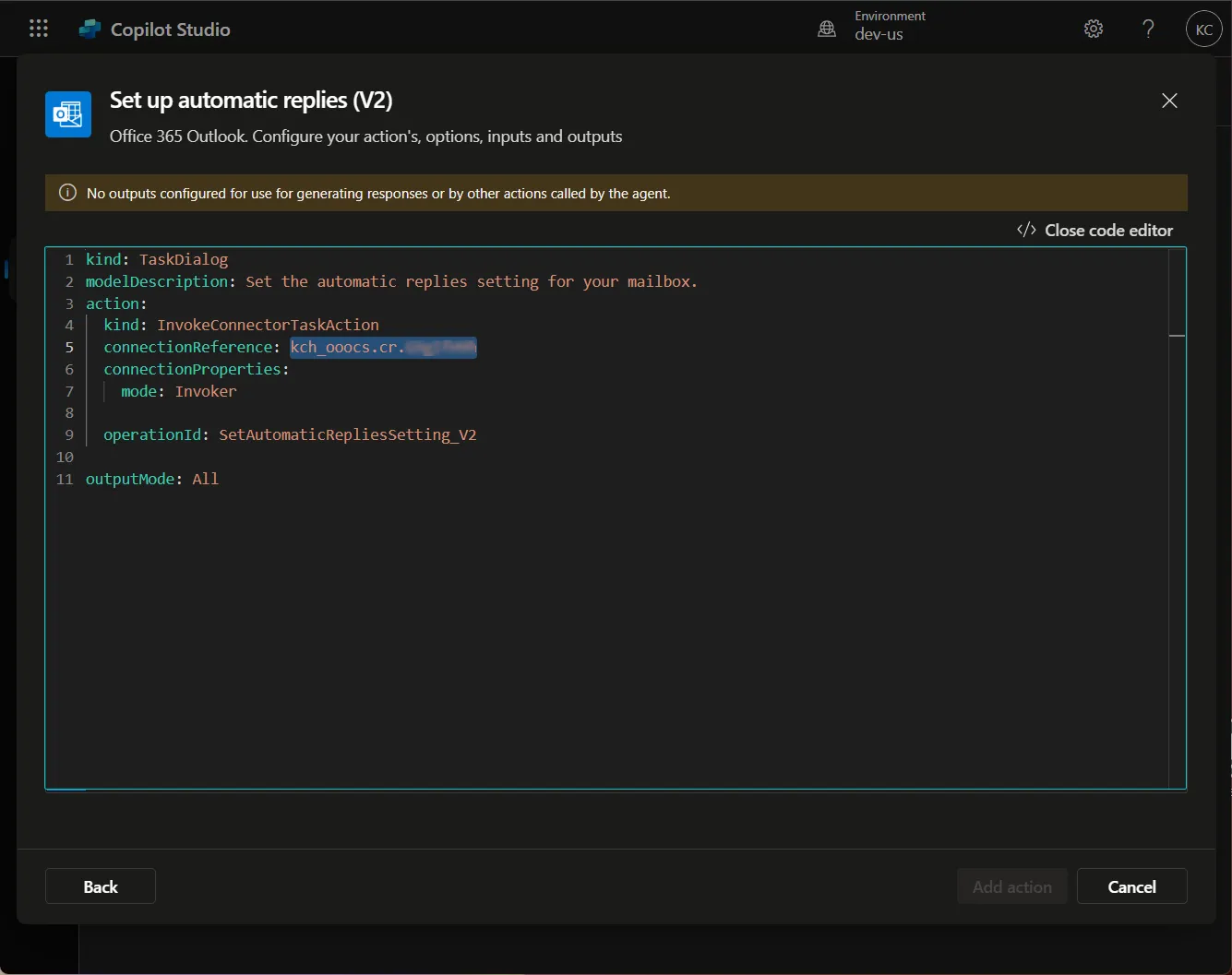
Replace the code in the code editor with the contents of the YAML-file.
Replace { REPLACE-WITH-CONNECTION-REFERENCE-NAME } with the connection reference name you copied earlier.
Select Add action.
If you got the
HTTP Status:BadRequesterror - just select Back button and make sure that the connection configured. Once it is ready, click Next and select Add action again.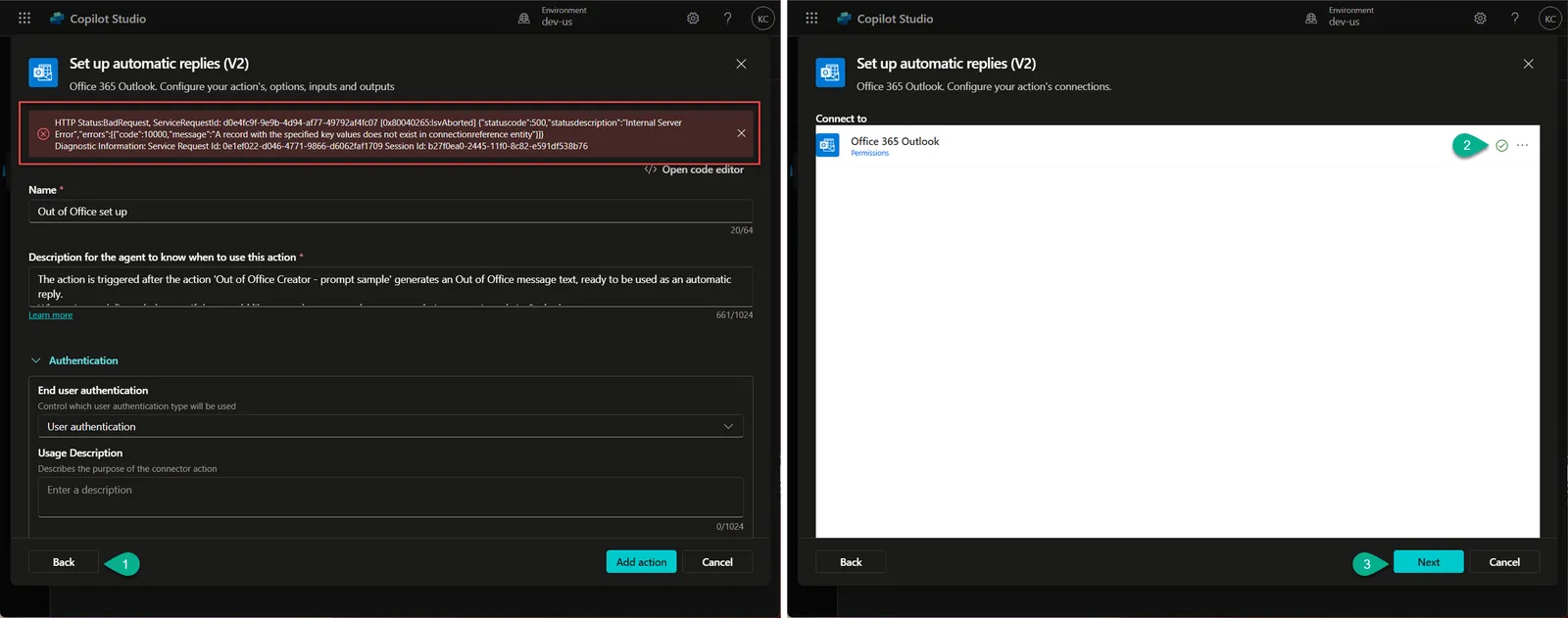
Open Test pane and select ... More. Select Manage connections. In the opened window select Connect.

Test the solution
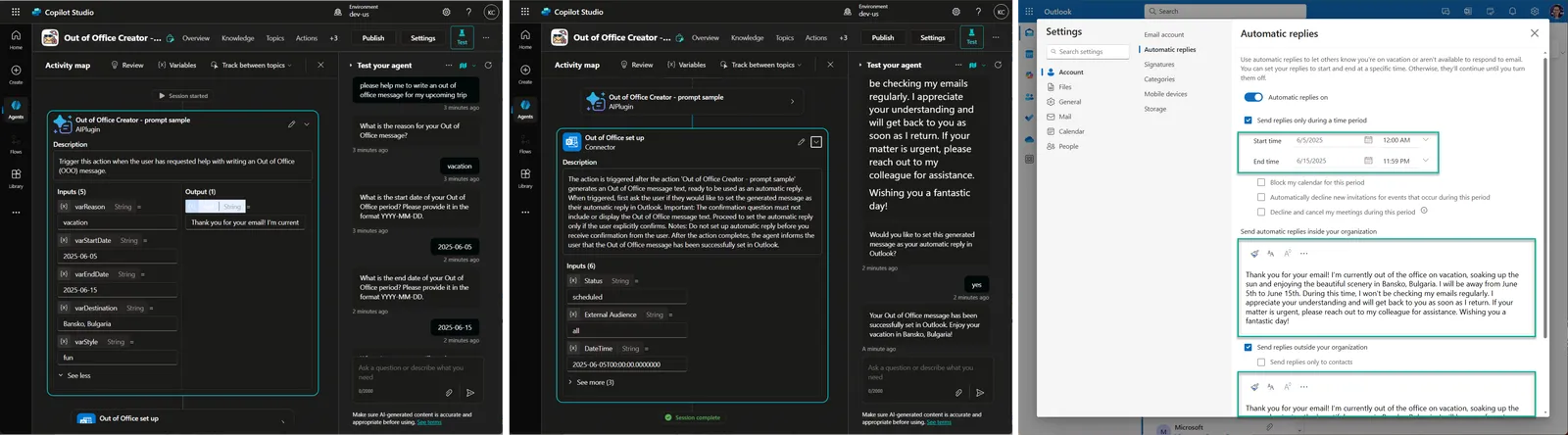
- In the Test pane ask the agent:
please help me to write an out of office message for my upcoming trip
- Answer agent's questions.
- Check the Out of Office message that agent generates.
- Agree to set up the text as your automatic reply, and check your Outlook Automatic replies settings.
Keep in mind that the action configured for UTC timezone. If you are in another timezone - you need to specify this in the Out of Office set up action.
Next steps
Once you have successfully tested the agent in Copilot Studio:
- Publish your agent to make it available for users.
- Add the Teams and Microsoft 365 Copilot channels to your agent to enable access through Microsoft Teams and Microsoft 365 apps (follow this article to add these channels).
- Test the experience in your preferred user interface, such as Microsoft Teams or within Microsoft 365 Copilot, to ensure the Out of Office creation flow works seamlessly.
- Refine the agent if needed based on real-world usage and feedback.
Disclaimer
THIS CODE IS PROVIDED AS IS WITHOUT WARRANTY OF ANY KIND, EITHER EXPRESS OR IMPLIED, INCLUDING ANY IMPLIED WARRANTIES OF FITNESS FOR A PARTICULAR PURPOSE, MERCHANTABILITY, OR NON-INFRINGEMENT.