
A reusable Power Platform snippet
SharePoint Get Items - Asset List (Topic with Adaptive Card)
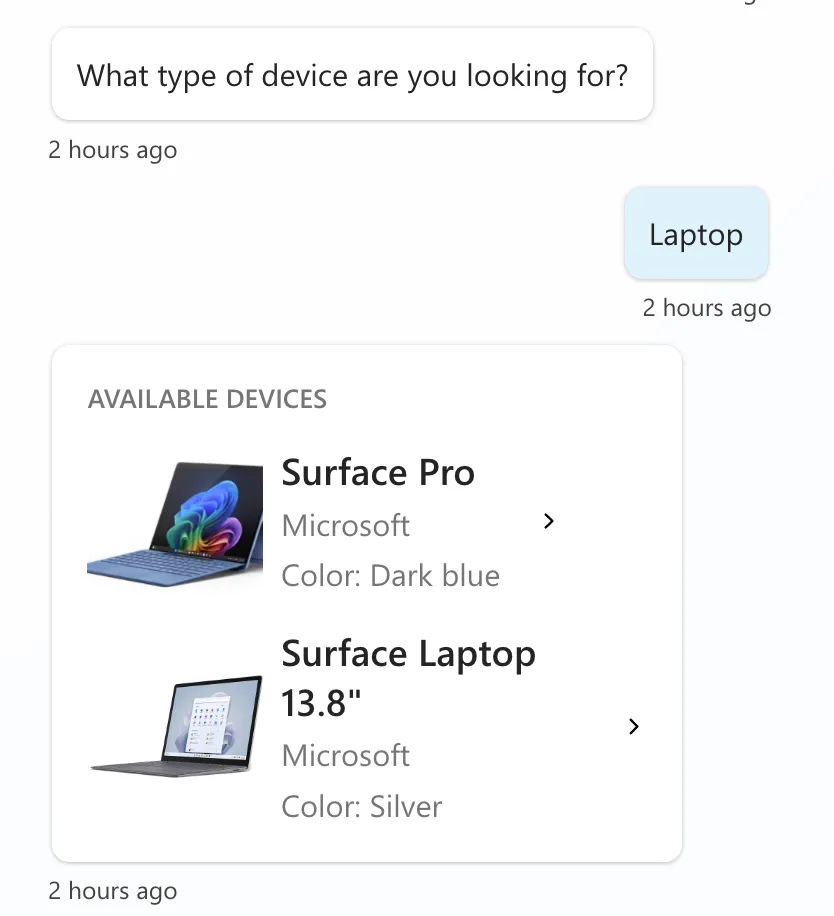
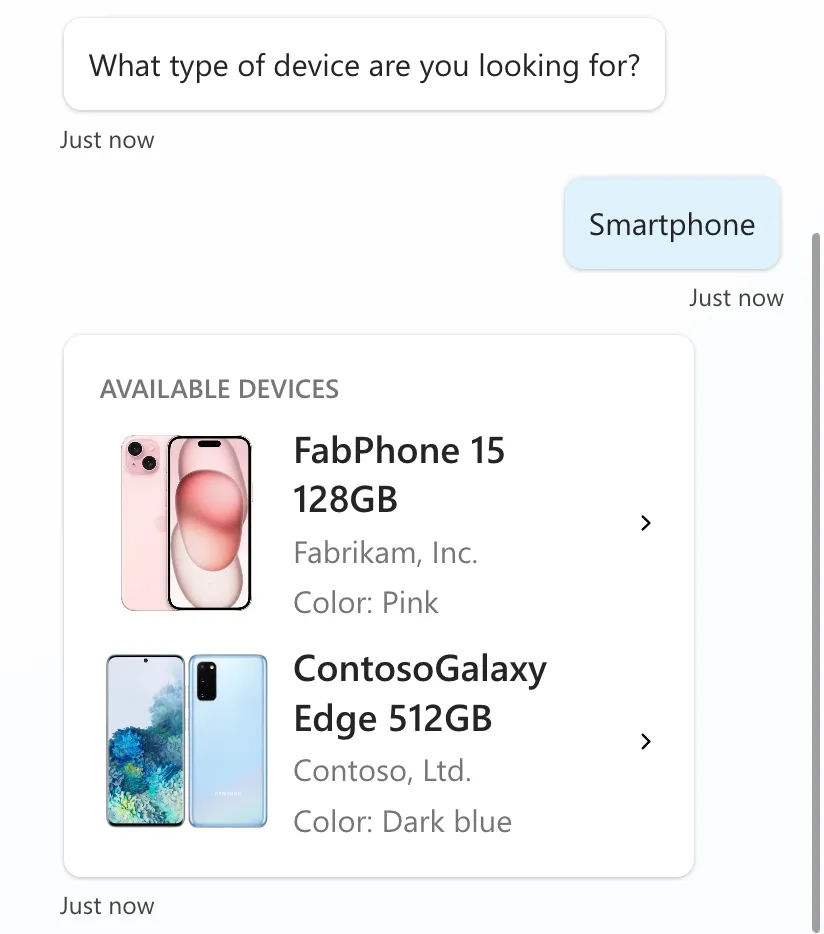
This is a snippet that demonstrates how to use the SharePoint - Get items action as a connector action in a topic. It uses a custom adaptive card as the output to show a table of items.
 Copilot Studio

- Last updated
- Jul 30, 2024
- Category
- Community snippet
From idea to implementation
Make it your own.
Check this snippet's prerequisites, permissions, and licensing before using it. The documentation below comes directly from the snippet README.
This is a snippet that demonstrates how to use the SharePoint - Get items action as a connector action in a topic. It uses a custom adaptive card as the output to show a table of items using the SharePoint Asset list template.
Authors
| Snippet | Author(s) |
|---|---|
| SharePoint Get Items - Asset List (Topic with Adaptive Card) | April Dunnam (@aprildunnam) |
Minimal path to awesome
Enable dynamic chaining before proceeding
- Open a copilot in Copilot Studio
- Select Generative AI
- Scroll down to Dynamic Chaining with generative actions (preview) and enable it by flipping the toggle on
Setup the Action
Select Actions
Select + Add an action
Search for SharePoint Get Items and select the Search button
Select the Get Items action from the SharePoint connector
Select Next
Select Finish
Select the SharePoint - Get Items action in the list (select the name)
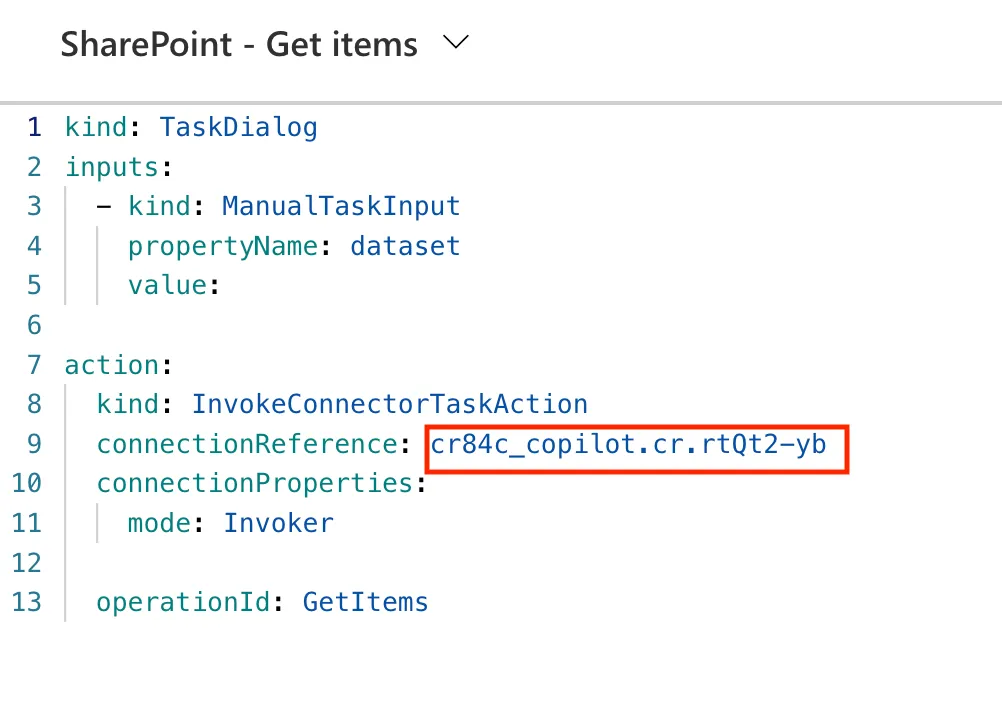
Select the ... in the upper right corner and select Open code editor
Make sure to copy the name of the connection reference
Setup the SharePoint List
This snippet connects to a SharePoint list which will need to be configured before you setup the topic. Follow these steps to setup the list:
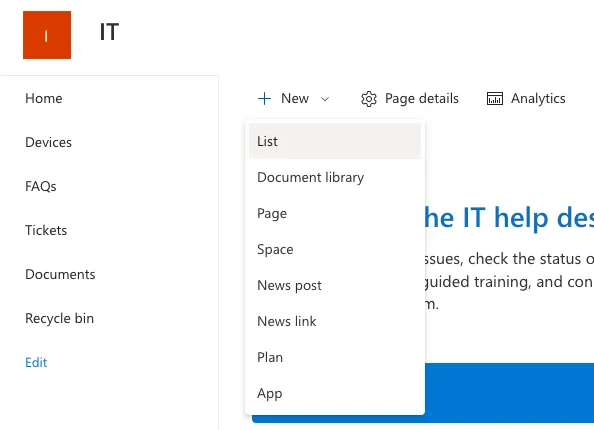
- Go to your SharePoint site and select New and List
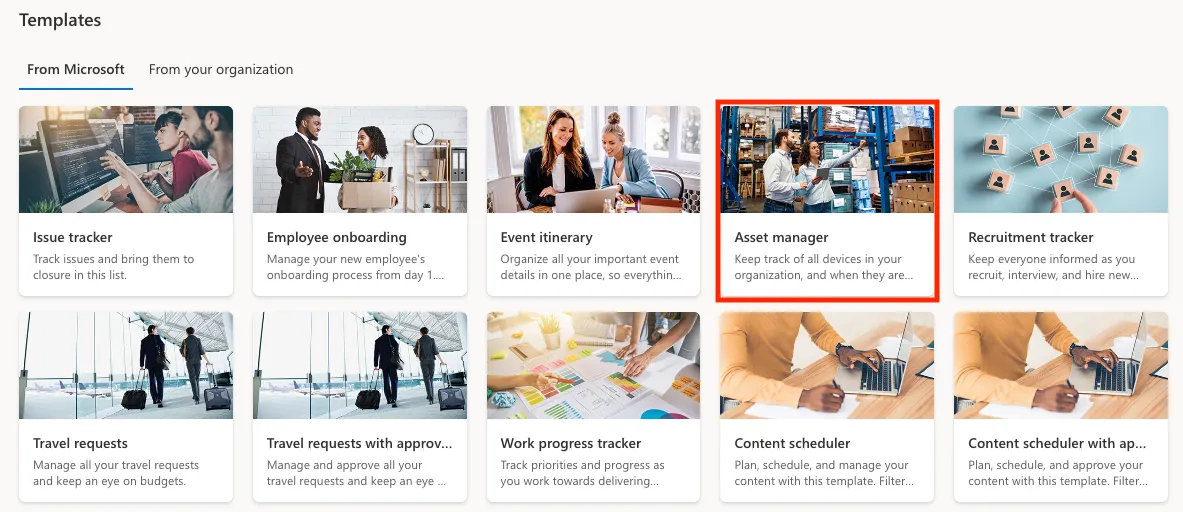
- From the list of templates, select the Asset Manager template
- In the pop-up, select Use this template
- Give your list a name (keep track of this to use in later steps) and select Create
- In the newly created list, scroll all the way to the right and select Add column
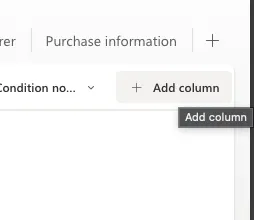
- Choose Hyperlink as the column type and click Next
- For the Name type Image and click Save
Configure the Topic
Select the Topics tab
Select Add Topic and From Blank
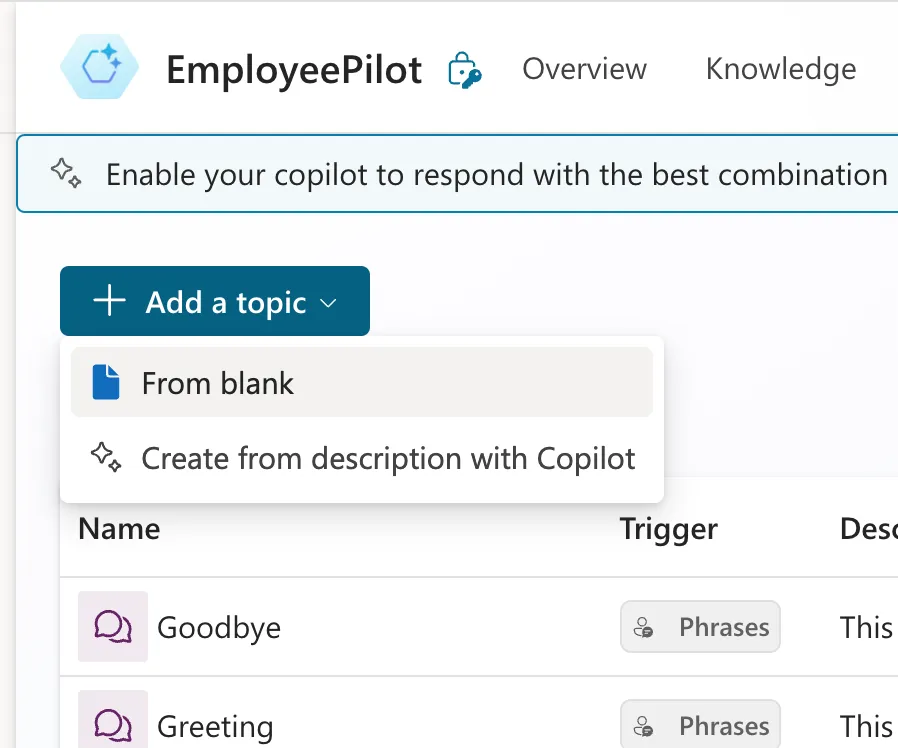
Rename your topic in the upper left hand corner to something relevant and remember this name.
Select the more button in the upper right hand corner and Open in code editor
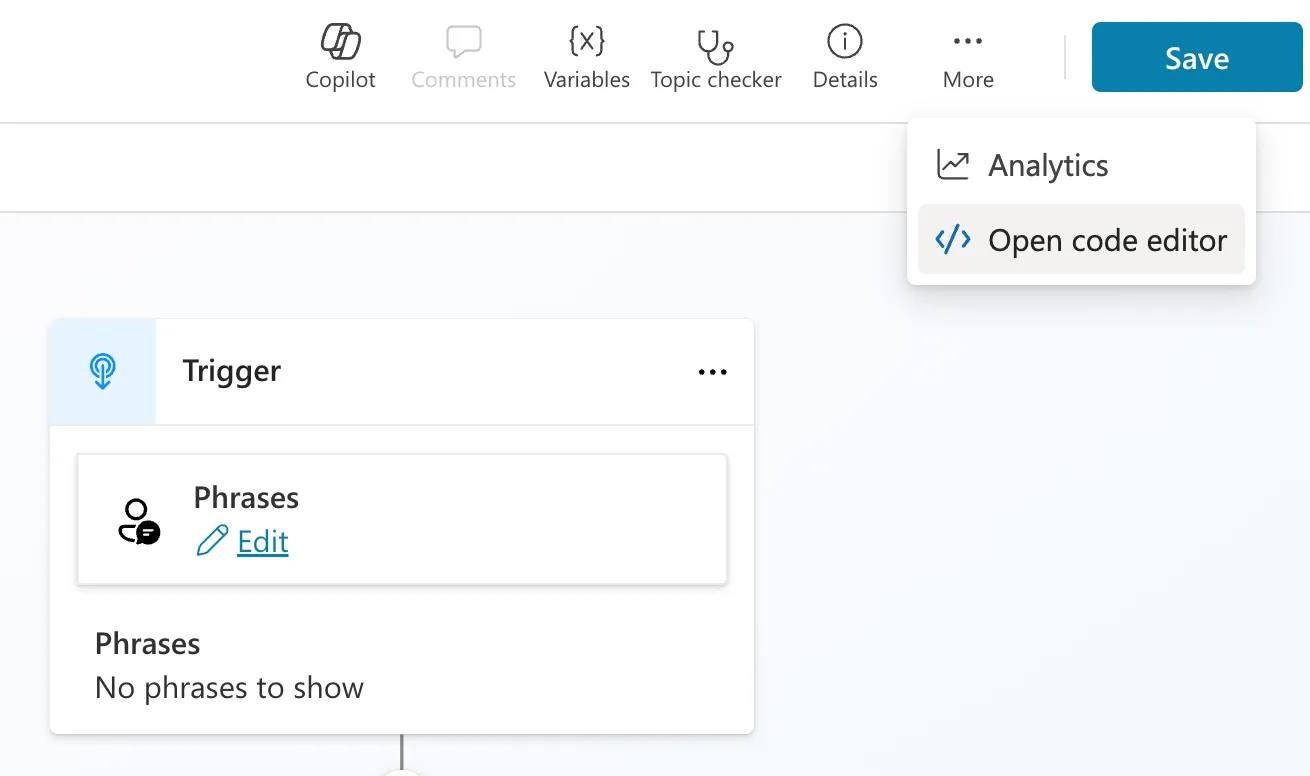
Paste the contents of the YAML-file in the code editor
Replace { REPLACE-WITH-CONNECTION-REFERENCE-NAME } with the connection reference name you copied two steps earlier
Replace { REPLACE-WITH-COPILOT-NAME } with the copilot schema name
Replace { REPLACE-WITH-TOPIC-NAME } with the topic name
Replace { REPLACE-WITH-SHAREPOINT-SITE-URL } with the url of the SharePoint site name
Replace { REPLACE-WITH-SHAREPOINT-LIST-GUID } with the GUID of the SharePoint list name
Save the topic
Test out the topic by using the Test copilot section and send
What are the available devices?Select the device type from the multiple choice list
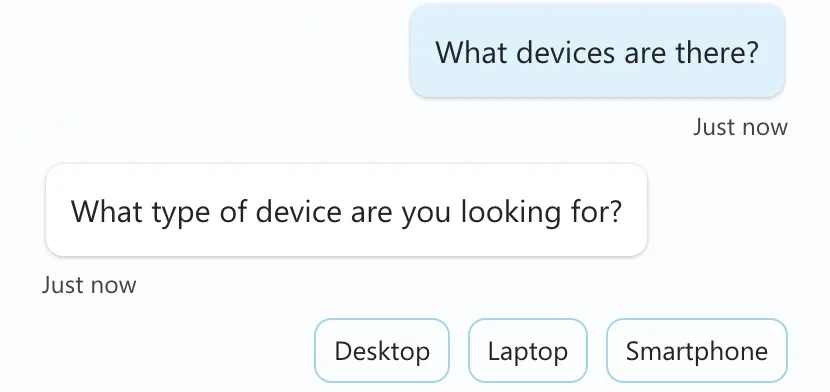
When you get a list of devices, you're done!
Disclaimer
THIS CODE IS PROVIDED AS IS WITHOUT WARRANTY OF ANY KIND, EITHER EXPRESS OR IMPLIED, INCLUDING ANY IMPLIED WARRANTIES OF FITNESS FOR A PARTICULAR PURPOSE, MERCHANTABILITY, OR NON-INFRINGEMENT.