
A reusable Power Platform snippet
Layout Funnel
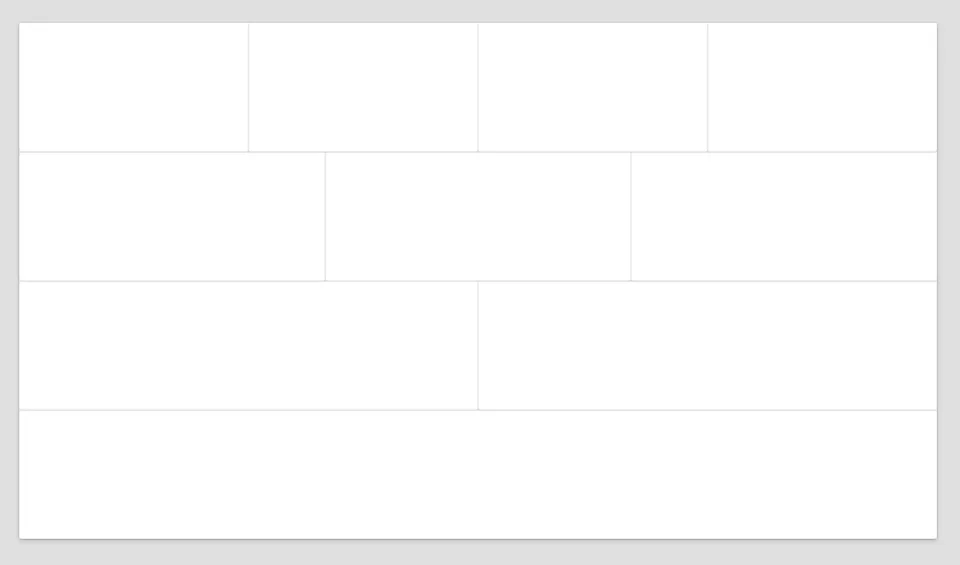
This is a simple snippet that can help you get started with creating a screen in canvas app. It is a set of containers with various number of columns.
 Power Apps
- Last updated
- Mar 24, 2025
- Category
- Community snippet
From idea to implementation
Make it your own.
Check this snippet's prerequisites, permissions, and licensing before using it. The documentation below comes directly from the snippet README.
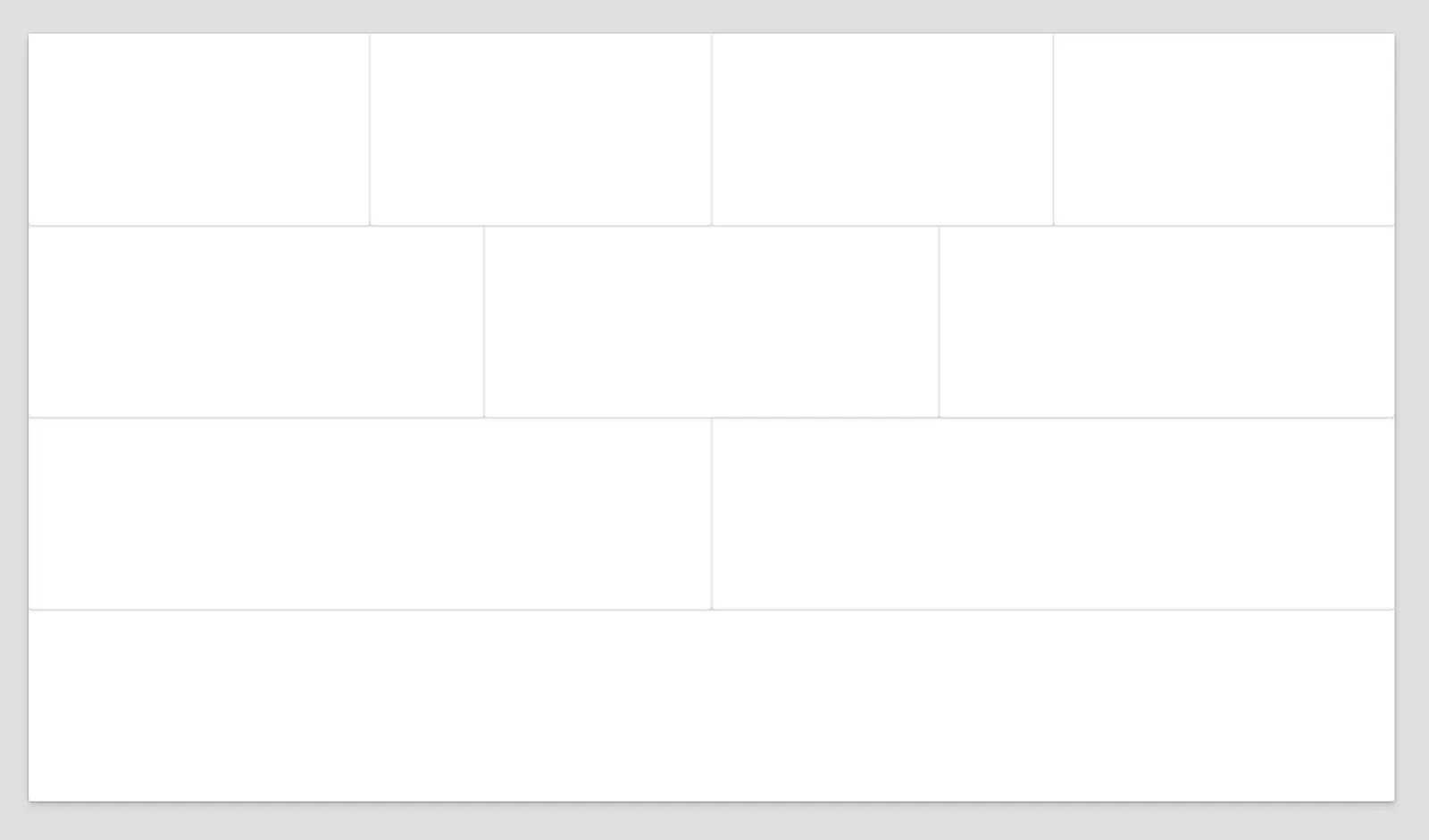
This is a simple snippet that can help you get started with creating a screen in canvas app. It is a set of containers with various number of columns. The first container has 4 columns, the second container has 3 columns, the third container has 2 columns, and the fourth container has 1 column.
Authors
| Snippet | Author(s) |
|---|---|
| Daniel Laskewitz | GitHub (@Laskewitz ) |
Code
- MainContainerFunnelScreen:
    Control: GroupContainer@1.3.0
    Variant: AutoLayout
    Properties:
      Height: =Parent.Height
      LayoutAlignItems: =LayoutAlignItems.Stretch
      LayoutDirection: =LayoutDirection.Vertical
      LayoutJustifyContent: =LayoutJustifyContent.Center
      Width: =Parent.Width
    Children:
      - Container1FunnelScreen:
          Control: GroupContainer@1.3.0
          Variant: AutoLayout
          Properties:
            LayoutDirection: =LayoutDirection.Horizontal
          Children:
            - Container11FunnelScreen:
                Control: GroupContainer@1.3.0
                Variant: AutoLayout
                Properties:
                  LayoutDirection: =LayoutDirection.Horizontal
            - Container12FunnelScreen:
                Control: GroupContainer@1.3.0
                Variant: AutoLayout
                Properties:
                  LayoutDirection: =LayoutDirection.Horizontal
            - Container13FunnelScreen:
                Control: GroupContainer@1.3.0
                Variant: AutoLayout
                Properties:
                  LayoutDirection: =LayoutDirection.Horizontal
            - Container14FunnelScreen:
                Control: GroupContainer@1.3.0
                Variant: AutoLayout
                Properties:
                  LayoutDirection: =LayoutDirection.Horizontal
      - Container2FunnelScreen:
          Control: GroupContainer@1.3.0
          Variant: AutoLayout
          Properties:
            LayoutDirection: =LayoutDirection.Horizontal
          Children:
            - Container21FunnelScreen:
                Control: GroupContainer@1.3.0
                Variant: AutoLayout
                Properties:
                  LayoutDirection: =LayoutDirection.Horizontal
            - Container22FunnelScreen:
                Control: GroupContainer@1.3.0
                Variant: AutoLayout
                Properties:
                  LayoutDirection: =LayoutDirection.Horizontal
            - Container23FunnelScreen:
                Control: GroupContainer@1.3.0
                Variant: AutoLayout
                Properties:
                  LayoutDirection: =LayoutDirection.Horizontal
      - Container3FunnelScreen:
          Control: GroupContainer@1.3.0
          Variant: AutoLayout
          Properties:
            LayoutDirection: =LayoutDirection.Horizontal
          Children:
            - Container31FunnelScreen:
                Control: GroupContainer@1.3.0
                Variant: AutoLayout
                Properties:
                  LayoutDirection: =LayoutDirection.Horizontal
            - Container32FunnelScreen:
                Control: GroupContainer@1.3.0
                Variant: AutoLayout
                Properties:
                  LayoutDirection: =LayoutDirection.Horizontal
      - Container4FunnelScreen:
          Control: GroupContainer@1.3.0
          Variant: AutoLayout
          Properties:
            LayoutDirection: =LayoutDirection.Horizontal
Minimal path to awesome
- Open your canvas app in Power Apps
- Copy the contents of the YAML-file or copy it from the code above.
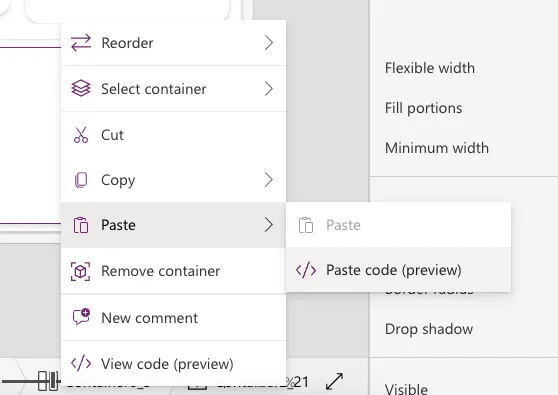
- Right click on the screen where you want to add the snippet and select "Paste YAML"
This will add the containers to your screen and you can delete the containers you don't want to use.
Disclaimer
THIS CODE IS PROVIDED AS IS WITHOUT WARRANTY OF ANY KIND, EITHER EXPRESS OR IMPLIED, INCLUDING ANY IMPLIED WARRANTIES OF FITNESS FOR A PARTICULAR PURPOSE, MERCHANTABILITY, OR NON-INFRINGEMENT.