
Bulk Deployment of Teams Toolkit Declarative Agents
This sample deploys multiple Copilot Teams Toolkit declarative agents in bulk using PowerShell and Teams Toolkit CLI.
 Paul Bullock
Summary
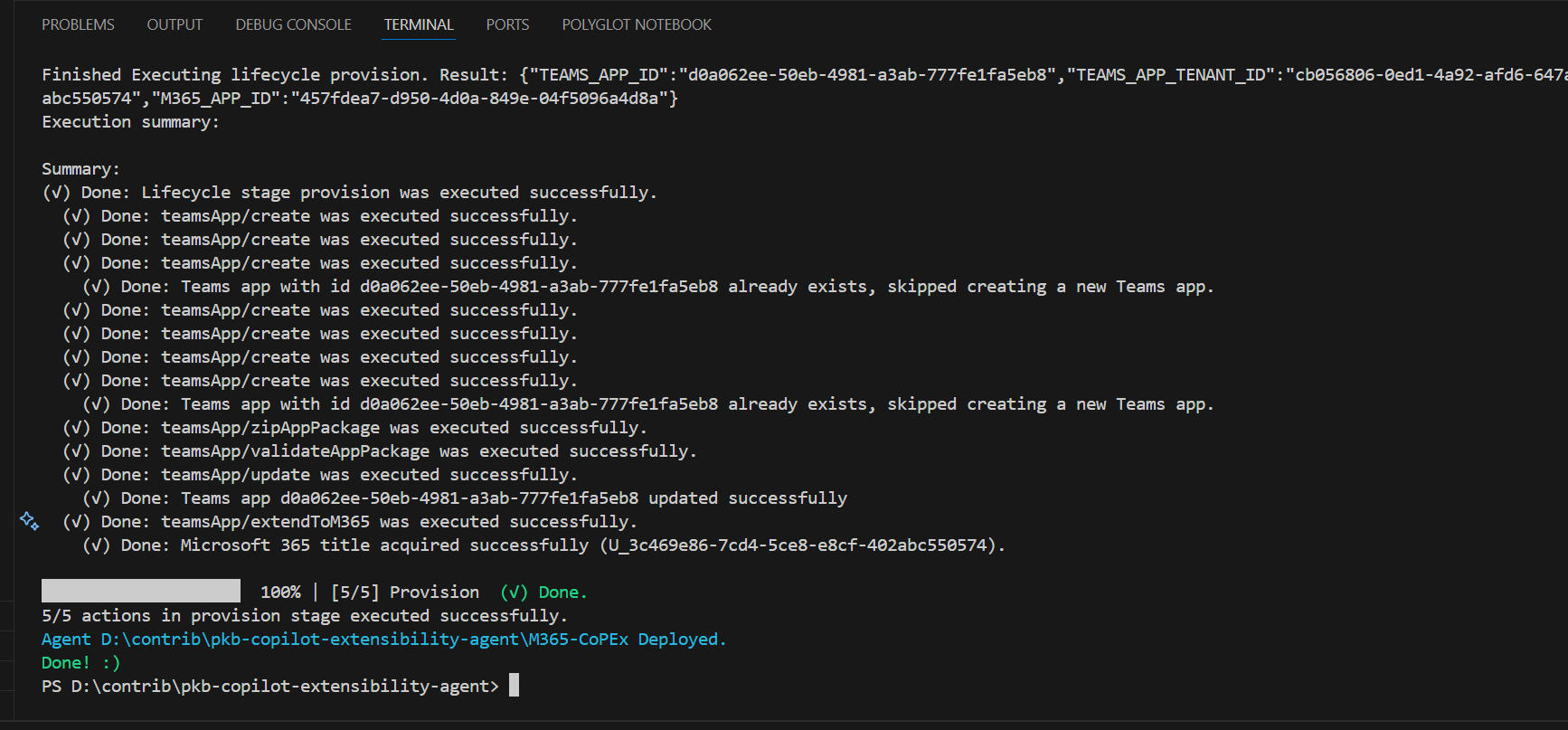
This sample deploys multiple Copilot Teams Toolkit declarative agents in bulk using Teams Toolkit CLI, you will need to ensure you are logged in and installed the prerequisites. This runs thorugh a set structure (see below) and provisions the agents into Microsoft Copilot - the chat experience. This is not deploying to the organisation store however this can be modified to do so.
Note: This script is a campanion to this sample: https://pnp.github.io/script-samples/copilot-teams-toolkit-da-apply-template/README.html
Prerequisites
This script requires the following:
- Teams Toolkit CLI installed
Install the Teams Toolkit CLI using the following command:
- npm install -g @microsoft/teamsapp-cli
- Run to test: teamsapp -h
Folder Structure
- Base Folder
- Copilot-Extensibility-Template
- color.png
- manifest.json
- declarativeAgent.json
- Instruction.md
- outline.png
- Copilot-Studio-Agent (Just create the folder, the script will populate the contents + the template)
- appPackage
- manifest.json
- declarativeAgent.json
- Instruction.md ...
- appPackage
- Other Agent 1
- Other Agent 2
- Other Agent 3
- Other Agent 4
- Copilot-Extensibility-Template
- Invoke-CoolScript.ps1
[CmdletBinding()]
param (
    $targetFolderName = "Copilot-Studio-Agent"
)
begin {

    $startingPath = Get-Location
    $targetFolder = Join-Path -Path "$(Get-Location)" -ChildPath "$($targetFolderName)"

    # ------------------------------------------------------------------------------
    # Introduction
    # ------------------------------------------------------------------------------

    Write-Host "*** This script will generate out all the agents ***" -ForegroundColor Green

    # ------------------------------------------------------------------------------

}
process {

    # ------------------------------------------------------------------------------
    # Deploying the agent
    # ------------------------------------------------------------------------------
    # Test if the target folder contains teamsapp.yml file
    $teamsAppFile = "teamsapp.yml"
    $teamsAppFilePath = Join-Path -Path $targetFolder -ChildPath $teamsAppFile
    if (Test-Path -Path $teamsAppFilePath) {

        Write-Host "Deploying the target agent $targetFolder" -ForegroundColor Green
        Set-Location -Path $targetFolder

        # Yeap, thats it. If you are not logged in, it will prompt you for logging in.
        teamsapp provision

        Write-Host "Agent $targetFolder Deployed." -ForegroundColor Cyan
    }else{
        Write-Host "File $teamsAppFile does NOT exist in the target folder." -ForegroundColor Red
    }

}
end{
  Set-Location -Path $startingPath
  Write-Host "Done! :)" -ForegroundColor Green
}
Read-Host -Prompt "This script will bulk deploy for all agents in the current directory. Press Enter to continue or Ctrl+C to cancel."

.\Set-Deploy.ps1 -targetFolderName "Copilot-Studio-Agent"
.\Set-Deploy.ps1 -targetFolderName "Other Agent 1"
.\Set-Deploy.ps1 -targetFolderName "Other Agent 2"
.\Set-Deploy.ps1 -targetFolderName "Other Agent 3"
Source Blog Article
Contributors
| Author(s) |
|---|
| Paul Bullock |
Disclaimer
THESE SAMPLES ARE PROVIDED AS IS WITHOUT WARRANTY OF ANY KIND, EITHER EXPRESS OR IMPLIED, INCLUDING ANY IMPLIED WARRANTIES OF FITNESS FOR A PARTICULAR PURPOSE, MERCHANTABILITY, OR NON-INFRINGEMENT.
Tool documentation & references
- Want to learn more about Teams Toolkit CLI
Check out the documentation site to get started and for the reference on performing operations on agents
