
Create bulk dummy documents inc versions in SharePoint Document library
This script sample can be useful to upload dummy documents and versions to SP library by auto incrementing file name
 Mathijs Verbeeck
 Kasper Larsen
Summary
Based on a script by Siddharth Vaghasia : scripts/create-dummy-docs-in-library There are times when we have to replicate scenario to bulk upload dummy documents in large numbers for replicating 5000 items limit or testing performance of dec/test/uat enviorments. This script would help us create 'n' number of dummy documents specified as maxCount in script. Script will also provide option to create dummy folder first for each file and then upload file inside that folder. Script will use the specified file and add counter inside file name to provide uniqueness of file. The reason for adding a number of versions for each file could be to use it as a testbed for other scripts. In my case I was testing the effect on SharePoint storage costs when stripping versions when a site collection is archived.
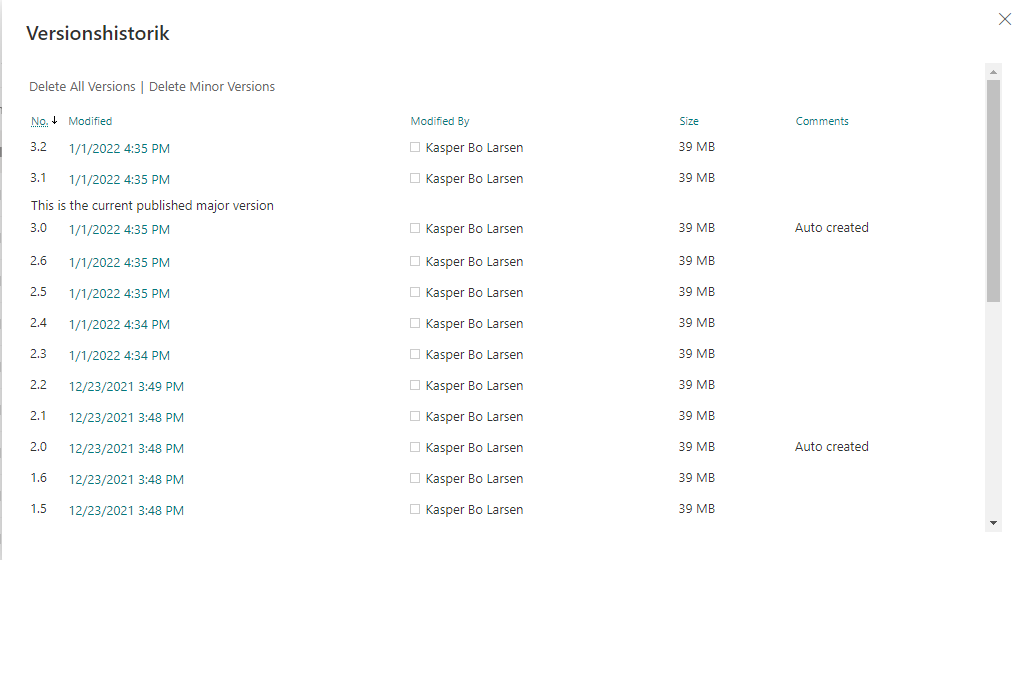
new functionality: For the File option you can specify a number of minor versions you wish to create : $minorVersionCount $minorVersionCountBeforeMajor specifies how often a major version should be created.
Sample: $minorVersionCount = 10 $minorVersionCountBeforeMajor = 3
the version history will be like: 0.1 0.2 1.0 1.1 1.2 2.0 2.1 2.2 3.0 3.1
Note about two available options
- Upload the dummy files directly on the SP library, you can provide this path in "$Folder"
- Create a dummy folder first and upload the file inside that folder, you can provide the root path in "$SiteRelativeURL"
Implementation
- Open Windows PowerShell ISE
- Create a new file
- Write a script as below,
- Change the variables to target to your environment, site, document library, document path, max count
- Run the script.
Screenshot of Output
Below is the output after I have ran the script twice with maxCount set to 5,
- Input as Folder (it has created five folder with auto incrementing folder name to get uniqueness and then added file inside each folder)
- Input as File (it has created five files and auto incremented file name to get uniqueness)
function ensureLibraryIsUsingMinorVersions
{
    Set-PnPList -Identity $Folder -EnableMinorVersions $true
}
#Global Variable Declaration

$pnpPowerShellModule = Get-Module PnP.PowerShell
if ($null -eq $pnpPowerShellModule) {
    Install-Module PnP.PowerShell
}

#Global Variables
$SiteURL = "https://yourdomain.sharepoint.com/sites/mytestsite"

#Serverrelative url of the Library, this will be used for Folder scenario
$SiteRelativeURL= "/sites/mytestsite/Shared Documents"

#Local file path where a single dummy document is available

$File= "D:\SP\repos\myscriptsamples\Dummy.docx"


#This can be used for file scenario and provide the folder path where we want to create files, it can be subfolder also
$Folder="Shared Documents"

#Read Information to get which operation need to perform
$MethodCall=Read-Host "Which Function Do you Need to Invoke ? Folder or File"
$MethodCall=$MethodCall.ToUpper()

#This will be max count of dummy folder or files which we have to create
$maxCount = 15
#this will define how many minor versions the script should create
$minorVersionCount = 6

#this will define how many minor versions the script should create before a major version is added
$minorVersionCountBeforeMajor = 3


if($maxCount -lt $minorVersionCount)
{
    throw "MaxCount must be higher than minorVersionCount"
}

#For Sample Document Creation the file needs to be part of some location.
$FilePath= Get-ChildItem $File
$FileName = $FilePath.BaseName #Inorder to get the filename for the manipulation we used this function(BaseName)

#For Logging the Operations
$LogTime = Get-Date -Format "MM-dd-yyyy_hh-mm-ss"
$LogFile = 'D:\SP\repos\myscriptsamples\'+"FileFolderCreation_"+$LogTime+".txt"


 if($MethodCall -eq "FOLDER" -or $MethodCall -eq "FILE")
 {

 Try
{
    #Connect to PnP Online
    Connect-PnPOnline -Url $SiteURL -UseWebLogin
    #To Create Folder and Files
    if($MethodCall -eq "FOLDER")
    {
    	$FolderCnt=0
    	while($FolderCnt -lt $maxCount)
    	{
		    $FolderName= $FileName +"_"+ $FolderCnt
			write-host $FolderName
		    $SiteRelativePath=$SiteRelativeURL+"/"+$FolderName
			write-host $SiteRelativePath
		    Try
		    {
			    Add-PnPFolder -Name $FolderName -Folder $SiteRelativeURL -ErrorAction Stop
                Add-PnPFile -Folder $SiteRelativePath -Path $File

		    }
		    catch
		    {
    		    write-host "Folder Creation Error: $($_.Exception.Message)" -foregroundcolor Red
		    }
            $FolderCnt++
    	}

        write-output "New Folder and Files Created '$FolderName' Added! $($env:computername)" >> $LogFile
         Write-host -f Green "Script execution completed...." |Out-File $LogFile -Append -Force
          write-output "Script execution completed.... $($env:computername)" >> $LogFile -f Green
    }

    #To Create Files alone
    if($MethodCall -eq "FILE")
    {
        if($minorVersionCount -gt 0)
        {
            ensureLibraryIsUsingMinorVersions
        }
	    $FileCnt=0
	    while($FileCnt -lt $maxCount)
	    {
		    $NewFileName= $FileName+"_"+$FileCnt+".docx"
		    try
		    {
                for($i=0; $i -lt $minorVersionCount;$i++)
                {
                    if($i -gt 0 -and $i % $minorVersionCountBeforeMajor -eq 0)
                    {
                        $newfile = Add-PnPFile -Path $File -Folder $Folder -NewFileName $NewFileName
                        Set-PnPFileCheckedOut -Url $newfile.ServerRelativeUrl
                        Set-PnPFileCheckedIn -Url $newfile.ServerRelativeUrl -CheckinType MajorCheckIn -Comment "Auto created"
                    }
                    else
                    {
                        Add-PnPFile -Path $File -Folder $Folder -NewFileName $NewFileName
                    }

                }

		    }
		    catch
		    {
			    write-host "Error: $($_.Exception.Message)" -foregroundcolor Red
		    }
		    $FileCnt++
		    Write-host -f Green "New File Created '$NewFileName' Added!" |Out-File $LogFile -Append -Force
            write-output "New File Created '$NewFileName' Added! $($env:computername)" >> $LogFile -f Green

	    }
            Write-host -f Green "Script execution completed...." |Out-File $LogFile -Append -Force
            write-output "Script execution completed.... $($env:computername)" >> $LogFile -f Green
    }
}
catch
{
    write-host "Error: $($_.Exception.Message)" -foregroundcolor Red
}

 }
 else{
 write-host "Please type either File or Folder" -foregroundcolor Red
 }
# Usage example:
#   .\Create-Bulk-Dummy-Documents.ps1 -WebUrl "https://contoso.sharepoint.com/sites/Intranet" -ListTitle "Documents" -ServerRelativeUrl "/sites/intranet/Shared Documents" -Type File -ItemsToCreate 5 -MajorVersions 6 -MinorVersionBeforeMajor 3 -FileToUse "D:\Temp\DummyFile.docx"
#   .\Create-Bulk-Dummy-Documents.ps1 -WebUrl "https://contoso.sharepoint.com/sites/Intranet" -ListTitle "Documents" -ServerRelativeUrl "/sites/intranet/Shared Documents" -Type Folder -ItemsToCreate 5 -MajorVersions 6 -MinorVersionBeforeMajor 3 -FileToUse "D:\Temp\DummyFile.docx"
[CmdletBinding()]
param (
  [Parameter(Mandatory = $true, HelpMessage = "Web url from which to create the files, e.g. https://contoso.sharepoint.com/sites/Intranet")]
  [string]$WebUrl,
  [Parameter(Mandatory = $true, HelpMessage = "Title of the list on which to create the documents or files")]
  [string]$ListTitle,
  [Parameter(Mandatory = $true, HelpMessage = "Server relative URL of the folder in which to create the documents")]
  [string]$ServerRelativeUrl,
  [Parameter(Mandatory = $true, HelpMessage = "Type of content to create, possible values are 'file' or 'folder'")]
  [ValidateSet("File","Folder","file","folder")]
  [string]$Type,
  [Parameter(Mandatory = $true, HelpMessage = "Amount of items to create")]
  [int]$ItemsToCreate,
  [Parameter(Mandatory = $true, HelpMessage = "Amount of major versions to create")]
  [int]$MajorVersions,
  [Parameter(Mandatory = $true, HelpMessage = "This will define the amount of minor versions that will be created before a major version is added")]
  [int]$MinorVersionBeforeMajor,
  [Parameter(Mandatory = $true, HelpMessage = "Path of the file to use when creating versions")]
  [string]$FileToUse
)
begin {
  $m365Status = m365 status
  if ($m365Status -match "Logged Out") {
    m365 login
  }
  Write-Host "Initialization done, time to create versions!" -f Green
}
process {

  function New-Versions {
    param (
      [Parameter(Mandatory = $true)]
      [string]$FileUrl,
      [Parameter(Mandatory = $true)]
      [int]$Counter
    )

    # Have to first check out, else it throws an error 'Error: The file "Shared Documents/1.docx" is not checked out'
    m365 spo file checkout --webUrl $WebUrl --fileUrl $FileUrl | Out-Null
    m365 spo file checkin --webUrl $WebUrl --fileUrl $FileUrl --type Major --comment "First major version check in" | Out-Null

    # Creating versions
    for ($i = 1; $i -lt ($MajorVersions + 1); $i++) {
      Write-Progress -Activity "Creating versions" -Status "$Counter/$ItemsToCreate files created. Creating major version $i/$MajorVersions" -PercentComplete (($Counter / $ItemsToCreate) * 100)
      for ($j = 1; $j -lt ($MinorVersionBeforeMajor + 1); $j++) {
        Write-Progress -Activity "Creating versions" -Status "$Counter/$ItemsToCreate files created. Processing major version $i/$MajorVersions, Creating minor version $j/$MinorVersionBeforeMajor" -PercentComplete (($Counter / $ItemsToCreate) * 100)
        # Create minor version here
        m365 spo file checkout --webUrl $WebUrl --fileUrl $FileUrl | Out-Null
        m365 spo file checkin --webUrl $WebUrl --fileUrl $FileUrl --type Minor --comment "Check in of minor version $j" | Out-Null
      }
      m365 spo file checkout --webUrl $WebUrl --fileUrl $FileUrl | Out-Null
      m365 spo file checkin --webUrl $WebUrl --fileUrl $FileUrl --type Major --comment "Check in of major version $i" | Out-Null
    }
  }

  $FileExtension = $FileToUse.Split('.')[$FileToUse.Split('.').Count - 1]

  Write-Host "Starting the script, we are going to create $ItemsToCreate $($type)s in the list with title $ListTitle. They will each have $MajorVersions major versions and $MinorVersionBeforeMajor minor versions before a new major version is added." -f Green
  $list = m365 spo list get --webUrl $WebUrl --title $ListTitle | ConvertFrom-Json
  Write-Host "Obtained the list with title $($list.Title)" -f Green

  if (!$list.EnableMinorVersions) {
    Write-Host "Have to set properties on list to enable versioning and enable the creation of minor versions" -f Red
    m365 spo list set --webUrl $WebUrl -i $list.Id --enableVersioning $true --enableMinorVersions $true
    Write-Host "List properties updated!" -f Green
  }

  Write-Host "Obtained the folder with server relative url $ServerRelativeUrl" -f Green
  Write-Host "Time to start the creation process..." -f Green
  if ($Type.ToLower() -eq "folder") {
    $FolderCnt = 1
    while ($FolderCnt -le $ItemsToCreate) {
      Write-Progress -Activity "Creating folders" -Status "$FolderCnt/$ItemsToCreate folders created" -PercentComplete (($FolderCnt / $ItemsToCreate) * 100)

      $FileUrl = "$($ServerRelativeUrl)/$FolderCnt/$FolderCnt.$FileExtension"

      # Create the folder and add the file
      m365 spo folder add --webUrl $WebUrl --parentFolderUrl $ServerRelativeUrl --name $FolderCnt | Out-Null
      m365 spo file add --webUrl $WebUrl --folder "$($ServerRelativeUrl)/$FolderCnt" --path $FileToUse --FileLeafRef $FolderCnt | Out-Null

      # Call function to create the versions
      New-Versions -FileUrl $FileUrl -Counter $FolderCnt

      $FolderCnt++
    }
  } elseif ($Type.ToLower() -eq "file") {
    $FileCnt = 1
    while ($FileCnt -le $ItemsToCreate) {
      Write-Progress -Activity "Creating files" -Status "$FileCnt/$ItemsToCreate files created" -PercentComplete (($FileCnt / $ItemsToCreate) * 100)

      $FileUrl = "$($ServerRelativeUrl)/$FileCnt.$FileExtension"

      # Creating file
      m365 spo file add --webUrl $WebUrl --folder $ServerRelativeUrl --path $FileToUse --FileLeafRef $FileCnt | Out-Null

      # Call function to create the versions
      New-Versions -FileUrl $FileUrl -Counter $FileCnt

      $FileCnt++
    }
  }

  Write-Host "Script Complete! :)" -f Green
}Contributors
| Author(s) |
|---|
| Kasper Larsen |
| Mathijs Verbeeck |
Disclaimer
THESE SAMPLES ARE PROVIDED AS IS WITHOUT WARRANTY OF ANY KIND, EITHER EXPRESS OR IMPLIED, INCLUDING ANY IMPLIED WARRANTIES OF FITNESS FOR A PARTICULAR PURPOSE, MERCHANTABILITY, OR NON-INFRINGEMENT.
Tool documentation & references
- Want to learn more about PnP PowerShell and the cmdlets
Check out the PnP PowerShell site to get started and for the reference to the cmdlets.
- Want to learn more about CLI for Microsoft 365 and the commands
Check out the CLI for Microsoft 365 site to get started and for the reference to the commands.
