
Add/Update Image in SharePoint Image column
Add/Update image in SharePoint image column in a SharePoint List or Library
 Ganesh Sanap
 Matt Jimison
Summary
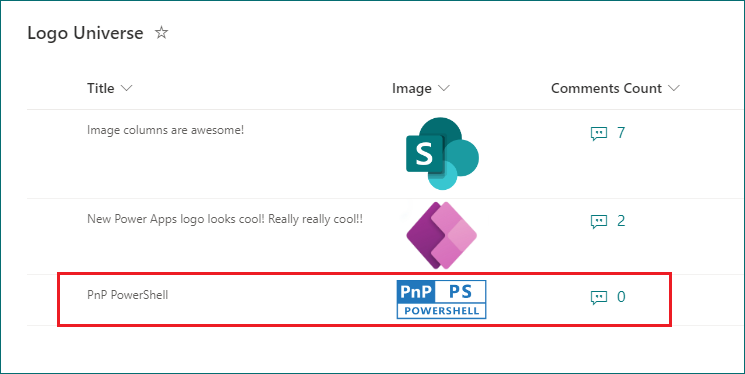
This sample script shows how to create a new list item with image column and update existing list item to update the image column using PnP PowerShell and CLI for Microsoft 365.
Scenario inspired from this blog post: Add/Update image columns in SharePoint/Microsoft Lists using PnP PowerShell
# SharePoint online site URL
$siteUrl = Read-Host -Prompt "Enter your site URL (e.g https://<tenant>.sharepoint.com/sites/contoso)"

# Server Relative URL of image file from same SharePoint site
$serverRelativeUrl = Read-Host -Prompt "Enter Server Relative URL of image file (e.g /sites/contoso/SiteAssets/Lists/dbc6f551-252b-462f-8002-c8f88d0d12d5/PnP-PowerShell-Blue.png)"

# Connect to SharePoint Online site
Connect-PnPOnline -Url $siteUrl -Interactive

# Get UniqueId of file you're referencing (without this part your image won't appear in Power Apps (browser or mobile app) or Microsoft Lists (iOS app))
$imageFileUniqueId = (Get-PnPFile -Url $serverRelativeUrl -AsListItem)["UniqueId"]

# Create new list item with image column
Add-PnPListItem -List "Logo Universe" -Values @{"Title" = "PnP PowerShell"; "Image" = "{'type':'thumbnail','fileName':'PnP-PowerShell-Blue.png','fieldName':'Image','serverUrl':'https://contoso.sharepoint.com','serverRelativeUrl':'$($serverRelativeUrl)', 'id':'$($imageFileUniqueId)'}"}

# Update list item with image column
Set-PnPListItem -List "Logo Universe" -Identity 15 -Values @{"Image" = "{'type':'thumbnail','fileName':'PnP-PowerShell-Blue.png','fieldName':'Image','serverUrl':'https://contoso.sharepoint.com','serverRelativeUrl':'$($serverRelativeUrl)', 'id':'$($imageFileUniqueId)'}"}

# Disconnect SharePoint online connection
Disconnect-PnPOnline
# SharePoint online site URL
$siteUrl = Read-Host -Prompt "Enter your site URL (e.g https://<tenant>.sharepoint.com/sites/contoso)"

# Server Relative URL of image file from same SharePoint site
$serverRelativeUrl = Read-Host -Prompt "Enter Server Relative URL of image file (e.g /sites/contoso/SiteAssets/Lists/dbc6f551-252b-462f-8002-c8f88d0d12d5/PnP-PowerShell-Blue.png)"

# Get Credentials to connect
$m365Status = m365 status
if ($m365Status -match "Logged Out") {
    m365 login
}

# Get UniqueId of file you're referencing (without this part your image won't appear in Power Apps (browser or mobile app) or Microsoft Lists (iOS app))
$imageFileUniqueId = (m365 spo file get --webUrl $siteUrl --url $serverRelativeUrl | ConvertFrom-Json).UniqueId

# Create new list item with image column
m365 spo listitem add --listTitle "Logo Universe" --webUrl $siteUrl --Title "PnP PowerShell" --Image "{'type':'thumbnail','fileName':'PnP-PowerShell-Blue.png','fieldName':'Image','serverUrl':'https://contoso.sharepoint.com','serverRelativeUrl':'$($serverRelativeUrl)', 'id':'$($imageFileUniqueId)'}"

# Update list item with image column
m365 spo listitem set --listTitle "Logo Universe" --id 15 --webUrl $siteUrl --Image "{'type':'thumbnail','fileName':'PnP-PowerShell-Blue.png','fieldName':'Image','serverUrl':'https://contoso.sharepoint.com','serverRelativeUrl':'$($serverRelativeUrl)', 'id':'$($imageFileUniqueId)'}"

# Disconnect SharePoint online connection
m365 logout
Contributors
| Author(s) |
|---|
| Ganesh Sanap |
| Matt Jimison |
Disclaimer
THESE SAMPLES ARE PROVIDED AS IS WITHOUT WARRANTY OF ANY KIND, EITHER EXPRESS OR IMPLIED, INCLUDING ANY IMPLIED WARRANTIES OF FITNESS FOR A PARTICULAR PURPOSE, MERCHANTABILITY, OR NON-INFRINGEMENT.
Tool documentation & references
- Want to learn more about PnP PowerShell and the cmdlets
Check out the PnP PowerShell site to get started and for the reference to the cmdlets.
- Want to learn more about CLI for Microsoft 365 and the commands
Check out the CLI for Microsoft 365 site to get started and for the reference to the commands.
