
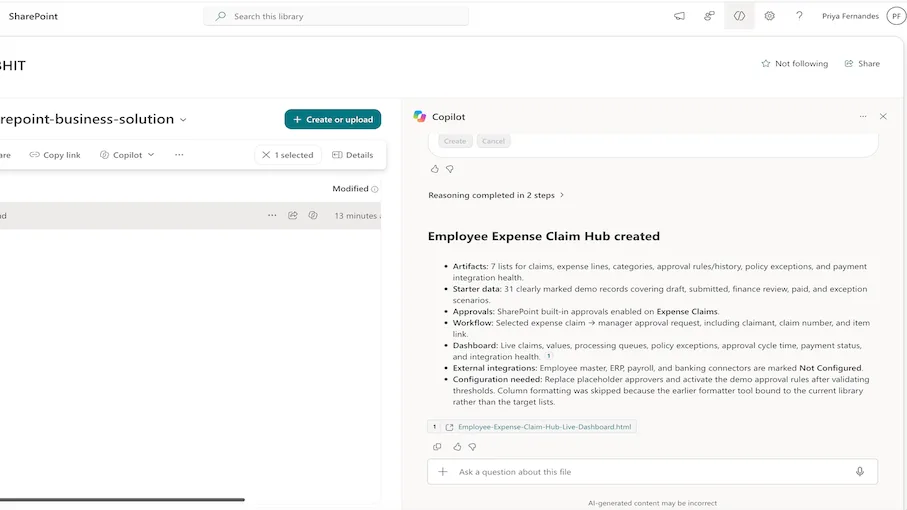
Takes a feature or business-process brief and builds an executable SharePoint solution rather than returning architecture advice. The skill first interprets the brief into a solution map of actors, transactions, child records, reference data, audit trails, external sources, and reporting needs, then inventories the existing site so that compatible lists and libraries are reused by exact title and purpose instead of duplicated.
It designs a normalized, form-friendly data model spanning a primary transaction list, child/detail records, approval rules, an approval and audit log, reference lists, an integration status list, and an optional assistant history list. Artifacts are created in dependency order with the built-in Title renamed to a business identifier, stable alphanumeric internal names, purpose descriptions, and practical default views.
Automation is configured only from verified state: native SharePoint approvals are preferred for formal approve and reject decisions without duplicating the built-in approval status field, and workflows are built from live triggers, tasks, and parameter options retrieved from the tenant so that approvers, mailboxes, Teams destinations, and connection IDs are never guessed.
Optional starter data covers draft, pending, approved, closed, and exception scenarios, prefixed DEMO- with sample approval rules left inactive and external connectors marked Not Configured until a live connection is verified. A live HTML dashboard is generated into the Reports document library with KPI cards, grouped breakdowns, an operational queue table, an integration-health panel, and a visible refresh control.
Before declaring completion the skill rediscovers the site to check for duplicates, retrieves primary and child schemas, confirms approval state and demo item counts, verifies that the dashboard file exists, and records real limitations such as unresolved approvers, inactive rules, skipped formatting, and unconfigured connectors.
Turns a functional brief into a deployed SharePoint solution rather than architecture advice. Inventories the site, designs and creates a normalized set of lists and libraries, configures native approvals and workflows, seeds clearly labelled demo data, generates a live HTML dashboard in the Reports library, and verifies the whole deployment end to end.
What you get
- A site inventory taken before anything is created, so compatible existing lists and libraries are reused instead of duplicated
- A normalized data model: primary transaction list, child/detail list, approval rules, approval/audit log, reference lists, integration status, and optional assistant history — each with a renamed
Title, a purpose description, and a practical default view - Artifacts created in dependency order, with verified internal names and no calculated fields or unsupported validation formulas
- Native SharePoint approvals enabled on the primary list, without duplicating
_ApprovalStatusand without fabricated default approvers - Workflows built only from live triggers, tasks, and parameter options retrieved from the tenant — never guessed IDs, mailboxes, or connections
- Safe starter data covering draft, pending, approved, closed, and exception states, prefixed
DEMO-with sample rules left inactive and external connectors markedNot Configured - A live HTML dashboard saved to
Reports, with KPI cards, grouped breakdowns, an operational queue table, an integration-health panel, and a visible refresh control - End-to-end verification before completion: rediscovery for duplicates, schema retrieval, approval state, demo item counts, and confirmation that the dashboard file exists
- An explicit limitations report covering unresolved approvers, inactive rules, skipped formatting, and unconfigured connectors
When to use
Ask Copilot any of the following (or close variations):
- "build an end to end SharePoint solution"
- "create lists, approvals and a live dashboard"
- "turn this business process into a SharePoint app backend"
- "build a SharePoint solution for requests"
- "create my feature end to end"
Works across structured business processes — procurement, HR, service intake, projects, compliance, facilities, finance, onboarding, and case management. Best on a site where you can create lists, libraries, and workflows. Not intended for a single list edit, one file operation, or non-SharePoint automation.
SharePoint Skill
| Solution | Author(s) |
|---|---|
| build-sharepoint-business-solution | Priya Fernandes |
Version history
| Version | Date | Comments |
|---|---|---|
| 1.0 | September 2026 | Initial Release |
Disclaimer
THIS CODE IS PROVIDED AS IS WITHOUT WARRANTY OF ANY KIND, EITHER EXPRESS OR IMPLIED, INCLUDING ANY IMPLIED WARRANTIES OF FITNESS FOR A PARTICULAR PURPOSE, MERCHANTABILITY, OR NON-INFRINGEMENT.
Package
Ready to install
The ZIP contains only the upload-ready inner skill folder.
f0133d4a6e61e516e0a72f4e871d081da5ec4ceea21b9ad8f324631b905c6696View SKILL.md
---
name: build-sharepoint-business-solution
description: |-
  Design, build, validate, and extend reusable SharePoint business solutions comprising lists, libraries, forms, approvals, workflows, demo data, and live HTML dashboards. Select the right architecture and state security limitations clearly.

  Use when the user says:
    - "build a SharePoint app for this process"
    - "create the lists and workflows for this plan"
    - "turn this business process into a SharePoint solution"
    - "populate these lists with demo data"
    - "create a live HTML dashboard from these lists"
    - "build or extend a SharePoint business application"
---
## When to use

Use this skill to design, create, demonstrate, audit, rebuild, or extend a SharePoint business solution. It applies to any domain, including procurement, HR, finance, legal, IT, projects, operations, compliance, sales, service management, facilities, and administration.

Use it when the solution may include one or more of:

- SharePoint lists or document libraries.
- Main transaction records and related detail records.
- Reference data and configurable business rules.
- Native SharePoint approvals.
- Event-driven or scheduled workflows.
- Notifications through Teams or Outlook.
- Demo or seed data.
- Live HTML dashboards backed by SharePoint lists.
- An app-like user experience or architecture recommendation.

Don't use standalone HTML as a security boundary or claim it can securely create and update data while hiding the underlying lists. SharePoint permissions still apply. For a true application-only experience, recommend Power Apps, SPFx, or a secured API/middleware layer with app-only permissions.

## Inputs

Extract from the conversation first, then discover missing technical context:

- Business purpose, users, roles, lifecycle, decisions, and reporting needs.
- Target SharePoint site URL.
- Existing lists, libraries, forms, approvals, workflows, rules, and dashboards.
- Main records, child/detail records, reference data, configuration, audit history, and integration logs.
- Fields, types, required values, defaults, uniqueness, choices, validation, attachments, and retention needs.
- Approval routing, triggers, conditions, recipients, messages, schedules, and escalation rules.
- People used in User fields.
- External systems and approved integration method.
- Demo-data requirements.
- Dashboard audience, KPIs, filters, breakdowns, tables, destination library, and file name.
- Whether the output is reporting-only or must support secure create/update actions.

Ask at most one question when a required value can't be discovered. Don't ask for IDs or internal names that tools can resolve.

## Steps

### 1. Understand and decompose the process

1. Convert the user's plan into:
   - Actors and roles.
   - Main business record.
   - Child or line-item records.
   - Reference/master data.
   - Rules and configuration.
   - Approval and lifecycle states.
   - Integration events and runtime data.
   - Audit or assistant history.
   - Operational and leadership reporting.
2. Separate SharePoint-owned data from live external-system data.
3. Identify sensitive data and permission requirements before choosing the user experience.
4. Briefly state the proposed execution plan before a multi-step build.

### 2. Discover before creating

1. Use `discover_sharepoint_lists` before creating lists or libraries.
2. Inspect relevant schemas with `get_list_schema`.
3. Inspect existing workflows, approvals, rules, quick steps, and forms when relevant.
4. Reuse or update matching artifacts rather than creating duplicates.
5. Resolve all IDs, URLs, paths, internal field names, people, lookups, taxonomy values, and location values through tools. Never fabricate them.

### 3. Design a reusable data model

Choose only the artifacts the process needs. Common patterns are:

- **Primary records list:** one item per request, case, project, ticket, application, order, review, or transaction.
- **Detail/child list:** line items, tasks, milestones, participants, products, costs, findings, or responses linked through a stable parent key.
- **Approvals/audit list:** stage, sequence, approver, decision, comments, assigned date, response date, and cycle time when independent reporting is needed.
- **Rules/configuration list:** thresholds, categories, routing rules, owners, service levels, and active flags.
- **Reference lists:** departments, teams, cost centers, vendors, clients, locations, categories, products, or other controlled values.
- **Integration log:** entity, operation, status, timestamp, summary, correlation ID, retry flag, and retry count.
- **Interaction/history list:** questions, responses, feedback, user, context, and timestamp when required.
- **Document library:** supporting documents, controlled templates, generated outputs, or large attachments.

For every field decide:

- Contextual display name and stable alphanumeric internal name.
- Correct SharePoint type.
- Required or optional.
- Default value.
- Valid choices.
- Uniqueness and indexing requirements.
- Minimum or maximum for numbers.
- DateOnly versus DateTime.
- Single versus multiple people or choices.
- Whether attachments are appropriate.

Don't use free text where controlled reference data is essential, unless the user prioritizes simplicity over referential integrity.

### 4. Create lists and libraries safely

1. Use `create_or_update_list` only after duplicate discovery.
2. For every new list, include the built-in `Title` field definition and rename it to the business identifier or record name.
3. Don't recreate system fields such as Created, Modified, Created By, and Modified By.
4. Use document libraries for files, not generic lists.
5. Preserve attachments on business records when supporting evidence is needed.
6. Enable native approvals only for actual approval scenarios.
7. Add navigation links only when appropriate; avoid exposing technical/configuration lists in site navigation by default.
8. After creation, retrieve and inspect the resulting schema.
9. If the tool ignores a required/unique setting on Title or another field, report it and correct it with a supported update when possible.

### 5. Validate schema and apply formatting

1. Use `get_list_schema` to verify:
   - Internal names.
   - Field types.
   - Required flags.
   - Defaults and choice values.
   - Unique-value settings.
   - Attachments, versioning, and approvals.
2. Use verified internal names in all later operations.
3. Apply column formatting to semantic fields when supported:
   - Status and approval decisions as compact pills.
   - Priority and risk as urgency cues.
   - Dates as overdue or upcoming cues when meaningful.
   - People as readable identity chips.
   - Progress as bars only when values represent progress or capacity.
4. Keep exact financial values readable; don't use data bars for ordinary cost, price, invoice, or payable fields.
5. If formatting is applied to the wrong current list or library, don't claim success. Report skipped formatting and preserve the data.
6. Preview view changes before applying requested sort, filter, grouping, or special layouts.

### 6. Choose the correct automation mechanism

1. Load the automation skill for automation work.
2. Prefer:
   - Native Approvals for approve/reject decisions.
   - Workflows for automatic, conditional, recurring, cross-service, or multi-stage behavior.
   - Quick Steps for manual selected-item actions.
   - Rules only when explicitly requested or when a verified workflow gap requires them.
3. Check native approval state before creating a parallel custom approval process.
4. Inspect existing workflows before creating new ones.
5. Retrieve live workflow components before constructing a workflow.
6. Resolve dynamic site, list, library, folder, team, channel, and person options through the workflow parameter tool.
7. If a trigger has a qualifier, retrieve `triggerOutputSchema` and copy the returned condition token verbatim.
8. Use exact configured Choice values in conditions.
9. Include meaningful dynamic trigger values in messages and approval details.
10. Split workflows when one observable state change should trigger a later independent process, or when current capabilities allow only one action per workflow.
11. Summarize every created workflow with title, trigger, condition, action, and complete notification body.
12. State verified limitations, including manager-routing or unsupported field-update behavior.

### 7. Seed coherent demo data

Only seed data when the user requests it.

1. Inspect schemas before writing.
2. Resolve User fields with `get_user_info` and pass `formattedValue` unchanged.
3. Resolve Lookup, taxonomy, and location values with their helper tools.
4. Use ISO 8601 UTC with seconds and `Z` for DateTime fields. Use noon UTC for DateOnly values.
5. Pass numbers and currency as invariant plain numbers.
6. Populate reference/configuration lists first.
7. Populate primary records before related detail, approval, integration, and history records.
8. Use stable shared identifiers across related lists.
9. Include at least three realistic scenarios with varied lifecycle states, values, dates, owners, and exceptions so dashboards are meaningful.
10. Keep the records internally consistent across lists.
11. Create small per-list batches because human review may time out.
12. On timeout or unavailable results, don't assume success. Inspect item counts or list data before retrying, and avoid duplicates.
13. Report created counts and failures for every list.

### 8. Build live HTML dashboards

Use this path for reporting and monitoring, not secure transactional editing.

1. Identify the minimum set of source lists needed.
2. Inspect their schemas and map every KPI and dimension to verified fields.
3. Create or reuse a folder in a document library.
4. Use `execute_code` and pass all source list identities through its `lists` parameter.
5. Build the page with `LiveData.html`, `LiveData.table`, or supported live chart helpers so data reloads when viewed.
6. For SharePoint list results:
   - Read only `results[i].rows` and `results[i].headers`.
   - Resolve every field with `findCol(headers, name)`.
   - Read values as `row[resolvedColumn]`.
   - Never parse or use `results[i].content` for list data.
   - Treat list cells as display strings.
   - Strip formatting before numeric aggregation.
   - Skip blank or invalid numbers rather than converting them to zero.
7. Escape all values inserted into HTML with `esc`.
8. Use a dense, responsive, accessible design with:
   - KPI cards.
   - Status, category, owner, department, or region breakdowns.
   - Financial or volume summaries.
   - Aging, cycle-time, risk, or bottleneck indicators.
   - Top-value and exception tables.
   - Clear empty states.
9. Define all CSS classes and scope LiveData CSS under the fragment ID.
10. Don't reference external scripts, styles, fonts, or images.
11. If the user requests a data-only dashboard, don't include list links, new/edit buttons, navigation controls, or redirects.
12. Preserve refresh capability unless a working custom refresh control is provided.
13. End the code with an explicit return of the complete HTML string.
14. Set `outputDataRef: true` for HTML.
15. Save with `create_file` using `contentDataRef`; never rebuild the file from a truncated preview.
16. Verify the file exists before presenting it.

### 9. Choose an app architecture honestly

Use the requirement to choose the implementation:

- **Live HTML dashboard:** read-only reporting, current data, no secure writes.
- **SharePoint forms:** simple create/edit using native permissions and list UX.
- **Power Apps:** low-code application UX, forms, role-aware screens, and governed data access.
- **SPFx:** first-class custom SharePoint UI and deeper client-side integration.
- **Secured API/middleware:** app-only operations, external-system orchestration, secret management, or strict separation from direct list access.

Don't promise to compile or deploy SPFx unless supported tools and deployment permissions exist. A static HTML file can't hide list permissions, safely store credentials, or act as an app-only service.

### 10. Security and delivery checks

1. Confirm that viewers have read permission to all dashboard sources.
2. Confirm that writers have permissions appropriate to the chosen form/app architecture.
3. Don't interpret removal of links as removal of direct access.
4. Use least privilege for end users, owners, workflow connections, and external integrations.
5. Preserve an auditable source of truth for approval decisions and lifecycle changes.
6. Check that created lists, workflows, demo records, and output files actually exist.
7. Don't navigate automatically unless requested.
8. If a tool fails or returns empty, say so plainly, diagnose, and retry with corrected schema, scope, or smaller batches. Never invent organizational data or completion.

## Output format

Use only the sections that apply.

### Architecture

- Chosen solution pattern.
- Lists, libraries, integrations, and app/reporting approach.
- Important security decision.

### Created artifacts

- List or library name, purpose, key settings, and direct link when available.
- Form, view, folder, or file created.

### Automation

- Workflow, approval, Quick Step, or rule title.
- Trigger or manual entry point.
- Conditions.
- Actions and complete message bodies.
- Verified limitations.

### Demo data

- Created item count per list.
- Scenario summary.
- Failures, timeouts, or skipped records.

### Dashboard

- Direct Markdown link.
- KPI, breakdown, filter, chart, and table inventory.
- Note that the dashboard reads live SharePoint data.

### Security note

- Explain applicable permissions.
- State whether direct list access can or can't be hidden.
- Recommend Power Apps, SPFx, or secured middleware if needed.

Keep the response concise. Don't claim completion for any operation without a successful tool result.
References
- agentskills.io specification
The specification that SharePoint AI skills follow for installation and discovery.
Discuss this skill
Ask a question, share how you used it, or suggest an improvement with the community.
Open GitHub Discussions