
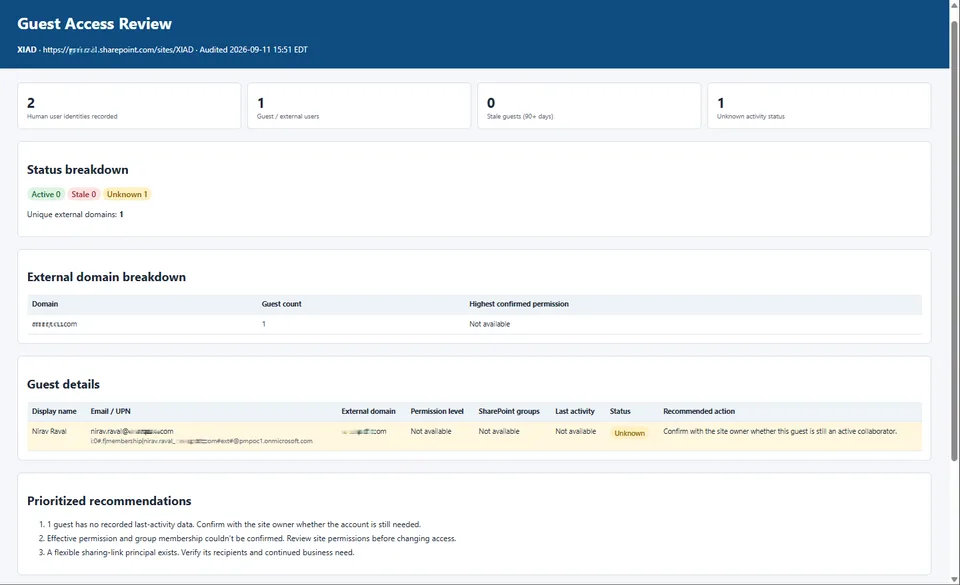
External collaborators accumulate on SharePoint sites over time — vendors, contractors, and clients who finished their engagement but were never removed. The Guest Access Reviewer enumerates every guest and external user who has any form of access to the current site, whether through SharePoint groups, direct role assignments, or sharing links.
Each guest is classified as Active (activity within 90 days), Stale (no activity in 90+ days), or Unknown (no activity data available), and the skill highlights accounts that pose the greatest governance risk. A domain breakdown shows which external organizations have the most representation on the site, and a prioritized recommendations section calls out elevated-permission guests and long-inactive accounts.
The output is a fully self-contained HTML report — no scripts, no external assets — saved to a Guest Access Reports folder on the site with a timestamped filename. The skill is strictly read-only: it never removes users, modifies permissions, or alters any content.
Enumerates every guest and external user who has access to the current SharePoint site, maps their permission levels, and flags stale accounts for review. Saves a color-coded, self-contained HTML report the site owner or governance team can act on — without modifying any permissions or content.
What you get
- A full list of all guest and external users with site access, including their display name, email, domain, permission level, and SharePoint group membership
- Status classification for each guest: Active (activity within 90 days), Stale (no activity in 90+ days), or Unknown (no activity data available)
- A domain breakdown table showing which external organizations have the most representation on the site
- A prioritized recommendations section calling out stale accounts, elevated-permission guests, and accounts with no activity data
- A color-coded, self-contained HTML report saved to the site with a timestamped filename
- Strictly read-only behavior — no users are removed, no permissions are changed, no content is altered
When to use
Ask Copilot:
- "guest access review" / "audit external users"
- "who has guest access on this site"
- "find stale guests" / "review external sharing"
- "which guests haven't been active recently"
- "external user audit" / "check guest accounts"
Use it during periodic access reviews, after a project or vendor engagement ends, before a site migration, or as part of a security and compliance review when you need a defensible snapshot of external access without touching anything.
Prerequisites
- A SharePoint site with at least one guest or external user
- Read access to site user information and permission data
- Permission to create the HTML report file in a document library on the current site
SharePoint Skill
| Solution | Author(s) |
|---|---|
| guest-access-reviewer | Nirav Raval | GitHub | LinkedIn |
Version history
| Version | Date | Comments |
|---|---|---|
| 1.0 | September 2026 | Initial Release |
Disclaimer
THIS CODE IS PROVIDED AS IS WITHOUT WARRANTY OF ANY KIND, EITHER EXPRESS OR IMPLIED, INCLUDING ANY IMPLIED WARRANTIES OF FITNESS FOR A PARTICULAR PURPOSE, MERCHANTABILITY, OR NON-INFRINGEMENT.
Package
Ready to install
The ZIP contains only the upload-ready inner skill folder.
472b70dd4208a1d84cbe70ffc1074ab519f5713a8e58a9ee572b463214378212View SKILL.md
---
name: guest-access-reviewer
description: Audits all guest and external user access on the current SharePoint site. Identifies who has been invited, what they can access, and flags stale accounts (no activity in 90+ days) for review or removal. Saves a self-contained HTML report. Use when the user says: - "guest access review" - "audit external users" - "who has guest access" - "review external sharing" - "find stale guests" - "external user audit" - "check guest accounts"
---

# Guest Access Reviewer

## Purpose

External collaborators accumulate on SharePoint sites over time — vendors, contractors, and clients who finished their engagement but were never removed. This skill enumerates every guest and external user who has access to the current SharePoint site, maps the groups and permission levels they hold, flags accounts that appear stale (no activity in 90+ days), and saves a self-contained HTML report that site owners and governance teams can act on. It is strictly read-only: it never removes users, modifies permissions, or changes any site content.

## Trigger Phrases

Activate this skill when the user says any of the following (or close variations):

- "guest access review" / "guest access audit"
- "audit external users" / "external user audit"
- "who has guest access" / "which guests have access"
- "review external sharing" / "external access review"
- "find stale guests" / "stale external users"
- "who are the external collaborators on this site"
- "check guest accounts"

## Inputs & Scope

Determine the scope from the user's request:

- **Current site (default)** — audit all guest users who have access to the current SharePoint site through any mechanism: SharePoint groups, direct role assignments, or sharing links.
- **Named site** — if the user names a specific site, resolve that site and audit it instead.

If no scope can be resolved, default to the current site and note that assumption in the report. Do not scan multiple sites unless the user explicitly asks.

## What counts as a guest or external user

Identify the following as guest or external users:

- Accounts whose User Principal Name (UPN) contains `#EXT#` — the standard Azure AD guest account marker
- Accounts in the `_spo_` guest account format used by SharePoint sharing
- Accounts with an email domain that differs from the host organization's primary domain(s) when this can be determined from context
- Users explicitly shown as "Guest" in SharePoint user information

Do **not** flag internal service accounts, system accounts, or Microsoft application identities as guests.

## Steps

### Step 1 — Resolve the site

Resolve the current SharePoint site URL. Record the site title, URL, and the exact date and time of the audit. Confirm read access to site user and permission data before proceeding.

### Step 2 — Enumerate all users with access

Collect every user who has any form of access to the site:

- Members of all SharePoint groups (Owners, Members, Visitors, and any custom permission groups)
- Users with direct permission grants not through a group
- Users visible in the site's user information list

For each user record, capture:
- Display name
- Login name / UPN
- Email address
- Whether the account appears to be a guest or external identity
- SharePoint group membership (all groups they belong to)
- Effective permission level (Owner / Edit / Read or equivalent custom level)

### Step 3 — Identify and profile each guest user

From the full user list, isolate the guest and external accounts using the criteria in **What counts as a guest or external user**.

For each guest, collect:
- Display name
- UPN / login name
- Email address
- External organization domain (derived from email)
- All SharePoint groups they belong to
- Effective permission level on the site
- Last activity or last modified date (from SharePoint user information or site audit logs, where available)
- Invited by (if determinable from SharePoint sharing records)

If a field cannot be determined, record it as "Not available" — do not omit it or invent a value.

### Step 4 — Classify each guest's status

Assign one of three statuses to each guest account:

| Status | Criteria |
|---|---|
| **Active** | Last activity date is within the past 90 days |
| **Stale** | Last activity date is available and is more than 90 days ago |
| **Unknown** | No last activity information is available from the current site data |

Assign a recommended action for each:
- **Active** → No immediate action; note for periodic review
- **Stale** → Recommend reviewing with site owner; consider removing access
- **Unknown** → Recommend confirming with site owner whether the guest is still an active collaborator

Do not classify a guest as Stale based solely on the absence of activity data — that is Unknown, not Stale.

### Step 5 — Summarize findings

Calculate the following metrics:

- Total users with site access
- Total guest / external users
- Guests by permission level (Owner / Edit / Read)
- Active guests
- Stale guests (90+ days)
- Unknown-status guests
- Number of unique external domains represented
- Top external domains by guest count

### Step 6 — Build a self-contained HTML report

Draft a single self-contained HTML file:

- No scripts. No external CSS, fonts, images, or other resources. Inline CSS only.
- Include a **summary band** with: site name, site URL, audit date/time, total users with access, total guest users, stale guest count, and unknown-status count.
- Include a **status breakdown** with color-coded indicators:
  - Green for Active
  - Red for Stale
  - Amber for Unknown
- Include a **domain breakdown table** showing each external domain, guest count from that domain, and highest permission level held by any guest from that domain.
- Include a **guest details table** with one row per guest:
  - Display name
  - Email / UPN
  - External domain
  - Permission level
  - SharePoint group(s)
  - Last activity date (or "Not available")
  - Status (Active / Stale / Unknown)
  - Recommended action
  - Row highlight: red for Stale, amber for Unknown, no highlight for Active
- Include a **prioritized recommendations section** in plain English, for example:
  - "5 guests from agency-partner.com have not been active in over 90 days. Review with the site owner and consider removing their access."
  - "3 guests have Owner-level permissions. Verify these elevated grants are still appropriate."
  - "6 guests have no recorded last activity. Confirm with the site owner whether these accounts are still needed."
- Include a **limitations section** whenever last-activity data was unavailable, data retrieval was partial, or any information could not be confirmed.

### Step 7 — Save the report

Save the HTML file to a **Guest Access Reports** folder in an appropriate document library on the current site.

- If the folder does not exist, create only that report folder, and only when needed to save the report.
- Use a clear timestamped filename: `Guest-Access-Report-<SiteName>-YYYY-MM-DD-HHMM.html`

### Step 8 — Respond to the user

After saving, reply with a compact Markdown summary and the report link:

```
# Guest access review complete

[Open the report](<link>)

- Site: <site name>
- Total users with access: <n>
- Guest / external users: <n>
- Stale guests (90+ days): <n>
- Unknown status: <n>
- Top recommendation: <1 concise sentence>
```

## Example

**User:** "Run a guest access review on this site."

**Agent response after processing:**

I reviewed guest access on the Marketing Hub and found 14 guest users across 6 external organizations.

| Metric | Result |
|---|---|
| Total guest users | 14 |
| Active | 6 |
| Stale (90+ days) | 5 |
| Unknown status | 3 |
| Highest-risk finding | 5 guests from agency-partner.com have not been active in over 6 months |

I saved the report to Guest Access Reports/Guest-Access-Report-Marketing-Hub-2026-09-11-1045.html. Recommended action: review the 5 stale agency-partner.com accounts with the site owner and consider removing their access.

## Constraints

- Strictly read-only for permissions and content. Never remove users, change permission levels, edit SharePoint groups, modify sharing settings, or alter any site content. The only write operation is saving the final HTML report file (and, if needed, creating the Guest Access Reports folder that holds it).
- Never invent user data, last-activity dates, or permission assignments. If information is not available from the current site's data, record it as "Not available" and surface the limitation in the report.
- Do not classify a guest as Stale based solely on the absence of last-activity data — that is Unknown.
- Do not make assumptions about whether a guest is still a valid collaborator based on their name, domain, or email alone.
- Keep the HTML fully self-contained: no scripts, no external assets, inline CSS only.
- If any data retrieval is partial or throttled, surface that clearly in the report's limitations section.
References
- agentskills.io specification
The specification that SharePoint AI skills follow for installation and discovery.
- External sharing overview — SharePoint in Microsoft 365
Microsoft documentation on managing external sharing and guest access in SharePoint Online.
Discuss this skill
Ask a question, share how you used it, or suggest an improvement with the community.
Open GitHub Discussions