
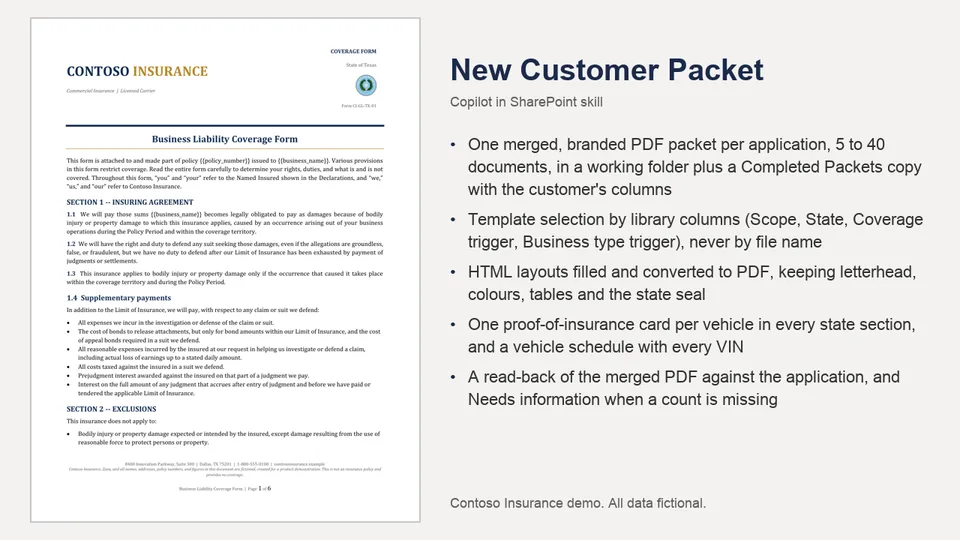
Reads one application PDF, fills the customer columns, selects the templates whose columns match the customer's state, coverage and business type, and freezes one ordered manifest.
Renders each document from its HTML layout with the state seal bound from a Seals folder, converts to PDF, merges once, copies the packet to a Completed Packets library and sets the statuses.
Stops with Needs information when a required count is missing. Carries a rulebook (packet-manifest.md) and a field map (template-fields.md) in its references folder.
Builds a complete, branded new-customer insurance packet from one application PDF, selected by library metadata and rendered from HTML layouts.
What you get
- One merged, branded PDF packet per application, 5 to 40 documents, in a working folder plus a Completed Packets copy with the customer's columns
- Template selection by library columns (Scope, State, Coverage trigger, Business type trigger), never by file name
- HTML layouts filled and converted to PDF, keeping letterhead, colours, tables and the state seal
- One proof-of-insurance card per vehicle in every state section, and a vehicle schedule with every VIN
- A read-back of the merged PDF against the application, and Needs information when a count is missing
- A rulebook in references/ that a business owner edits instead of the skill
Full demo, sample files, HTML layouts and setup: https://github.com/HassanJMoses/copilot-sharepoint-demos
Watch it run: Copilot in SharePoint for Insurance (video)
Install
Upload the inner new-customer-packet/ folder (SKILL.md and references/) into the site's Agent Assets › Skills folder. The folder name must match the name in SKILL.md. Open the Copilot pane and type / to see it.
This skill names its libraries by full address. Before uploading, replace https://YOUR-TENANT.sharepoint.com/sites/YOUR-SITE in SKILL.md with your site address. The libraries and columns it expects are listed in the demo repository's setup guide.
SharePoint Skill
| Solution | Author(s) |
|---|---|
| new-customer-packet | Hassan Moses | GitHub |
Version history
| Version | Date | Comments |
|---|---|---|
| 1.0 | October 2026 | Initial release |
Disclaimer
THIS CODE IS PROVIDED AS IS WITHOUT WARRANTY OF ANY KIND, EITHER EXPRESS OR IMPLIED, INCLUDING ANY IMPLIED WARRANTIES OF FITNESS FOR A PARTICULAR PURPOSE, MERCHANTABILITY, OR NON-INFRINGEMENT.
All companies, people, policy numbers and figures in the sample files are fictional, created for a product demonstration.
Package
Ready to install
The ZIP contains only the upload-ready inner skill folder.
View SKILL.md
---
name: new-customer-packet
description: |-
  Build a verified new-customer insurance packet from one New Customers application PDF. Fill the application's columns, select templates by metadata, freeze one ordered manifest, render each document from its HTML layout, merge once, and copy the packet to Completed Packets.

  Use when the user says:
  - "build package"
  - "create a new customer packet"
  - "process this application"
  - "build an insurance package for this customer"
  - "create an insurance packet"
metadata:
  author: HassanJMoses
---
# New Customer Packet

## When to use
Use for one selected New Customers application PDF. If no application is selected, ask which one.

## Inputs
- One selected New Customers application PDF. It is the only source of customer facts.
- `references/packet-manifest.md` (what goes in the packet and why) and `references/template-fields.md` (how to fill each placeholder).
- Libraries: **New Customers**, **Templates**, **Template Layouts**, **Packages**, **Completed Packets**.

## Library addresses
These are the absolute URLs of the five libraries on this site. Treat them as constants for the whole run: every tool call takes the relevant library URL as its anchor (`listUrl`), and names a file or folder only relative to it. Never build an address from a path, never prefix a folder with the library name, and never use a server-relative path (`/sites/...`) where a library URL is expected.

| Library | URL |
|---|---|
| New Customers | `https://YOUR-TENANT.sharepoint.com/sites/YOUR-SITE/NewCustomers` |
| Templates | `https://YOUR-TENANT.sharepoint.com/sites/YOUR-SITE/Templates` |
| Template Layouts | `https://YOUR-TENANT.sharepoint.com/sites/YOUR-SITE/TemplateLayouts` |
| Packages | `https://YOUR-TENANT.sharepoint.com/sites/YOUR-SITE/Packages` |
| Completed Packets | `https://YOUR-TENANT.sharepoint.com/sites/YOUR-SITE/Completed Packets` |
| Seals (folder in Template Layouts) | `https://YOUR-TENANT.sharepoint.com/sites/YOUR-SITE/TemplateLayouts/Seals` |

The state seals are image files in the Seals folder and nowhere else: `tx_seal.png`, `fl_seal.png`, `la_seal.png`. The file writer binds them by drive-item URL, resolved in step 1b. Never search the site for a seal.

The business's working folder is `folderPath: "<Business name>"` under the Packages URL, for example `listUrl: "https://YOUR-TENANT.sharepoint.com/sites/YOUR-SITE/Packages", folderPath: "Zava Roofing LLC"`. If `tools.lists.discover` returns a different URL for one of these libraries, use the discovered one and say so.
## Tool contract
- Read the application and layouts with `tools.files.read({fileUrl})`.
- Discover libraries with `tools.lists.discover({webUrl, filterType:"documentLibraries"})`.
- Read template metadata with `tools.lists.getItems({listId:templatesId, itemType:"files", recursive:true, viewFields:["FileLeafRef","DocumentType","Scope","TemplateState","CoverageTrigger","BusinessTypeTrigger","PacketOrder","FormNumber"]})`. Those are the internal column names; `tools.lists.getSchema({listId})` is only for confirming them when a listing comes back without the columns.
- Update columns only with `tools.lists.updateItems({listUrl, items:[...]})`.
- Create a Packages folder only with `tools.files.createFolder(...)`.
- Create working files (each row's filled `.html`, then its `.pdf`) only with `tools.output.createFile({fileName, content, images, folderPath, listUrl})`, one file per call. Address the destination the same way every time: `listUrl` is the Packages URL from Library addresses, and `folderPath` is the business name only. Use that same pair for `createFolder`, every `createFile`, and the merge.
- The state seal: every state layout's seal is `<img src="{img:state-seal}">`, the file writer's own image placeholder. Bind it on the `.html` call with the `sp` source and the seal file's drive-item URL in the field `spItemUrl` (proven 2026-10-11: the writer embedded `tx_seal.png` byte for byte):
  `images:[{placeholder:"state-seal", description:"<State> state seal", source:"sp", spItemUrl:"<the seal file's item URL>"}]`
  The item URLs are resolved once per run, in step 1b, by listing the Seals folder; they have the shape `https://<tenant>.sharepoint.com/_api/v2.0/drives/<drive id>/items/<item id>?version=Published`, and they differ on every site, so they are never written into this skill or typed by hand. Use the Texas URL for every Texas document, the Florida URL for every Florida document, the Louisiana URL for every Louisiana document.
  Never read a seal file with `tools.files.read` (it returns no content for an image, and that is not a blocker), and never search the site for a seal. Never use `source:"stock"`: it is a stock photo library, and "Seal of Louisiana" returned a photograph of a cardboard box. Never use `session` or `data`. If the writer rejects a `spItemUrl`, list the Seals folder again and retry with the URL it returns; if it is still rejected, stop the run and report the exact error text; a packet is never built with a wrong image or without the seal.
  Standard layouts have no seal: pass `images: null`.
- Merge only with `tools.files.mergePdfs({sourceListFullUrl, sourceRelativeItemPaths, destinationListFullUrl, destinationRelativeFolderPath, destinationFileName})`.
- Copy only with `tools.files.copy({jobs:[...]})`.

Writes go only to: the selected application's columns in New Customers; one folder and its working `.html` and `.pdf` files in Packages; one merged PDF and its columns in Completed Packets. Never write to Templates or Template Layouts.

## Steps

### Read and decide
1. Read both reference files. If either is missing or unreadable, stop and build nothing.
1b. Resolve the seal item URLs, before anything else is read: discover Template Layouts with `tools.lists.discover`, then list its `Seals` folder with the file-listing tool (`tools.lists.getItems({listId:templateLayoutsId, itemType:"files", folderPath:"Seals", viewFields:["FileLeafRef"]})`, or the find-items tool) and take, for each of `tx_seal.png`, `fl_seal.png`, `la_seal.png`, the item URL the tool returns for that file. Write the three URLs down as this run's constants; the tool contract says how they are used. The folder holds exactly those three files. If the listing returns no item URL, repeat it with the other listing tool; never read the image files and never go on without the three URLs.
2. Read the complete application PDF, including the page 2 vehicle schedule. Coverage comes only from checked boxes; check visually when the text layer is unclear.
3. Fill the New Customers columns for the selected application as the manifest directs. Home state comes from the business address. Other states come only from qualifying sales-conversation sentences, each with its exact quoted sentence.
4. Apply the stop rules (manifest section 4 and template-fields). The missing-count rule is a pair test, never a value test: a count matters only when its coverage is ticked (Vehicles with Commercial vehicles, Employees with Workers' compensation). Coverage not ticked: the count may be `N/A` or blank and the build goes ahead. Coverage ticked and the count is not a whole number greater than zero: that is the missing value. If a stop rule applies, set Package status to `Needs information`, report the exact missing value, and build nothing.
5. The customer's states are the home state plus every Other state from step 3. Write the list down before selecting, for example `TX (home), LA`. Every state in it gets its full state section; the manifest has as many state sections as there are states in this list, and a packet with a state in Other states but no section for it is wrong.
6. Discover Templates with `tools.lists.discover` to get its list ID, then call `tools.lists.getItems` exactly as the tool contract shows, with those eight `viewFields`, to get every `.docx` file with its Document type (`DocumentType`), Scope, State (`TemplateState`), Coverage trigger, Business type trigger, Packet order and Form number. These seven columns exist on Templates and every template has values in them; that is a fact about this site, not something a tool result can contradict. A listing that comes back without them means the call was wrong, not the library: repeat `tools.lists.getItems` with the `viewFields` array exactly as the tool contract shows; if the columns are still absent, call `tools.lists.getSchema` on Templates to confirm the internal names and repeat the listing; if still absent, re-discover Templates with `tools.lists.discover` (the list ID may be another library's) and repeat. Never conclude that the metadata is missing, never select by file name, and never give up on this step. Select every template whose Scope is Standard, plus every template whose State is any state in the step 5 list (not only the home state), filtered by Coverage trigger and Business type trigger as the manifest says. Select by those columns only, never by file name. Do not read the templates; the layouts are what get filled.
7. List the file names in Template Layouts. Each selected template's layout has the same base name with `.html`. Do not read any layout yet. Do not read or search for seal files: the seal is bound by address from the Seals folder, as the tool contract shows.

### Freeze the manifest
8. Build one ordered manifest. Each row is one output document: sequence, title, form number, section, reason (worded as manifest section 5 says), layout path, the values to fill, and a unique working filename (`<name>.html` and `<name>.pdf`).
9. Repeated documents are separate rows from the same layout. Each state section's Proof of Insurance Card gets one row per vehicle, each with its own VIN and filename `<State> - Proof of Insurance Card - <VIN>.pdf`. Cards in a second state are correct, not duplicates. Each Commercial Vehicle Schedule lists every vehicle in the application's order.
10. Values: `N/A` on the application is a valid value and is copied exactly; it means that coverage was not bought. Never drop a document because a value is `N/A`.
11. Before freezing, compute the expected document count from the template listing and the application, not from the manifest:
    - Standard: the number of Scope = Standard templates whose triggers pass.
    - For each state code in the step 5 list: the number of that state's templates whose triggers pass, counting the Proof of Insurance Card template once per vehicle instead of once.
    - Expected = Standard + the sum over every state. Write the arithmetic out, for example `5 + (7 + 6) + (7 + 6) = 31`.
    The manifest must have exactly one state section per code in the list and exactly this many rows. If either differs, the manifest is wrong; go back to step 6 and select for the missing state. Then record the expected document count, the VIN list and a receipt (application identity, selected template identities, the manifest). On a retry with the same application and templates, reuse this manifest. Do not reselect. The manifest is not a checkpoint: do not present it, ask whether to proceed, or end the response here. Go straight to step 12 in this same response.

### Render
This runs in the same response as the steps above and continues until the merged PDF is in Completed Packets. There is no point before step 19 at which to stop and report.

12. Discover Packages and Completed Packets and keep each one's exact URL. Create or reuse one Packages folder named for the business, and check its URL is in Packages. Files already in that folder from an earlier run (an earlier press of the button, a different conversation) are not reused: every row is rendered again in step 13 and its `.html` and `.pdf` overwritten, and the merge in step 16 is made again from the new files. Within this run it is the opposite: after a failed call or an interruption, continue from the first row whose `.html` and `.pdf` this run has not yet written; never re-render rows this run already completed.
13. For each manifest row, in order, one row at a time; finish a row, then immediately start the next, without summarising or asking in between:
    - Read the row's layout and replace its `{{...}}` placeholders with the row's values. Every value comes from the application and is the same on every document in every section: `{{state}}`, `{{city}}`, `{{street_address}}` and `{{zip_code}}` are the business address on the application, so `{{state}}` is the home state code on a Texas document, a Louisiana document and a Florida document alike. The document's own state is already in its wording and is never a fill value. For a Commercial Vehicle Schedule, the table has 12 numbered rows: fill `{{vehicleN.*}}` for N = 1 to the vehicle count from the application's vehicle schedule in order, and replace every remaining `{{vehicleN.*}}` placeholder with nothing. Never add, copy or delete a row; this document is a plain substitution like every other.
    - Keep everything else in the layout exactly as it is: the whole document from `<!doctype html>` to `</html>`, the `<style>` block, every inline `style`, the letterhead, the coloured rule, the footer, and the seal's `<img src="{img:state-seal}">` exactly as it is. `{img:state-seal}` is the writer's image placeholder, not a customer value: never replace it, and do not count it in the `{{`/`}}` check.
    - Check that no `{{` or `}}` remain and, for a vehicle row, that its VIN is present.
    - Save the filled HTML as the row's `.html` file in the Packages folder with `tools.output.createFile`, one row per call, with the state's `images` entry from the tool contract for a state document (`images: null` for a Standard one). Leave out `sheets`, `slides` and every field meant for another file type; do not send them empty.
    - If `tools.output.createFile` reports an unresolved image placeholder, the `images` entry is missing or its `placeholder` is not exactly `state-seal`; send the entry from the tool contract and retry the same HTML. Never remove the seal's `<img>` to get past the error.
    - Convert that saved `.html` file to the row's `.pdf` in the same folder. The PDF must be rendered from the HTML file, so it keeps the fonts, colours, rule, tables and seal. Never render from Markdown, plain text or a summary of the document, never rebuild the document from its text, and never write a script to render.
14. If a render fails, retry that row until it succeeds. A timeout, an internal error or an empty result from `tools.output.createFile` or the PDF conversion is a failed render: repeat the same call for the same row, then carry on with the next row. Never stop the run or report because a call timed out, and never substitute another layout.
15. List the Packages folder and reconcile it with the manifest by filename: every row's `.pdf` (and its `.html`) exactly once, no extras. Stop on any missing, duplicate or unlisted file.

### Merge, copy and close
16. Merge once, using only the manifest's `.pdf` filenames in manifest order, to `<Business name> - New Customer Package.pdf` in the Packages folder.
17. Read the merged PDF back and check exactly these five things, nothing else: (a) every manifest row's document is present once, in manifest order, with no extras; (b) no `{{` or `}}` remains; (c) every filled value matches the application (business name, mailing address, policy number, period, contact, limits, counts, VINs); (d) each state section has one card per vehicle; (e) every VIN is on each vehicle schedule. A discrepancy is a failure of one of those five checks and nothing else. Stop only on a discrepancy.
    The layouts' own wording is never a discrepancy and is never corrected. Every document in a template carries that template's fixed text for every customer: a Policy's coverage table lists every coverage line including "Commercial Vehicles: As scheduled" and its schedule of forms lists every form of that state, whether or not this customer bought that coverage; a value of `N/A` is correct wherever the application says `N/A`. A state document carries its own state in its title, form number, seal, "Policy State" line and wording; that is the document's state, not the customer's, and a Texas document in the Texas section is correct for a Florida customer whose mailing address stays the Florida business address. Do not stop, and do not report a layout as needing correction, for any of these.
18. Copy only the verified merged PDF to the Completed Packets root and check the copy is there. Set its columns: Business name, Contact name, Contact email, Policy number, Policy start date, Home state, Application (link to the application PDF), Approval status `Ready for approval`, Packet status `Packet Complete`.
19. Only after step 18 is verified, update the application: Documents included and why (from the manifest), Package link, and Package status `Package ready`.

## Output format
Report business name and Package status; the receipt; the Packages folder and merged PDF; the Completed Packets file and its columns; the manifest (each row's title, form number, reason and layout); any retried rows. If nothing was built, report the exact blocker.

## Constraints
Never infer facts, select by file name, read layouts before step 13, create unlisted files, rediscover or reorder after the manifest is frozen, or claim a result a tool did not confirm. If a tool fails or returns nothing, say so plainly.
References
- agentskills.io specification
The specification that SharePoint AI skills follow for installation and discovery.
- New Customer Packet demo
The full demo: story, sample files, HTML layouts, setup and video.
- Demo video
Copilot in SharePoint for Insurance: the three skills run end to end.
Discuss this skill
Ask a question, share how you used it, or suggest an improvement with the community.
Open GitHub Discussions