
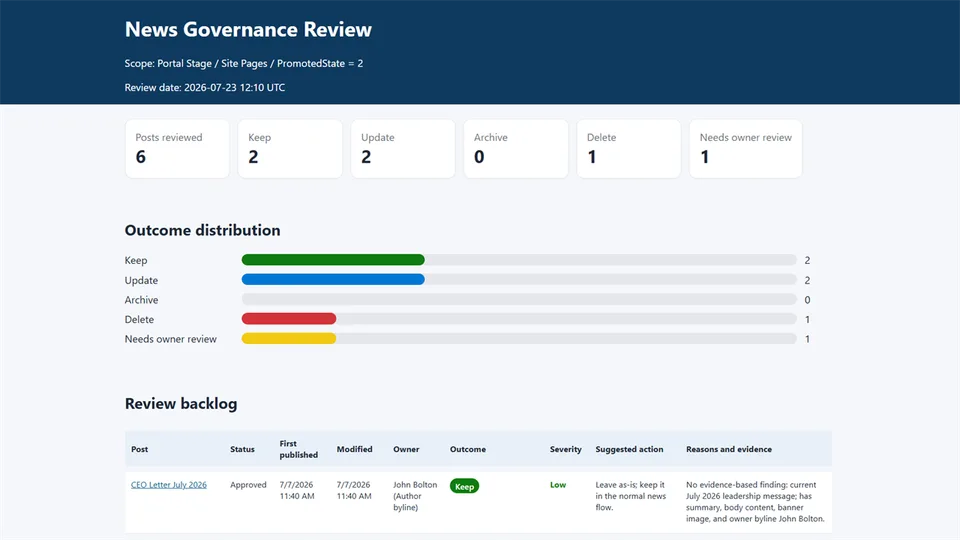
Intranet news flows fill up over time with posts that are outdated, half-finished, mistargeted, or ownerless, and important news gets pushed down and missed. This skill gives site owners, editors, and communications teams a structured governance review of the news on a site. It pages through every news post and evaluates each one against freshness, publication-quality, governance, findability, relevance, and link-quality rules, using only the default Site Pages fields, so it works on any modern SharePoint site without custom columns or setup.
Every post receives a recommended outcome: Keep, Update, Archive, Delete, or Needs owner review, with evidence-based reasons and a High/Medium/Low severity, so the output works directly as a prioritized cleanup backlog. Unverifiable links are marked 'Link should be manually verified'. Results are saved as a color-coded, self-contained HTML dashboard in a News Review Reports folder. The skill is strictly advisory and read-only: it never deletes, unpublishes, archives, or edits any page; content owners decide what happens. Trigger phrases include 'review news', 'news governance', 'audit news posts', 'find outdated news', and 'news cleanup backlog'.
Reviews the news posts on a SharePoint intranet site and flags content that appears obsolete, draft-like, incomplete, poorly targeted, or missing ownership. It uses only the default Site Pages fields, so it works on any modern SharePoint site - no custom columns or setup required. Each post gets a recommended outcome - Keep, Update, Archive, Delete, or Needs owner review - with evidence-based reasons and a severity, delivered as a self-contained HTML dashboard that works directly as a cleanup backlog. It is strictly advisory and read-only: it never deletes, unpublishes, archives, or edits anything.
What you get
- Every news post in scope classified as Keep / Update / Archive / Delete / Needs owner review, with the specific reasons and evidence behind each recommendation (Archive means "take out of the news flow but keep the content" — e.g., demote from news, move to an archive section, or unpublish — since SharePoint has no page-level archival)
- Severity per finding (High / Medium / Low) so the report reads as a prioritized backlog
- Obsolete-content detection: events and deadlines that have passed, "coming soon" wording with no later update, references to retired systems
- Draft-like and incomplete content detection: placeholders (
TBD,TODO,test,lorem ipsum), missing summaries, near-empty bodies, missing banner images - Governance and findability checks: unclear ownership, vague titles, generic summaries
- Owner identification with a fallback chain (author byline → last modified by → created by), flagging accounts that no longer resolve as "owner may have left - verify"
- Link quality findings, with "Link should be manually verified." for anything unverifiable
- A color-coded, self-contained HTML dashboard saved to a
News Review Reportsfolder - Strictly read-only: every action is a suggestion - content owners decide what happens
When to use
Ask Copilot any of the following (or close variations):
- "review news" / "review our news posts" / "news review report"
- "news governance" / "audit news posts"
- "check news quality" / "find outdated news"
- "clean up intranet news" / "news cleanup backlog"
- "which news posts are obsolete"
Be on the site whose news you want to review, name a site or pages library, or select specific pages — the skill reviews the current site's news posts (Site Pages promoted as news) by default. Optional filters like "news older than a year" or "the 20 oldest posts" are honored.
Prerequisites
- A SharePoint site with news posts in its Site Pages library.
- Read access to the pages. The skill only reads pages and metadata and writes an HTML report file - it never changes pages, metadata, or the library, so no special setup is required.
- Works with the default Site Pages schema - no custom columns (expiry date, owner, category, tags, audience targeting) are needed or evaluated.
SharePoint Skill
| Solution | Author(s) |
|---|---|
| news-governance-review | Saurabh Tripathi |
Version history
| Version | Date | Comments |
|---|---|---|
| 1.0 | July 2026 | Initial Release |
Disclaimer
THIS CODE IS PROVIDED AS IS WITHOUT WARRANTY OF ANY KIND, EITHER EXPRESS OR IMPLIED, INCLUDING ANY IMPLIED WARRANTIES OF FITNESS FOR A PARTICULAR PURPOSE, MERCHANTABILITY, OR NON-INFRINGEMENT.
Package
Ready to install
The ZIP contains only the upload-ready inner skill folder.
b9e9487c7bec6f095af7b9b11efb14627bdca9631ca94a07772e943e55329586View SKILL.md
---
name: news-governance-review
description: |-
  Reviews SharePoint news posts in an intranet site or Site Pages library and flags content that appears obsolete, draft-like, incomplete, poorly targeted, missing ownership, or no longer relevant. It uses only the default Site Pages fields, so it works on any modern SharePoint site. For every post it assigns a review outcome (Keep, Update, Archive, Delete, or Needs owner review) with evidence-based reasons and a severity, and saves a self-contained HTML review dashboard the team can use as a cleanup backlog.

  It is strictly advisory and read-only - it never deletes, unpublishes, archives, or edits any page.

  Use when the user says:
    - "review news"
    - "news governance"
    - "audit news posts"
    - "review our news posts"
    - "check news quality"
    - "clean up intranet news"
    - "news cleanup backlog"
    - "find outdated news"
    - "which news posts are obsolete"
    - "news review report"
---

# News Governance Review

## Purpose

Intranet news flows fill up over time with posts that are outdated, half-finished, mistargeted, or ownerless, and important news gets pushed down and missed. This skill gives site owners, editors, and communications teams a structured governance review of the news on a site.

It evaluates each news post against freshness, publication-quality, governance, findability, relevance, and link quality, assigns a recommended outcome with reasons, and produces a color-coded HTML dashboard that works directly as a cleanup backlog. It relies only on the **default Site Pages fields** available on every modern SharePoint site; no custom columns are required.

It is **strictly advisory and read-only**: it reads pages and metadata, but never deletes, unpublishes, archives, edits, or reclassifies anything. Every decision to keep, update, archive, unpublish, or delete stays with a human content owner.

## Trigger Phrases

Activate this skill when the user says any of the following (or close variations):

- "review news" / "review our news posts" / "news review report"
- "news governance" / "audit news posts"
- "check news quality" / "find outdated news"
- "clean up intranet news" / "news cleanup backlog"
- "which news posts are obsolete"

## Inputs & Scope

Determine the review scope from the user's request and the current context, in this order:

1. **Selected pages**: if the user has news posts/pages selected or says "these/this", review exactly the selection.
2. **Named site or library**: if the user names a site or a pages library (e.g., "review the news on the HR site"), resolve it and review its news posts.
3. **Current site's news**: if no other scope is given, review the news posts in the current site's **Site Pages** library.
4. If no scope can be resolved, ask the user which site, library, or pages to review. Do not guess.

**What counts as a news post:** pages in the Site Pages library whose `PromotedState` is `2` (promoted as news). If the user explicitly asks to include all site pages, widen the scope and say so in the report. If `PromotedState` is unavailable, fall back to reviewing all pages in the resolved library and record that in the report's limitations section.

**Optional filters:** honor any date range ("news older than a year"), author, or count limit ("the 20 oldest posts") the user provides.

Only review content the current user can already access. Never invent pages, dates, owners, or values.

## Fields Reviewed

For each news post, read the default Site Pages fields:

- **Title** and the page **URL / file name**
- **Body content** of the page (text, headings, links)
- **Description / summary** (the preamble shown in news web parts)
- **Publish status** (published, draft/pending, scheduled) and `PromotedState`
- **First published date** and **Modified date**
- **Author byline**, **Author** (created by), and **Editor** (last modified by)
- **Owner resolution**: determine the responsible person via this fallback chain:
  1. the author byline, if set
  2. `Editor` (last modified by)
  3. `Author` (created by)
     For the resolved person, check whether the account still **resolves**: a person value that renders as an unresolved claim string, a bare login name, a blank where a display name should be, or a system account suggests the person may have left. Note this as "owner may have left - verify"; never assert it as fact (the skill cannot query the directory).
- **Banner image** presence

Do not require or look for custom governance columns (expiry date, content owner, category, tags, audience targeting). This skill is designed to work on sites with the default schema. If a read shows such columns exist, you may mention them in the report's limitations section as "not evaluated", but never treat their absence or emptiness as a finding.

## Review Rules

Evaluate each post against the rule groups below. Every flag must cite concrete evidence from the page (a phrase, a date, a missing field). Never flag on a hunch you cannot show.

Evaluate **fresh on every run** from the current page content. Never reuse outcomes or findings from an earlier report or an earlier turn in the conversation.

### Rule group A: Freshness (obsolete content)

Flag when:

- the post announces an event, deadline, campaign, launch, or registration whose date has clearly passed, with no later update
- the post is an **announcement whose news value has expired**: it introduces something as new, changed, or upcoming ("new look", "introducing", "now available", "is rolling out", "coming to...") and is older than the staleness threshold - the announced change has long since become the norm, so the post no longer informs anyone. This applies even when the content is factually accurate. Typical outcome: **Archive**, low severity.
- the post uses time-anchored wording such as "coming soon", "next week", "register by", "launches on", "starting Monday" and was last modified well before that timeframe
- the post directs readers to systems, portals, pages, or processes described as being replaced or retired
- the post is operational/process-related and has not been modified for a very long time (default: 12+ months; use the user's threshold if they give one). The staleness threshold (default **12 months** since last modified) applies to announcement posts as well as operational ones. A news post older than the threshold should only be **Keep** if it has lasting reference value in its current form (e.g. evergreen guidance that is still accurate). Say so explicitly in the reasons.

### Rule group B: Publication quality (draft-like / incomplete)

Flag when:

- the body contains placeholder text: `TBD`, `TBC`, `TODO`, `draft`, `test`, `lorem ipsum`, `xxx`, `[insert...]`, `WIP`, or similar (case-insensitive)
- the title is missing, generic ("New page", "Untitled", "Test"), or a bare date/filename
- the description/summary is empty or whitespace
- the body is empty or very short (default: under ~50 words of real content)
- the page has visibly unfinished sections, dangling headings, or broken formatting
- the banner image is missing, if the site's news posts consistently use one
- the page is still a draft or pending approval but appears long-abandoned (old modified date)

### Rule group C: Governance (ownership)

Flag when:

- no responsible owner can be identified after the owner fallback chain (author byline → `Editor` → `Author`)
- the resolved owner's account shows signs of not resolving (unresolved claim string, bare login name, blank display name, or a system/service account). Flag as "owner may have left - verify" with outcome **Needs owner review**, never as a confirmed departure
- the topic clearly does not match the site's stated purpose or audience

### Rule group D: Findability

Flag when:

- the title contains no useful search words (vague, jargon-only, or purely internal codes)
- the summary is generic boilerplate that does not describe the content

### Rule group E: Relevance and channel fit

Flag when:

- the topic does not match the site's purpose
- the intended audience is unclear from the content
- the content is too local, too project-specific, or too narrow for the site's audience
- the content would clearly fit better in Teams, Viva Engage, email, or a project site. Say which and why.
- the post appears to be personal, test, or non-business content

### Rule group F: Link quality

For links in the body, flag:

- unclear anchor text ("click here", "read more", bare URLs)
- links pointing to legacy portals or pages that appear superseded
- the same link repeated unnecessarily
- links unrelated to the article topic
  For any link whose target cannot be verified from within SharePoint, write exactly:
  **"Link should be manually verified."** Never report a link as broken unless you actually observed that it is.
  **Unverifiable links are informational only**: they go in the report's links-to-verify section but must **not** change the post's outcome or severity. Only an actually observed problem (broken target, superseded legacy portal, misleading anchor) counts as a finding that can affect the outcome. A recent, complete, relevant post with unverifiable links is still **Keep**.

## Review Outcomes

Assign exactly one outcome per post:

| Outcome                | Meaning                                                                      |
| ---------------------- | ---------------------------------------------------------------------------- |
| **Keep**               | Content appears current, complete, relevant, and well-governed.              |
| **Update**             | Content is useful but needs correction, refresh, or a clear owner.           |
| **Archive**            | Content may have historical value but should no longer be prominent news.    |
| **Delete**             | Content appears clearly obsolete, test/placeholder, or of no residual value. |
| **Needs owner review** | Evidence is mixed or insufficient; a human must decide.                      |

**What "Archive" means for pages:** SharePoint has no native page-level archival (Microsoft 365 Archive works on sites, files or folders, not pages). Archive is therefore a recommendation for the owner to take the post out of the prominent news flow while keeping the content, for example by: demoting it from news to a standard page, moving it to a dedicated archive folder or section in Site Pages, unpublishing it to draft, or moving the content to a reference/archive site. When recommending Archive, name the mechanism that fits the post (e.g., "demote from news - the content is still a valid reference").

Decision guidance:

- Every outcome **must** list the specific reasons (rule group + evidence) behind it.
- Also assign a **severity** so the report reads as a prioritized backlog: **High** (misleads readers or crowds out real news now), **Medium** (quality/governance gap worth fixing), **Low** (cosmetic or minor).
- **Calibrate severity by reader harm, never by outcome.** Severity is independent of the Keep/Update/Archive/Delete outcome. A post that is merely old but harmless is **Low**; stale wording on otherwise-valid content is **Medium**; **High** is reserved for posts that actively mislead readers today (wrong instructions, dead processes presented as current, passed deadlines readers might still act on). In a healthy review, High should be the smallest group. If most posts come out High, re-check the calibration.
- **Severity must be justified by the cited evidence.** Set severity to match the most harmful finding listed in the reasons. A post with **no findings** ("No evidence-based finding") is always **Low**, never Medium or High. Two posts with the same findings must get the same severity.
- **Prefer Update over Archive for evergreen content.** If the instructional or reference value of a post is still accurate and only its time-anchored wording is stale ("rolling out in March", "coming soon"), recommend **Update** (refresh or remove the dated wording) rather than Archive. Reserve Archive for posts whose entire subject is over.
- The **suggested action must be post-specific**: name what to fix, remove, or verify in that post (e.g., "Remove the completed-rollout paragraph; the how-to steps are still valid"). Never repeat one generic sentence across many posts.
- **Keep is a real outcome, not a rarity.** A post whose information is still accurate and complete should be **Keep** even if it is old; age alone is not a finding unless the content is time-sensitive. Do not invent a flag just to move a clean post out of Keep.
- **Delete** requires hard evidence: explicit test/placeholder content or an event long past with no residual value. Inference-only findings (e.g., suspected irrelevance) must not produce Delete.
- When uncertain, default to **Needs owner review**. Never escalate uncertainty into Archive or Delete.
- All outcomes are **suggestions only**. The skill performs none of them.

## Steps

### Step 1: Resolve scope

Resolve the target per **Inputs & Scope**. Briefly tell the user the scope (site, library, or selection, and the post count if known) before proceeding.

### Step 2: Read the news posts

Use `list_items` filtered to news posts (`PromotedState = 2` unless scope says otherwise), projecting the fields listed under **Fields Reviewed**. **Page through the entire set.** Do not stop at the first page. Then read each page's content. For large sets (over ~100 posts), tell the user the count, suggest narrowing (date range, oldest first), and if they want the full set, process in batches while keeping running totals. If a read fails or returns partial data, record it plainly in the report's limitations section rather than guessing.

### Step 3: Evaluate every post

Apply rule groups A–F to each post, collecting evidence per flag. Then assign the outcome and severity per **Review Outcomes**.

### Step 4: Sanity-check the outcome distribution (mandatory)

Before building the report, count the outcomes. If any single outcome holds **more than 60%** of the posts, you must:

1. Take 10 posts (or all, if fewer) from that outcome group.
2. Re-apply the **Review Outcomes** decision guidance to each, one by one, with particular attention to "Prefer Update over Archive for evergreen content" and "Keep is a real outcome".
3. Reclassify any post that was misfiled, then re-count. State in the report's limitations section that this check ran and what changed (even if nothing changed). A healthy review of a real site almost always spreads across Keep, Update, and Archive. Do not force a distribution, but never let one outcome become the default.

### Step 5: Build a self-contained HTML dashboard

Draft a single **self-contained** HTML file:

- No scripts. No external CSS, fonts, images, or resources. **Inline CSS only.**
- **Page layout**: set `body { margin: 0; }` and wrap **every section (header band included) in the same centered container** (e.g. `max-width: 1100px; margin: 0 auto; padding: 0 24px;`). If the header band has a background color, give the background to a full-width outer div and put the container inside it. Never give the header or any section its own fixed pixel width - mismatched widths leave empty gutters beside the content.
- When generating the HTML programmatically, build it with **plain string concatenation**
  — avoid nested template literals/backticks and complex regex, which commonly break code execution. If HTML generation fails twice, fall back to presenting the full review as a Markdown table in chat and say the dashboard could not be saved.
- **Summary band**: posts reviewed, scope, review date, and counts per outcome (Keep / Update / Archive / Delete / Needs owner review).
- **Outcome distribution**: one row per outcome with a horizontal bar drawn with inline-CSS width. Color by outcome: green = Keep, blue = Update, amber = Archive / Needs owner review, red = Delete.
- **Review table**: one color-coded row per post: title (linked to the page), publish status, first published, last modified, owner (with its source, e.g. "Editor fallback", or "none found"; append "- verify" when the account may not resolve), outcome as a colored pill, severity, suggested action, and the reasons with their evidence.
- **Building page links**: SharePoint returns **server-relative** paths that already contain the site path (e.g. `/sites/Contoso/SitePages/Page.aspx`). To make an absolute URL, prepend only the tenant root (`https://tenant.sharepoint.com`). Never prepend the full site URL, or the site path will be duplicated (`.../sites/Contoso/sites/Contoso/...`). If the item already provides an absolute URL, use it as-is. Spot-check one generated link against the site URL before building the rest.
- **Links to verify section**: pages with flagged links and the exact links, each marked "Link should be manually verified." where applicable.
- **Limitations section**: pages that could not be read, links that could not be checked, custom columns present but not evaluated, and anything else not covered.

### Step 6: Save the report

- Save the HTML file in a `News Review Reports` folder in an appropriate document library on the current site. Create that folder **only if it does not exist** and only to hold reports.
- Use the filename: `News-Governance-Review-<Site>-YYYY-MM-DD-HHMM.html`.

### Step 7: Respond to the user

After saving, reply with a compact Markdown summary and the report link:

```markdown
# News governance review complete

[Open the report](<link>)

- Scope: <site / library / selection reviewed>
- Posts reviewed: <n>
- Outcomes: Keep <n> · Update <n> · Archive <n> · Delete <n> · Needs owner review <n>
- Top findings: <the 2–3 highest-severity items in one line each>

No content was changed. Every action above is a suggestion for the content owners.
```

## Example

**User:** "Run a news governance review on this site."

**Agent response after processing:**

> I reviewed **42 news posts** on the **Communications** site (Site Pages, PromotedState = 2).
>
> | Metric             | Result |
> | ------------------ | ------ |
> | Keep               | 21     |
> | Update             | 9      |
> | Archive            | 6      |
> | Delete             | 2      |
> | Needs owner review | 4      |
>
> Highest-severity findings:
>
> - **"Register for the 2024 Summer Picnic"**: event passed 2 years ago, registration link likely dead (Delete, High). Link should be manually verified.
> - **"Test news post"**: placeholder body, no summary, no image (Delete, High).
> - **"Intranet tips"**: summary is generic boilerplate and the title has no useful search words (Update, Low).
>
> I saved the dashboard to `News Review Reports/News-Governance-Review-Communications-2026-07-22-1015.html`.
>
> No content was changed. All actions are suggestions for the content owners.

## Constraints

- **Strictly advisory and read-only.** Never delete, unpublish, archive, demote, edit, or reclassify any page, and never change page metadata, the library, its views, or its settings. The only thing this skill writes is the HTML report file (and, if needed, the
  `News Review Reports` folder to hold it).
- Never fabricate pages, dates, owners, links, or field values. Everything must come from the actual site.
- Use only the default Site Pages fields; do not require, create, or evaluate custom governance columns.
- Only review content the current user can already access; never work around permissions.
- Make no legal, records-retention, or compliance determinations. Flag for human review instead.
- Never assert that a person has left the organization or that an account is disabled; the skill cannot query the directory. Report resolution problems only as "owner may have left - verify".
- Every recommendation must include its reasons and evidence; uncertain cases go to **Needs owner review**, and **Delete** is never suggested on inference alone.
- Use the exact hedged wording for unverifiable links ("Link should be manually verified.").
- Do not call external systems, custom APIs, or anything outside SharePoint and Microsoft 365 Copilot.
- Page through the entire reviewed set; report partial results plainly if a tool fails.
- The HTML report must be fully self-contained: no scripts, no external resources, inline CSS only.
References
- agentskills.io specification
The specification that SharePoint AI skills follow for installation and discovery.
Discuss this skill
Ask a question, share how you used it, or suggest an improvement with the community.
Open GitHub Discussions