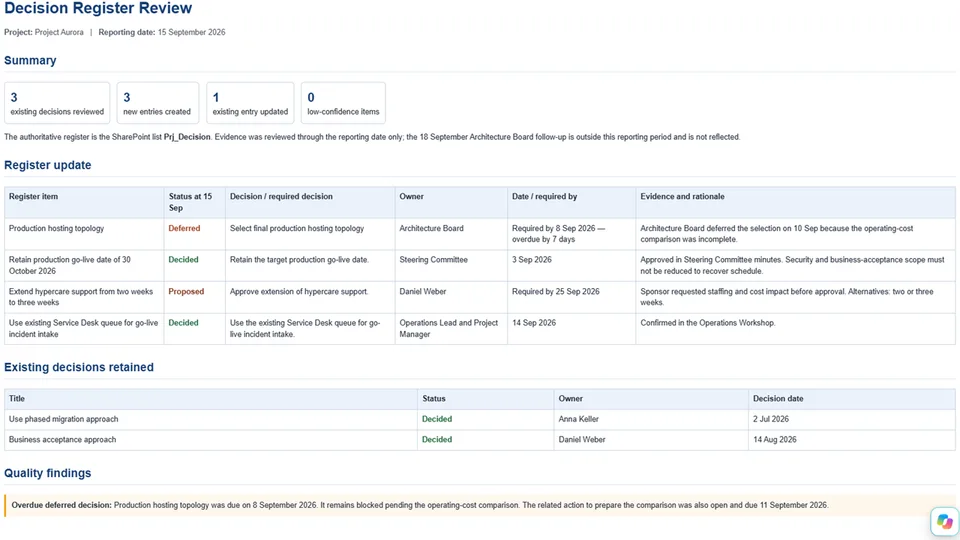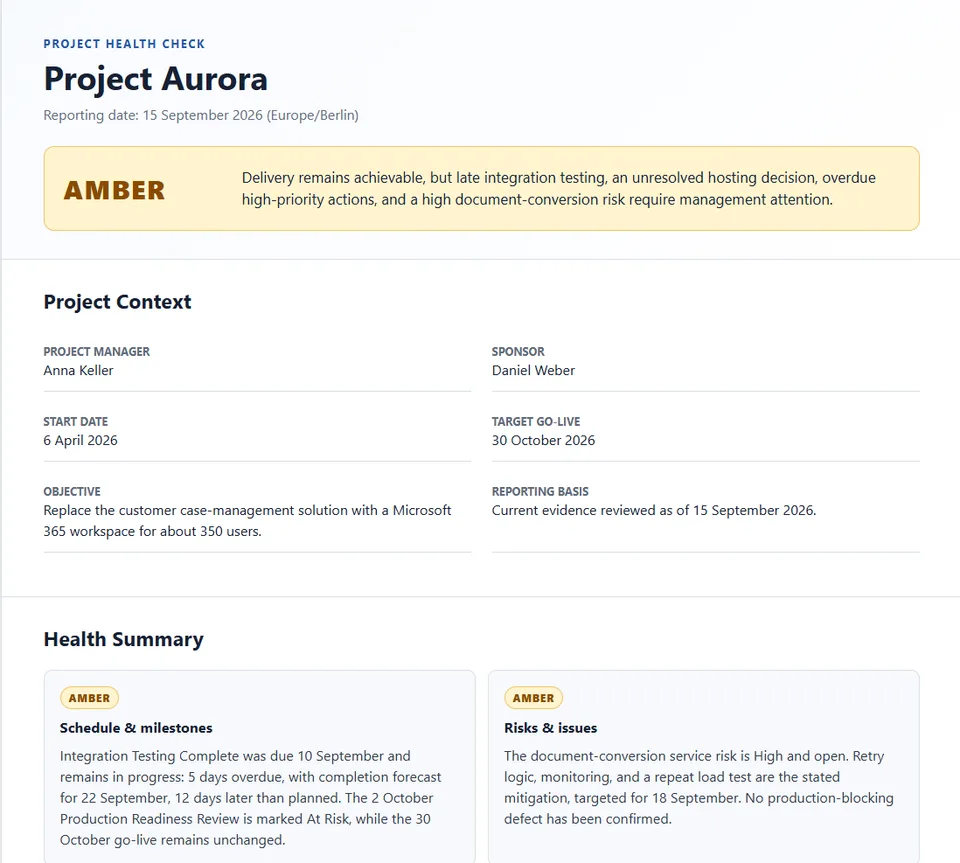
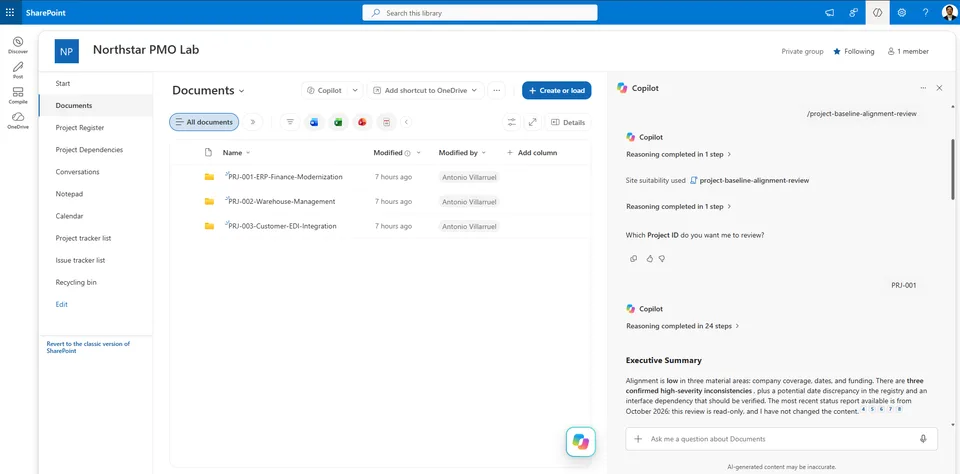
Compares project charter, scope, schedule, budget, and status reporting with structured SharePoint project records.
Classifies findings as confirmed inconsistencies, potential issues, information gaps, or change-control gaps, with evidence, severity, and recommended actions.
Operates in read-only mode and explicitly reports missing or inaccessible sources.
Review project baseline documents and SharePoint portfolio records to identify inconsistencies, gaps, and potential alignment issues across scope, schedule, budget, deliverables, governance, and dependencies.
What you get
- Evidence-based comparison of a project charter, scope statement, schedule, budget, and latest status report.
- Cross-checks against structured SharePoint
Project RegisterandProject Dependencieslists. - Consistent classification of findings as Confirmed Inconsistency, Potential Issue, Information Gap, or Change Control Gap.
- Severity ratings and prioritized recommended actions.
- Traceable source references, with explicit handling of missing or inaccessible information.
- Read-only operation: the skill does not modify SharePoint content.
Example use cases
- Validate whether the approved scope and deployment plan describe the same release.
- Compare approved completion dates with schedule forecasts and portfolio reporting.
- Reconcile funding envelopes, detailed cost baselines, and forecast costs.
- Identify missing evidence of formal change-control decisions.
- Assess whether a cross-project dependency may affect a project commitment.
Prerequisites
The skill is designed for a SharePoint environment with:
- A document library containing project folders organized by Project ID.
- A
Project Registerlist containing project ownership, status, health, dates, and financial information. - Optionally, a
Project Dependencieslist containing cross-project dependency records.
The skill can review whichever sources are available to the user. Missing or inaccessible sources are reported as limitations rather than assumed to exist.
How to use
- Add the skill to the intended SharePoint or Microsoft 365 Copilot environment.
- Grant it access only to the SharePoint locations and lists it needs to review.
- Provide a Project ID, for example
PRJ-001. - Ask it to perform a Project Baseline Alignment Review.
- Review the findings and validate any proposed action through the organization's normal project governance process.
Example prompt
Perform a Project Baseline Alignment Review for PRJ-001. Review the available project documents and corresponding Project Register and Project Dependencies records. Identify confirmed inconsistencies, potential issues, information gaps, and change-control gaps. Provide evidence for each finding and generate the complete structured report.
SharePoint Skill
| Solution | Author(s) |
|---|---|
| project-baseline-alignment-review | Antonio Villarruel | GitHub |
Version history
| Version | Date | Comments |
|---|---|---|
| 1.0 | November 2026 | Initial Release |
Disclaimer
THIS CODE IS PROVIDED AS IS WITHOUT WARRANTY OF ANY KIND, EITHER EXPRESS OR IMPLIED, INCLUDING ANY IMPLIED WARRANTIES OF FITNESS FOR A PARTICULAR PURPOSE, MERCHANTABILITY, OR NON-INFRINGEMENT.
Package
Ready to install
The ZIP contains only the upload-ready inner skill folder.
41b558e6bb508c238f7e562e1cf9ca7cefd7d013dabfc86db0da2f8a49b3e275View SKILL.md
---
name: project-baseline-alignment-review
description: |-
  Review a project's charter, scope statement, schedule, budget, latest status report, Project Register entry, and relevant dependencies for conflicts, gaps, and stale information. Produce an evidence-based, read-only alignment report without changing SharePoint content.

  Use when the user says:
  - "Review project baseline alignment for Project ID …"
  - "Compare the charter, scope, schedule, budget, and latest status report"
  - "Find inconsistencies across a project's baseline documents"
---
# Project Baseline Alignment Review

## When to use
Use this skill to assess consistency and completeness across the baseline and current reporting records for one project stored in SharePoint. It is read-only: never create, edit, move, rename, delete, approve, or otherwise change SharePoint content or metadata.

## Inputs
- **Project ID** (required). If it isn't provided, ask the user for it before searching.
- **SharePoint site** and document library context, if available from the current session.
- Optional user-supplied document names, known exceptions, or review date. Treat these as leads, not as proof.

## Steps
1. **Resolve the project workspace.** Find the project folder using the Project ID in the configured document library. Search for relevant documents in that folder: Project Charter, Scope Statement, Project Schedule, Project Budget, and the latest Status Report. Match by title/content and, where available, project ID and dates; don't rely on filenames alone. Identify the latest status report using its reporting period or report date, then modified date as a fallback. State when the selection is uncertain.
2. **Retrieve register and dependency records.** Locate the Project Register and Project Dependencies lists by their titles or site context. Inspect list schemas as needed, then retrieve only entries matching the Project ID and relevant dependency records. Match the identifier using the actual schema; don't assume internal column names. If a list or matching record can't be found/accessed, report that limitation explicitly.
3. **Read evidence.** Read the relevant documents and list entries. Record exact values/statements, source title, and page/section/field where available. Capture document/report dates and modification dates to assess freshness. Use only evidence that is actually accessible; never infer missing facts.
4. **Compare alignment dimensions.** Compare objectives and scope; in-scope/out-of-scope items; deliverables and milestones; baseline versus forecast dates; approved budget versus forecast cost; status and health; ownership and governance. Consider cross-project dependencies where relevant. Check for contradictions, discrepancies, omissions, and potentially outdated records.
5. **Classify each issue carefully.** Mark an inconsistency **Confirmed** only when accessible sources state incompatible values or terms for the same item and time frame. Mark an issue **Potential** when evidence suggests a mismatch but dates, definitions, approval state, or source context are unclear. Mark a **Gap** when a required value or source is absent or inaccessible. Mark **Outdated** only when source dates or newer records support that conclusion. Do not assume which source is authoritative or correct; flag conflicts for project management review.
6. **Assign severity.** High = material threat to approved scope, critical milestone, budget control, project ownership, or decision-making; Medium = meaningful variance or missing information that can impair control/reporting; Low = limited-impact inconsistency or documentation hygiene issue. Explain materiality briefly and avoid overstating certainty.
7. **Generate the report.** Keep facts separate from assumptions. For each finding, identify both the conflicting evidence or the missing information, its source(s), severity, and a practical recommended action. Cite SharePoint source items when citation references are available. Do not include unsupported conclusions.
8. **Maintain read-only behavior.** Use only discovery, search, listing, schema, and read/analysis actions. Do not write back findings, update list items, create documents, or change metadata. If a read/search tool fails or returns no matching content, state that plainly and don't invent data.

## Output format
Use these sections in this order:

### Executive Summary
Briefly state overall alignment, the number/severity of findings, and key access or evidence limitations. Avoid an overall pass/fail if sources are incomplete.

### Project Information
- Project ID
- Project name (if available)
- Owner and governance (if available)
- Register status, health, target completion date, and budget values (as available)
- Review evidence date and any scope limitations

### Baseline Alignment Findings
List cross-cutting issues. For every finding include:
- **Finding ID** (for example, F-01)
- **Category**
- **Classification** (Confirmed inconsistency, Potential issue, Gap, or Outdated record)
- **Description**
- **Source evidence** (source name plus exact value/statement or explicitly missing/inaccessible information; include location/date where available)
- **Severity** (High, Medium, Low)
- **Recommended action**

### Scope and Deliverables Review
Summarize objective, scope boundaries, deliverables, and milestone alignment. Link each issue to a Finding ID; say when no issue was found only if the relevant sources were accessible.

### Schedule Alignment Review
Compare baseline and forecast dates, milestone dates, target completion, report dates, and status narratives. Identify the source and timing of every value; don't treat unlike dates as direct conflicts without explaining the difference.

### Budget Alignment Review
Compare approved/baseline budget and forecast cost with the register and status reporting. Preserve currency, period, and definitions; flag missing or incomparable values.

### Governance and Reporting Gaps
Review ownership, sponsor/governance details, status/health, reporting recency, and relevant cross-project dependencies. Distinguish absent evidence from an actual governance failure.

### Recommended Actions
Prioritize actions, reference their Finding IDs, and frame resolutions as decisions or verification requests. Do not imply any action was executed.

### Sources Reviewed
For each source, identify the file/list and record or document date when available, plus whether it was reviewed, not found, or inaccessible. Include relevant dependencies. Never claim a source was reviewed if it wasn't.

## Evidence and tone
Use a professional, concise project-management tone. Quote or accurately paraphrase source statements and preserve units, currency, and dates. Separate **Facts** from **Assumptions** whenever assumptions are unavoidable; label assumptions explicitly and do not use them to establish a confirmed inconsistency.
References
- agentskills.io specification
The specification that SharePoint AI skills follow for installation and discovery.
Discuss this skill
Ask a question, share how you used it, or suggest an improvement with the community.
Open GitHub Discussions