
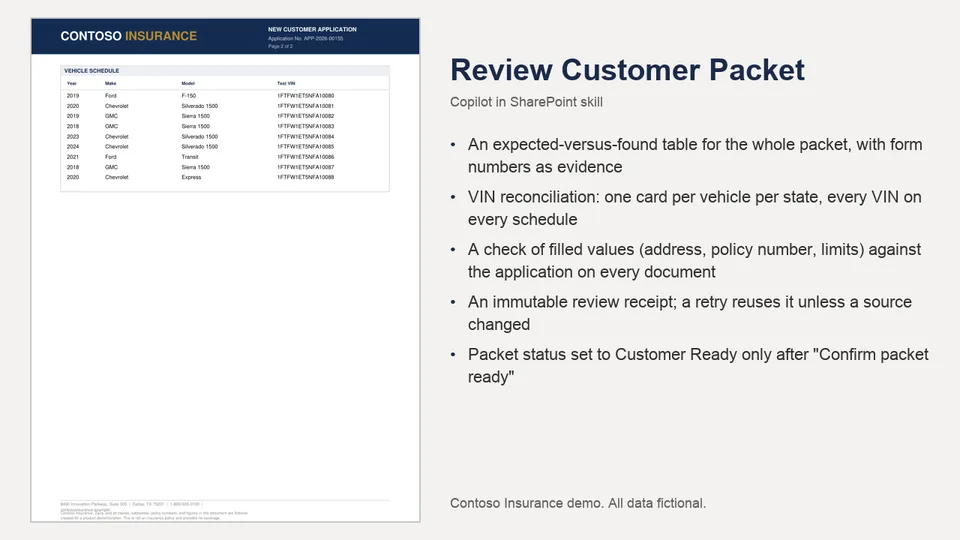
Derives the expected document list from the application and packet-manifest.md, reads the merged PDF, and shows an expected-versus-found table with evidence.
Reconciles proof-of-insurance cards and vehicle schedules VIN by VIN. Freezes an immutable review receipt and updates one column, Packet status, only after the exact confirmation phrase.
Reviews a completed customer packet against its application and the packet rulebook, reconciles every VIN, and sets Customer Ready only after the reviewer confirms.
What you get
- An expected-versus-found table for the whole packet, with form numbers as evidence
- VIN reconciliation: one card per vehicle per state, every VIN on every schedule
- A check of filled values (address, policy number, limits) against the application on every document
- An immutable review receipt; a retry reuses it unless a source changed
- Packet status set to Customer Ready only after "Confirm packet ready"
Full demo, sample files, HTML layouts and setup: https://github.com/HassanJMoses/copilot-sharepoint-demos
Watch it run: Copilot in SharePoint for Insurance (video)
Install
Upload the inner review-customer-packet/ folder (SKILL.md and references/) into the site's Agent Assets › Skills folder. The folder name must match the name in SKILL.md. Open the Copilot pane and type / to see it.
This skill names its libraries by full address. Before uploading, replace https://YOUR-TENANT.sharepoint.com/sites/YOUR-SITE in SKILL.md with your site address. The libraries and columns it expects are listed in the demo repository's setup guide.
SharePoint Skill
| Solution | Author(s) |
|---|---|
| review-customer-packet | Hassan Moses | GitHub |
Version history
| Version | Date | Comments |
|---|---|---|
| 1.0 | October 2026 | Initial release |
Disclaimer
THIS CODE IS PROVIDED AS IS WITHOUT WARRANTY OF ANY KIND, EITHER EXPRESS OR IMPLIED, INCLUDING ANY IMPLIED WARRANTIES OF FITNESS FOR A PARTICULAR PURPOSE, MERCHANTABILITY, OR NON-INFRINGEMENT.
All companies, people, policy numbers and figures in the sample files are fictional, created for a product demonstration.
Package
Ready to install
The ZIP contains only the upload-ready inner skill folder.
0e3ef90591044cfde1d6f0aa6bf3606ca33d98a7c83d7ad557810ba359817e48View SKILL.md
---
name: review-customer-packet
description: |-
  Review one completed customer packet in Completed Packets against its linked application and the packet manifest. Itemize expected versus found documents, reconcile every vehicle VIN, list discrepancies, and set Packet status to Customer Ready only after the reviewer confirms.

  Use when the user says:
  - "review packet"
  - "validate customer packet"
  - "check packet before sending"
  - "verify the completed packet"
metadata:
  author: HassanJMoses
---
# Review Customer Packet

## When to use
Use for one selected merged PDF in Completed Packets before it is emailed to the customer. If no packet is selected, ask which one.

## Inputs
- One selected Completed Packets PDF and its columns.
- The application PDF its Application column links to. It is the only source of customer facts.
- `references/packet-manifest.md` (what a complete packet holds and in what order) and `references/template-fields.md` (how each value is filled). Both are in this skill's own `references` folder; read them from here, never from another skill.

## Library addresses
These are the absolute URLs of the libraries on this site. Treat them as constants for the whole run: every tool call takes the relevant library URL as its anchor (`listUrl`) and names a file only relative to it. Never build an address from a path and never use a server-relative path (`/sites/...`) where a library URL is expected.

| Library | URL |
|---|---|
| Completed Packets | `https://YOUR-TENANT.sharepoint.com/sites/YOUR-SITE/Completed Packets` |
| New Customers | `https://YOUR-TENANT.sharepoint.com/sites/YOUR-SITE/NewCustomers` |
| Templates | `https://YOUR-TENANT.sharepoint.com/sites/YOUR-SITE/Templates` |

If `tools.lists.discover` returns a different URL for one of these libraries, use the discovered one and say so.

## Tool contract
- Discover libraries with `tools.lists.discover({webUrl, filterType:"documentLibraries"})` to get list IDs.
- Read the selected packet's columns with `tools.lists.getItems({listId:completedPacketsId, itemType:"files", viewFields:["FileLeafRef","BusinessName","ContactName","ContactEmail","PolicyNumber","PolicyStartDate","HomeState","Application","PacketStatus"]})`. Those are the internal column names; `getSchema` is not needed. `Application` is a hyperlink column; its URL is the application PDF.
- Read files with `tools.files.read({fileUrl})`: the two reference files, the application PDF, and the merged packet PDF.
- Read template metadata only when a count or a required form is in doubt, with `tools.lists.getItems({listId:templatesId, itemType:"files", recursive:true, viewFields:["FileLeafRef","DocumentType","Scope","TemplateState","CoverageTrigger","BusinessTypeTrigger","PacketOrder","FormNumber"]})`.
- Update columns only with `tools.lists.updateItems({listUrl, items:[...]})`, where `listUrl` is the Completed Packets URL above.

The only write this skill ever makes is `PacketStatus` on the selected packet, and only in step 11. Never write to New Customers, Templates, Packages or any other column.

## Immutable review receipt
- Before any status update, freeze a review receipt: packet file name and version, application file name and version, the customer's state list, the expected ordered document list, the headings and form numbers found in the PDF, the VIN reconciliation, the discrepancy list, and pass or fail.
- On a retry, compare the packet, application and template identities first. If they are unchanged, reuse and report the exact frozen receipt and discrepancy list. Do not rederive, rescope, reword or change findings.
- Re-run the review only if a source identity or version has changed. A changed discrepancy requires a changed source.
- A status update is valid only when the receipt passes and its identities match the current packet and application.

## Deterministic vehicle reconciliation
When Commercial vehicles was bought:
1. Take the application's vehicle schedule (page 2) in its listed order. Its row count must equal the Vehicles count.
2. Find every Proof of Insurance Card in the merged PDF by its title and form number and read its VIN.
3. In every state section, require exactly one card per application VIN: none missing, none extra, none repeated. Two states and three vehicles means six cards.
4. In every state's Commercial Vehicle Schedule, require every application VIN exactly once and no others.
5. Report VIN discrepancies by document and VIN. A matching count alone is not a pass.

## Steps
1. Check that exactly one Completed Packets PDF is selected; otherwise ask the user to select one.
2. Read both reference files from this skill's `references` folder. If either is missing or unreadable, stop and report that exact blocker; review nothing.
3. Discover Completed Packets and read the selected packet's columns with the `getItems` call in the tool contract. `Application` is a hyperlink column: its value has a `Url` (and a `Description` that repeats it), and that `Url` is the absolute address of the application PDF in New Customers, with spaces encoded as `%20`, for example `https://YOUR-TENANT.sharepoint.com/sites/YOUR-SITE/NewCustomers/Zava%20Roofing%20-%20Application.pdf`. Read it with `tools.files.read({fileUrl:<that Url, exactly as stored>})`. If that read fails, retry once with `%20` decoded to spaces; if it still fails, list New Customers with `tools.lists.getItems({listId:newCustomersId, itemType:"files", viewFields:["FileLeafRef"]})`, find the file whose name is the last segment of the Url, and read it by the URL that listing returns. A column that holds a Url is never "missing" or "unreadable".
   If the listing tool returns `Application` as empty (it sometimes does not surface hyperlink values), the application is found through text columns instead, and this is normal, not a blocker: list New Customers with `tools.lists.getItems({listId:newCustomersId, itemType:"files", viewFields:["FileLeafRef","BusinessName","PackageStatus","PackageLink"]})` and take the one row whose `BusinessName` equals the packet's Business name column (the build skill fills both from the same application). Confirm it is the right row by its `PackageLink` ending in the selected packet's file name, or its `PackageStatus` being `Package ready`. Read that row's file by the URL the listing returns, or by `listUrl` = the New Customers URL and its file name. Only if no row matches, or every read fails, stop and report the exact error text.
4. Read the complete application PDF, including the page 2 vehicle schedule. Coverage comes only from checked boxes; check visually when the text layer is unclear. `N/A` is a valid value meaning that coverage was not bought.
5. Write down the customer's states: home state from the business address, plus every state that qualifies under manifest section 3, each with its exact quoted sentence.
6. Apply the manifest to derive the expected packet: the Standard section, then one section per state in the step 5 list, each holding the documents manifest section 1 lists for the coverages bought, with one Proof of Insurance Card per vehicle in every state section. Write the expected count out, for example `5 + (7 + 6) + (7 + 6) = 31`.
7. Apply the stop rules (manifest section 4 and template-fields): a missing Employees or Vehicles count, a vehicle schedule that does not match the Vehicles count, a state with no templates. Read Templates metadata only if a required form or a state's templates are in doubt.
8. Read the selected merged PDF. Identify each document and its order from the headings and form numbers in the PDF. Never claim a document is present without that evidence. Check the filled values against the application: business name, mailing address, policy number, policy period, contact, limits and VINs must match the application exactly on every document. A state document carries its own state in its title, form number, seal, "Policy State" line and state-specific wording; that is the document's state, not the customer's. A Texas document in the Texas section of a Florida customer's packet is correct, and its mailing address is still the Florida business address. Flag an address only if it differs from the application's, never because the document's state differs from the home state. The templates' own fixed wording is never a discrepancy: a Policy's coverage table lists every coverage line including "Commercial Vehicles: As scheduled" and its schedule of forms lists every form of that state for every customer, whether or not this customer bought that coverage, and `N/A` is correct wherever the application says `N/A`. Review the filled values and the document set, not the layouts.
9. Run the vehicle reconciliation whenever Commercial vehicles was bought.
10. Freeze the review receipt. Show a review table: expected document, reason, found or not found, evidence, order check. List every missing, extra, duplicate, out-of-order, column, stop-rule and VIN issue. Do not update any status now. Ask: **Reply "Confirm packet ready" to set Packet status to Customer Ready, or provide corrections.** If corrections are given, report them and change nothing.
11. Only after the exact phrase "Confirm packet ready", and only for a passing receipt whose identities match the current packet and application, call `tools.lists.updateItems({listUrl:<Completed Packets URL>, items:[{id:<packet item id>, PacketStatus:"Customer Ready"}]})`. Set nothing else. If the choice `Customer Ready` does not exist, say it must be added; never substitute another value.
12. If a tool fails or a file cannot be read, say so plainly and do not mark the packet ready.

## Output format
Packet and application file names; the review receipt; the expected-versus-found table with evidence; VIN reconciliation by card and by state schedule; discrepancies and stop-rule findings; the confirmation prompt. After confirmation, the final Packet status.

## Constraints
The manifest and template-fields in this skill's `references` folder are authoritative. Never read or update Approval status. Never send email. Never mark a packet ready without a passing, current receipt. Never claim a document or VIN is present without evidence from the PDF. If a tool fails or returns nothing, say so.
References
- agentskills.io specification
The specification that SharePoint AI skills follow for installation and discovery.
- New Customer Packet demo
The full demo: story, sample files, HTML layouts, setup and video.
- Demo video
Copilot in SharePoint for Insurance: the three skills run end to end.
Discuss this skill
Ask a question, share how you used it, or suggest an improvement with the community.
Open GitHub Discussions