
From the contributor
How to use this sample
Summary
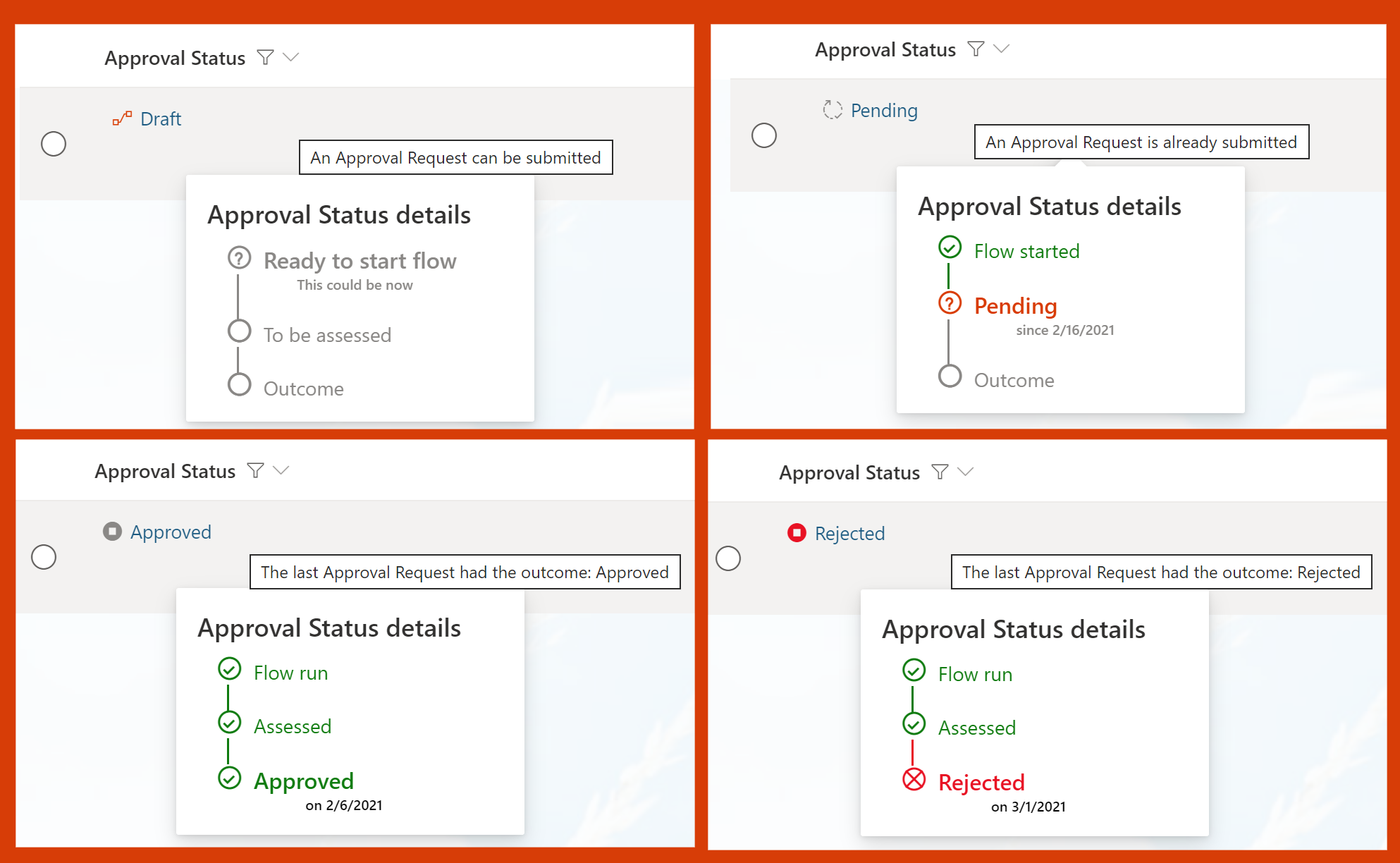
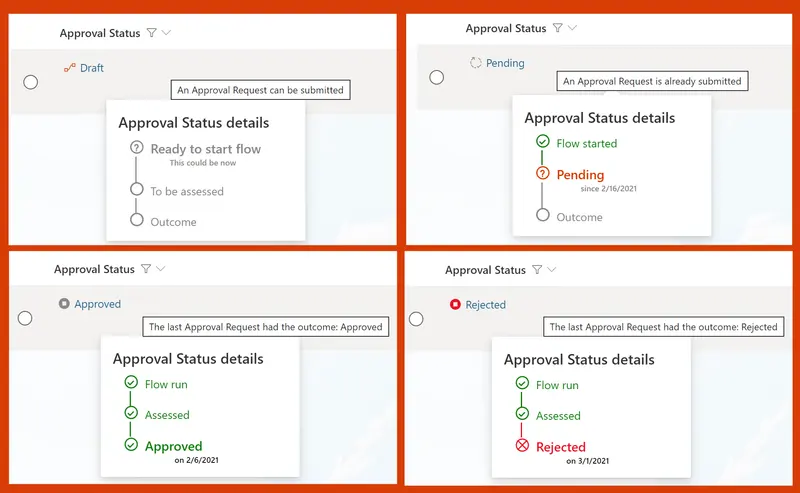
This sample provides more detail on list/library items when the standard Conent Approval flow is enabled. The approval status and a related icon/color are shown with additional details about the overall process visible in a panel on hover.
View requirements
This format requires Content Approval to be enabled for your list/library (see below for instructions). Once enabled, this format can be applied to any column in your view as long as the Approval Status column ([$_ModerationStatus]) and the Modified column ([$Modified]) are also visible in the same view.
Enable Content Approval
On your list use the menu to choose Integrate > Power Automate > Configure flows. In the panel that opens, choose to enable approvals for the library and choose Content approval for the approval mode.
In the Add column menu choose to Show/hide columns and add Approval Status and Modified to your view.
Sample
| Solution | Author(s) |
|---|---|
| generic-approval-status-hover-card.json | Django Lohn |
Version history
| Version | Date | Comments |
|---|---|---|
| 1.0 | March 19, 2021 | Initial release |
Disclaimer
THIS CODE IS PROVIDED AS IS WITHOUT WARRANTY OF ANY KIND, EITHER EXPRESS OR IMPLIED, INCLUDING ANY IMPLIED WARRANTIES OF FITNESS FOR A PARTICULAR PURPOSE, MERCHANTABILITY, OR NON-INFRINGEMENT.
Additional notes
This sample uses icons from Fluent UI