
Back to column formats
Column formattingSharePoint Online

Download Image from SharePoint Image column

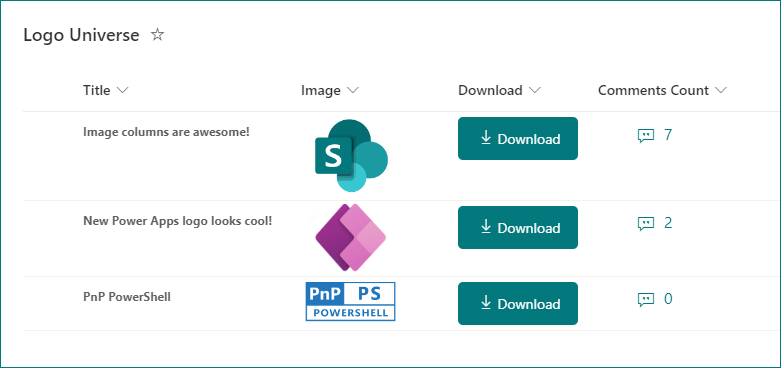
This sample demonstrates adding a button within a SharePoint Online/Microsoft Lists view which downloads the image from image column.
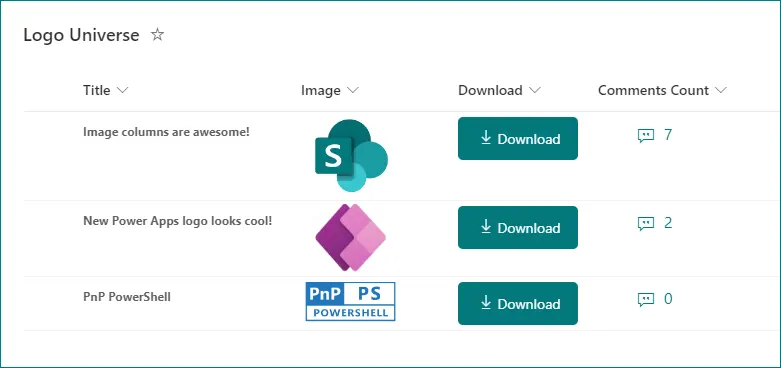
image-download
Sample preview · View original image

Copy. Apply. Make it yours.

Get this format

1 definition

Review the requirements below, then paste this JSON into the matching formatting panel. Show me where.

Use your list's internal column names and replace any tenant-specific URLs or flow IDs. Formatting is presentation, not a way to secure data.

Column formatting
Download JSON
{
  "$schema": "https://developer.microsoft.com/json-schemas/sp/v2/column-formatting.schema.json",
  "elmType": "button",
  "style": {
    "border-radius": "5px",
    "margin": "5px 0px",
    "padding": "0px",
    "border": "none",
    "display": "=if([$Image.serverRelativeUrl]=='','none','')"
  },
  "attributes": {
    "class": "ms-bgColor-themePrimary"
  },
  "children": [
    {
      "elmType": "a",
      "style": {
        "text-decoration": "none",
        "padding": "12px 0px",
        "width": "100%"
      },
      "attributes": {
        "href": "=@currentWeb+'/_layouts/15/download.aspx?sourceurl='+if([$Image.serverRelativeUrl],[$Image.serverRelativeUrl],@currentWeb+'/Lists/**YOUR-LIST-NAME**/Attachments/'+[$ID]+'/'+[$Image.fileName])",
        "target": "_blank",
        "class": "ms-fontColor-white ms-fontSize-m"
      },
      "children": [
        {
          "elmType": "span",
          "style": {
            "display": "inline-block",
            "padding": "0 4px"
          },
          "attributes": {
            "iconName": "Download"
          }
        },
        {
          "elmType": "span",
          "txtContent": "Download"
        }
      ]
    }
  ]
}

From the contributor

How to use this sample

Summary

This sample demonstrates adding a button within a SharePoint Online/Microsoft Lists view which downloads the image from image column.

screenshot of the sample

JSON note

For this JSON to work in your list, make sure to edit the JSON and replace the **YOUR-LIST-NAME** placeholder with your list's name, as it appears in the URL (including special characters)

View requirements

This format can be applied to any column type (its value is ignored). However, it is expected that the following one column is part of the view.

Type Internal Name Required
Image Image No

Sample

Solution Author(s)
generic-image-download.json Ganesh Sanap

Version history

Version Date Comments
1.0 November 12, 2022 Initial release
1.1 January 16, 2024 Fixed an issue where images could not be downloaded due to a change in image storage location

Disclaimer

THIS CODE IS PROVIDED AS IS WITHOUT WARRANTY OF ANY KIND, EITHER EXPRESS OR IMPLIED, INCLUDING ANY IMPLIED WARRANTIES OF FITNESS FOR A PARTICULAR PURPOSE, MERCHANTABILITY, OR NON-INFRINGEMENT.