
From the contributor
How to use this sample
Summary
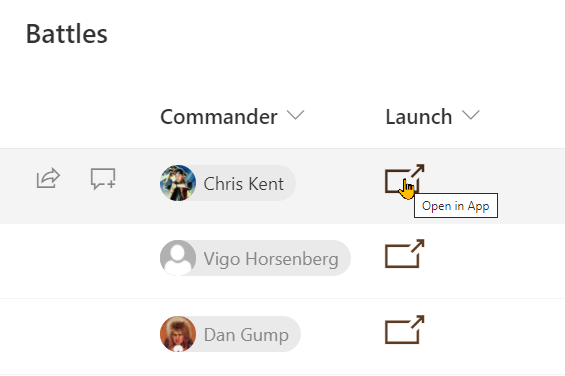
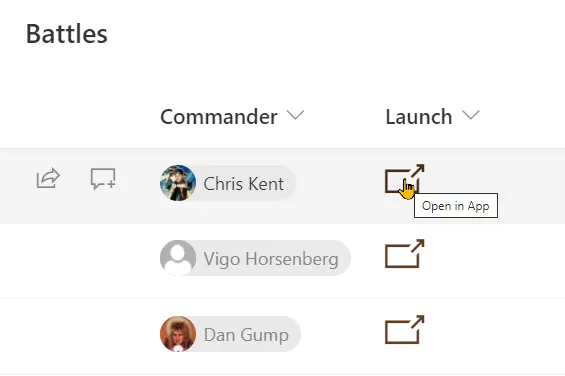
Providing a direct link to an item within Power Apps is easy to do using this sample. To use it follow the instructions below to get the link to your Power App (and replace that portion of the format).
To obtain the link to your Power App
- Login to Power Apps
- In your list of Apps, using the 3 dot context menu choose Details
- Right-click on the Web link and choose Copy

- Replace the first part of the
hrefvalue in the format (up to the&hidenavbarportion)
Handling the itemId in your Power App
Deep linking in Power Apps is beyond the scope of this sample, but here's an example of how you might be handle it in a Canvas App:
App.OnStart
If(!IsBlank(Param("itemId")) && IsNumeric(Param("itemId")),
    Set(BattleItem, LookUp(Battles,ID=Value(Param("itemId"))));
)
App.StartScreen
If(!IsBlank(Param("itemId")) && IsNumeric(Param("itemId")), scrDetail, scrHome)
View requirements
- This format can be applied to any column type (its value is ignored)
Tip - You can apply these formats to a Calculated Column with a formula of
="". This prevents the fields from storing data. You can also exclude them from your form by using a Conditional expression of=false.
Sample
| Solution | Author(s) |
|---|---|
| generic-launch-powerapp.json | Chris Kent |
Version history
| Version | Date | Comments |
|---|---|---|
| 1.0 | May 27, 2021 | Initial release |
Disclaimer
THIS CODE IS PROVIDED AS IS WITHOUT WARRANTY OF ANY KIND, EITHER EXPRESS OR IMPLIED, INCLUDING ANY IMPLIED WARRANTIES OF FITNESS FOR A PARTICULAR PURPOSE, MERCHANTABILITY, OR NON-INFRINGEMENT.
Additional notes
None