
From the contributor
How to use this sample
Summary
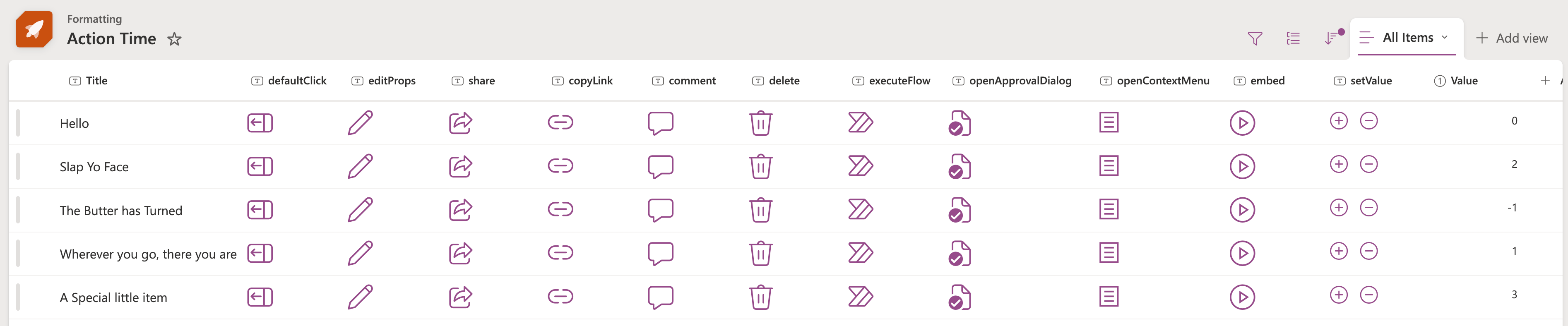
You can use column and view formatting to create buttons that perform pre-defined actions when clicked. This sample provides several quick formats that demonstrates the use of each of the possible actions.
These samples are all built for column formatting, but these can be easily adapted to work with view formatting.
Custom row actions only work when placed inside of button, div, or span elements. However, you can adjust the element's styles/children to customize the look entirely (you can even wrap your entire format in a button - see Bulletin Board for an example).
Actions are supported in lists and libraries in SharePoint and Microsoft Lists
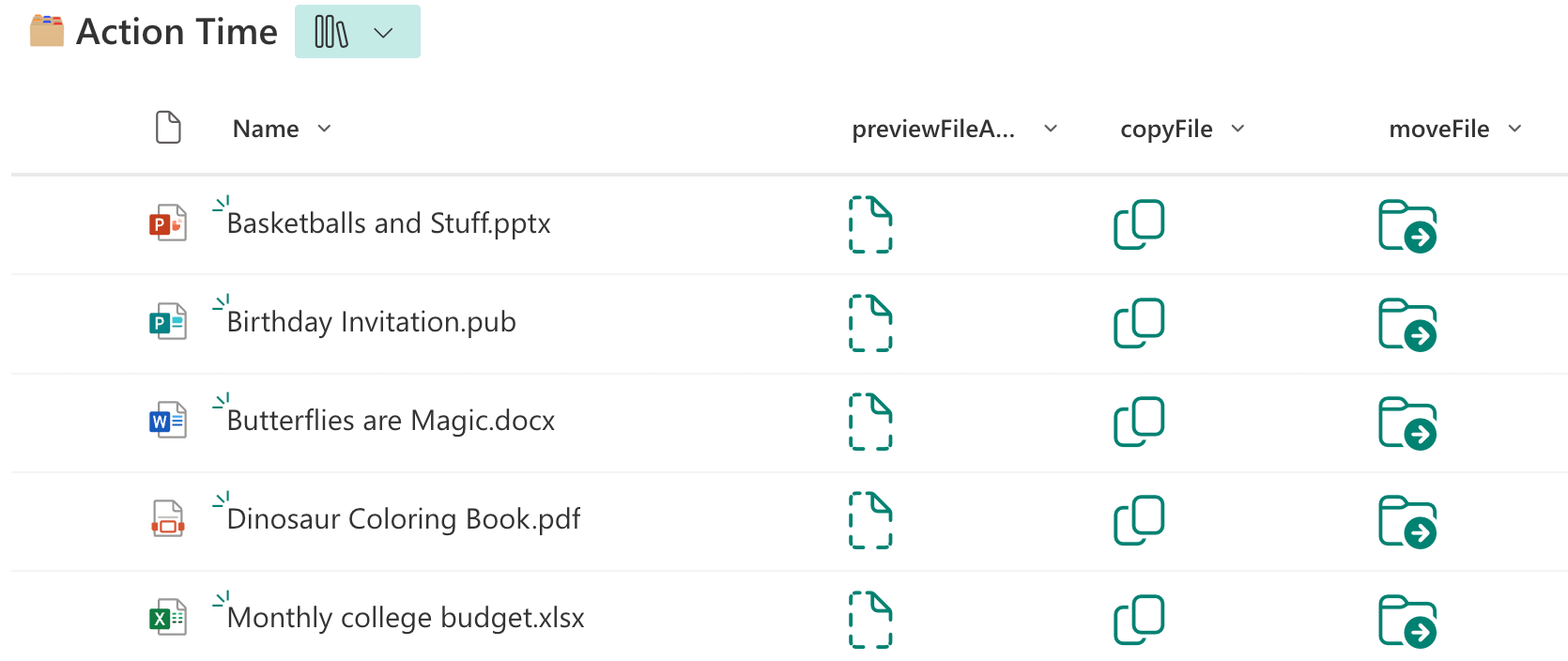
Some actions, however, are only supported in document libraries
defaultClick (generic-rowactions.json)
This action will open the list item. This is equivalent to double-clicking an item.
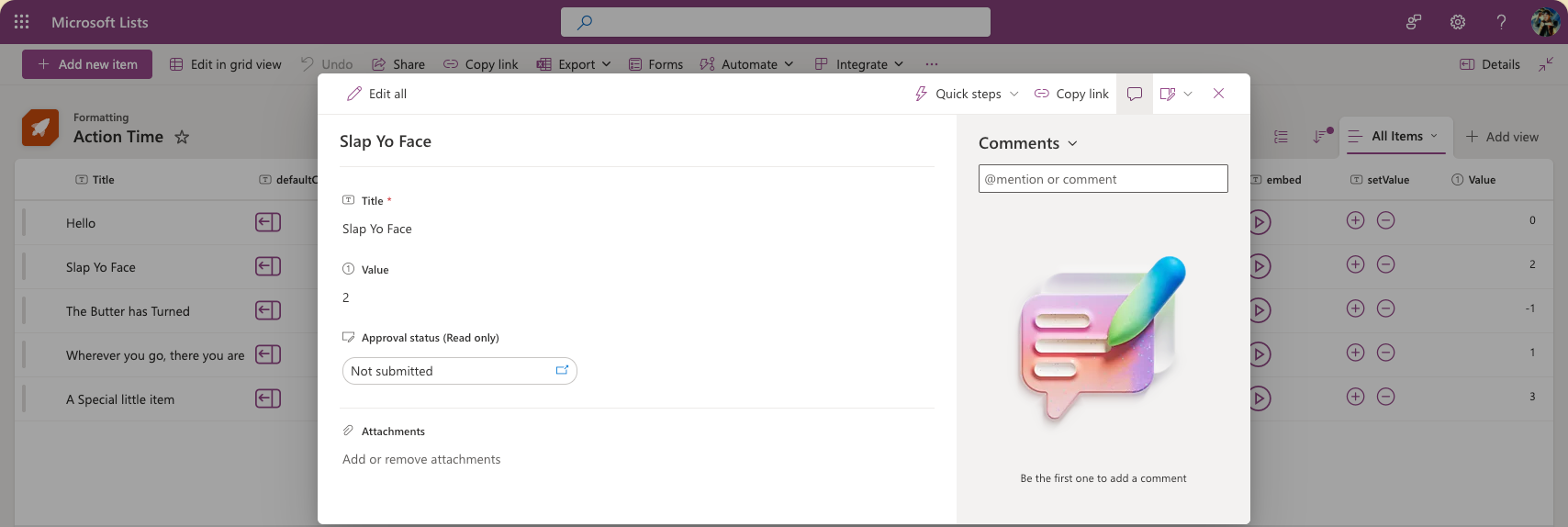
editProps (editProps.json)
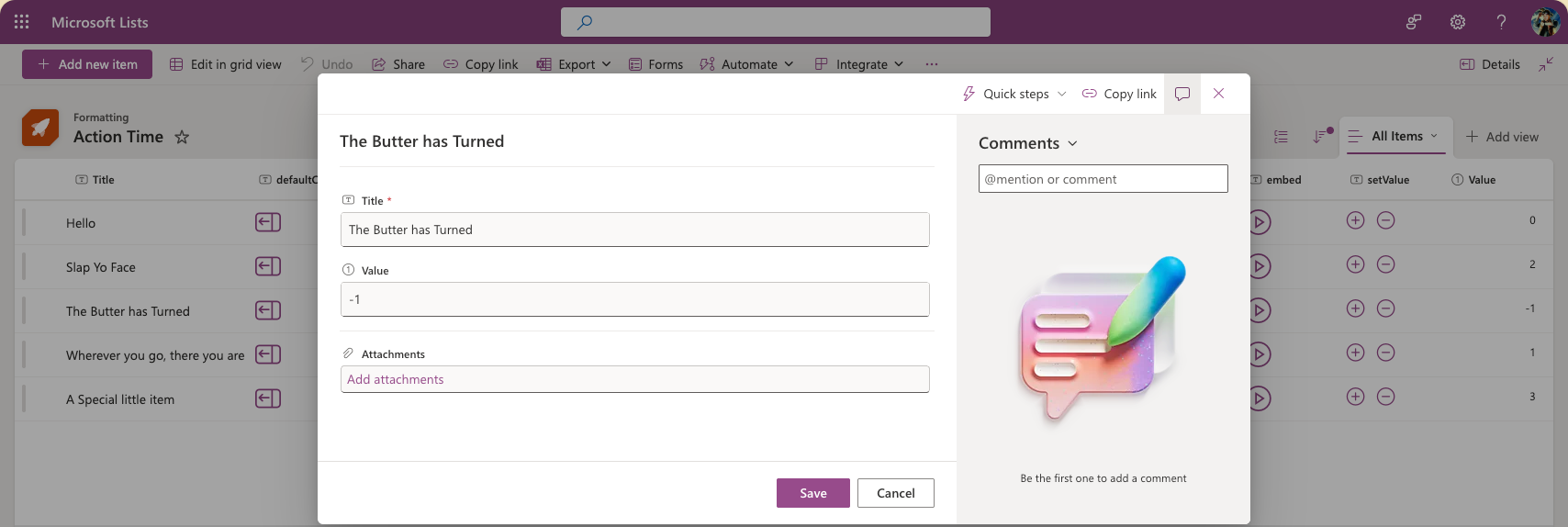
This action will open the list item in edit mode. This is equivalent to double-clicking an item and then pressing Edit all.
share (share.json)
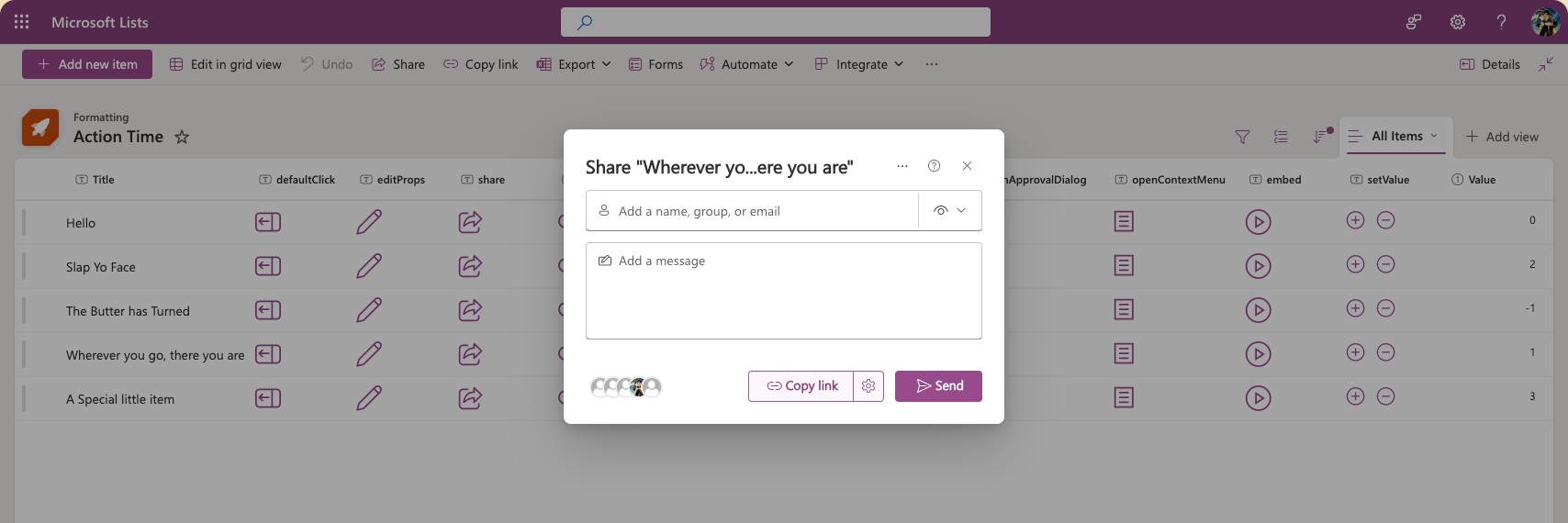
This action will launch the Share dialog for an item. This is equivalent to selecting the item and then pressing the Share command bar button.
copyLink (copyLink.json)
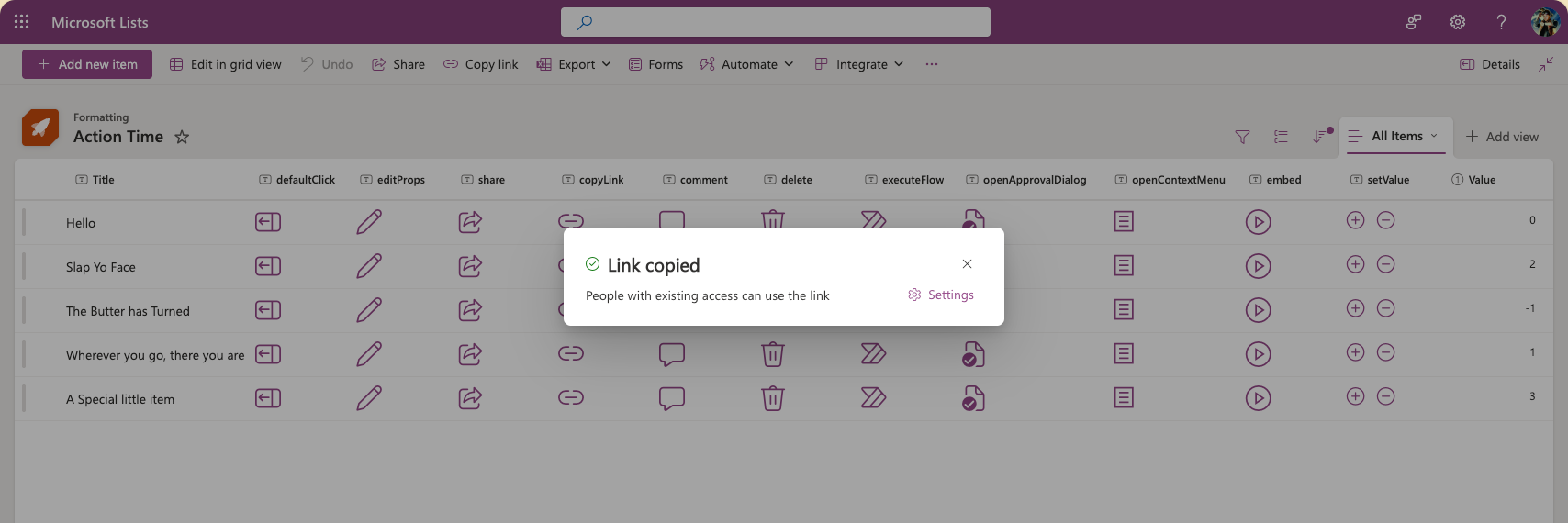
This action will launch the Copy Link dialog for an item and copy the link to the clipboard. This is equivalent to selecting the item and then pressing the Copy link command bar button.
comment (comment.json)
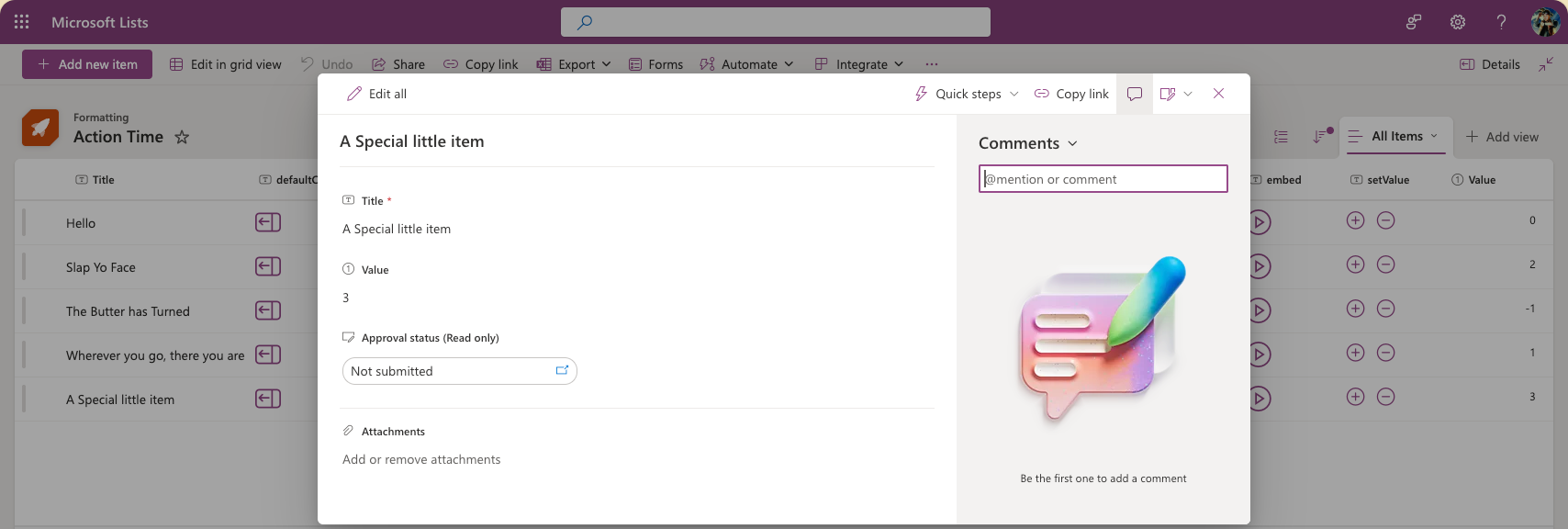
This action will open the list item and place the focus in the comment input box. This is equivalent to double-clicking an item and then clicking in the comment box.
delete (delete.json)
This action will prompt the user with a Deletion confirmation dialog and delete the item if they choose yes. This is equivalent to selecting the item and then pressing the Delete command bar button.
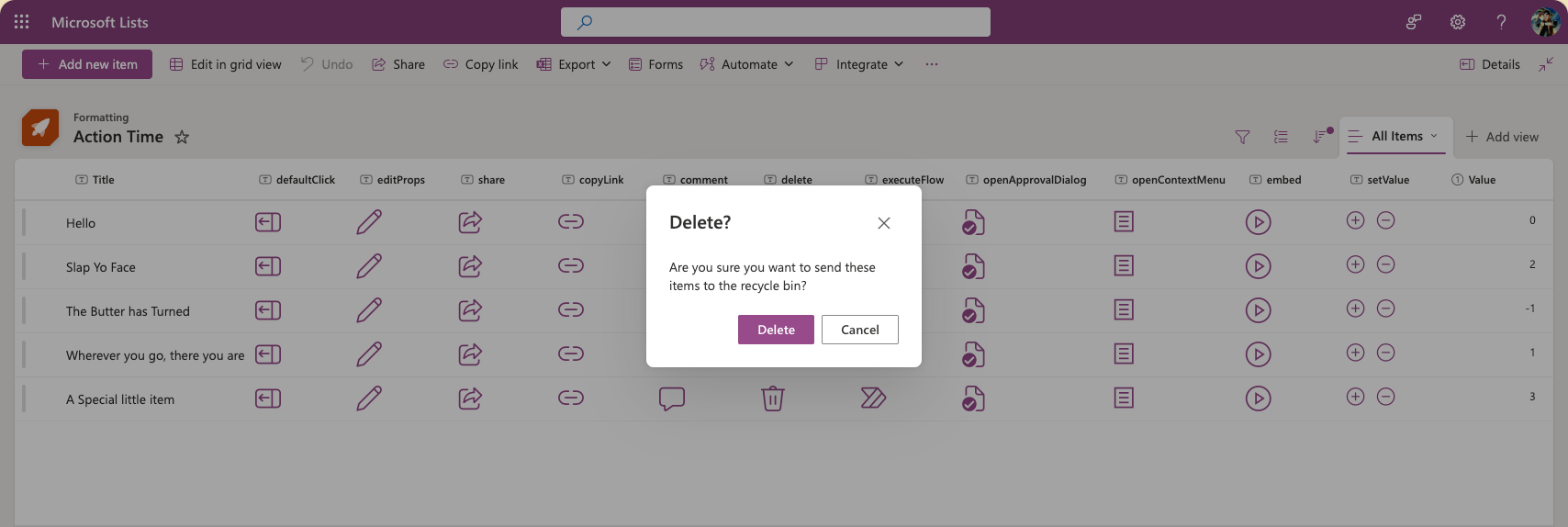
executeFlow (executeFlow.json)
This action will launch a Power Automate flow for the item as the selected item. This action requires additional configuration through the actionParams property. The ID is always required, but you can also optionally include headerText and/or runFlowButtonText properties as well to customize the Flow panel.
Note - the
headerTextandrunFlowButtonTextparameters are not available in SharePoint 2019
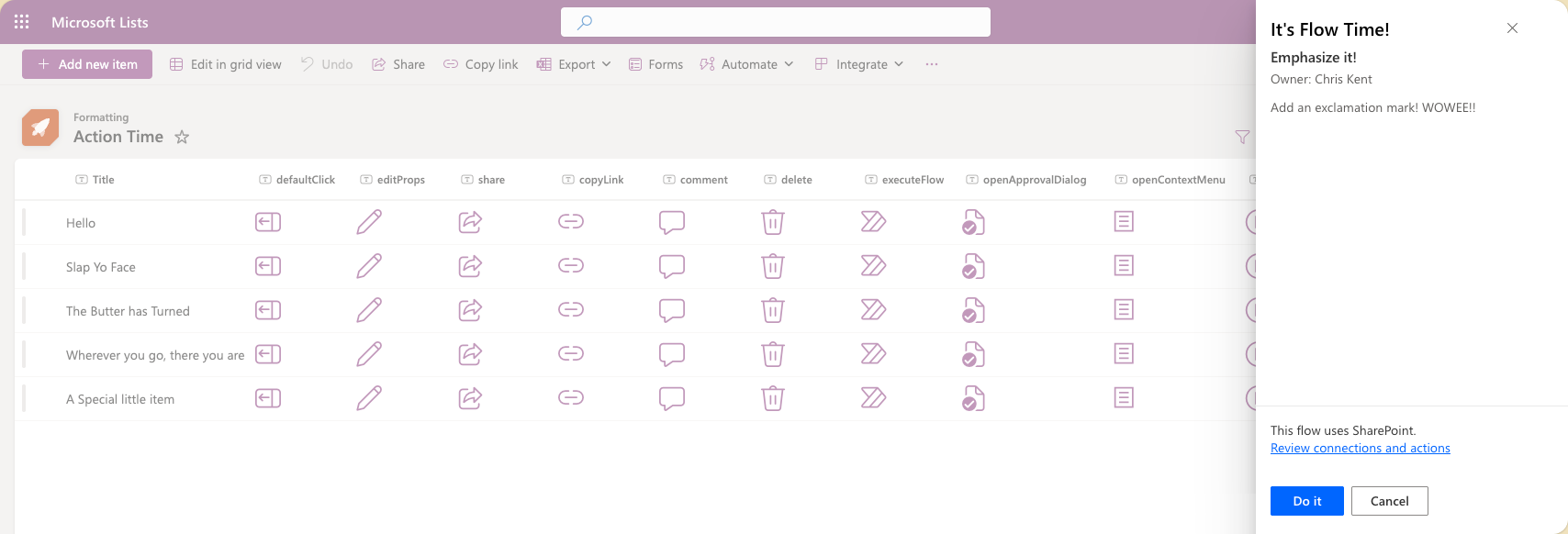
To obtain a Flow's ID:
- Click Flow > See your flows in the SharePoint list where the Flow is configured
- Click on the Flow you want to run
- Copy the ID from the end of the URL
Alternatively, this information is available in the Power Automate environment where your flow lives and can be found in flow details
actionParams
actionParams are JSON values but because they are inside a JSON format, they have to be entered as a JSON string value. In order to do that, you have to escape all the double quotes. So the JSON for actionParams may look like this:
{
  "id": "f7ecec0b-15c5-419f-8211-302a5d4e94f1",
  "headerText": "It's Flow Time!",
  "runFlowButtonText": "Do it"
}
It has to be put into a single string value for the actionParams property so we put a backslash (\) in front of each double quote (") and put it all on one line:
"actionParams": "{\"id\":\"f7ecec0b-15c5-419f-8211-302a5d4e94f1\", \"headerText\":\"It's Flow Time!\",\"runFlowButtonText\":\"Do it\"}"
This value can even be written using expressions but you'll need to remember to build it with all the escapes as well.
"actionParams": "='{\"id\":\"' + if([$Status] == 'New', 'f7ecec0b-15c5-419f-8211-302a5d4e94f1', 'b8rcwc6d-26d3-562n-5657-201b5a2c32d0') + '\"}'"
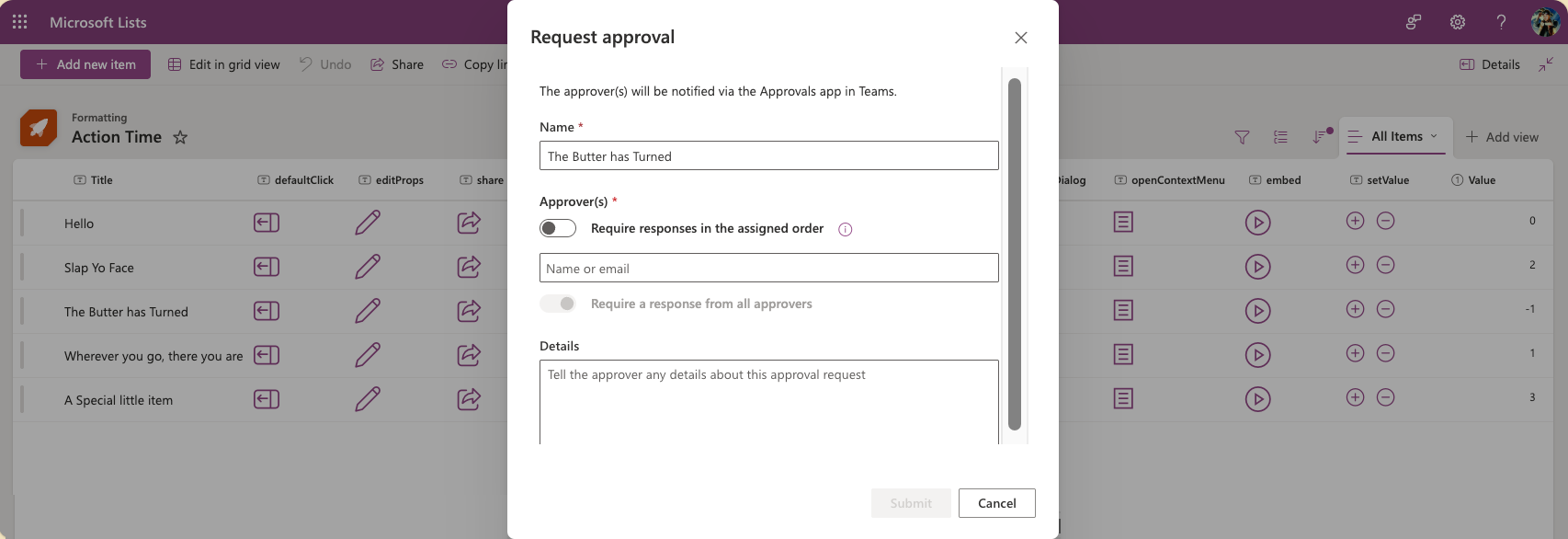
openApprovalDialog (openApprovalDialog.json)
This action will open the Approval Dialog for the item (at whatever stage of approval it is in). This requires Content Approval to be enabled for the list/library. This is equivalent to selecting an item and pressing the Request Approval command bar button.
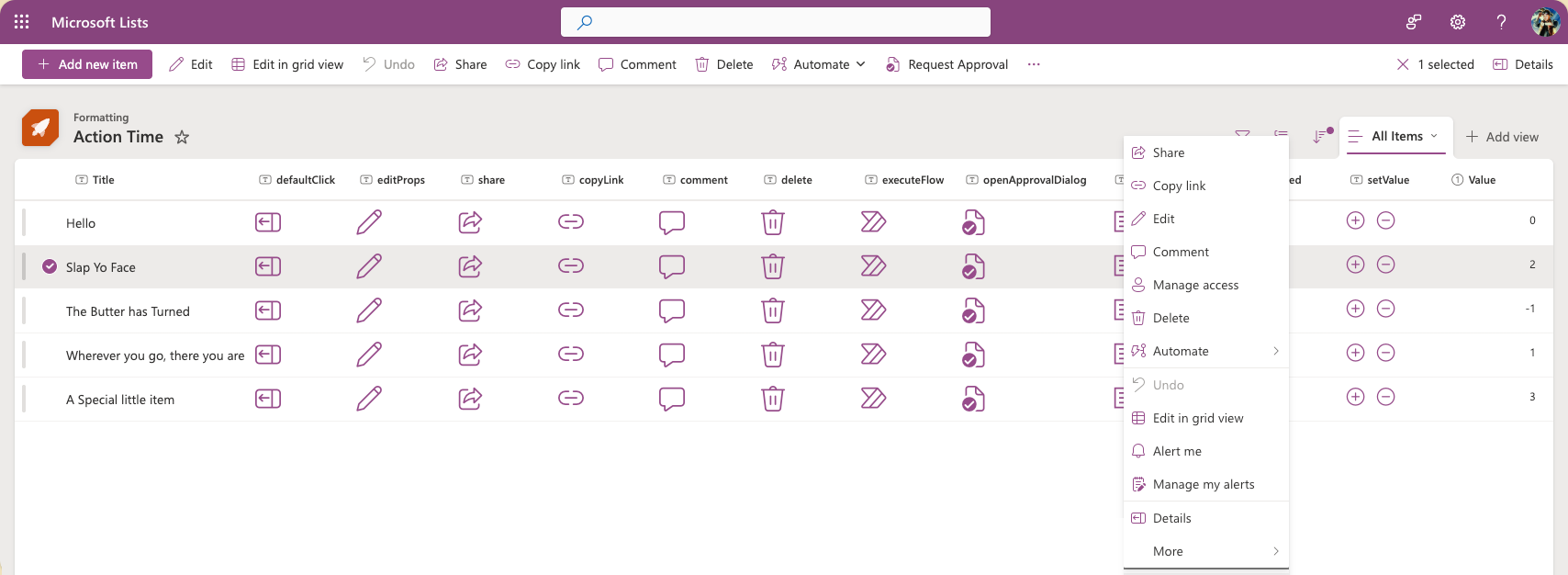
openContextMenu (openContextMenu.json)
This action will open the context menu for an item. This is equivalent to right-clicking (or CTRL-clicking on Mac) and item.
embed (embed.json)
This action will open a callout with content embedded in it. You must specify the src value as part of actionInput to determine what content is loaded. You can also specify width and height of the callout using optional properties.
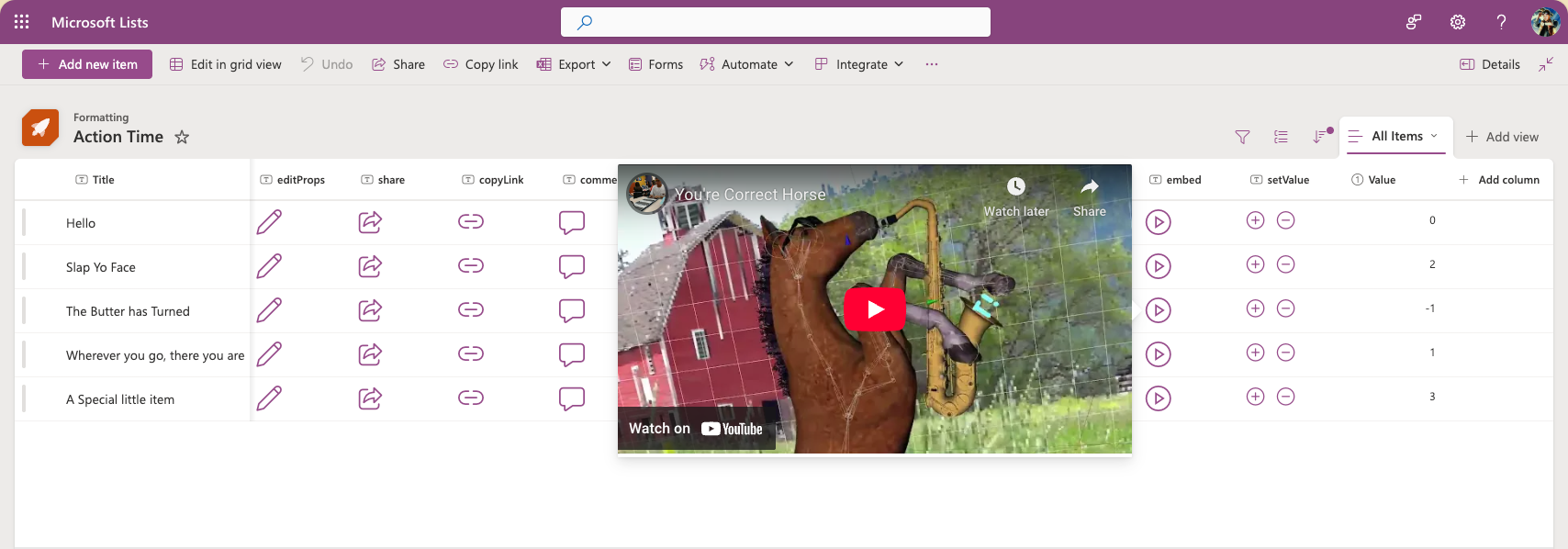
actionInput
There are 3 properties that can be set within actionInput with src being required.
src: This is the embeddable URL of the content to load in the callout (via iframe)width: This is an optional property that determines the width of the callout in pixels. Enter the value as a plain number.height: This is an optional property that determines the height of the callout in pixels. Enter the value as a plain number.
Getting an embed URL
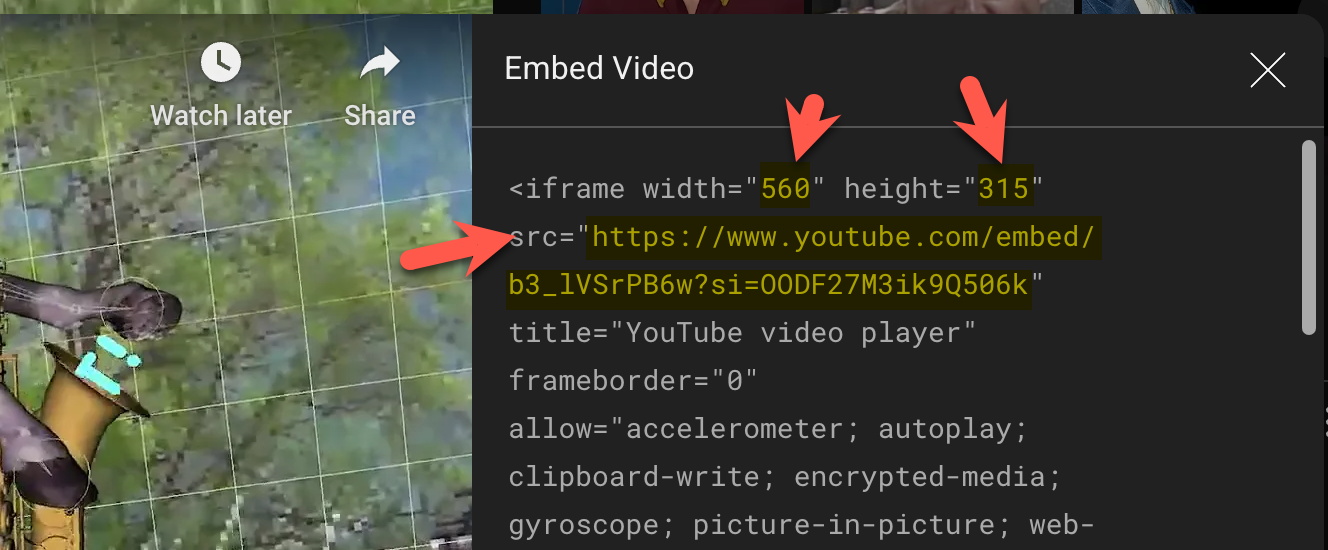
The src property is the URL of the embeddable content. You can generally find it as the src attribute of a generated iframe element on a site that provides embed options.
Note - SharePoint restricts the domains that can be used for this. This can be adjusted on individual site collections or for the whole tenant. Allow or restrict the ability to embed content on SharePoint Lists using custom formatters
For example, you can get an embed URL for a public YouTube video by clicking on Share then selecting Embed and copying the src value and the width and height values from the generated markup:
setValue (setValue.json)
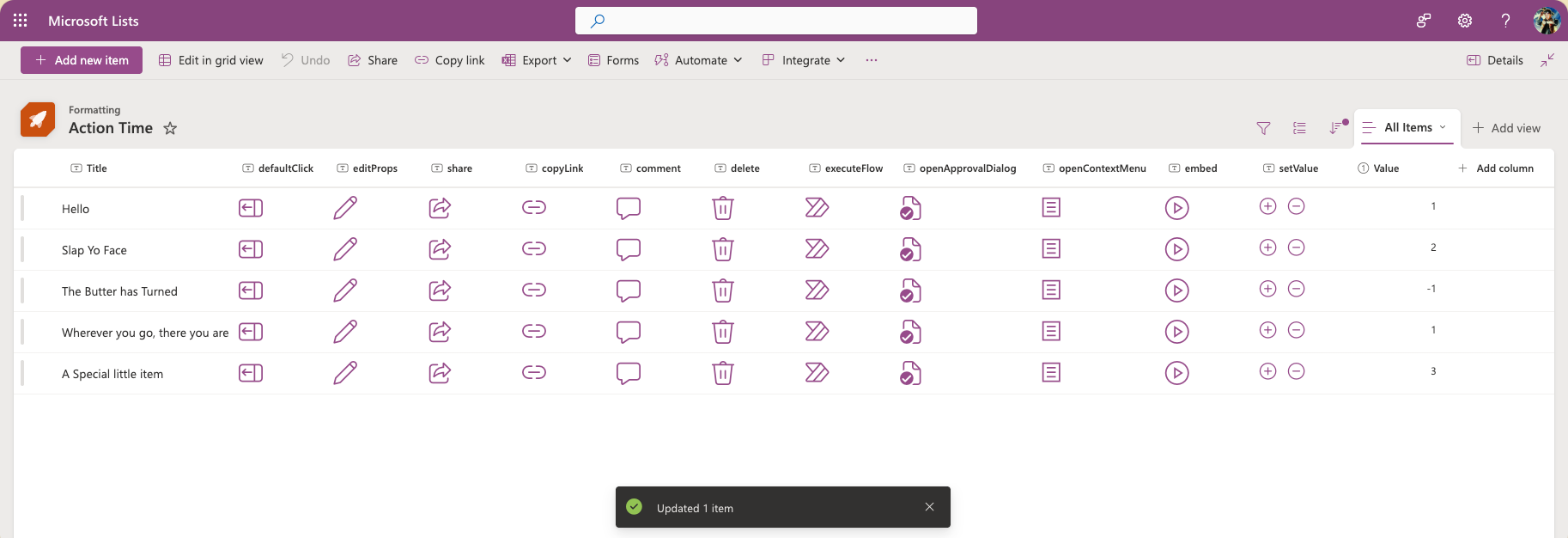
This action allows you to update the values of one or more fields for a given item. You specify the fields and their updated values using actionInput.
previewFileAction (previewFileAction.json)
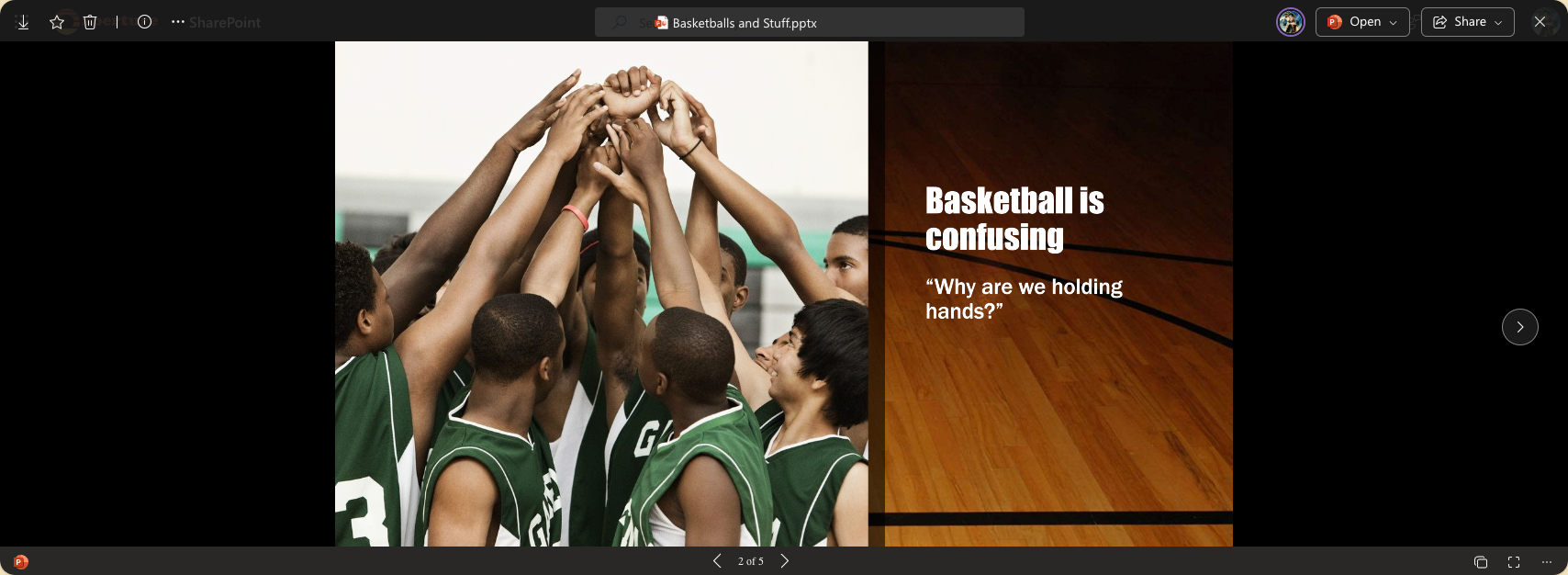
This action will open the default preview handler for the file directly in the library interface.
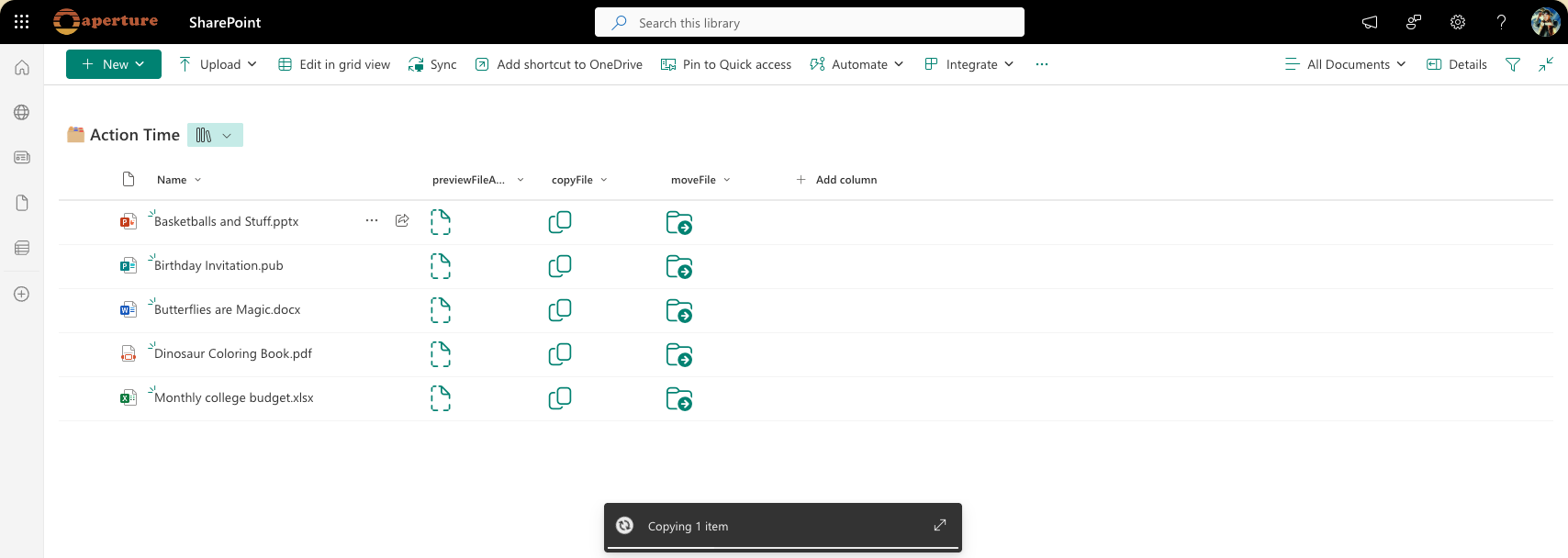
copyFile (copyFile.json)
This action will send a copy of a file to another library. You specify the destination library and/or sub folder within that library using actionParams. This is equivalent to selecting a file and clicking the Copy to command bar button with the added benefit of already specifying the destination.
actionParams
Just like with executeFlow the actionParams are escaped JSON but there's currently only one property that needs to be specified: destinationUrl. This is a full URL (using @currentWeb to avoid hard coding your tenant) directly to the library and/or the folder within that library you want the file copied to.
User's permissions on the destination library/folder are not verified ahead of time and users without permission will receive an error.
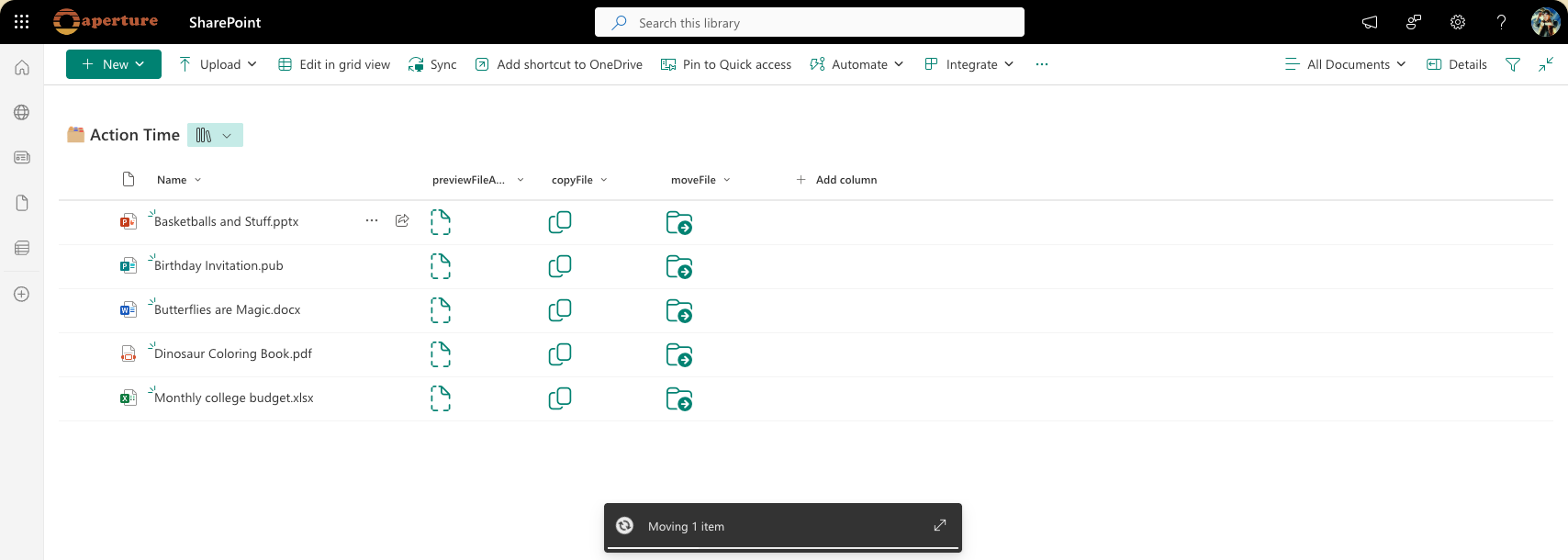
moveFile (moveFile.json)
This action will move a file to another library (removing it from the source library). You specify the destination library and/or sub folder within that library using actionParams. This is equivalent to selecting a file and clicking the Move to command bar button with the added benefit of already specifying the destination.
actionParams
Just like with executeFlow the actionParams are escaped JSON but there's currently only one property that needs to be specified: destinationUrl. This is a full URL (using @currentWeb to avoid hard coding your tenant) directly to the library and/or the folder within that library you want the file moved to.
User's permissions on the destination library/folder are not verified ahead of time and users without permission will receive an error.
View requirements
- These formats can be applied to any column type (its value is ignored)
- If using the
executeFlowaction, the list/library is expected to have an associated Flow, the ID of this flow needs to be included in theactionParamsfor the button - The
setValue.jsonsample expects a number column namedValue - The
previewFileAction.json,copyFile.json, andmoveFile.jsonformats can only be used within document libraries
Tip - You can apply these formats to a Calculated Column with a formula of
="". This makes it obvious the fields aren't expected to hold values and you can configure the columns of your form to hide them easily.
Sample
| Solution | Author(s) |
|---|---|
| generic-rowactions.json | Chris Kent |
| editProps.json | Chris Kent |
| share.json | Chris Kent |
| copyLink.json | Chris Kent |
| comment.json | Chris Kent |
| delete.json | Chris Kent |
| executeFlow.json | Chris Kent |
| openApprovalDialog.json | Chris Kent |
| openContextMenu.json | Chris Kent |
| embed.json | Chris Kent |
| setValue.json | Chris Kent |
| previewFileAction.json | Chris Kent |
| copyFile.json | Chris Kent |
| moveFile.json | Chris Kent |
Version history
| Version | Date | Comments |
|---|---|---|
| 1.0 | April 18, 2019 | Initial release |
| 2.0 | July 31, 2025 | Additional actions |
Disclaimer
THIS CODE IS PROVIDED AS IS WITHOUT WARRANTY OF ANY KIND, EITHER EXPRESS OR IMPLIED, INCLUDING ANY IMPLIED WARRANTIES OF FITNESS FOR A PARTICULAR PURPOSE, MERCHANTABILITY, OR NON-INFRINGEMENT.
Additional notes
- Additional samples of the
executeFlowaction can be found here: