
Back to view formats
View formattingSharePoint Online

Bulletin Board

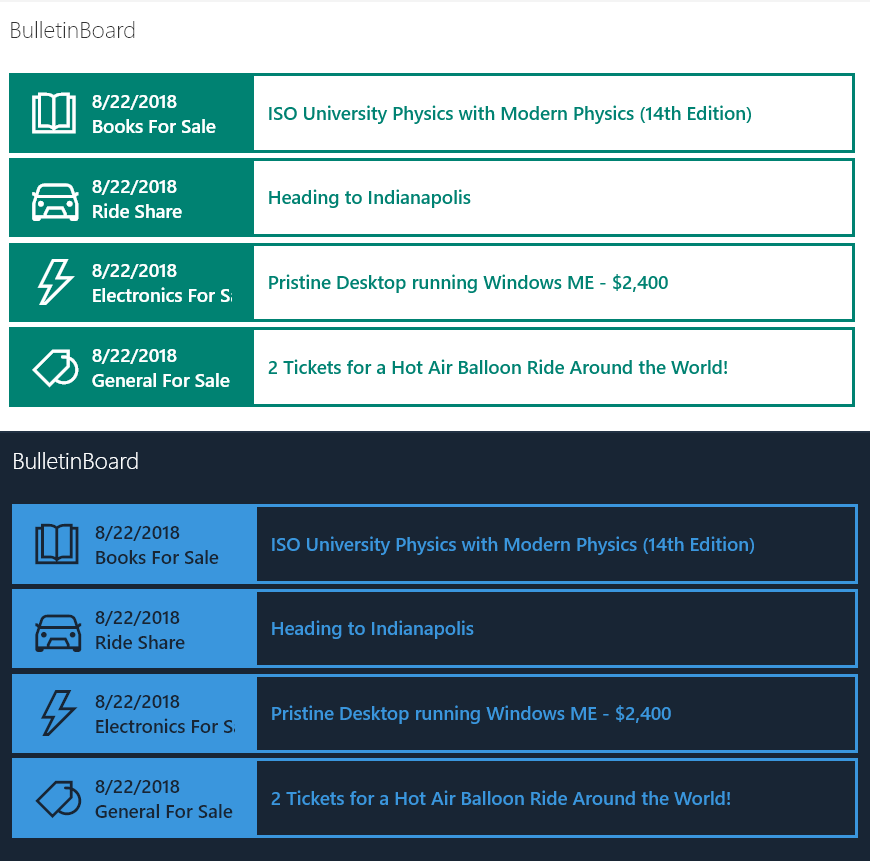
Provides an example of creating a simple bulletin board listing. The rowFormatter property is used to fully customize the display of rows to create a nice view of list items while easily allowing users to click on the item for additional details. The large size and use of icons makes this much more attractive than a simple table view and keeps the functionality simple for users.

Bulletin Board formatting preview
Sample preview · View original image

Copy. Apply. Make it yours.

Get this format

2 definitions

Review the requirements below, then paste this JSON into the matching formatting panel. Show me where.

Use your list's internal column names and replace any tenant-specific URLs or flow IDs. Formatting is presentation, not a way to secure data.

View formatting
Download JSON
{
  "$schema": "https://developer.microsoft.com/json-schemas/sp/v2/row-formatting.schema.json",
  "hideListHeader": true,
  "hideSelection": true,
  "rowFormatter": {
    "elmType": "div",
    "style": {
      "position": "relative",
      "width": "100%",
      "margin": "5px 0"
    },
    "children": [
      {
        "elmType": "button",
        "customRowAction": {
          "action": "defaultClick"
        },
        "attributes": {
          "class": "ms-bgColor-white ms-bgColor-themeLighter--hover"
        },
        "style": {
          "width": "100%",
          "display": "flex",
          "padding": 0,
          "border": "none",
          "cursor": "pointer"
        },
        "children": [
          {
            "elmType": "div",
            "attributes": {
              "class": "ms-borderColor-themePrimary ms-bgColor-themePrimary"
            },
            "style": {
              "min-width": "220px",
              "display": "flex",
              "border-width": "3px",
              "border-style": "solid",
              "box-sizing": "border-box",
              "align-items": "center"
            },
            "children": [
              {
                "elmType": "div",
                "attributes": {
                  "iconName": "=if([$Category] == 'Books For Sale', 'ReadingMode', if([$Category] == 'Ride Share', 'Car', if([$Category] == 'Electronics For Sale', 'LightningBolt', 'Tag')))",
                  "class": "ms-fontSize-su ms-fontWeight-regular  ms-fontColor-white",
                  "title": "[$Category]"
                },
                "style": {
                  "flex": "none",
                  "padding": "12px",
                  "padding-left": "18px",
                  "height": "42px"
                }
              },
              {
                "elmType": "div",
                "style": {
                  "flex-grow": "1",
                  "text-align": "left",
                  "max-width": "140px"
                },
                "children": [
                  {
                    "elmType": "div",
                    "attributes": {
                      "class": "ms-fontSize-l ms-fontWeight-semibold ms-fontColor-white",
                      "title": "=toLocaleDateString([$Modified])"
                    },
                    "style": {
                      "margin-right": "12px",
                      "overflow": "hidden",
                      "white-space": "nowrap"
                    },
                    "txtContent": "=toLocaleDateString([$Modified])"
                  },
                  {
                    "elmType": "div",
                    "attributes": {
                      "class": "ms-fontSize-l ms-fontWeight-semibold ms-fontColor-white",
                      "title": "[$Category]"
                    },
                    "style": {
                      "margin-right": "12px",
                      "overflow": "hidden",
                      "white-space": "nowrap"
                    },
                    "txtContent": "[$Category]"
                  }
                ]
              }
            ]
          },
          {
            "elmType": "div",
            "attributes": {
              "class": "ms-fontColor-themePrimary ms-borderColor-themePrimary ms-fontWeight-semibold ms-fontSize-l"
            },
            "style": {
              "border-width": "3px",
              "border-style": "solid",
              "box-sizing": "border-box",
              "width": "100%",
              "text-align": "left",
              "padding": "21px 12px",
              "overflow": "hidden"
            },
            "children": [
              {
                "elmType": "div",
                "txtContent": "[$Title]",
                "style": {
                  "height": "24px"
                },
                "attributes": {
                  "title": "[$Title]"
                }
              }
            ]
          }
        ]
      },
      {
        "elmType": "button",
        "customRowAction": {
          "action": "share"
        },
        "attributes": {
          "class": "ms-fontColor-themeLight ms-fontColor-themeDark--hover",
          "title": "Share Item"
        },
        "style": {
          "border": "none",
          "background-color": "transparent",
          "cursor": "pointer",
          "position": "absolute",
          "top": "12px",
          "right": "0"
        },
        "children": [
          {
            "elmType": "span",
            "attributes": {
              "iconName": "Share",
              "class": "ms-font-l"
            }
          }
        ]
      },
      {
        "elmType": "button",
        "customRowAction": {
          "action": "delete"
        },
        "attributes": {
          "class": "ms-fontColor-themeLight ms-fontColor-themeDark--hover",
          "title": "Delete Item"
        },
        "style": {
          "border": "none",
          "background-color": "transparent",
          "cursor": "pointer",
          "position": "absolute",
          "bottom": "12px",
          "right": "0"
        },
        "children": [
          {
            "elmType": "span",
            "attributes": {
              "iconName": "Delete",
              "class": "ms-font-l"
            }
          }
        ]
      }
    ]
  }
}
Schema compatibility review notes

This historical definition differs from the pinned Microsoft schema. This may indicate an unsupported pattern or a schema limitation. Check the original requirements and test in your tenant before use.

  • /rowFormatter/children/0/style/padding must be object
  • /rowFormatter/children/0/style/padding must be string
  • /rowFormatter/children/0/style/padding must match a schema in anyOf

From the contributor

How to use this sample

Summary

Provides an example of creating a simple bulletin board listing. The rowFormatter property is used to fully customize the display of rows to create a nice view of list items while easily allowing users to click on the item for additional details (see animation below). The large size and use of icons makes this much more attractive than a simple table view and keeps the functionality simple for users.

The view is sorted by the modified date descending (this is also the date that is shown with each item) so that new entries are always on top. The category is shown and is also used to provide an icon from the Office UI Fabric icons.

By using the Office UI Fabric color classes for themes, we can ensure our format looks good in all themes including both light and dark as well as custom themes.
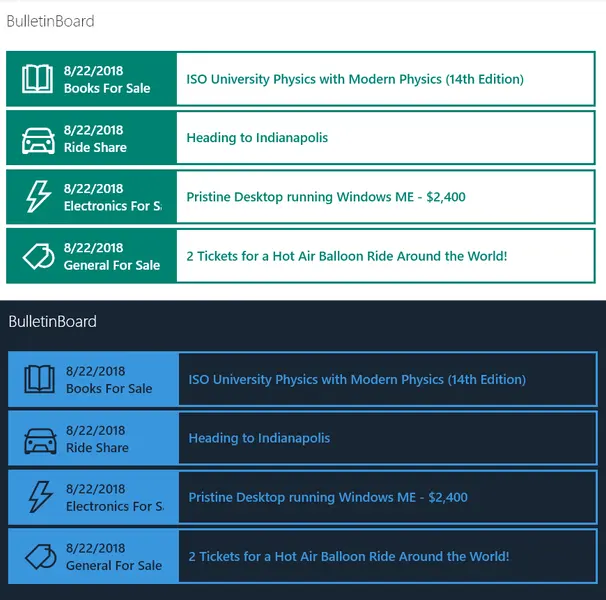
screenshot of the sample

View requirements

Type Internal Name Required
Single line of text Title Yes
Choice Category Yes
Multiple lines of text Details

Bulletin Board with Buttons

An additional format, bulletin-board-format-with-buttons.json is provided that demonstrates adding additional buttons for sharing and deleting items. This is important because this sample removes item selection and this makes using this functionality difficult. By adding the buttons you can choose to provide this functionality while still taking advantage of the Bulletin Board format itself.
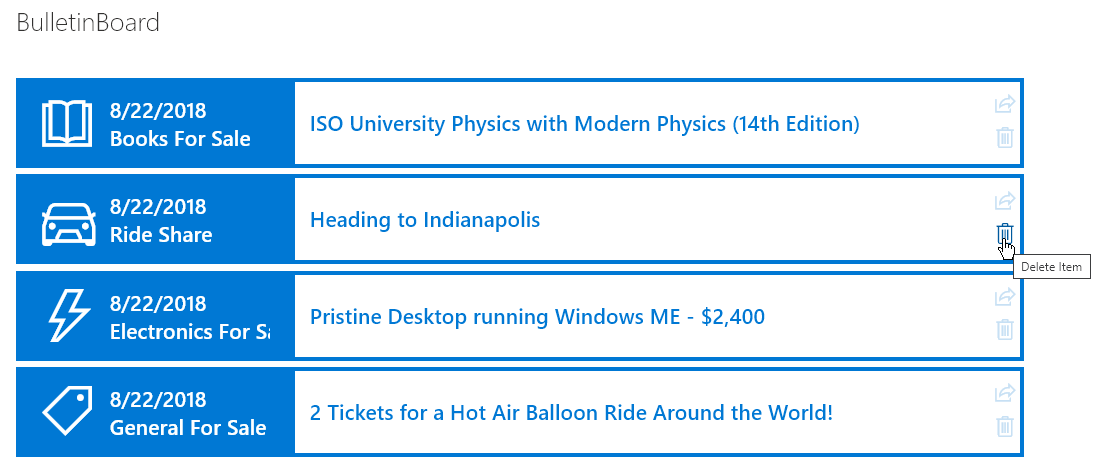
With Buttons

Sample

Solution Author(s)
bulletin-board.json Chris Kent
bulletin-board-with-buttons.json Chris Kent

Version history

Version Date Comments
1.0 August 22, 2018 Initial release
1.1 May 20, 2020 Added a version with Buttons

Disclaimer

THIS CODE IS PROVIDED AS IS WITHOUT WARRANTY OF ANY KIND, EITHER EXPRESS OR IMPLIED, INCLUDING ANY IMPLIED WARRANTIES OF FITNESS FOR A PARTICULAR PURPOSE, MERCHANTABILITY, OR NON-INFRINGEMENT.


Additional notes

Using the customRowAction with an action of defaultClick creates a great way to make your list into a master view with details easily accessible. This sample wraps the entire row in a button so that you can click anywhere in the row to open the information panel for the item:
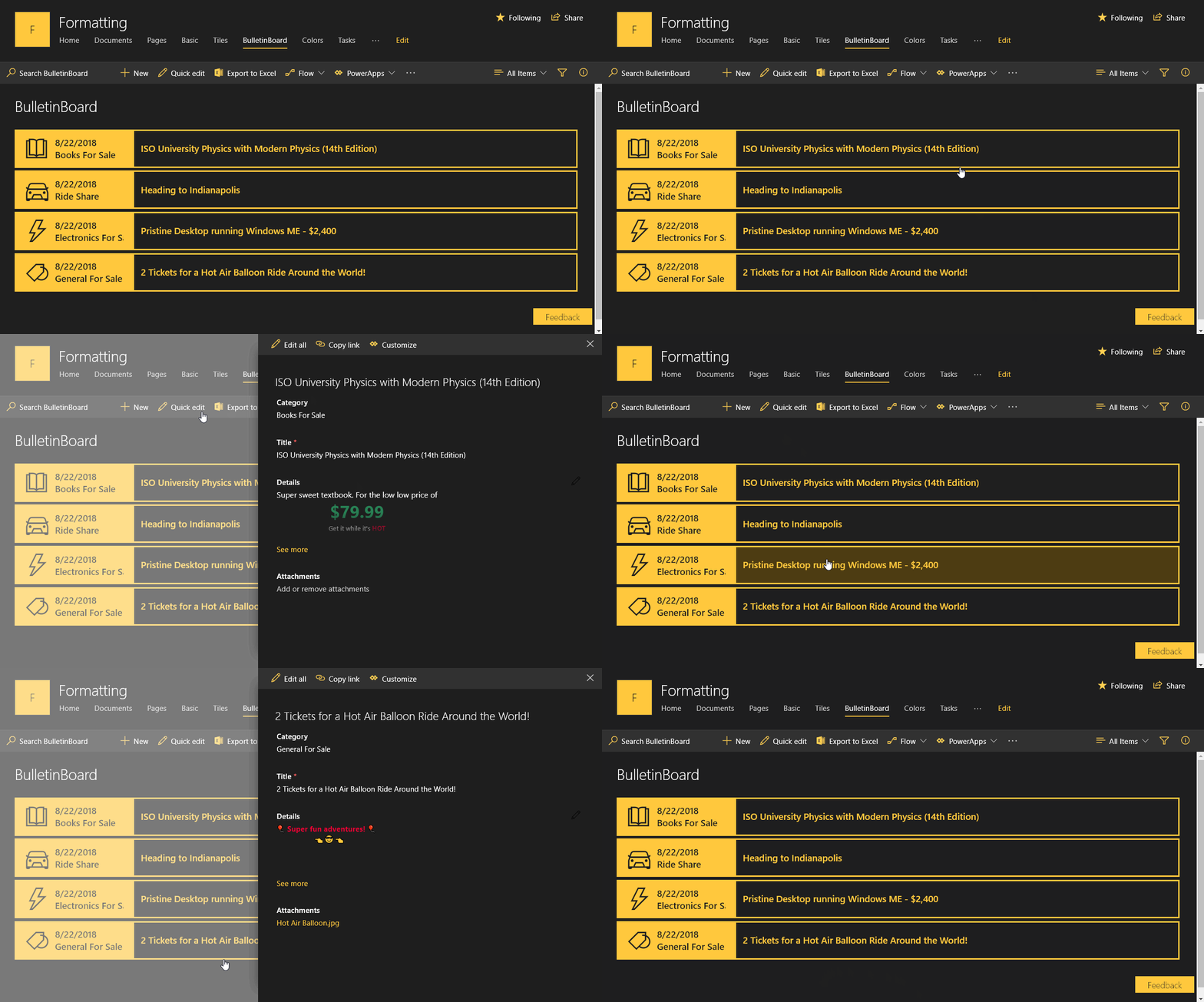
Master Detail View